
-
X-PAD Ultimate has the possibility with X-PAD365 to save and store a backup of settings and jobs.
Backup & Restore is available for Professional and Enterprise licenses
Create a backup
-
To start the backup open in Ultimate the X-PAD365 workspace.
-
Click Backup & Restore.
-
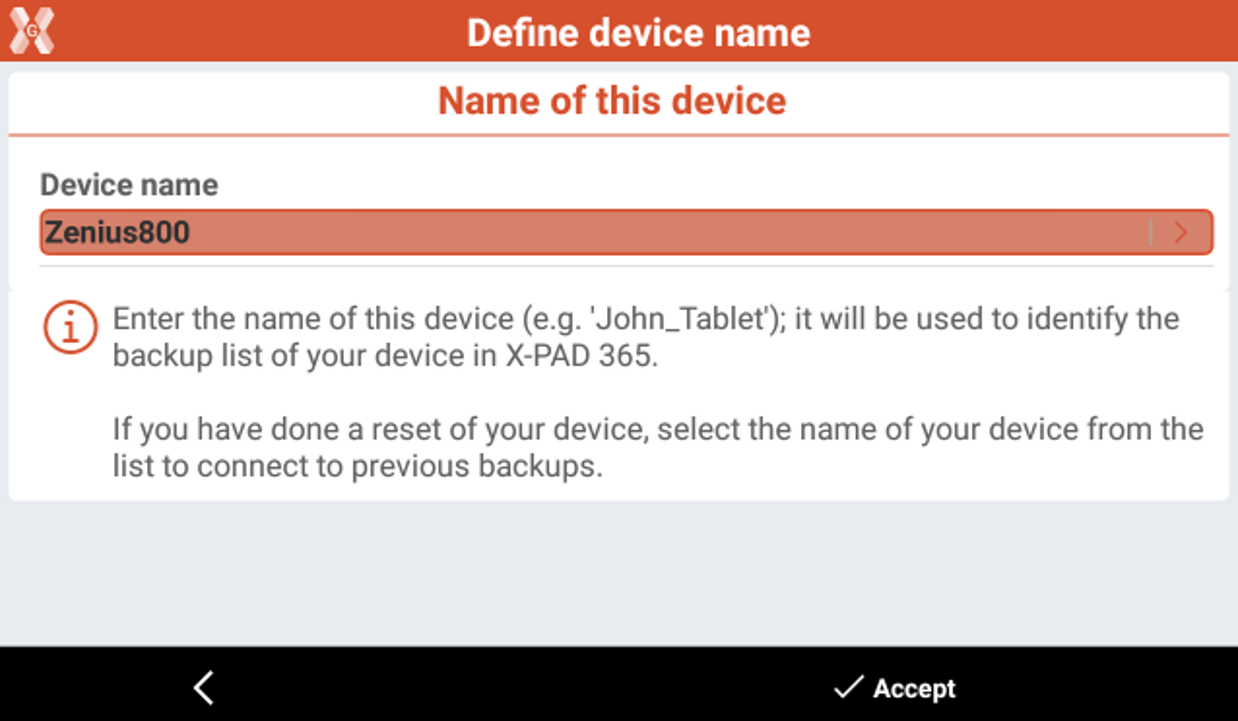
If it is the first time, you will be asked to enter a Device name. This will be used to identify this specific device in the list of X-PAD365 devices.
Create a backup
-
The function allows to create locally on the controller a backup and upload it to the cloud.
-
Open the Backup & Restore function.
-
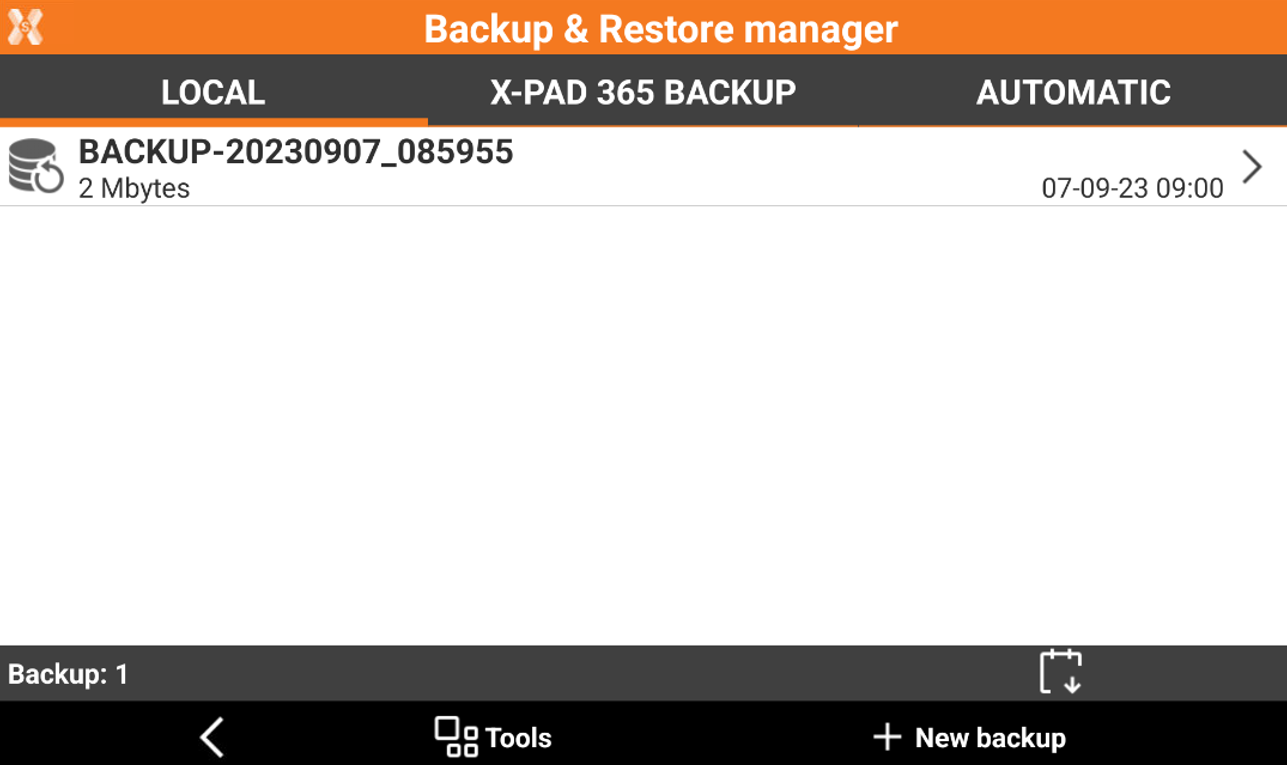
Open Local page.
-
This page lists the backup that was created and saved locally on this controller.
-
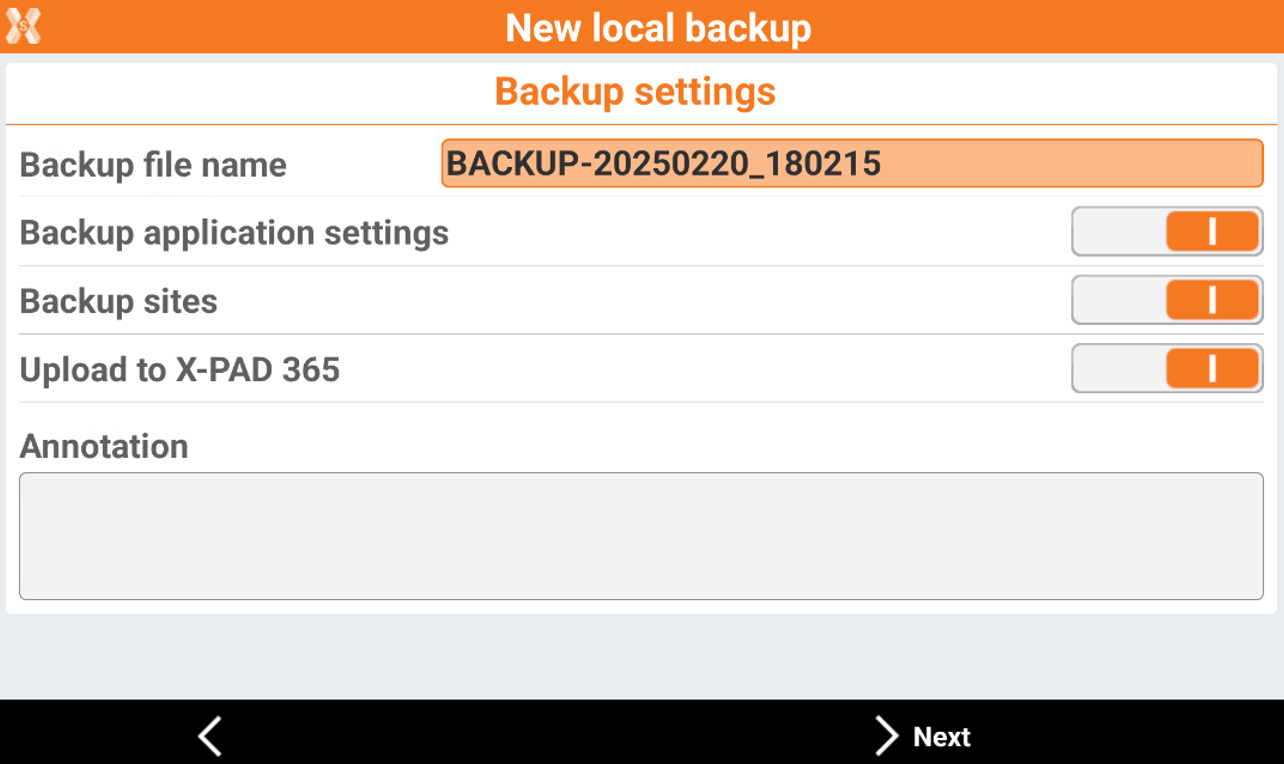
Click New backup to create a new backup.
-
Backup file name: the name of the backup.
-
Backup application settings: enables/disables the backup of the software settings.
-
Backup sites: enables/disables the backup of job sites and all job files.
-
Upload to X-PAD365: enables/disables the upload of the backup file to the X-PAD365 cloud storage.
-
Annotation: notes for this backup.
-
-
In case the option Backup sites was selected, click Next to select the Sites to backup. Then click Start backup.
-
In case the option Backup sites was deselected, click Start backup.
-
The software will start to backup the data. In case the option Upload to X-PAD365, the backup file is also uploaded to the X-PAD365 cloud storage.
Create a backup on cloud
-
The function allows to create a backup and upload it to the cloud.
-
Open the Backup & Restore function.
-
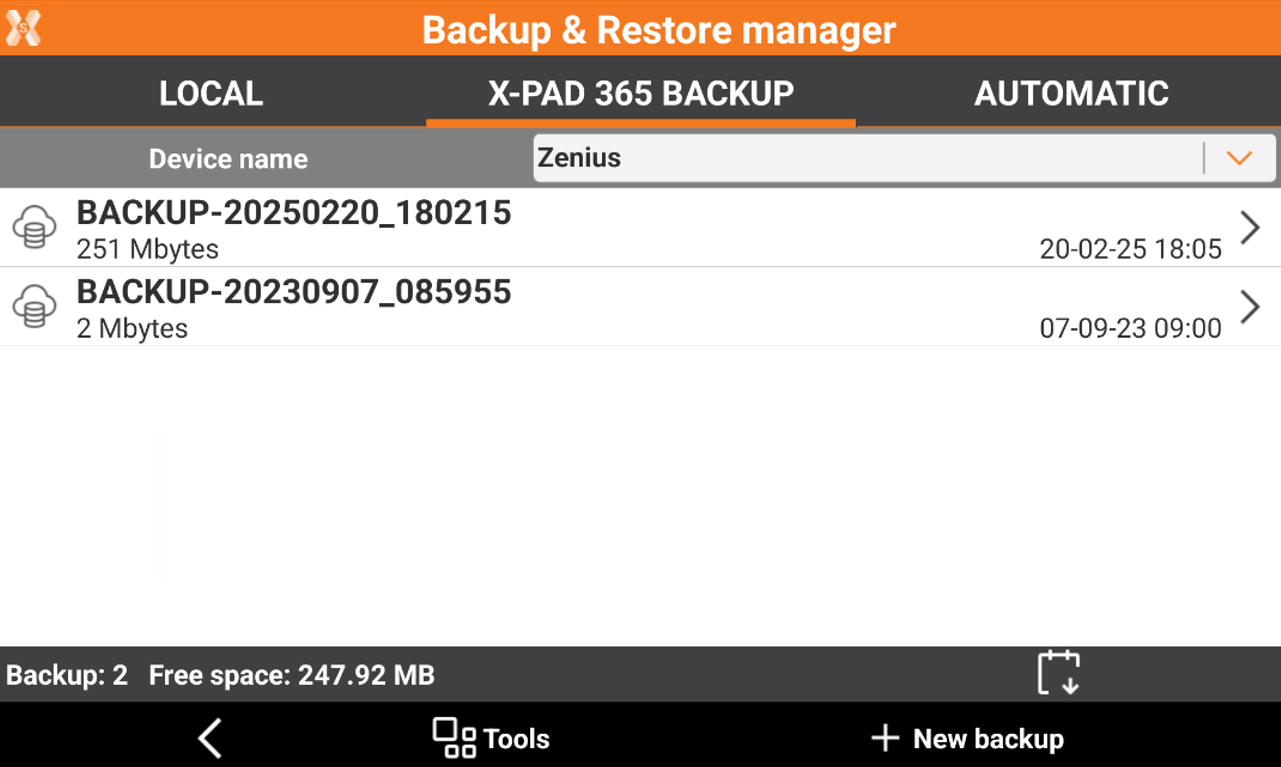
Open X-PAD365 Backup page.
-
This page lists the backup available on the cloud. In Device name field it is possible to select backup from other devices.
-
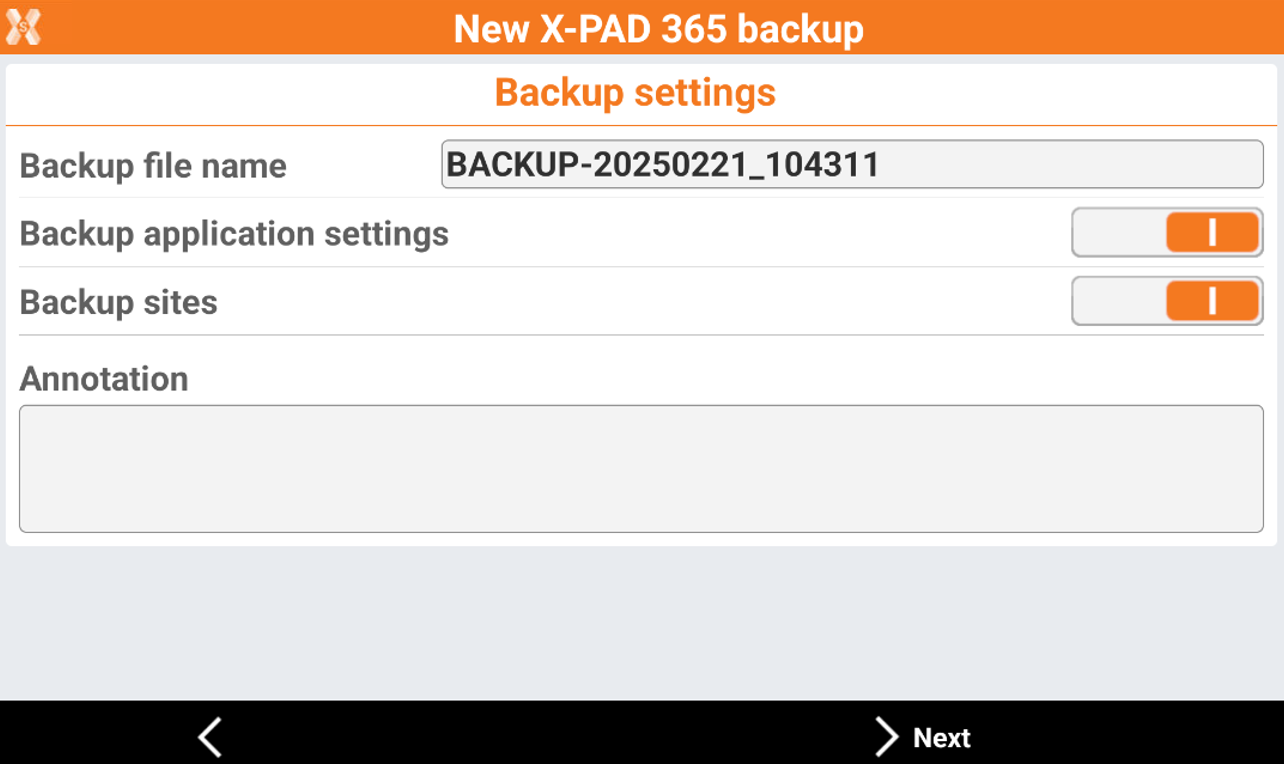
To create a new backup click New backup.
-
Backup file name: the name of the backup.
-
Backup application settings: enables/disables the backup of the software settings.
-
Backup sites: enables/disables the backup of job sites and all job files.
-
Annotation: notes for this backup.
-
-
In case the option Backup sites was selected, click Next to select the Sites to backup. Then click Start backup.
-
In case the option Backup sites was deselected, click Start backup.
-
The software will start to backup the data and upload them on the cloud.
Automatic backup
-
The function allows to create an automatic backup that works as a service in background, automatically creating a data backup once files are changed.
-
Open the Backup & Restore function.
-
Open Automatic page.
-
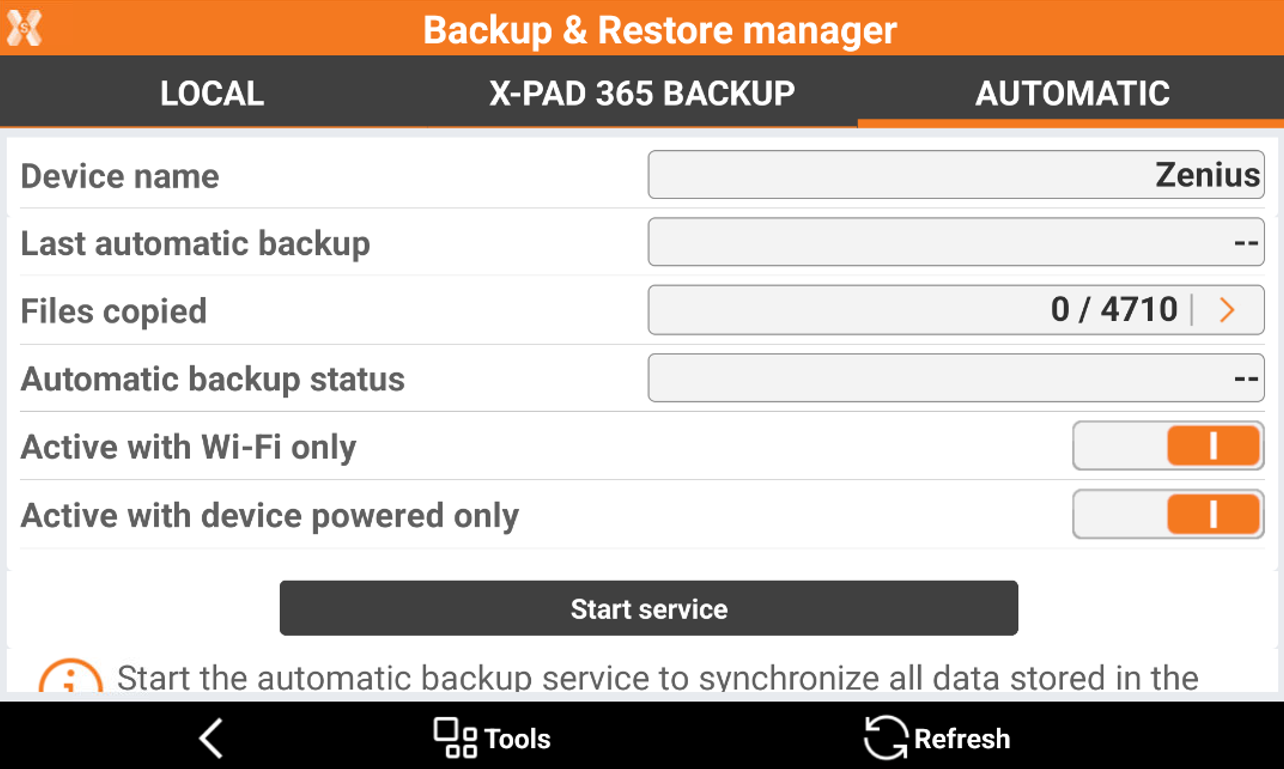
This page lists the backup available on the cloud. In Device name field it is possible to select backup from other devices.
-
Device name: the name of the current device.
-
Last automatic backup: the date when the last automatic backup.
-
Files copied: how many local files have been copied to the cloud and the total files on local drive.
-
Automatic backup status: the status of the automatic backup.
-
Active with Wi-Fi only: enables/disables the automatic backup only if the controller is connected to internet with Wi-Fi.
-
Active with device powered only: enables/disables the automatic backup only if the controller is connected to external power.
-
-
To start the automatic backup click Start service.
Restore a backup
-
The software allows to restore a saved backup
-
Open the Backup & Restore function.
-
Open Local page to display the backup files stored in the controller.
-
Open X-PAD365 Backup page to display the backup files stored in the cloud.
-
To restore a backup select it from the list and click Restore.
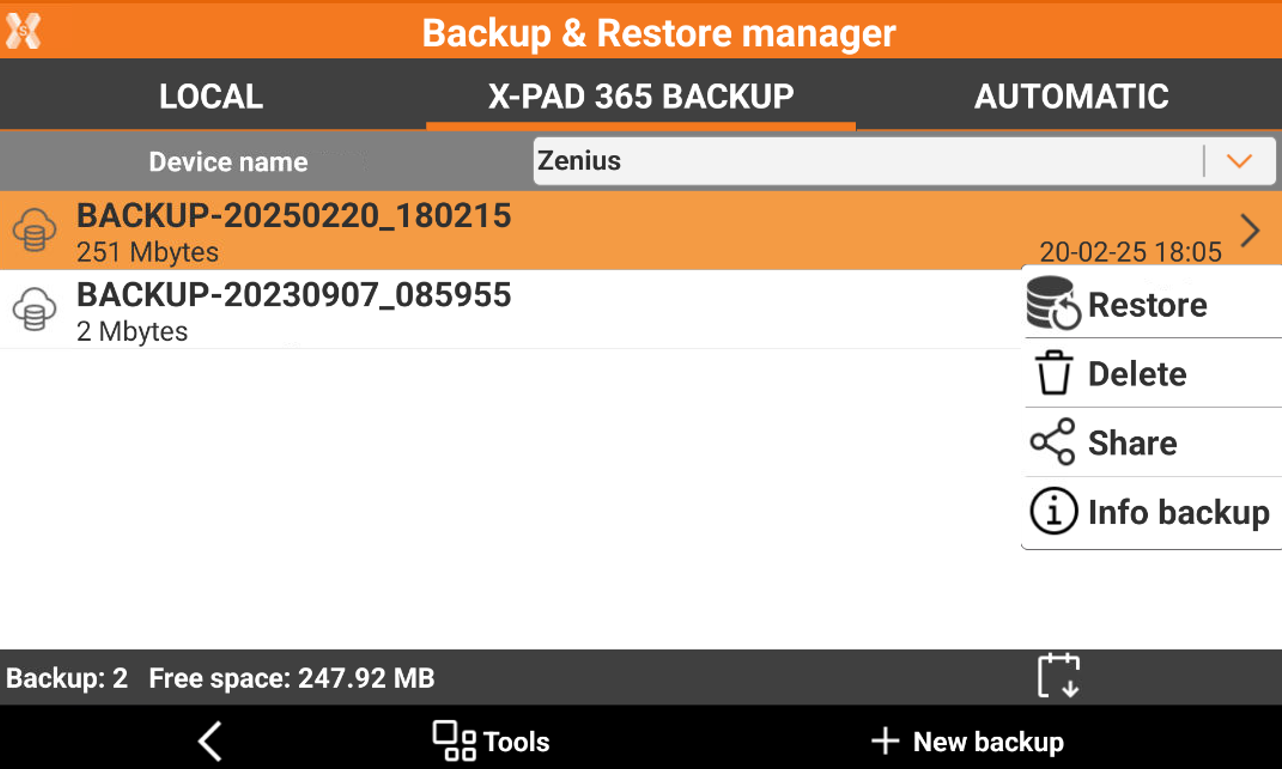
To restore a backup from another device, for example since old device has been replaced with the current one, click Tools and select Activate Administration mode while in the X-PAD365 Backup page. This allows to select the backup from other devices.