
Photo manager
X-Pad Office Fusion allows you to manage the survey subproject photos linked to the points.
Click Survey.
Click Photos manager.

The command opens a table.
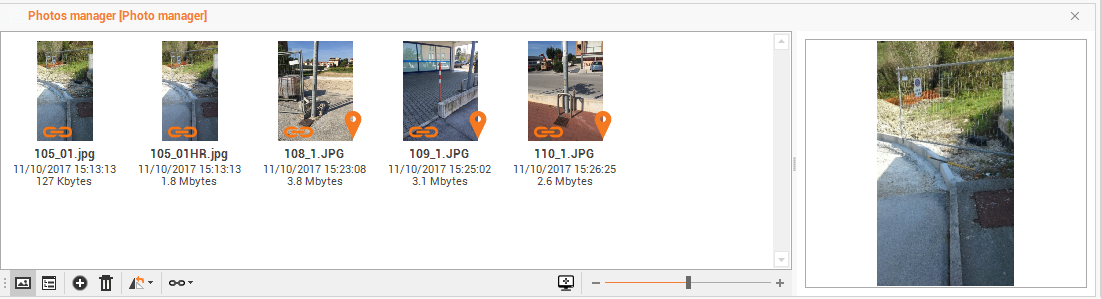
The following commands are available:
Preview
 : to show the preview of the photos in the subproject.
Details
 : to list the details of the subproject’s photos.
Add photos
 : to add photos to the survey subproject. You can drag images.
Delete photos
 : to delete photos from the survey subproject.
Rotate photos
 : to rotate photos of the survey subprojects.
Link photos to points
 : to connect/disconnect photos of the survey subprojects.
You can connect your photos to the survey subproject with the command in the bottom bar in an automatic or manual manner with different options.
Link manually from list: to associate the selected photo to one of the points in the table of topographic points or of the reference points.
Link manually from CAD: to select in the CAD window the point to associate the selected photo.
Link automatically by date and time: to link all photos of the survey subproject using the date and time information.
Link automatically by GNSS position: to links all photos of the survey subproject using the GNSS position information.
After the image has been linked it appears on the image preview the following icon
 .
.After the image was related to one of the two options on the image preview the following icon appears
 .
.