
Registration settings
Click on Settings to open a window and enter additional settings to registration process.
Import settings allows to change settings related to import process.
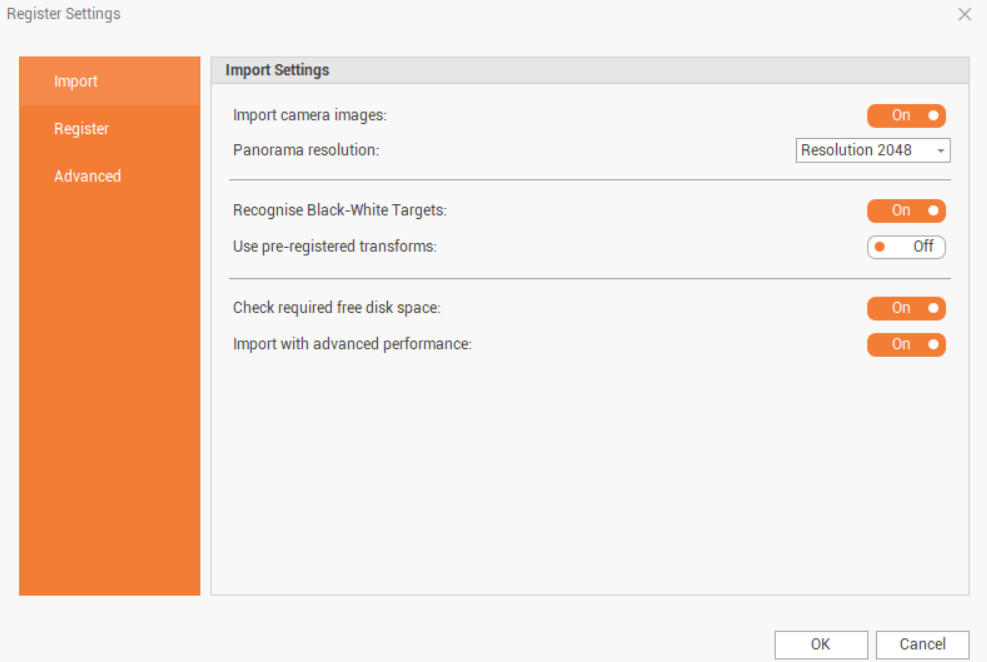
Import camera images: enables/disables the importation of images with the scan data; images are used to create the panorama images and colorize the points clouds.
Panorama resolution: when images are imported, the software recalculates the panorama image with selected resolution.
Recognise Black-White Targets: enables/disables the automatic recognition of targets.
Use pre-registered transformations: enables/disables the use of pre-registration information if this was done in the field.
Check required free disk space: enable/disables the check in the import phase, and on some calculation processes, the available space disk and memory; the user is informed that additional space is needed and current operation can be stopped or continued.
Import with advanced performance: enables/disables the import of scan data with high performance. If disabled it is possible to import scans in a “safe mode”, which can be used when the PC may not be powerful enough or, in general, to use fewer machine resources.
Register settings page allows to change settings related to cloud-to-cloud operations and link settings:
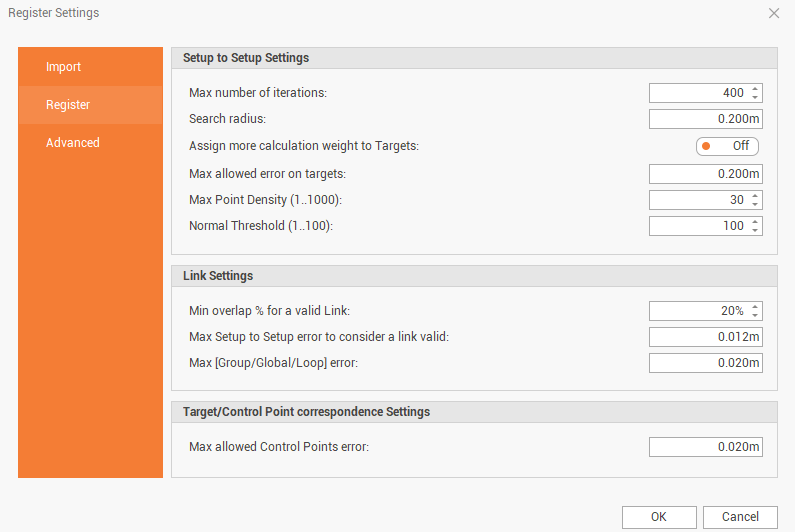
Max number of iterations: controls how many times the program will try to improve the fit of the clouds.
Search radius: controls the radius in which the program searches for matches between surfaces.
Assign more calculation weight to targets: upon link creation, the system will give much higher weight to targets when there is also a Cloud-to-Cloud constraint. This setting only applies during link creation. This can be helpful in poor Cloud-to-Cloud conditions, such as an open field.
Max allowed error on targets: controls the maximum allowed error when links are created.
Max point density (1..1000): the higher the number, the more points will be included in the cloud used for Cloud-to-Cloud registration.
Normal Threshold (1..100): a higher value will filter out more surfaces with irregular faces, such as vegetation, and those with a sharper angle to the scanner. This noise data is of less value to a Cloud-to-Cloud alignment. The more good points will be used in Cloud-to-Cloud registrations. Using a higher value in areas with a lot of vegetation will result in a lower overlap, using fewer points, but a lower error as well, making it more accurate.
Min overlap % for a valid link: sets the minimum amount of overlap required during link creation and modification.
Max Setup to Setup error to consider a link valid: sets the maximum Cloud-to-Cloud error allowed during link creation and modification.
Max [Group/Global/Loop] error: sets the maximum Group/Loop errors associated to Bundles/Groups.
Advanced settings page allows to change advanced filtering parameters and change the temporary folder location.
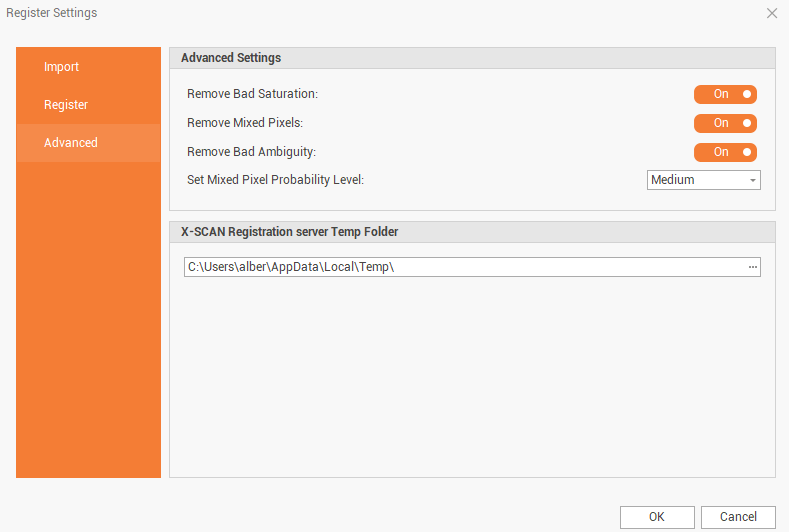
Remove bad saturation: remove points that have an intensity or reflectiveness higher than a certain level, which varies depending on the scanner used. This can be seen if the surface is a mirror or is very close to the scanner.
Remove mixed pixels: mixed-pixel points are points that were hit with the laser and return a signal to the scanner that is not a clear signal with a single peak. The laser is a circle that has a diameter that varies over distance from the scanner. It is possible that the circle is split between two or more surfaces and the return signal will look different than a single surface would. As the measurement laser beam crosses edges and other discontinuities, the laser is reflected from different surfaces at the same time, resulting in a measured range that is a mixture of the observed ranges. This could also be a chair and the wall behind it, or perhaps it is a dense fog that returns a mix of distances. The scanner detects the return in these cases as a wide peak rather than a sharp peak and labels these points as mixed pixels.. How many mixed pixels are removed is adjusted by setting the Set mixed pixel probability level. Depending on the circumstance and user preferences, retaining more (or fewer) mixed pixels can help resolve the geometry of some objects, particularly at the edges.
Remove bad ambiguity: ambiguous points are points that were hit with the laser and return a signal to the scanner that is not a clear signal with a single peak. The laser is a circle that has a diameter that varies over distance from the scanner. It is possible that the circle is split between two or more surfaces and the return signal will look different than a single surface would. Points are between two different surfaces. This can be seen if the laser hits the edge of a chair and the wall behind it. The returned signal will have an average time of flight somewhere between the two surfaces and will look like the point is floating in the air. The scanner detects the return, in this case, as 2 separate peaks in the signal and labels these points as Ambiguous.
X-SCAN Registration server Temp Folder: the temporary folder where scan data and processing data is saved.

To complete the registration the empty disk space available in the disk where Temp folder is located must be enough to save scan data and temporary data. The required space is normally two or three time the disk space occupied by the scans.