
-
In case there are problems with software graphic, errors in the CAD, or starting the point cloud registration service, please follow these suggestions.
Start the software as Administrator
-
In some environments, if there are problems to start the point cloud Registration module, the issue can be resolved starting Fusion as Administrator.
-
From the desktop right-click Fusion icon.
-
Select Start as administrator.
Software licenses are not recognizes
-
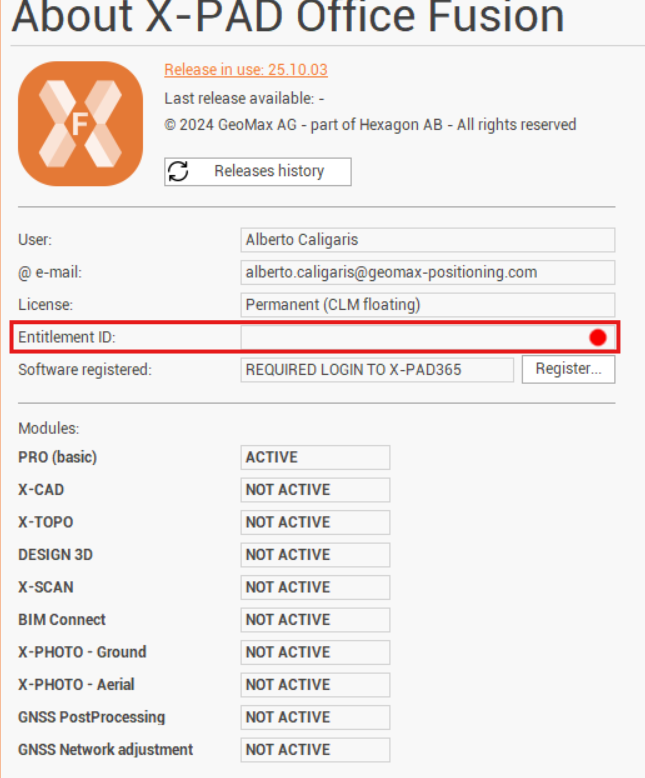
If Fusion software is started, but the software licenses are not correctly read, then could be a problem with the license service running in Windows.
-
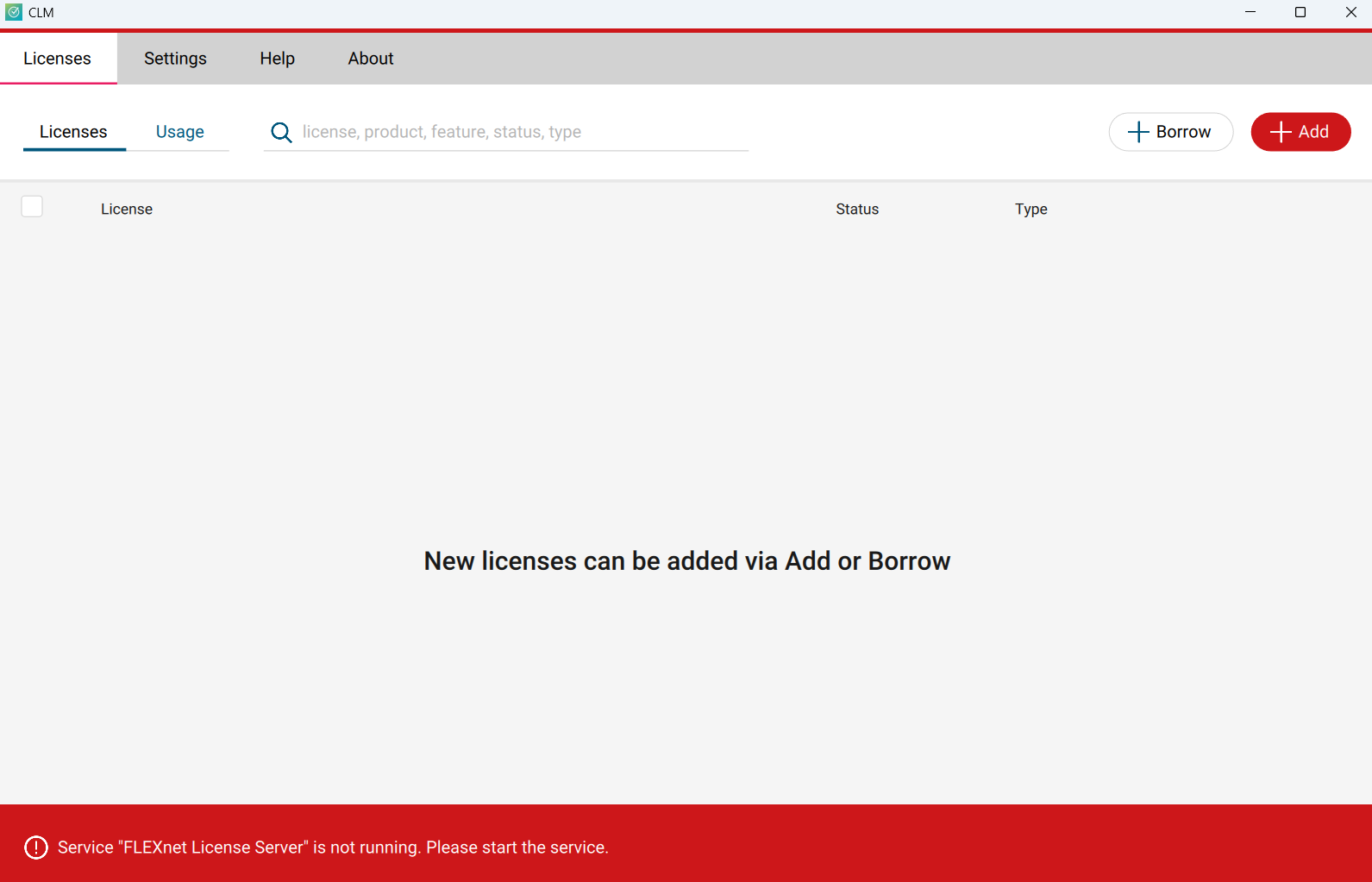
To confirm this is the problem, start the CLM application and you should see this error.
-
Open Windows services typing
services.mscin the Windows run box. -
Localizate the service FLEXnet License Server service.

-
If the service status is empyt, meaning that it is not started, select the service and click Start.
-
If the service status is Running, click to Stop the service Start it again.
Upgrade the graphic driver card
-
Having the latest graphic card driver is important to run correctly the software.
-
Depending on your graphic card vendor download and install the latest drivers:
Turn off the advanced graphic performance
-
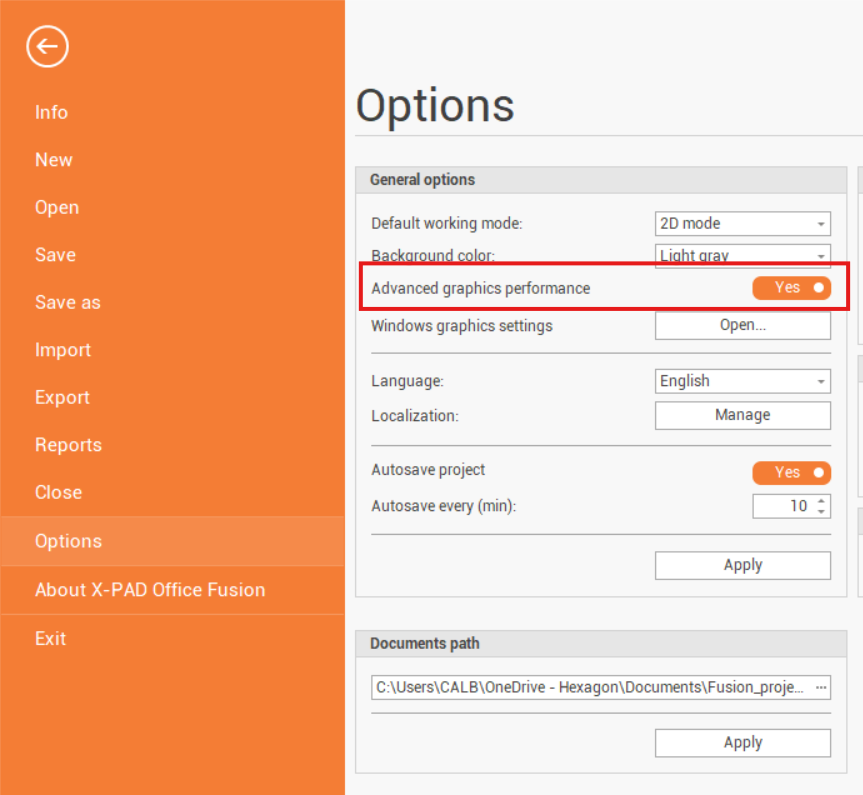
In case of problems with rendering could be useful to turn-off the advanced graphic performance in X-PAD Office Fusion.
-
Start the software and click Options.
-
Turn off the Advanced graphic performance option.
Configure the Windows graphic settings
-
For optimal performance with Fusion, we suggest to set the application to work in High Performance mode.
-
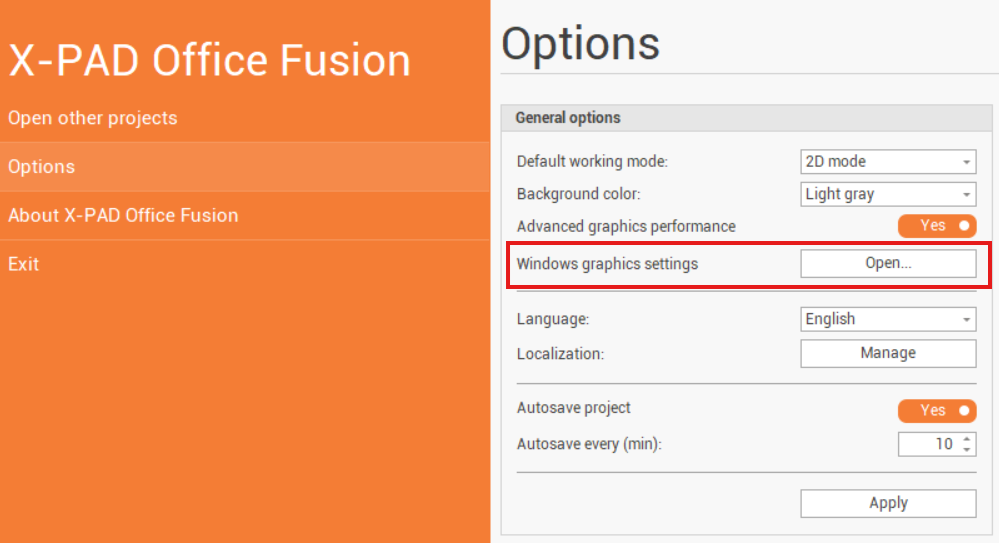
Start the software and click Options.
-
Click Windows graphics settings. This opens the Windows graphic display options.
-
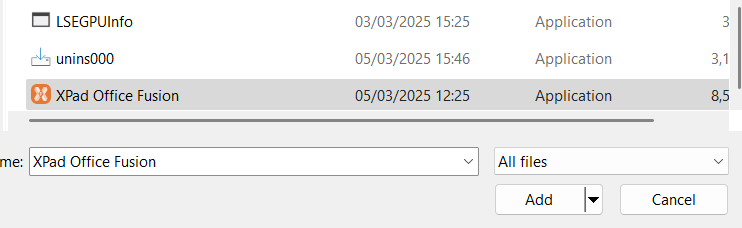
Click Add desktop app and locate Fusion exe (default location is C:\Program Files\GeoMax\X-PAD Office Fusion). Select from the folder the file XPad Office Fusion and click Add.
-
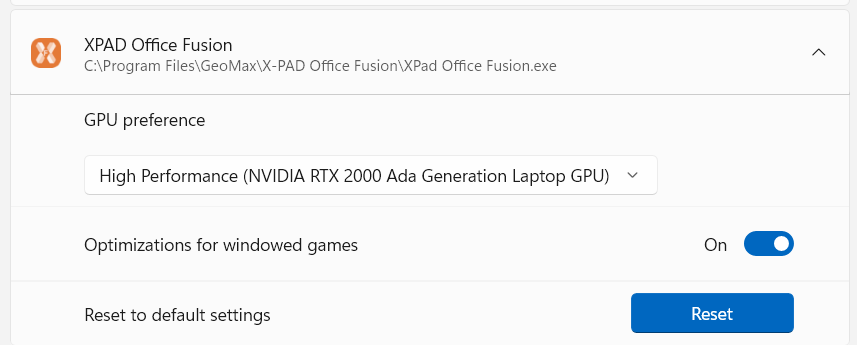
Fusion is now available in the list of software.
-
Select it and change the GPU preference to High Performance.
Disable threaded optimization for NVidia cards
-
In case of problems with CAD view, while running NVIDIA cards, can be useful to try to disable the threaded optimization from the NVIDIA Control Panel.
-
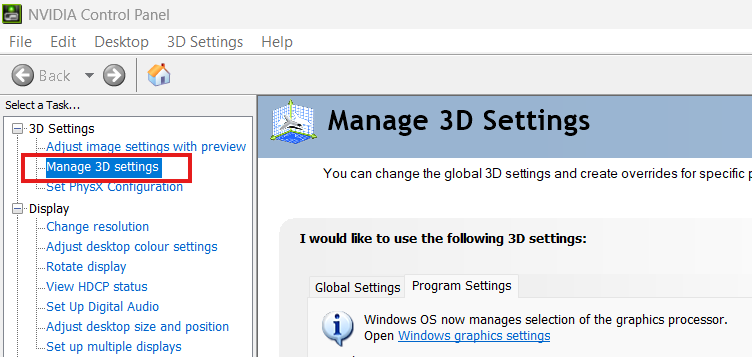
Start the NVIDIA Control Panel.
-
Open Manage 3D Settings.
-
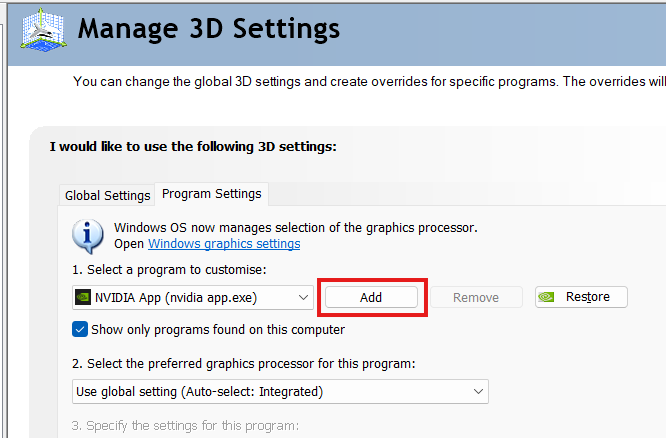
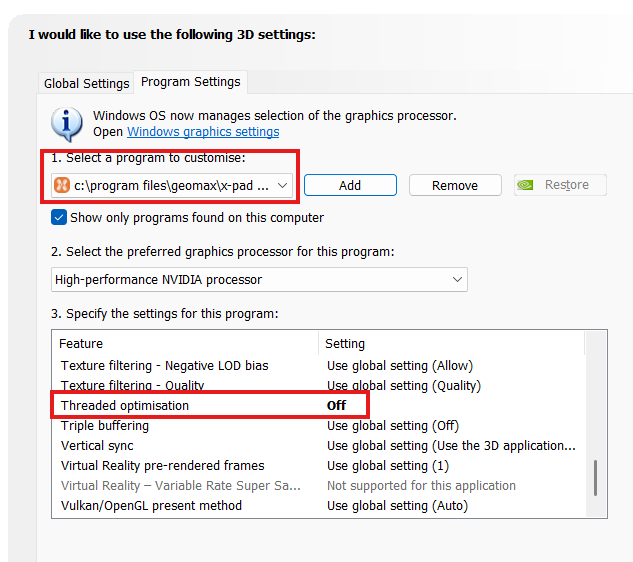
In the main panel select Program Settings and click Add to add Fusion as software to configure.
-
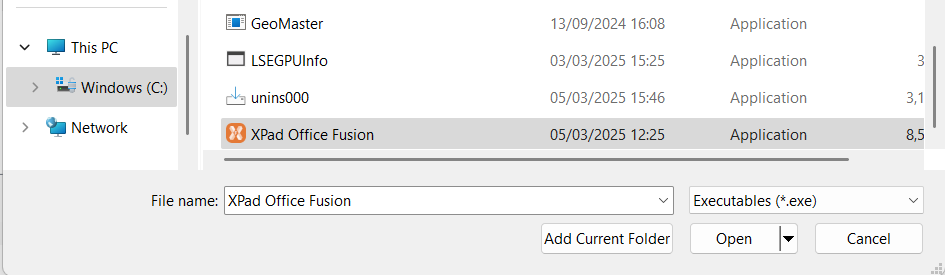
If Fusion is not in the list click Browse and locate Fusion exe (default location is C:\Program Files\GeoMax\X-PAD Office Fusion). Select from the folder the file XPad Office Fusion and click Open.
-
Now select Fusion as program to customize.
-
In the settings list select Threaded optimization and turn it off.
Fix Windows setup
-
Sometime a Windows update could generate some problems in the system, that may affect the possibility for Fusion software to start the registration server or properly read the license.
-
To fix these problems open as Administrator the Windows command prompt.
-
Start the command:
DISM.exe /Online /Cleanup-image /Restorehealth
-
This command is used to repair Windows. Follow the indications.
-
When done start the command to check the System file.
Disable Windows 11 Smart app control
-
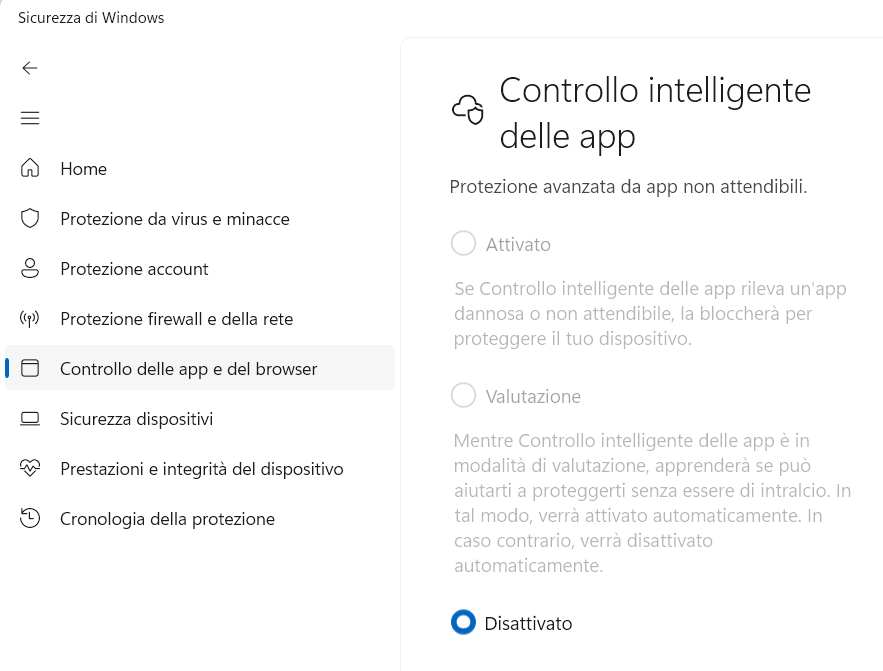
Has been notes that in some setup on Windows 11, the Smart app control feature of the operative system may interfere with the software.
-
In case of problems when running on software (for example messages of missing DLL), open Windows Security Settings → App and browser control → Smart app control and disable it.
Fix point cloud registration server start
-
If there are problems to start the point cloud registration server, it could be because another service is running on same port that is required. The port is 9080.
-
To verify if this is the problem close Fusion.
-
Open Windows command prompt CMD and run the command
netstat -ano | find ":9080"
-
The reply shows if a service is using this port with the corresponding PID in the last column.

-
Open the Windows Task Manager and in Details page identify which is the application with the corresponding PID.
-
Close the service and run again Fusion.
-
If this solves the problem, in Windows Services you can prevent the service to start.