Access the WebUI
Access the WebUI the first time
The first time Zenith55 WebUI is connected, the instrument requires to change the default password.

From firmware 0.24.251102 it is required to change the password the first time connection to WebUI is done.
Turn on the Zenith55 instrument.
Make sure that the WLAN on your PC/mobile device is turned on. Search for available connections.
When the instrument is found, select it to connect with your PC/mobile device.
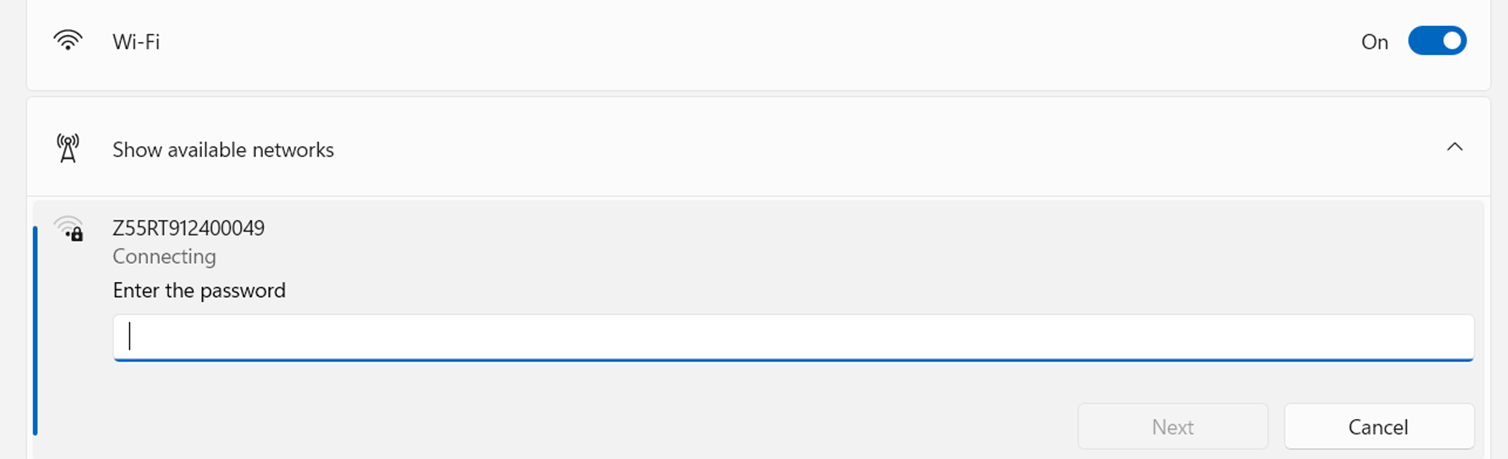
Enter the default Zenith55 WiFi password: Geo!20110517
In firmware older than 0.24.251102 there is no password to connect to Zenith55 WiFi.
As soon as the connection is established, start a web browser. Enter the IP http:// 192.168.10.1 into the address bar. A login-window will pop up.
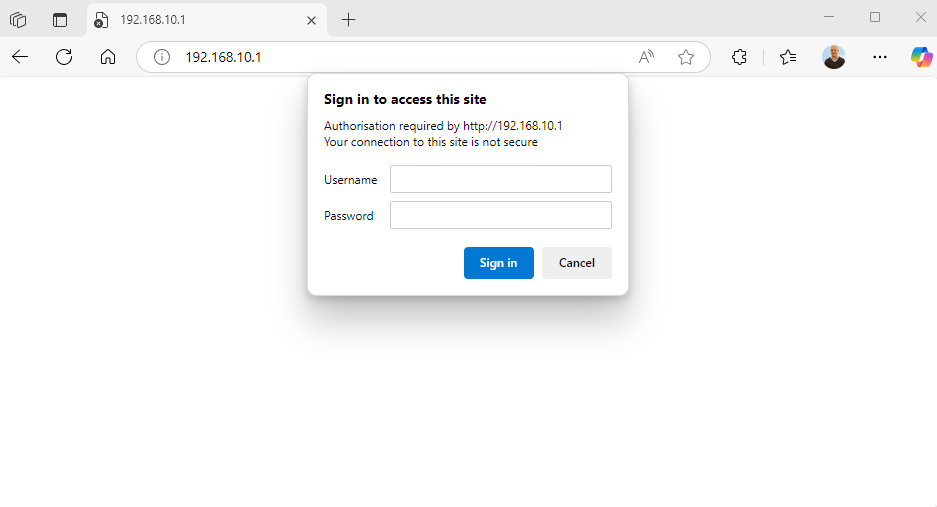
Enter the user name and password. The default values are:
User name: admin
Password: Geo!20110517
In firmware older than 0.24.251102 the login details are admin/password

If the used browser is Google Chrome the page to change the password may not appear. In this case use Google Chrome in Incognito mode or use a different browser like Microsoft Edge or Mozilla.
After connection it is requested to change the default password.
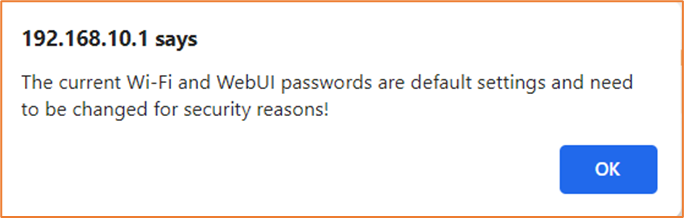
It is required to change the default WiFi password:
WebUI Login Authentication: password to authenticate in WebUI.
WiFi Connect Authentication: password to connect to WiFi network.
Enter the default password and the new password for WebUI Login Authentication. Click Change to confirm.
Enter the default password and the new password for WIFI Connect Authentication. Click Change to confirm.
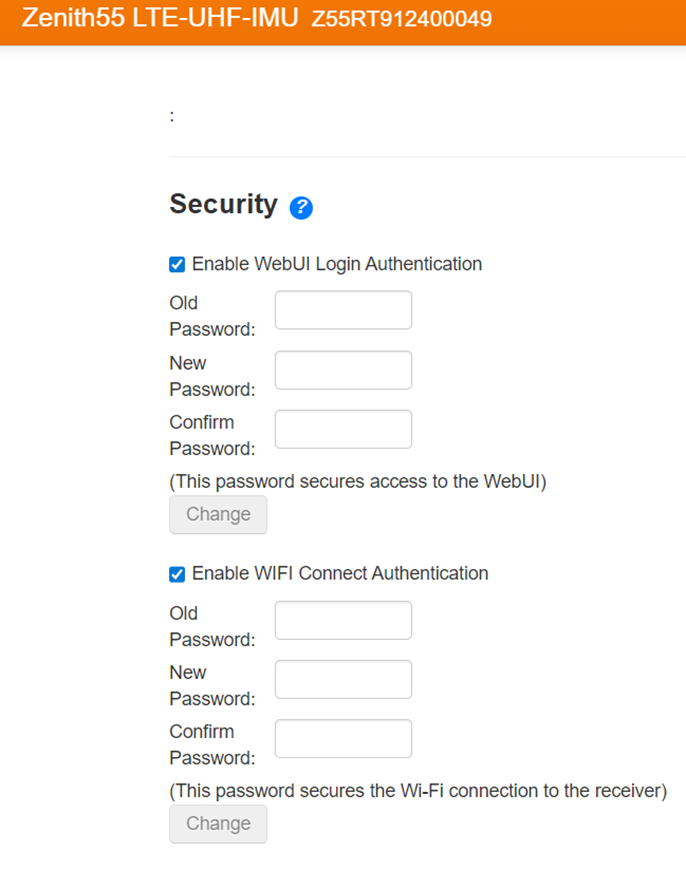
In some platforms, such as Windows 11, since the WiFi password is changed it is necessary to forget the saved Zenith55 from list of known networks, and search and connect again to Zenith55 WiFi network.
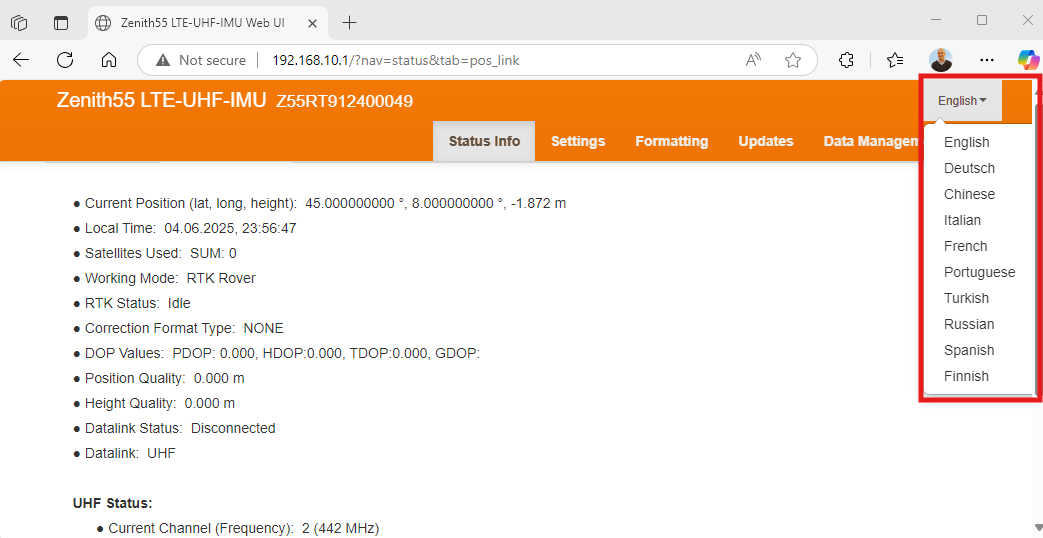
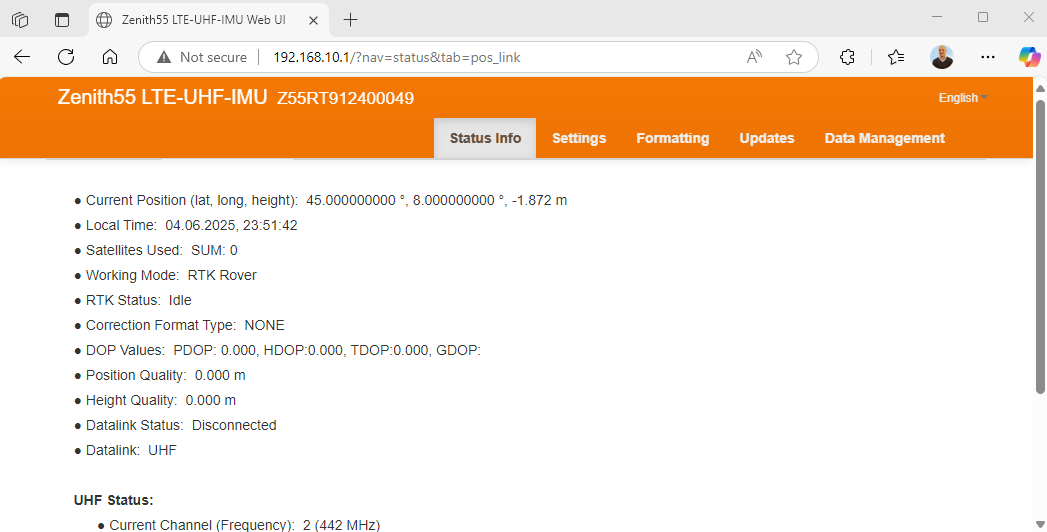
After a successful login, the Position/Link Information screen of the Zenith55 WebManager appears and the instrument can be accessed.
Access the WebUI
Turn on the Zenith55 instrument.
Make sure that the WLAN on your PC/mobile device is turned on. Search for available connections.
When the instrument is found, select it to connect with your PC/mobile device.
If not connected before from this device enter the Enter the WiFi Connect Authentication password.
As soon as the connection is established, start a web browser. Enter the IP http:// 192.168.10.1 into the address bar. A login-window will pop up.
Enter the user name and password. User name is admin, the password is the password defined the first time WebUI was accessed.
After a successful login, the Position/Link Information screen of the Zenith55 WebManager appears and the instrument can be accessed.
Change the language to WebManager
Go to the top-right corner in the WebManager and open the selection list to see the available languages (click on the dropdown menu under “English”).
Once your preferred language is selected, the WebManager will automatically be displayed in the chosen language.