
X-PAD Ultimate field software connection
Zoom10 can be connected using Bluetooth to X-PAD Ultimate software in order to control the instrument from the field software.

For more information on X-PAD Ultimate software refer to GeoMax Help Portal X-PAD Ultimate.
Zoom10 communication parameters
X-PAD Ultimate allows to connect using Bluetooth the GeoMax TPS Zoom10.
First, we have to enter some settings on the Zoom10.
Open the SETTINGS -> GENERAL SETTINGS page and move to page 3.
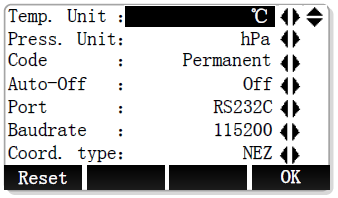
Then change the PORT field to BT to activate the Bluetooth connection.
Zoom10/10Pro prism offset values
An important setting to define is the prism offset. Using X-PAD Ultimate and Zoom10, the
prism offsets is fully managed by X-PAD, so we must verify that the prism offset on Zoom10
is set to zero.Open SETTINGS -> EDM SETTINGS and for Prism reflector change the GeoMax Const value to 0 mm. After the prism constant has been changed it is saved even after Zoom10 switched off.
Remember to change to correct value if then the Zoom10 is used with onboard
software.
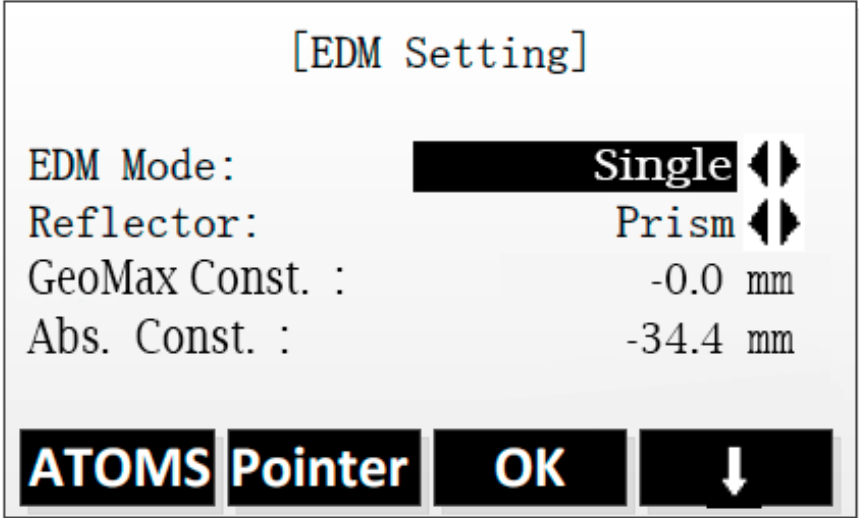
With the latest Zoom10 firmware, either prism constants can used:
GeoMax constant,
or Absolute constante.

The prism constant is an important characteristic of the reflector.
This constant, always given in [mm], is specific to the model and physically represents the constant difference between the measured value and the "exact" value.
This difference will be cancelled during the measurements by entering an "additive constant" in the total station.
There are two types of constants:
Prism constant: for GeoMax/Leica prisms (usually in positive values).
Absolute constant: for prisms of other manufacturers (usually in negative values).
The additive constants, of non GeoMax/Leica prisms, are often given in the true zero prism system. Whereas the GeoMax/Leica prisms are given in the Hexagon TPS prism system.
In order to switch from a system to another, we can use the following formula, that links these two constants:
GeoMax/Leica prism constant = Absolute prism constante + 34.4mm
Absolute prism constant = GeoMax/Leica prism constant – 34.4mm
X-PAD Ultimate connection
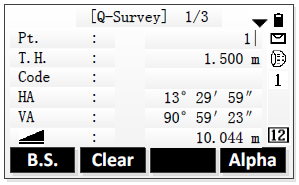
Open the QUICK SURVEY app on the Zoom10. Note that the Bluetooth connection is only available when the QUICK SURVEY app is opened on the total station.
Open X-PAD, and open the page SETTINGS -> GNSS & Total stations and click ADD to create a new profile Total station for the Zoom 10. See Creating a profile for total station.
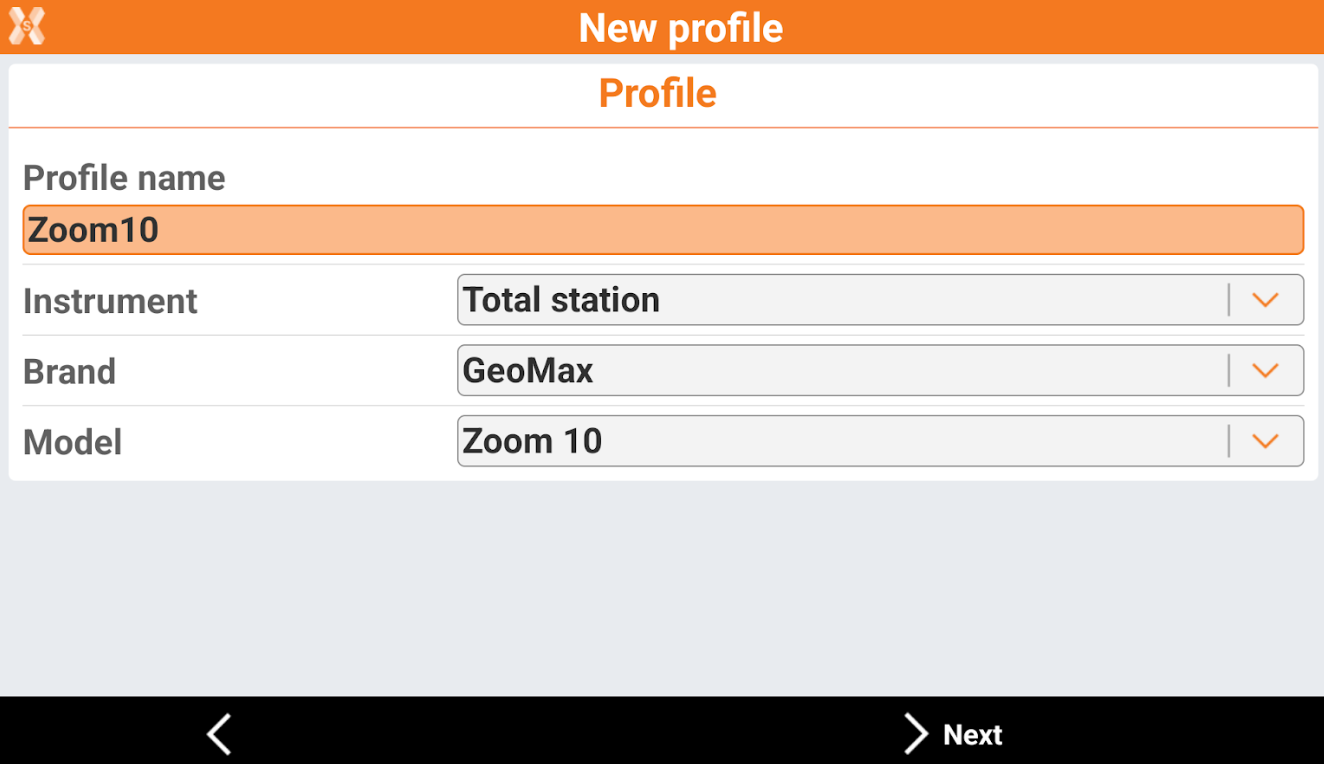
Create a profile with Zoom10 model.
Search for the Zoom10 Bluetooth device and confirm the profile.
You are ready to work with Zoom10.
Remember to open the quick survey page (Q-Survey) on Zoom10 to start the bluetooth connection.
Video tutorials | |
|---|---|
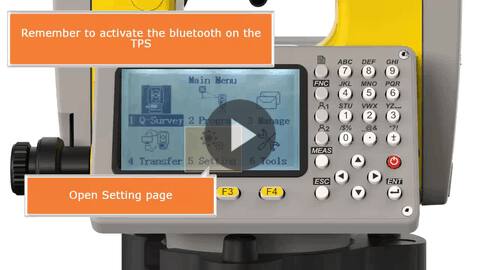 Create a TPS profile for Zoom10 How to create a total station profile in X-PAD Ultimate and connect to Zoom10. | 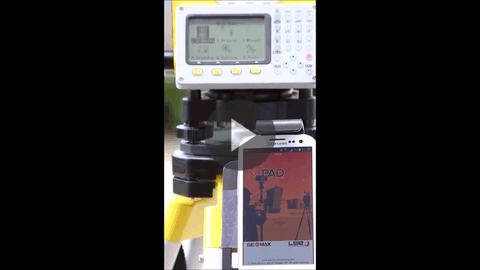 How to connect the Zoom10 with X-PAD Ultimate GO How to connect the Zoom10 to X-PAD Ultimate using bluetooth |
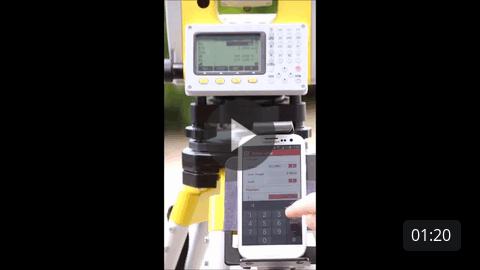 How to set up and survey with your Zoom10 using X-PAD Ultimate GO How to setup the Zoom10 and start to work using X-PAD Ultimate | |
Webinars | |
 (2020-10-21) Webinar on Zoom10 and connection with X- PAD Ultimate GO | |