
Camera orientations [Ground]
The workspace of the Camera orientation result page is organized as follow:
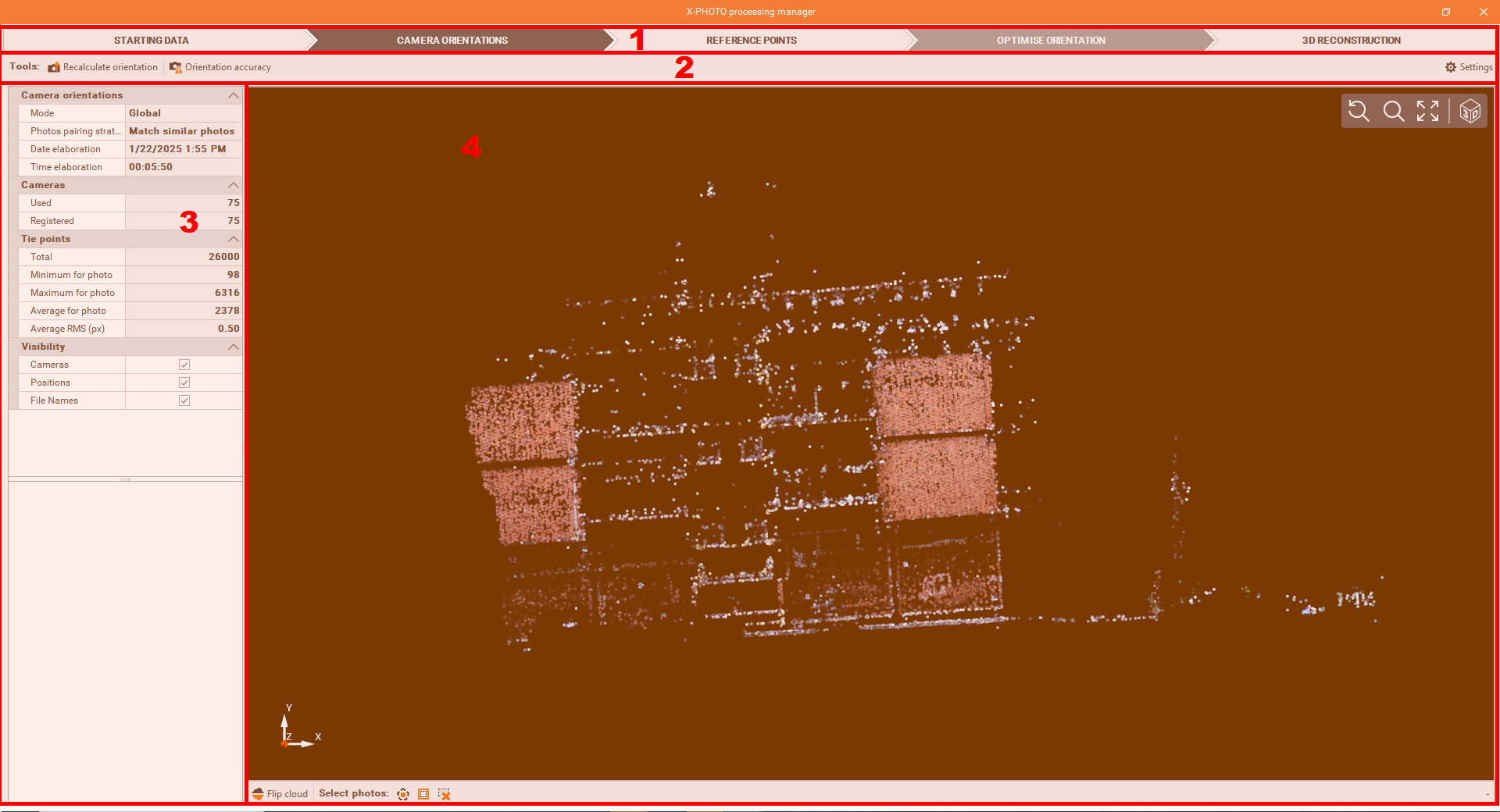
Top bar: the main menus of the X-Photo Processing manager,
Sub-Menu Bar: where you can access the related functions and settings of the current main menu,
Recalculate orientation: for the recalculation,
Orientation accuracy: to check the residuals for each photo,
Settings: to select the new settings for the recalculation, you can use some additional advanced settings:
Max tie points detected (per photo): determines the maximum number of tie points detected on each photo for matching and alignment.
Tie points detection level: the level of detail used in detecting tie points between photos.
Elaboration details: to get some details on the used camera orientation mode and pairing strategy, date and time of elaboration, number of photos used, details on tie points, etc
CAD view: is a graphic view where to check the generated sparse point cloud, with some editing commands:
select polygon: to select points by defining a closed polygon in the screen:
 ,
,invert selection: to invert the current selection
 ,
,cancel selection: to cancel all the points selected
 ,
, Flip clouds: to invert upside down the current point cloud
 .
.

The selection polygon can be closed by picking the first point
Camera orientation settings
The camera orientation defines the position and angles of the camera when capturing the photos, to check if there is sufficient overlap between photos, for an accurate alignment and 3D reconstruction.
To start the camera orientation process, click on

Select the settings of the Camera orientation.
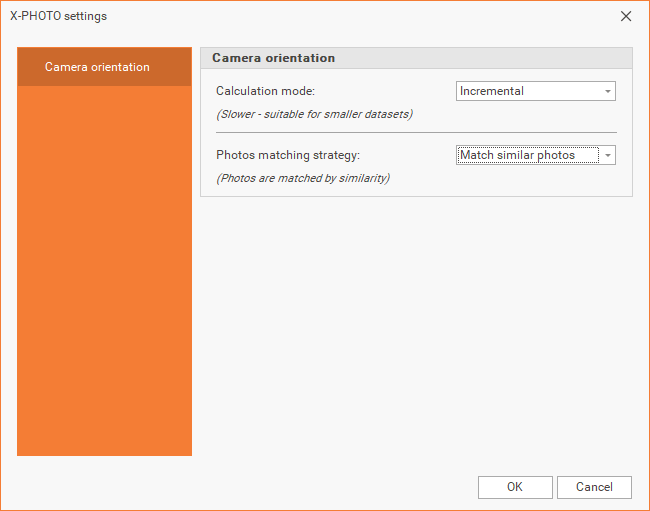
Calculation modes: the method used by the software for the camera orientation.
Incremental: is a slower calculation mode, convenient for small datasets,
Global: is faster and convenient for large datasets,
Hybrid: is a mix of the Incremental and Global calculation modes,
Photos matching strategy: how the photos are matched.
Match similar photos: photos are matched by similarity,
Match all photos: every photo is matched with all the others.
Click OK to start the elaboration.
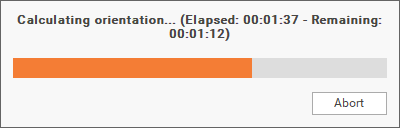
Once the elaboration is finished, you can click on Orientation accuracy, to check the residual of each photo
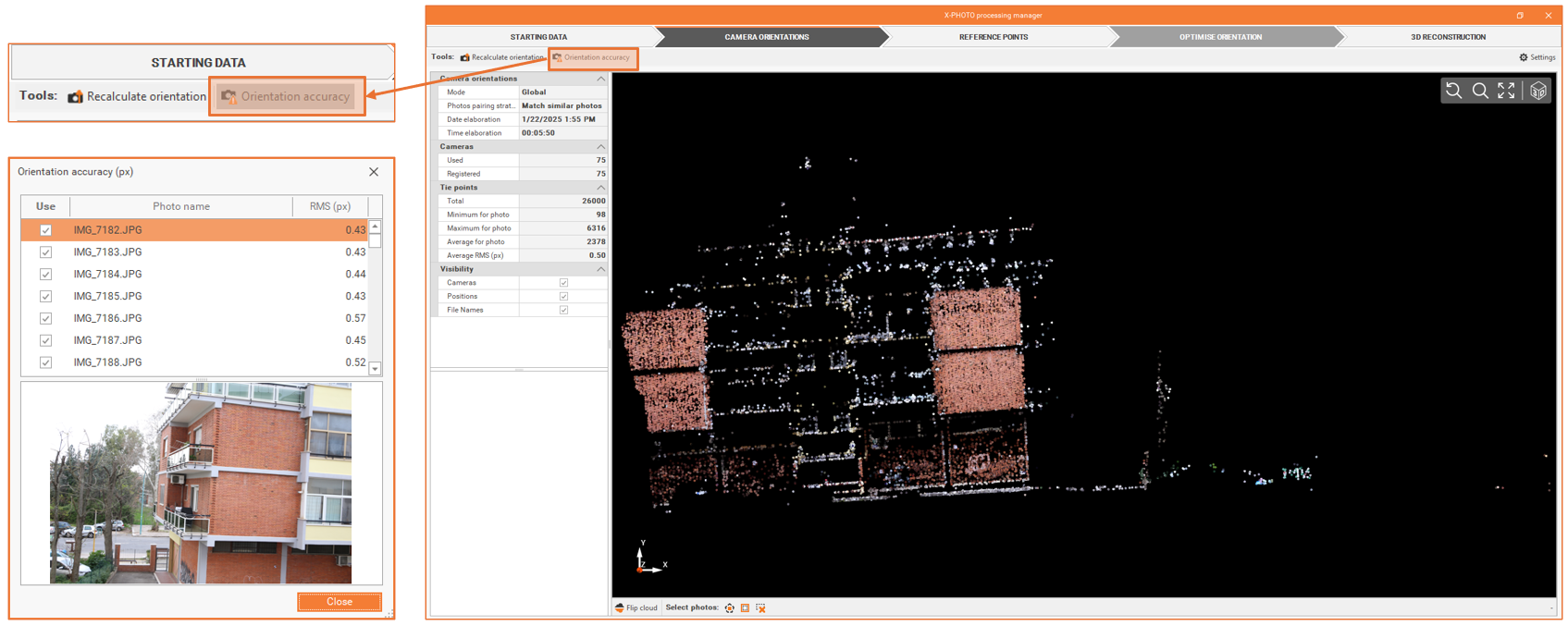
If a recalculation is needed, you can adjust the settings, by clicking on  , and recalculate the camera orientation.
Once you’re satisfied with the results, you can proceed to the next step.