Reference points and GCP definition [Ground]

This page, and the option to use ground control points, is only available if an X- PHOTO Aerial license is available. Otherwise will be possible to scale the point cloud in the 3D reconstruction page.
The workspace of the Ground Control Points page is organized as follow:
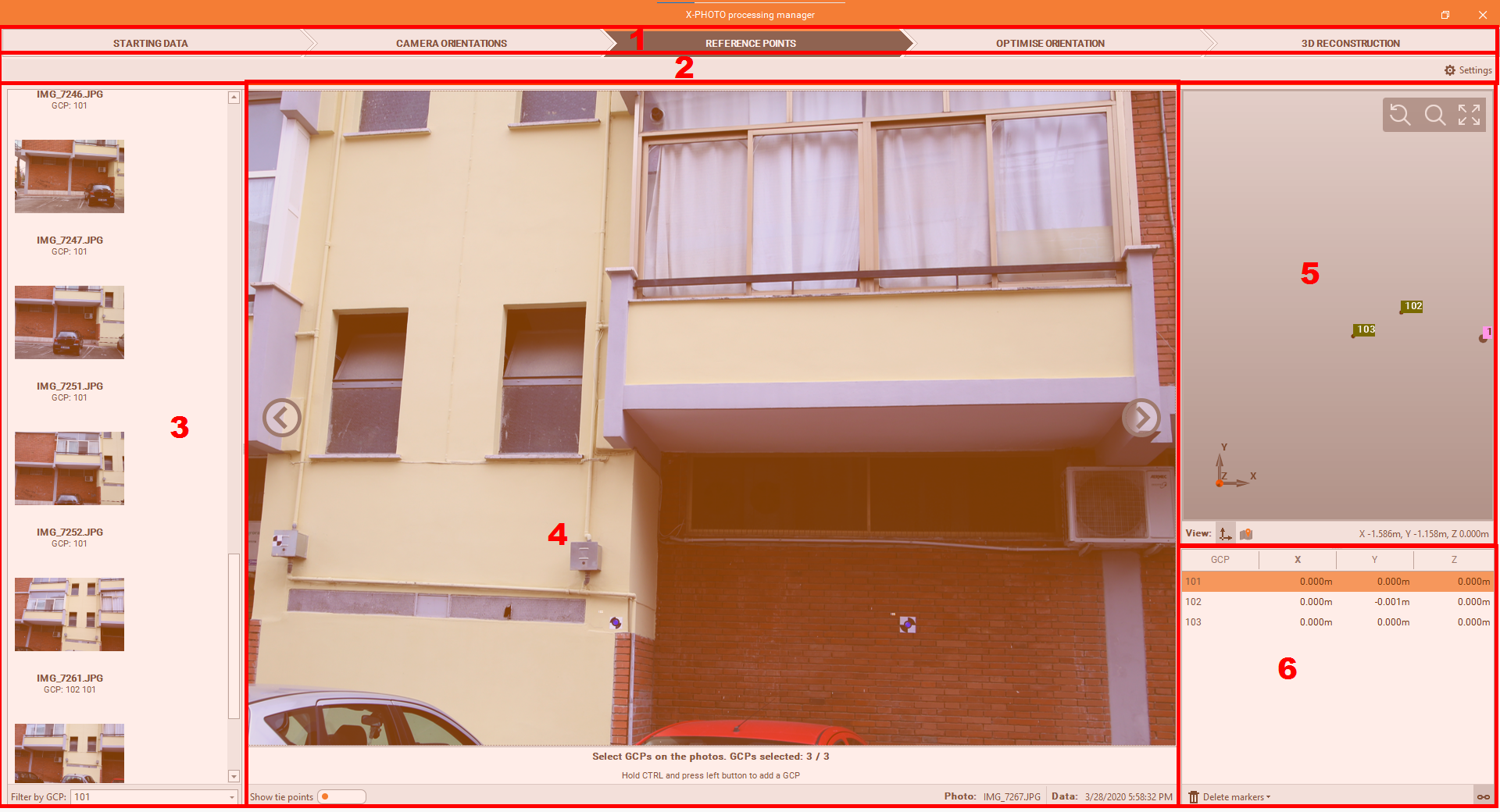
Top bar: the main menus of the X-Photo Processing manager,
Sub-Menu Bar: where you can access the related settings of the current main menu,
Photos list: The complete list of the imported photos, with the indication of the GCPs it includes:
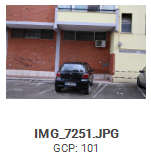

The photos can be filtered by GCP 
Zoom-in: of the selected Photo, with the GCP locations
To Show the tie points used, select 
GCP view: the GCPs can be visualized in 2 views:
Map view, by clicking on

or a graphic view, by clicking on

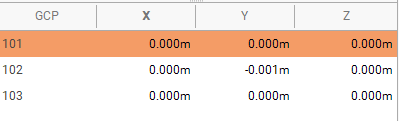
GCPs list: with the coordinate differences.
the map visualization can be linked to the selected GCP from the list, by clicking on

if needed, markers can be deleted, either by deleting:
the last know marker, by selecting
 from the Delete Markers function,
or all the markers and redefine them from scratch, by selecting

Defining the ground control points
To import the Reference points, click on

Load the Reference Points and Check points:
Use these functions
 , to import the points as TXT and CSV.
Use this function
 , to import the points from a X-Pad Fusion Survey.
Use this function
 , to Delete or change the point’s View.
It is possible to define the Coordinate System only from the main interface of X-PAD Fusion using Survey option from the Survey menu
Then we need to define at least 3 GCP:
by holding CTRL and press left button to add a GCP marker,

or right button and select the GCP from the list to mark it as a known GCP
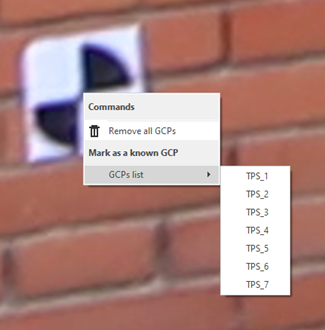
Once you manually define at least three GCP, the remaining targets could be automatically recognized.
We can drag the selection to the center of the target to define it.
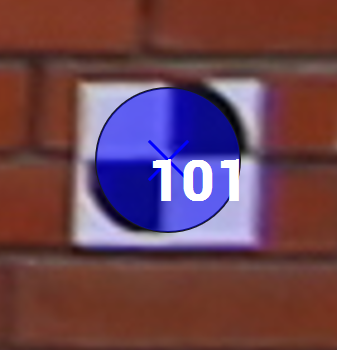
Once you’re satisfied with these first results, you can proceed to the next step.