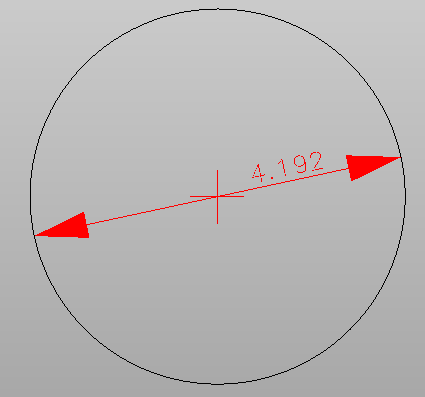
-
Use the command Dimensions to create dimensioning.
-
Linear.
-
Aligned.
-
Aligned (auto).
-
Angular.
-
Radius.
-
Diameter.
-
Linear
-
Use the command Linear to create linear dimensioning. Linear dimensioning is oriented on the X axis.
-
Click Draw.
-
Click under Dimensioning to open the drop-down menu.
-
Click Linear.
-
Click on the entity in the CAD.
-
Graphically define the distance from the CAD entity and confirm the creation.

You can click on the dimensioning text to move the dimensioning once it has been created.
Aligned
-
Use the command Aligned to create an aligned dimensioning. The aligned dimensioning is aligned along the selected entity.
-
Click Draw.
-
Click under Dimensioning to open the drop-down menu.
-
Click Aligned.
-
Click on the entity in the CAD.
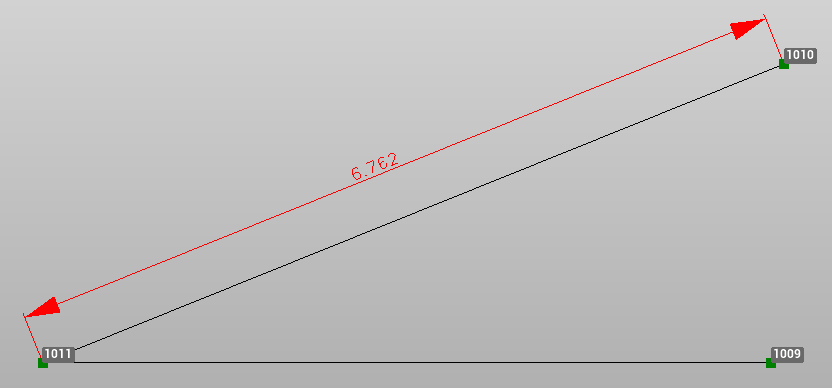
Aligned (auto)
-
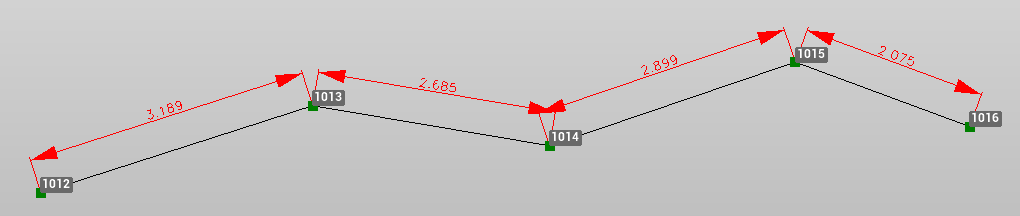
Use the command Aligned (auto) to create an aligned dimensioning along a polyline, automatically dimensioning all segments of the polyline. The aligned dimensioning is aligned along the selected entity.
-
Click Draw.
-
Click under Dimensioning to open the drop-down menu.
-
Click on Aligned (auto).
-
Click on the entity in the CAD. If a polyline is selected, the dimensioning is created for all segments.
Angular
-
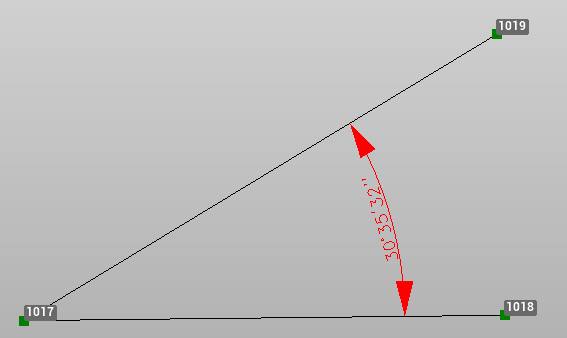
Use the command Angular to create a dimensioning of the angle between two lines.
-
Click Draw.
-
Click under Dimensioning to open the drop-down menu.
-
Click Angular.
-
Click on the first line in CAD. Then click on the second line in CAD.
Radius
-
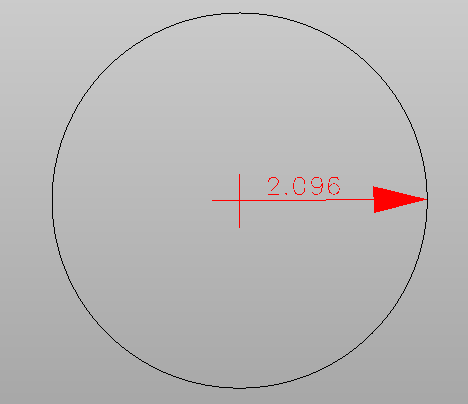
Use the command Radius to create a dimensioning of the radius of a circle.
-
Click Draw.
-
Click under Dimensioning to open the drop-down menu.
-
Click Radius.
-
Click on a circle entity in CAD.
Diameter
-
Use the command Diameter to create a dimensioning of the diameter of a circle.
-
Click Draw.
-
Click under Dimensioning to open the drop-down menu.
-
Click Diameter.
-
Click on a circle entity in CAD.