
-
The Dimension style manager is used to manage the style of dimensioning.
-
Click Draw.
-
Click Styles to open the Dimension style manager window.

-
In the Dimension style manager panel it is possible to create a new style for dimensions or edit an existing one.
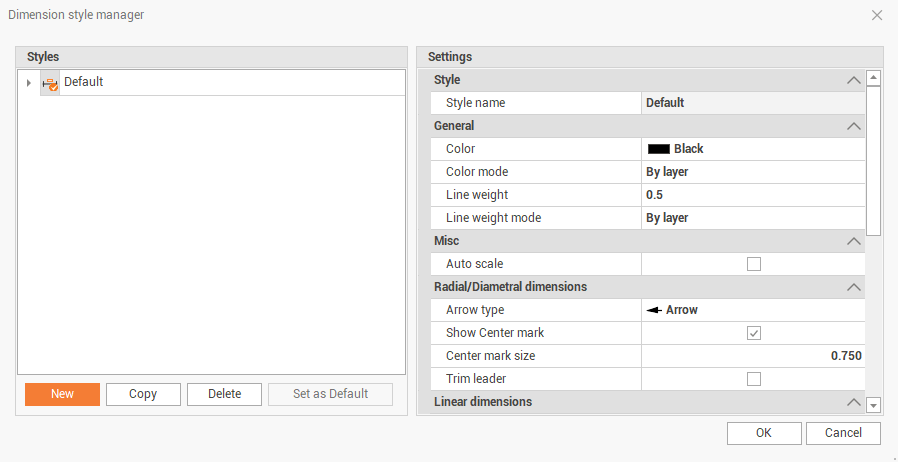
Styles
-
New: creates a new style.
-
Copy: copies the selected style.
-
Delete: deletes the selected style.
-
Set as Default: makes the selected style the default when creating a dimension.
Settings
-
Style name: the name of selected style.
-
Color: the color of dimensioning elements and text.
-
Color mode: select By layer to use the color defined by current layer; select By entity to use the color defined in this panel for the entity.
-
Line weight: the weight of the line.
-
Line weight mode: select By layer to use the line weight defined by current layer; select By entity to use the line weight defined in this panel for the entity.
-
Auto scale: if enabled, it scales the dimensioning elements and text according to drawing scale.
-
Arrow type: the type of arrow.
-
Show central mark: if enabled, shows the central mark of the dimensioning.
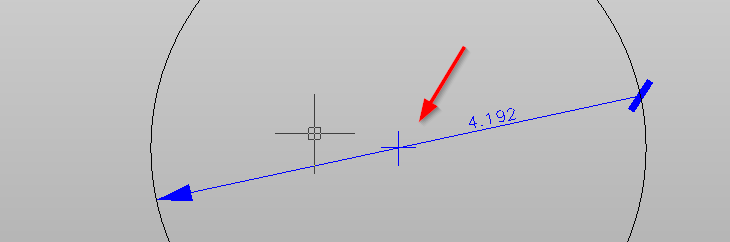
-
Central mark size: the size of the central mark.
-
Left arrow type: the type of arrow on the left end of dimension.
-
Right arrow type: the type of arrow on the right end of dimension.
-
Arrow size: the size of the arrow.
-
Show dim line 1: if enabled, shows the line connecting the left end of the entity to the dimension.
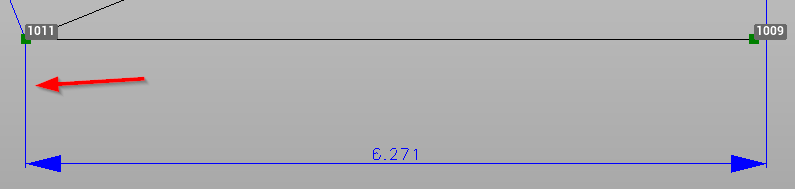
-
Show dim line 2: if enabled, shows the line connecting the right end of the entity to the dimension.
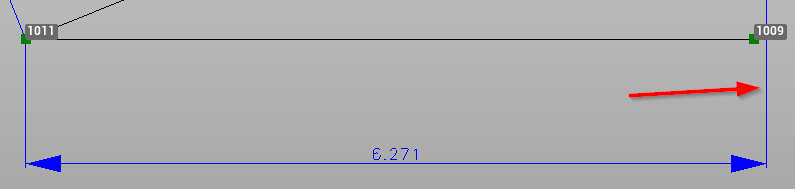
-
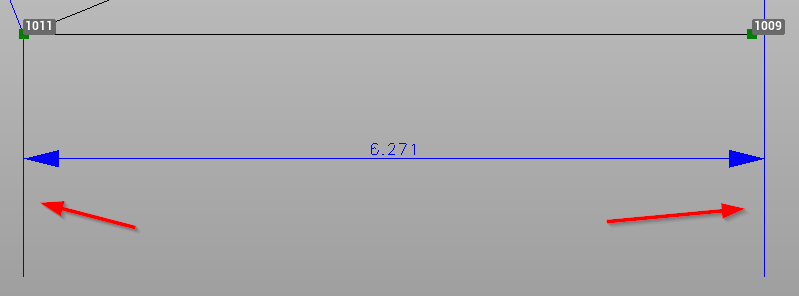
Reference line extension: define the extension of the reference line.
-
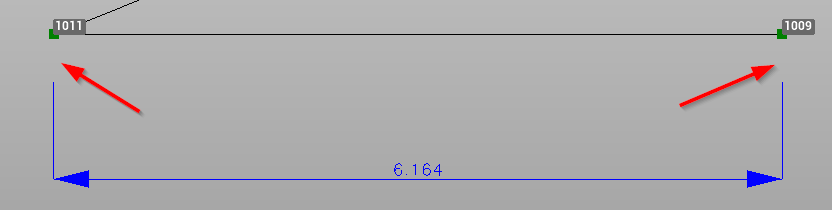
Reference line offset: the offset between the entity and the reference line.
-
Text style: the style of the text. It is selected from the available styles of text.
-
Text height: the height of the text.
-
Prefix: the text prefix.
-
Suffix: the text suffix.
-
Text gap: the distance between the reference line and the text.
-
Billboard: if enabled, the text is always facing the view in 3D.
-
Scale overall: this option defines a scale factor that allows to scale all the elements of the dimension.