
-
Use the command Empty to create an empty drawing table.
-
Click Draw.
-
Click Empty.

-
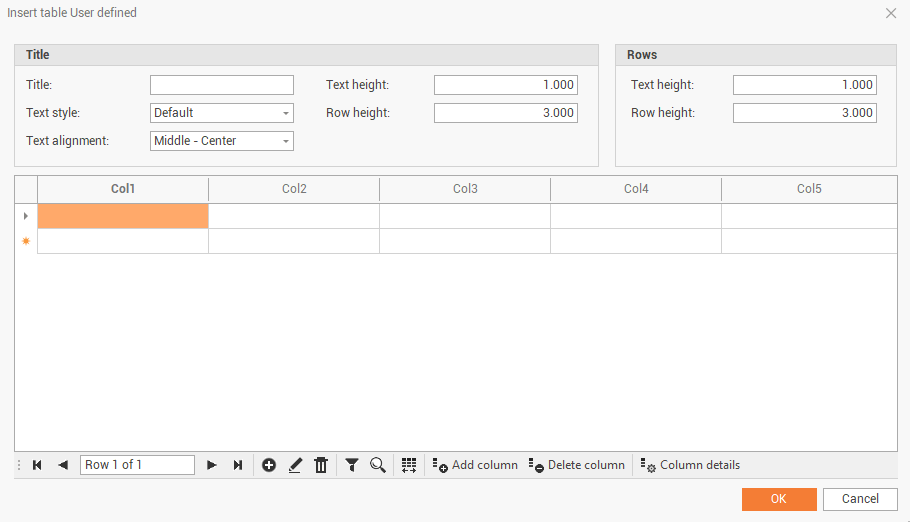
The command opens a window used to define the new table.
-
Title: the title of the table.
-
Text style: select from the available text styles the text style to use.
-
Text alignment: the alignment of the title text.
-
Text height: the height of the title text.
-
Row height: the height of the title row.
-
-
Rows: parameters on the table rows.
-
Text height: the height of the text in the rows.
-
Row height: the height of the table rows.
-
-
In the bottom part of the table there are some commands to edit the table.

-
Insert: to insert a new row.
-
Edit: to edit selected row.
-
Delete: to delete selected row.
-
Filter: adds the possibility to filter the values in the columns.
-
Find: opens the search panel.
-
Auto width: enable it to automatically adapt the width of the columns to the content.
-
Add column: this function opens a new window to give the possibility to add additional columns.
-
Delete column: deletes the selected column.
-
Column details: this function opens a new windows to edit the column properties.
-
Convert to editable: allows to edit the table content.
-
-
Click OK and on the graphic view click to insert the table on the desired position.