
-
In Setups and Bundles panel select the two setups to register (you can Ctrl-click or Shift-click the second setup to add it to the selection)
-
Select Setup to Setup.

-
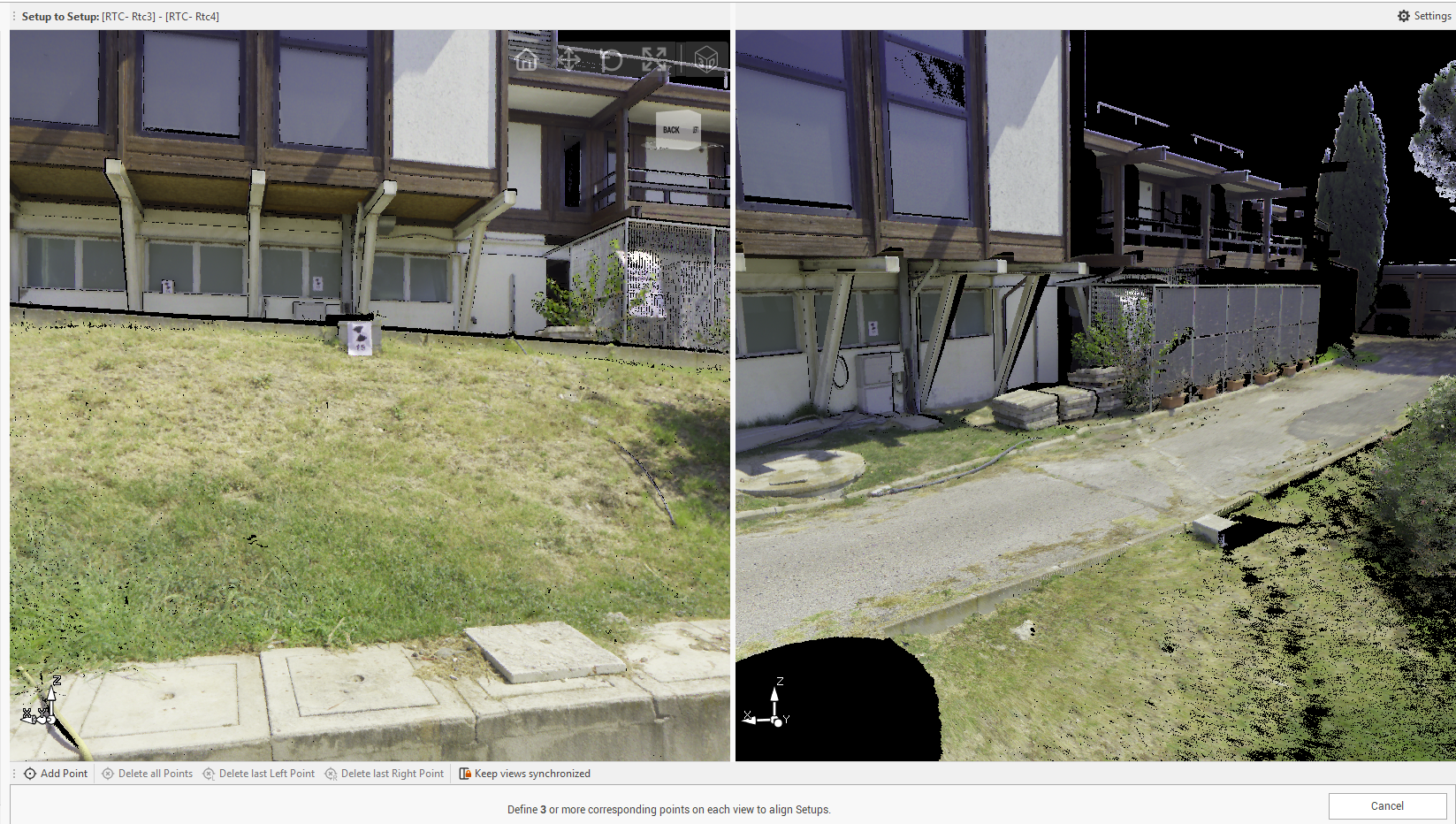
The command opens a new window where there is a spit view between the two selected scans.
-
The goal is to create on the spit view a minimum of three common points between the two setups, using the commands at the bottom of the window:
-
Add Point: to add the matching point on the first and second scan.

-
Delete all Points: to delete all created points.
-
Delete last Left Point: to delete the latest created on the left setup.
-
Delete last Right Point: to delete the latest created point on the right setup.
-
Keep views synchronized: to keep the two view synchronized while they are moved or rotated.
-
-
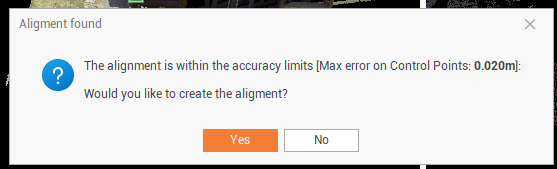
If the created points are within the tolerance they are visualized in green. If are not within the tolerance they are visualized in red. Click Align to proceed with the cloud-to-cloud alignement.
-
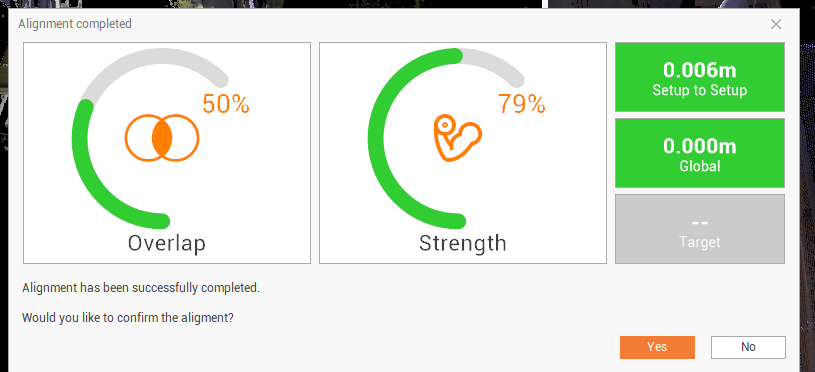
The information regarding the link quality are visualized:
-
Overlap: the percentage of overlapping points between setups.
-
Strength: the relative stiffness, with respect to different directions, of the constraints on the link.
-
Setup to Setup: error for the two setups joining.
-
Global: overall global error for a bundle. Shows the amount of setup movement when global optimization is applied.
-
Target: the distance or error between matching targets.
-