
This method allows to align two different setup visually.
-
In Setups and Bundles panel select the two setups to register (you can Ctrl-click or Shift-click the second setup to add it to the selection)
-
Select Visual Align.

-
This command opens a new window.
-
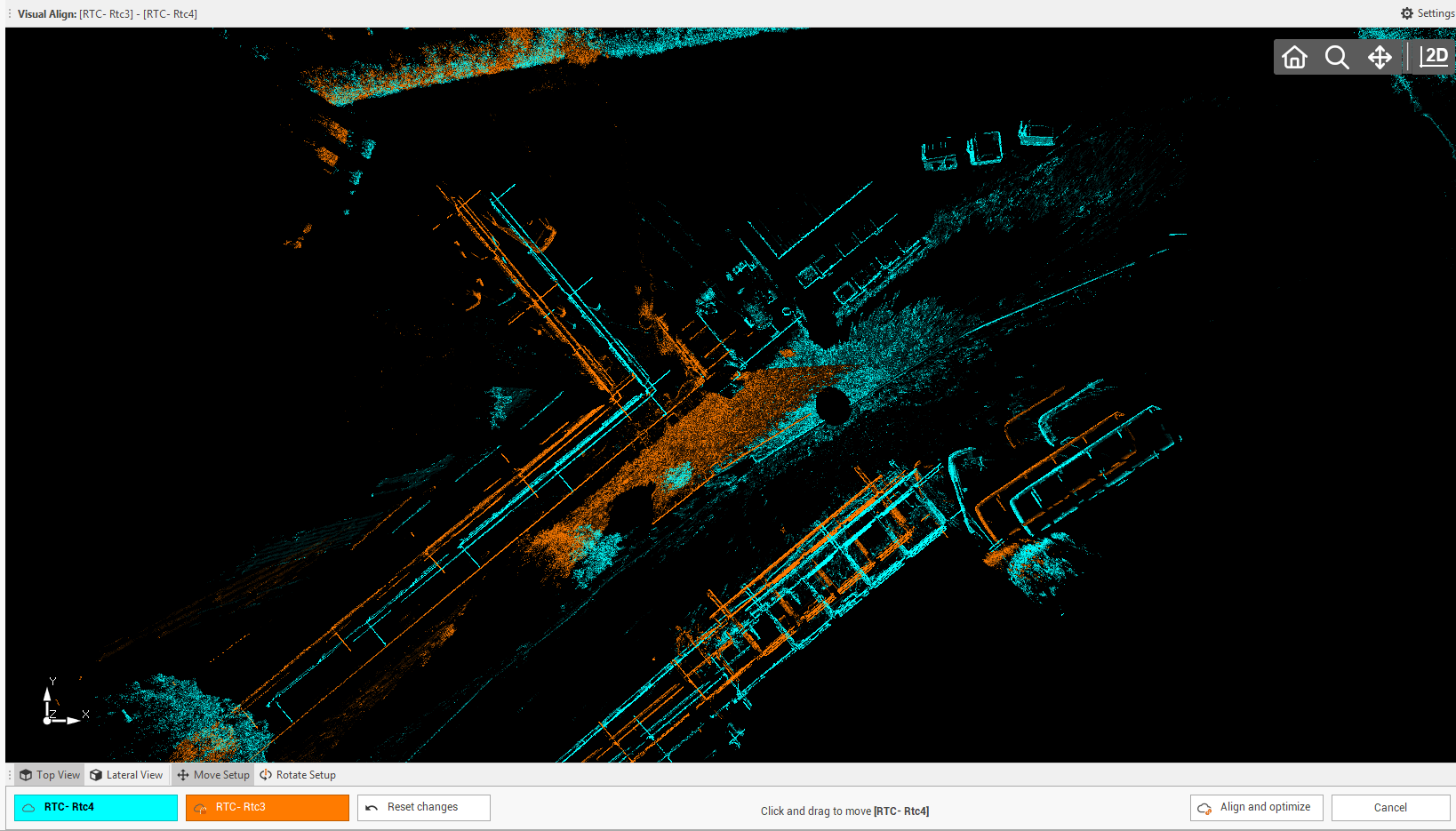
The two selected scans are visualized in different colors. The goal is to move the scans in planimetry and vertically to align them.
-
The commands on bottom can be used to help aligning the scans:
-
Top View: to change the view from top.
-
Lateral view: to change the view to a vertical view.
-
Move setup: use this command to move the unlocked setup in planimetry. Click and drag to move.
-
Rotate setup: use this command to rotate the unlocked setup. Click to set the rotation center and drag to rotate.
-
Reset changes: to reset all changes done to the two setups.
-
The two coloured buttons are the two setups. Click on a setup to lock the other one and move and rotate the selected scan.
-
-
Click Align and optimize to optimize and align the two setups.
-
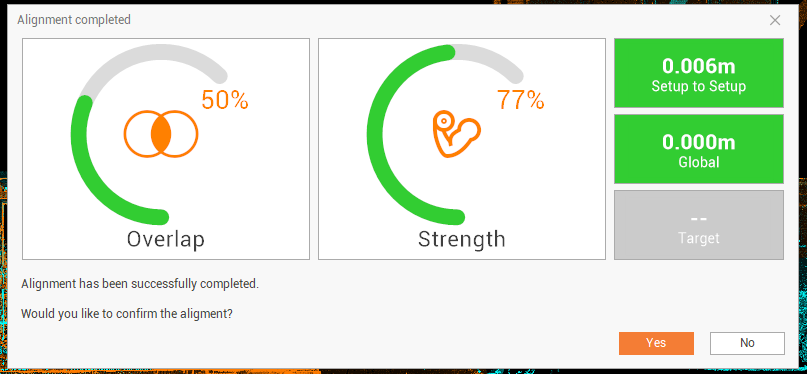
The information regarding the link quality are visualized:
-
Overlap: the percentage of overlapping points between setups.
-
Strength: the relative stiffness, with respect to different directions, of the constraints on the link.
-
Setup to Setup: error for the two setups joining.
-
Global: overall global error for a bundle. Shows the amount of setup movement when global optimization is applied.
-