
Collaborative survey and stakeout
Collaborative Survey and Stakeout allows survey and stakeout operations to be performed in parallel from multiple field controllers at the same time. All users can share, view, and work on the same survey, including measurements and drawings created during the collaborative session.
Start a collaborative session
The user who want to start the collaborative survey or stakeout session must open a Collaborative job.
Open a Survey or Stakeout function and click Collaborative icon.
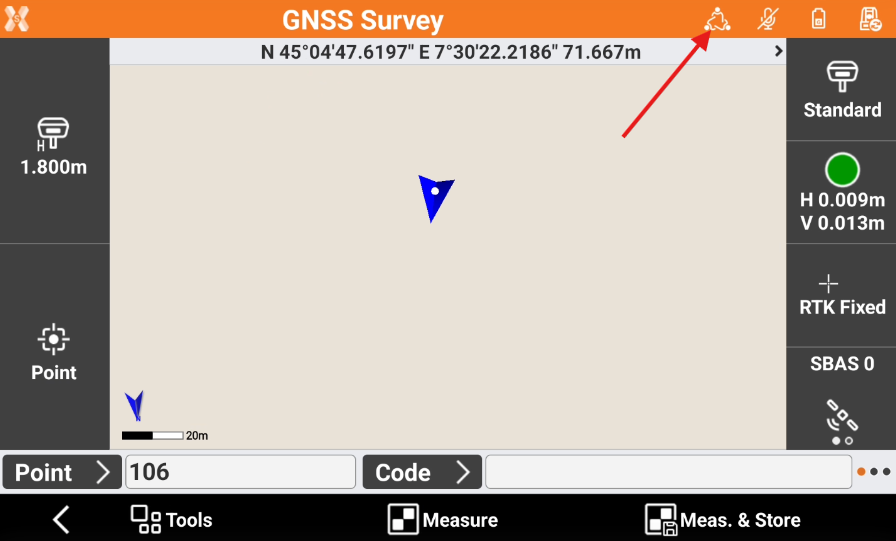
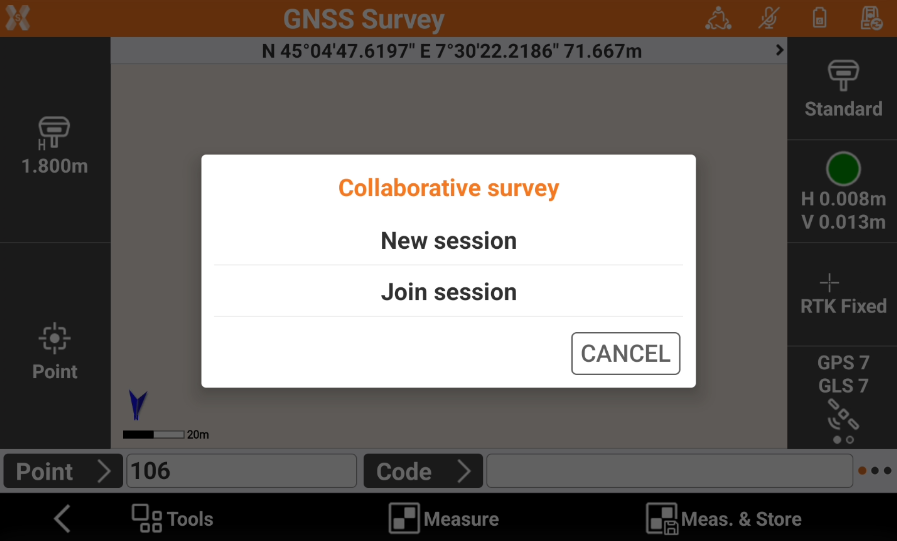
Click New session to start a new collaborative session.
Enter the Session name and click OK.
The collaborative session is started.
Collaborative session settings
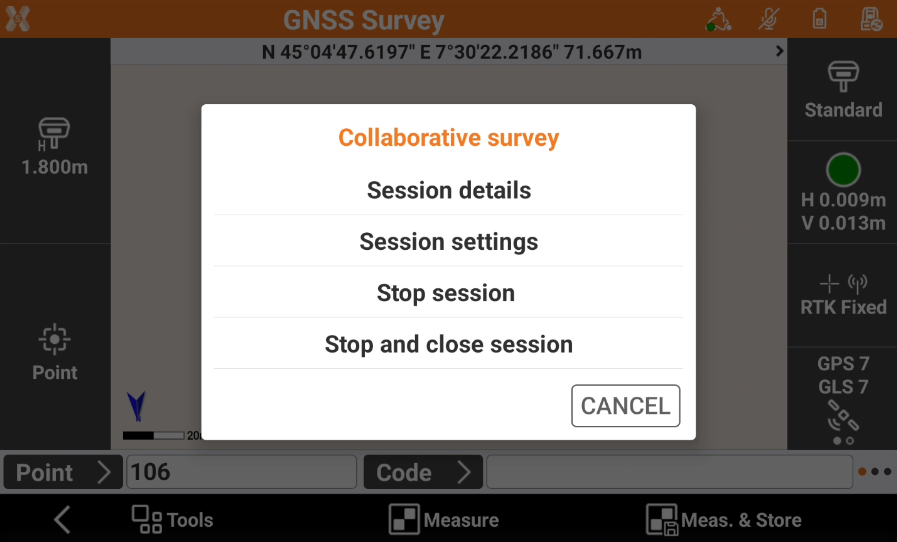
To change the Collaborative session settings, click the Collaborative icon.
Select Session settings.
This open the Session settings panel.
Session alias: the alias used by the user in the collaborative session.
Share points: the points measured will be shared in real time with participants.
Receive points: the points measured by the participants will be received in this controller.
Receive users position: the position of participants will be visible in the map.
Join a collaborative survey session
Other X-PAD 365 Enterprise users, or other X-PAD 365 users who has access to the collaborative site, can join collaborative sessions.

A Collaborative Survey and Stakeout session can be joined by:
Users of the same X-PAD 365 Enterprise account: these users get automatically the list of all sessions started by other X-PAD 365 users in the same Enterprise account.
Other X-PAD 365 users: other X-PAD 365 users can join a session if the user who started the session shared with them the collaborative site where collaborative job is located.
Users of the same X-PAD 365 Enterprise account
Users belonging to same X-PAD 365 Enterprise account receives automatically the list of all sessions active that was started from
Other X-PAD 365 users
Users belonging to a different X-PAD 365 account can join a session, however the site has to be previously shared with the user.
From X-PAD 365 Storage area select the Site and click Share.
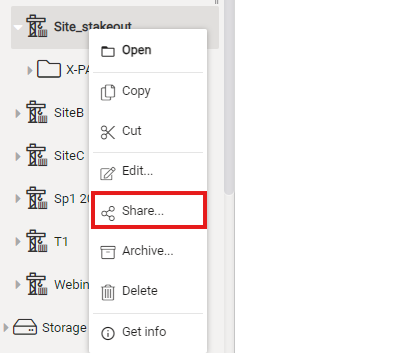
Select the X-PAD 365 user to share the site.
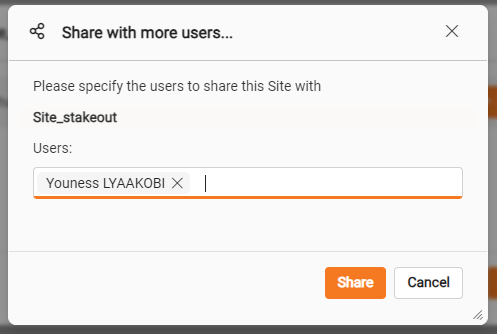
The collaborative site is shared with the user, who will see the site available to download in his controller.
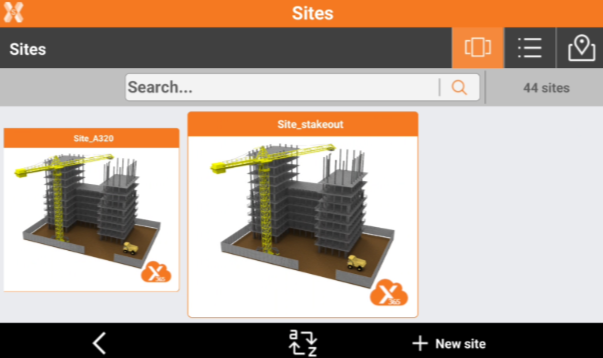
Open a job in the shared collaborative site to have the possibility to join the session.
If a user is connected to X-PAD 365 receives a notification to join the session when it is started.
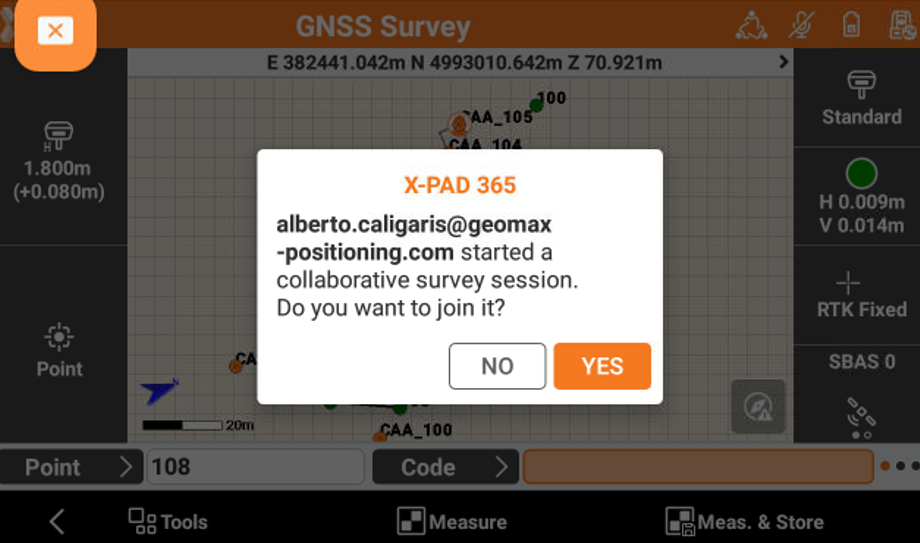
Otherwise open a Survey or Stakeout functionality from a Collaborative job.
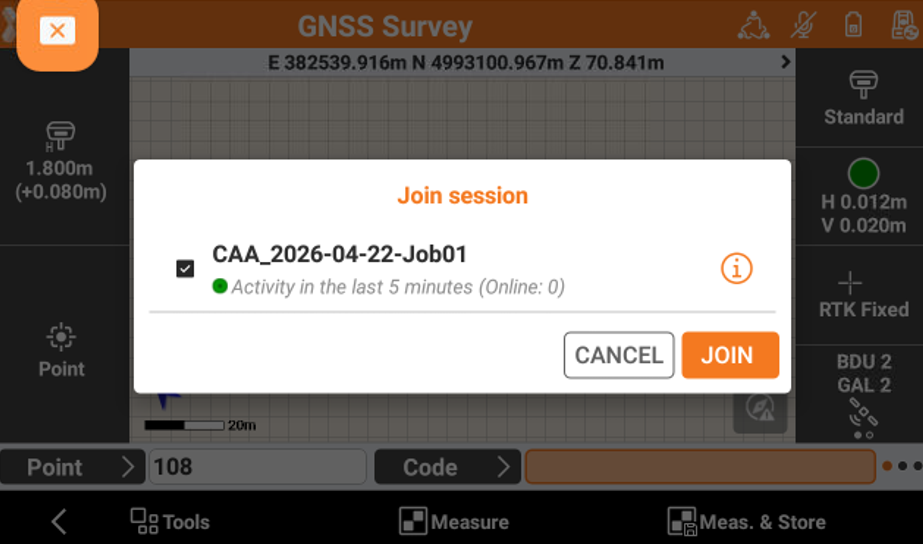
Then click on Collaborative icon and select Join session.
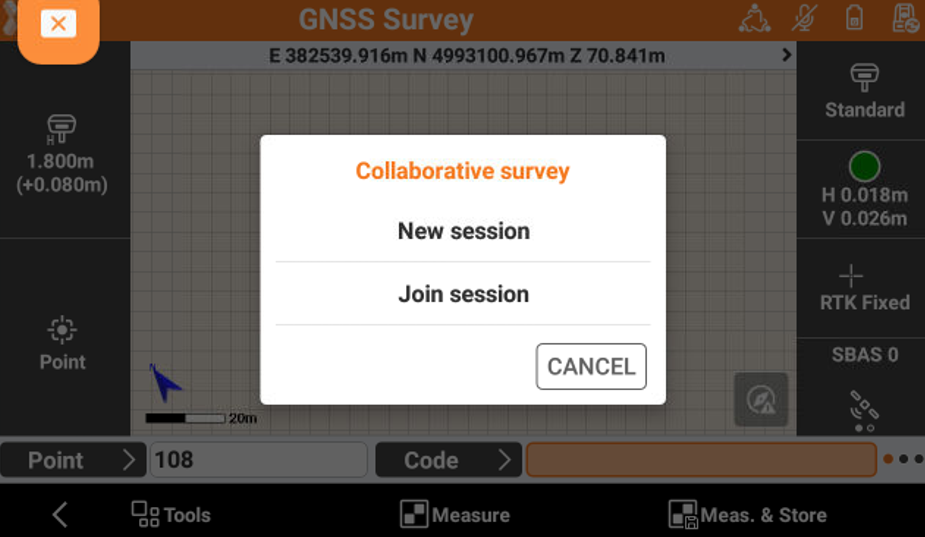
The software lists the active sessions.
Click Join to join a specific session.
Sharing points and drawing within a session
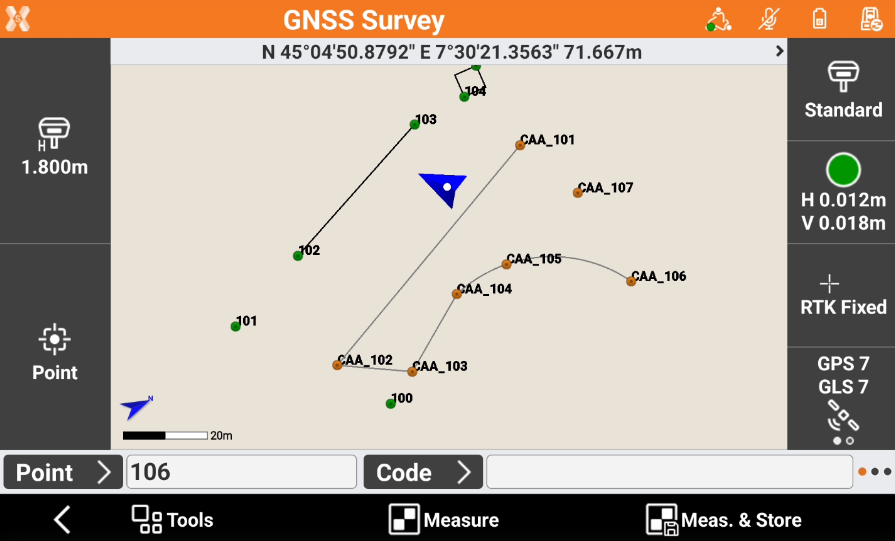
When the session is started, it is possible to visualize in real time points, drawing and stakeout points measured by the participants in the session.
The points measured by the other users have a different color and user’alias as prefix.
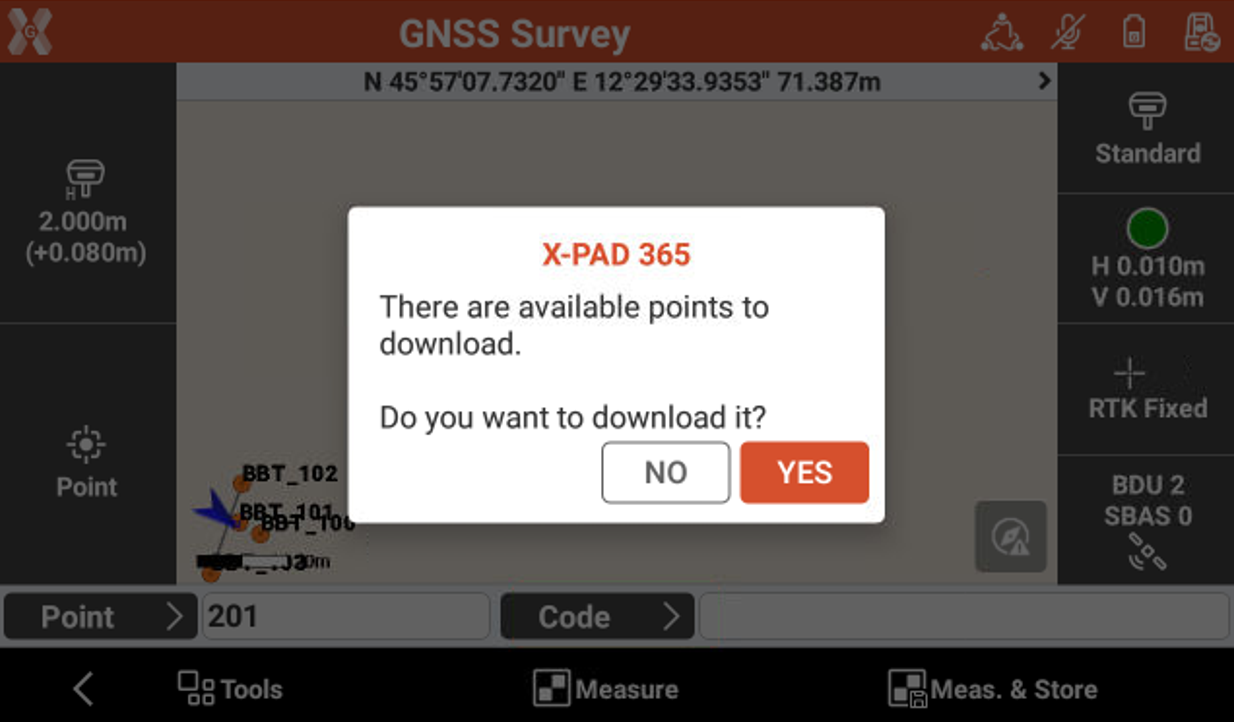
If you start the survey while other participants already measured points, you are prompted to download locally the missing points and drawing.
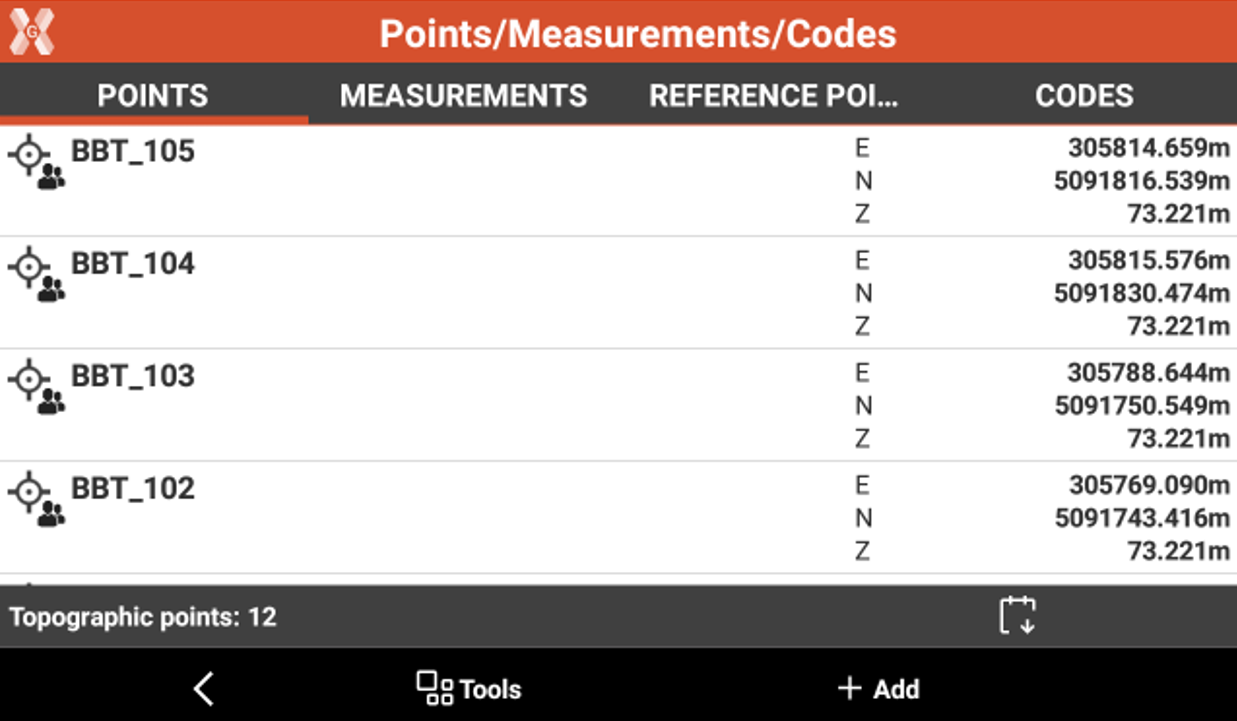
The shared points are available in the controller with a special icon to identify these was measured by the other participants.
Leave a collaborative session
To leave a collaborative session click the Collaborative icon.
Click Stop session to exit from the current session.
Click Stop and close session to exit and terminate the current session.