
GNSS Stakeout interface
 |
|  |
| 
The graphic interface when using a Stakeout function with a GNSS receiver is explained in this chapter.
Whether staking out a point, an element or a position by offset, the software provides indications to reach the position to stakeout using a common scheme.
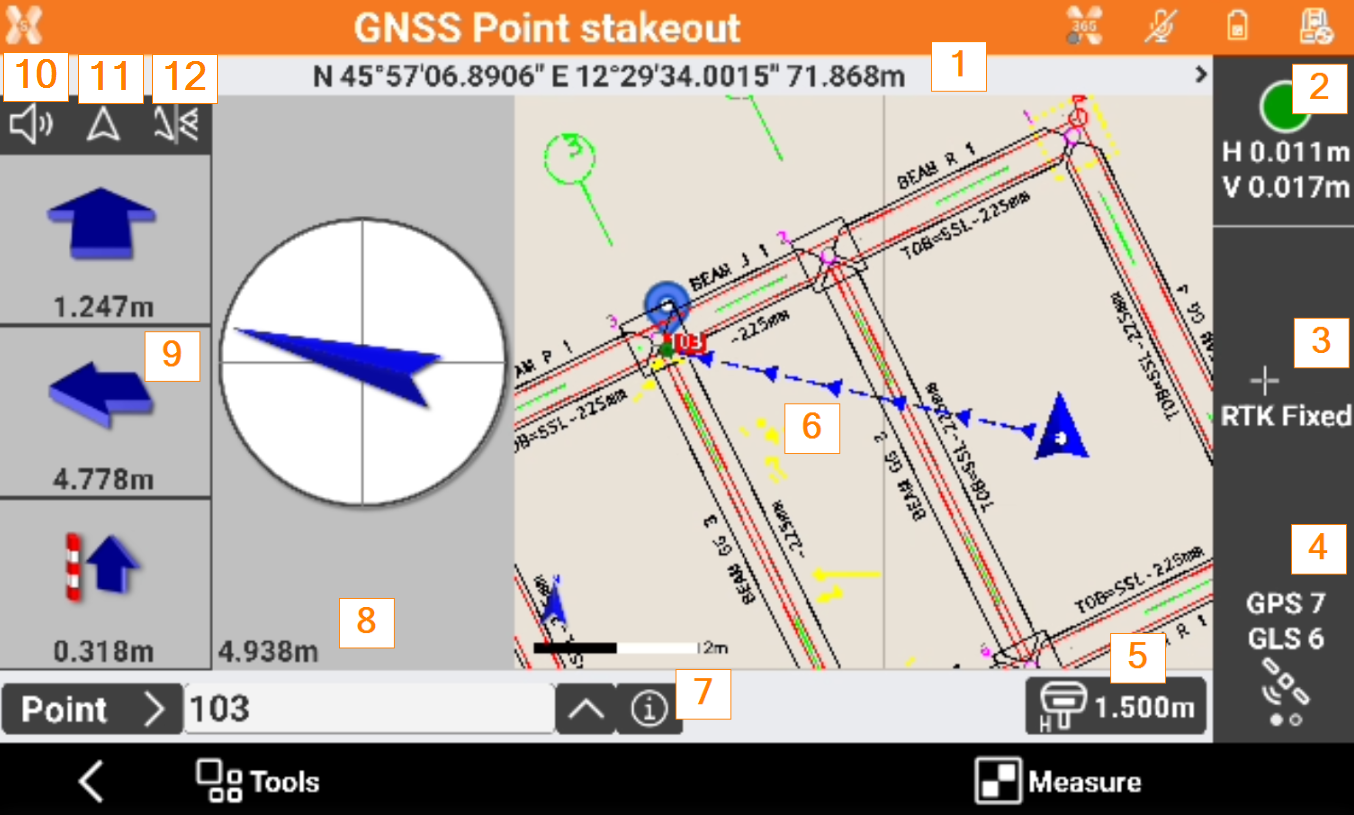
Coordinates: the geographic coordinates (latitude, longitude, elevation) of the receiver. Click to display the plane coordinates (East, North, elevation). Click again to switch back to the geographic coordinates.
Accuracy: the color of the icons indicates if the precision level set in the survey parameters, has been reached. The epochs are acquired only when the level of precision has been reached (horizontal and vertical precision, minimum number of satellites, maximum values of DOP, electronic bubble). Below the icon, the current precision values for coordinates (H) and for elevations (V) is displayed.
Receiver status: opens the GNSS Status page to show the status information of the GNSS receiver.
Satellite/DOP: shows the number of satellites tracked, for constellations GPS, GLONASS, BeiDou, SBAS. Click to display the DOP values.
Antenna elevation: elevation of the antenna of the receiver. Click to modify the elevation.
Graphic area: graphic view with visualization of the current position and of the position to reach. Blue: all parameters of operation satisfy the preset level of accuracy. Red: the accuracy parameters are not met. The blue line indicates the direction to the point to stakeout.
Info: click to open the information of the point to stakeout and enter a code.
Compass indication: shows a compass indicating, with respect to the current direction, the direction of the position to reach. In the lower part is the distance of the point. Blue: when more than a meter distance from the position to reach. Red: when the receiver has not reached yet the precision check defined In the stakeout settings, define the distance limit stating when to use this type of visualization. The value of default is set in meter. When the distance from the position to reach is less than one meter this view mode appears. Indications provided and position indicated refer to North or to the sun. The background becomes green, when the position is reached within the tolerance values.
Numeric indications to reach position: indications are referred to North, to Sun or to Reference point. First value refers to distance forward or backward. Second value refers to distance right or left. Third value specifies the elevation difference.
Audio indications: the software guides by vocal information allowing, most of all when you are far from the point, to arrive near the point without having to look always on the controller. A tone tells when the desired position is reached considering the defined tolerance limits. Click to turn off/on the audio indications.
Stakeout reference: changes the Stakeout reference for GNSS receivers.
View mode: changes the Stakeout view mode for GNSS receivers.