Station setup tools
After the setup has been performed, it is possible to access different tools.
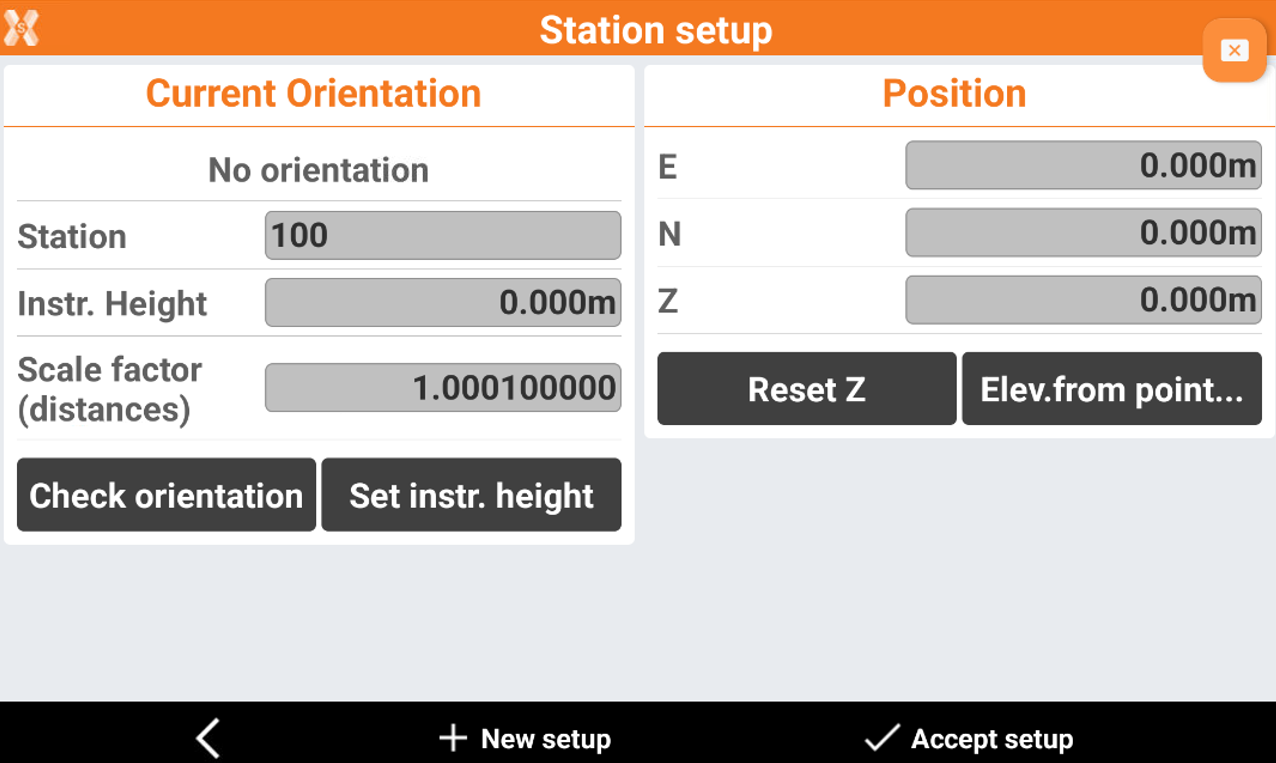
Check orientation: to check if the orientation of the station is still valid or if the orientation must be done again.
Set instrument height: to change the height of the instrument.
Reset Z: to reset the station elevation.
Elevation from point: to calculate the station elevation from reference points.
Check orientation
 |
| 
The function is used to check if the orientation of the station is still valid or if the orientation must be done again.
Click Station setup.
Click Check orientation.
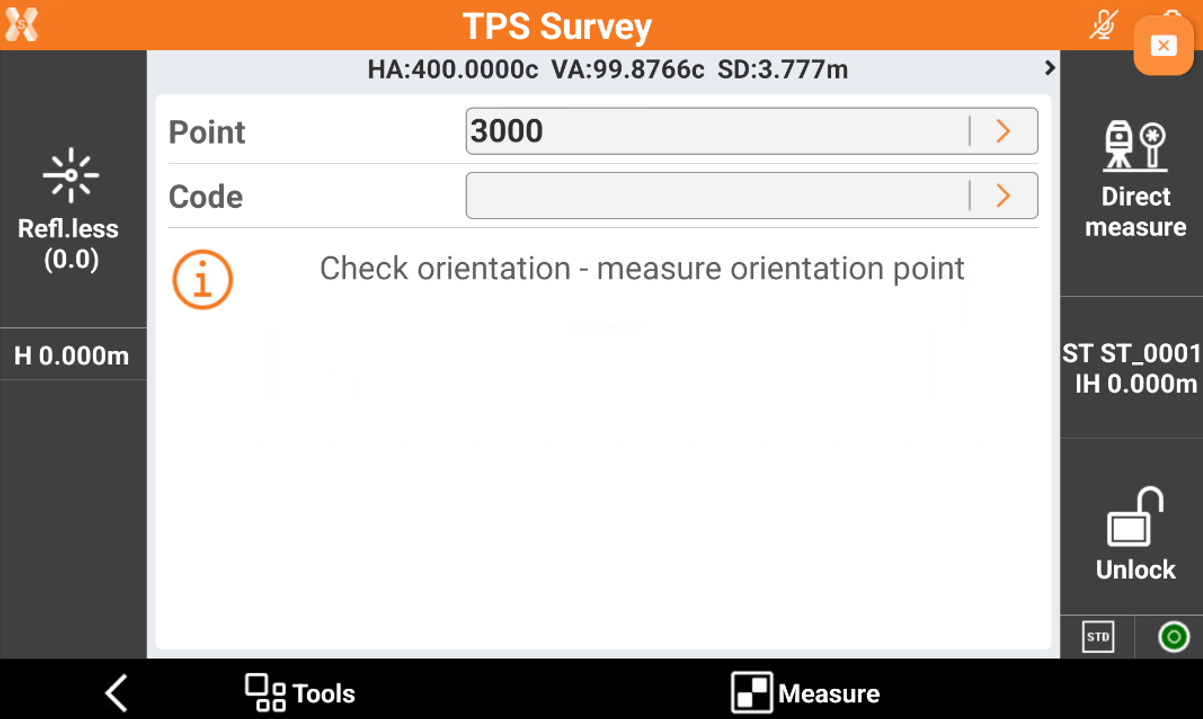
Aim the orientation point and press Measure.
A report with the difference is displayed.
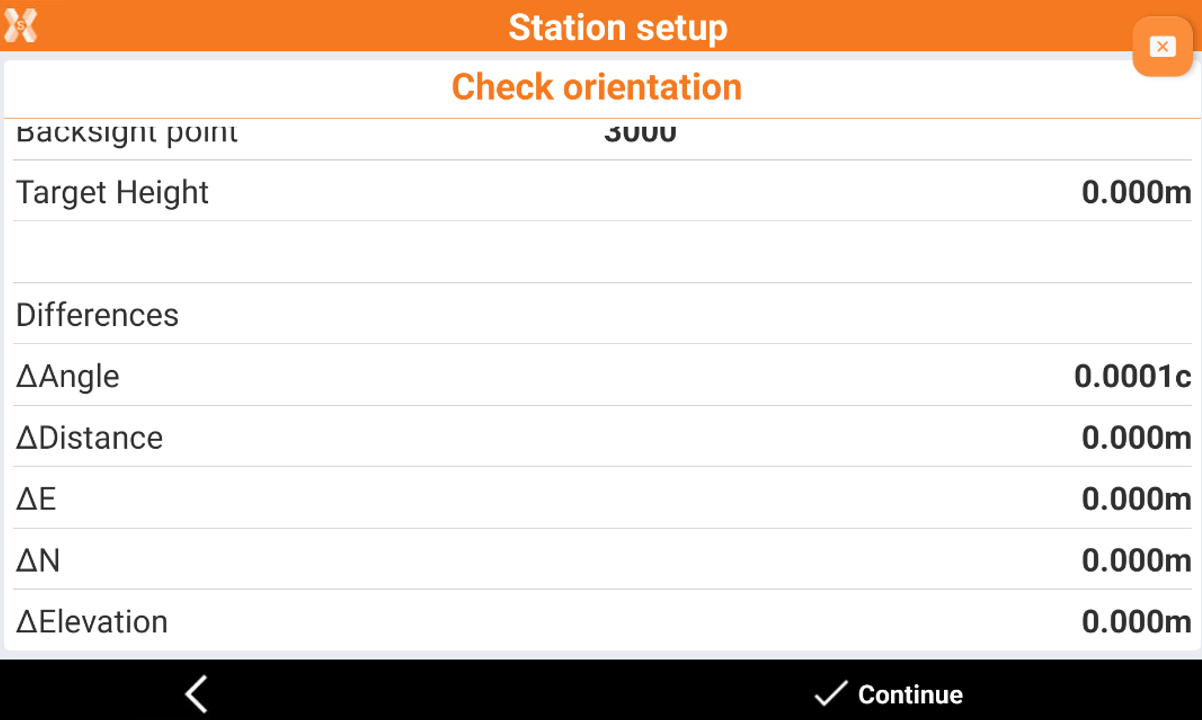
The software asks if this measurement should be used as a new backsight orientation for subsequent measurements. It is also possible to adjust all previous measurements with the new setting.
Set instrument height
|
The tool allows to change the height of the instrument.
Click Station setup.
Click Set instrument height.
The software asks if you would like to change the instrument height of all measurements for the current setup.
Enter the new height. The elevations of all measured points are recalculated.
Reset Z
|  |
|
The tool is used to reset the station elevation.
Click Station setup.
Click Reset Z and confirm the selection.
The value for the station elevation is set to the previous elevation.
Elevation from point
| |
The function allows to calculate the station elevation from a reference point.
Click Station setup.
Click Elevation from point.
Select if elevation is calculated from a single point or from multi points. In this example select From a single point.
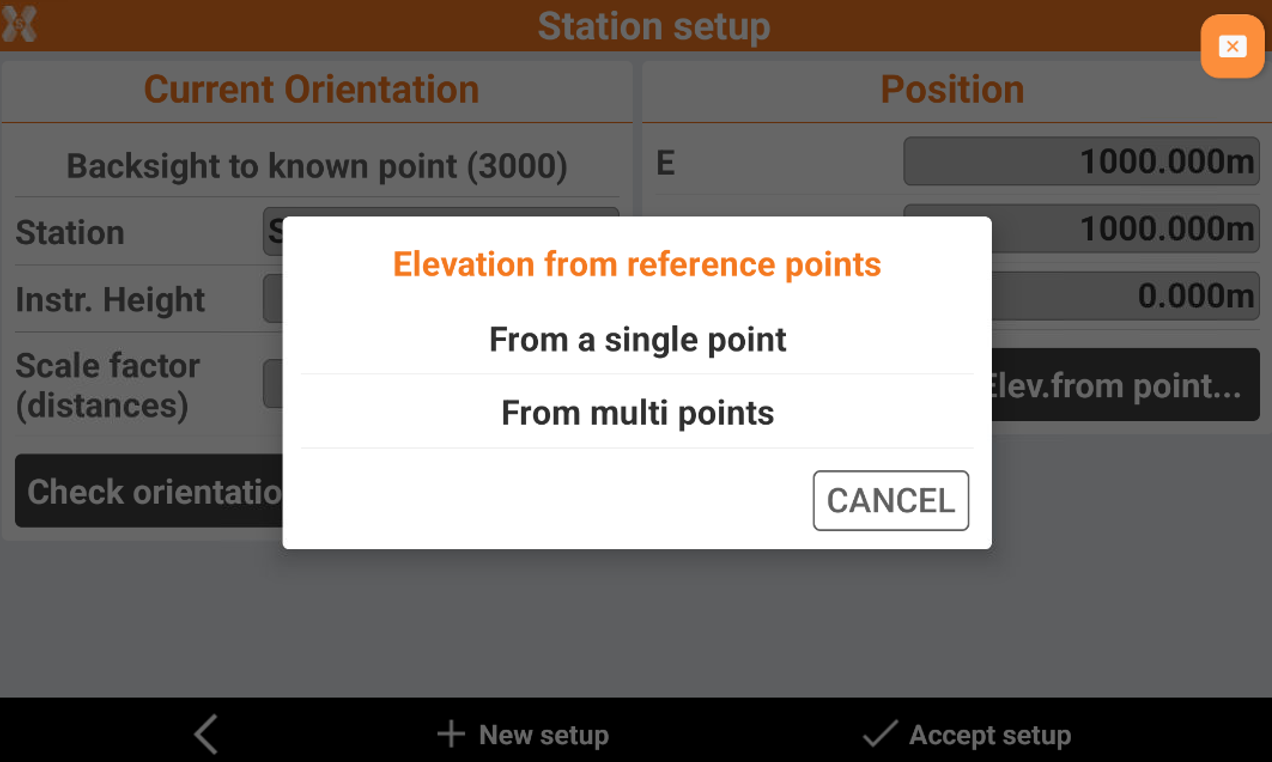
In the next page enter the information on the reference elevation.
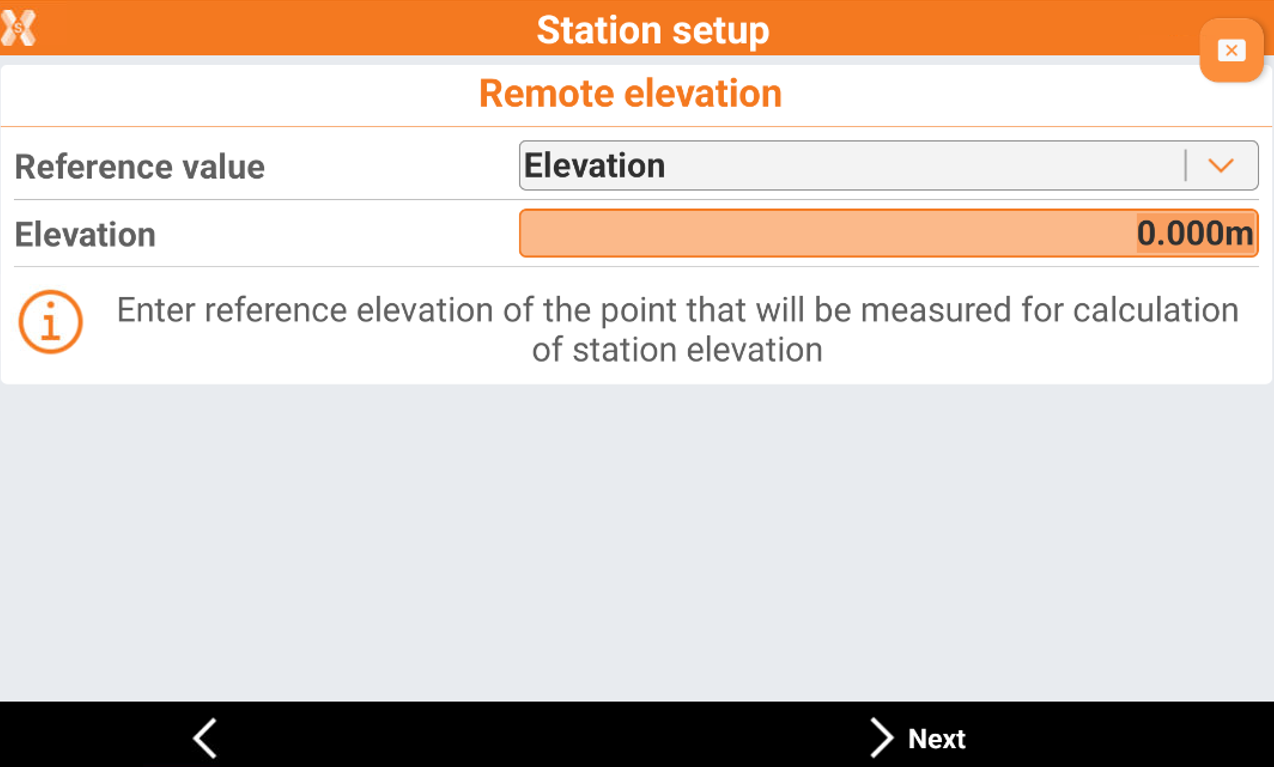
Reference value:
Elevation: enter reference elevation of the point that will be measured for calculation of station elevation. The elevation is entered in the field Elevation.
Point: select reference point from list of points or from CAD that will be measured for calculation of station elevation.
Click Next to measure the reference point for the elevation calculation.
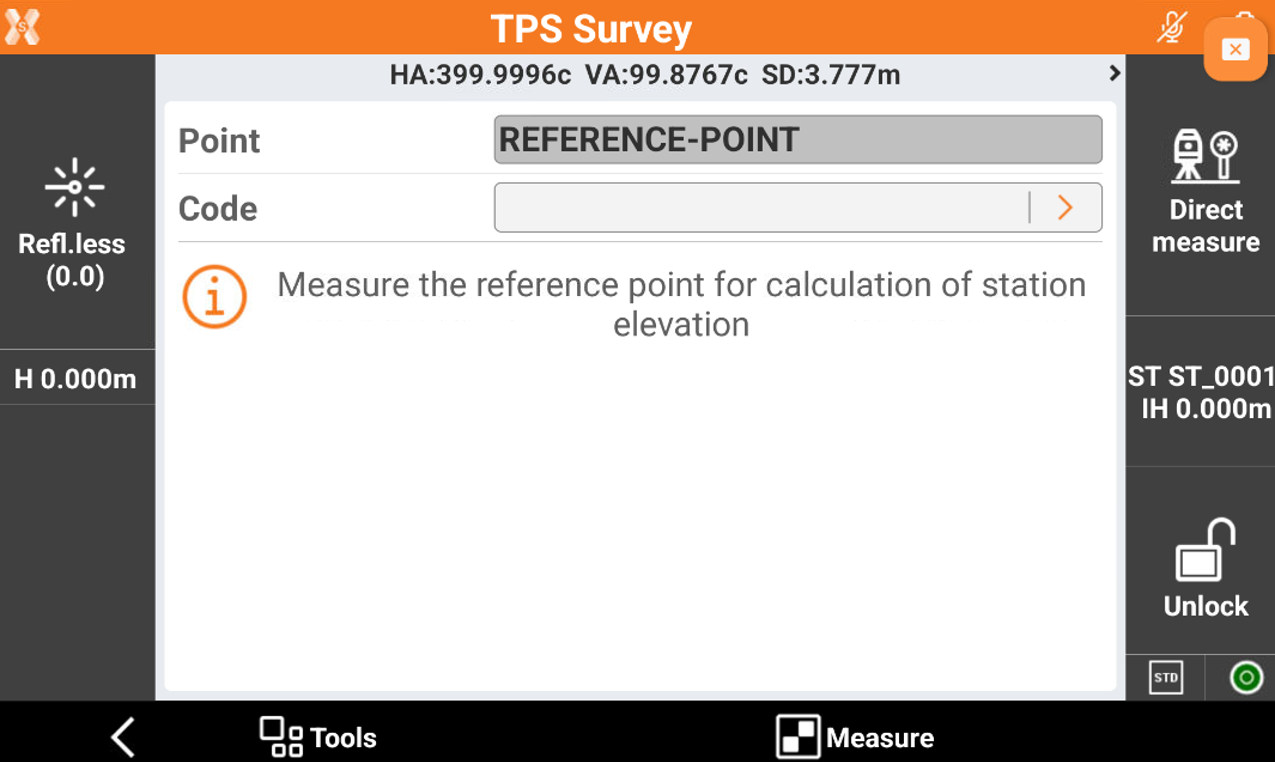
The software shows the remote elevation result. Click Save to accept the result.
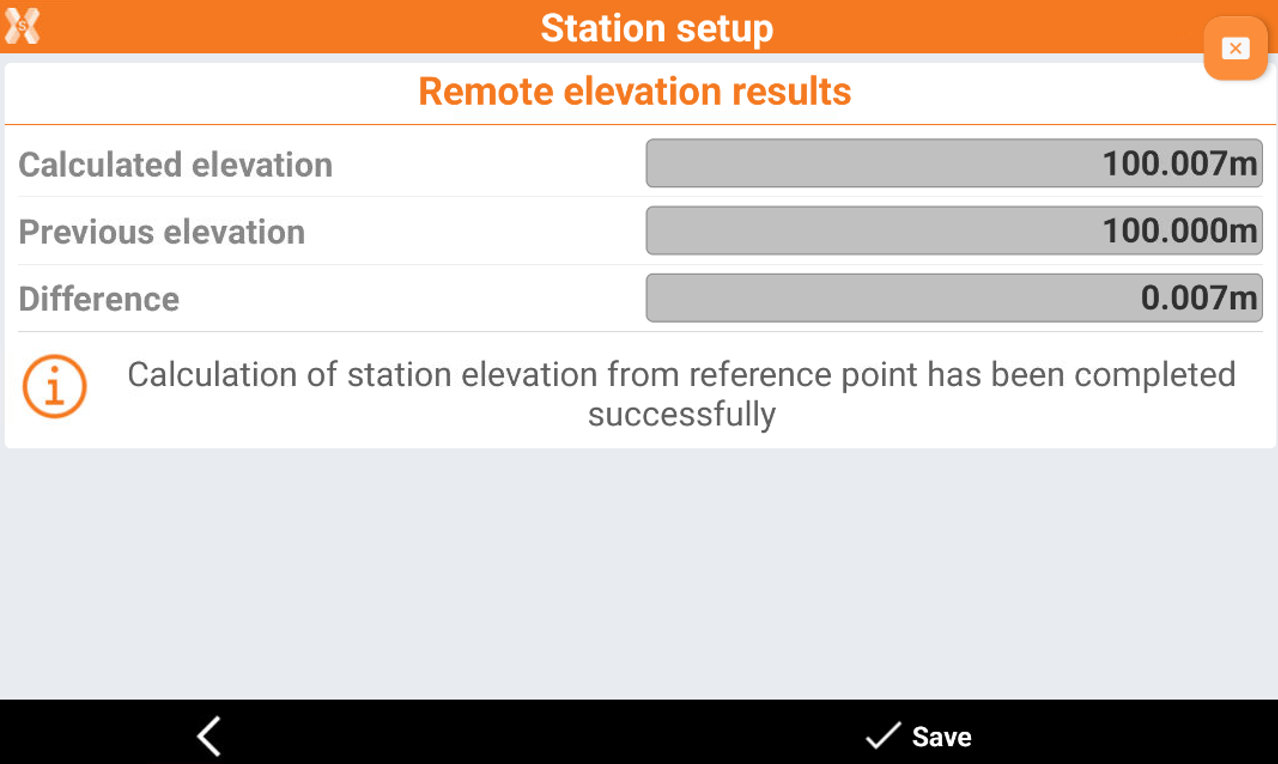
Elevation from multiple point
The function allows to calculate the station elevation from multiple reference point.
Click Station setup.
Click Elevation from point.
Select if elevation is calculated from a single point or from multi points. In this example select From multi points.
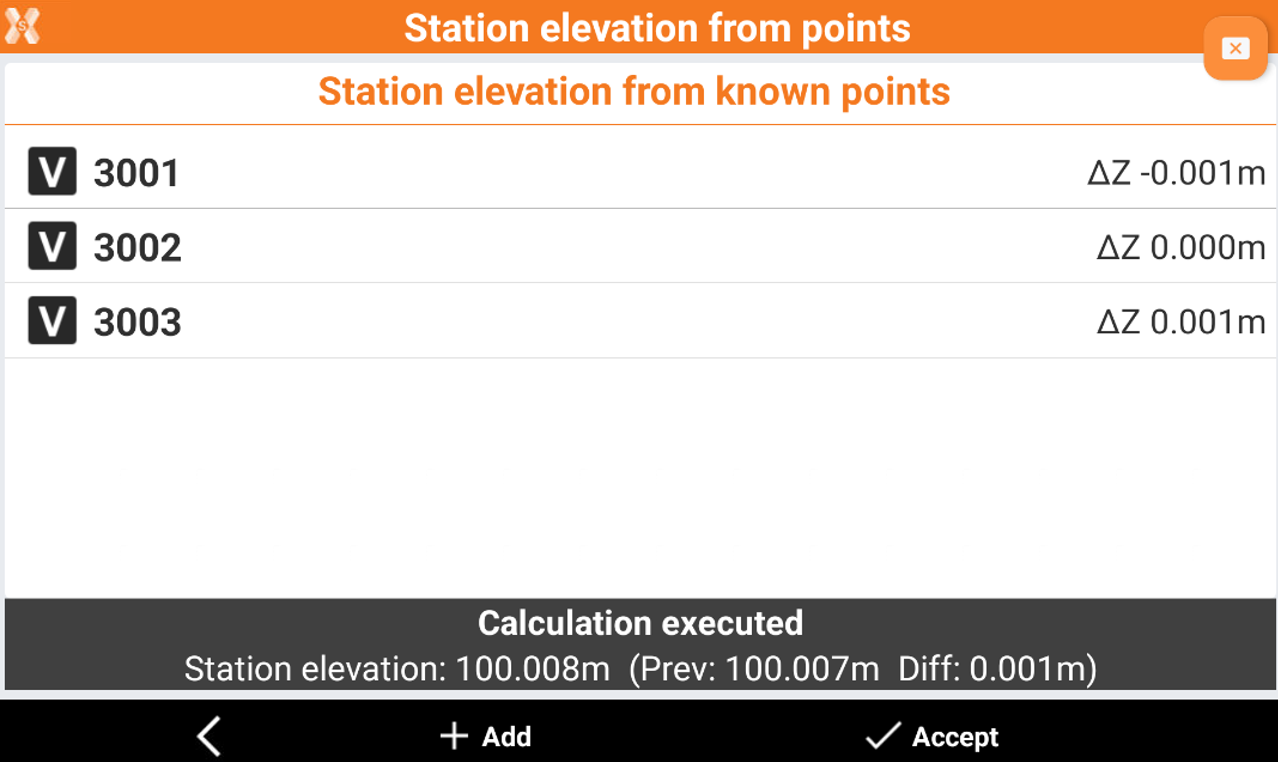
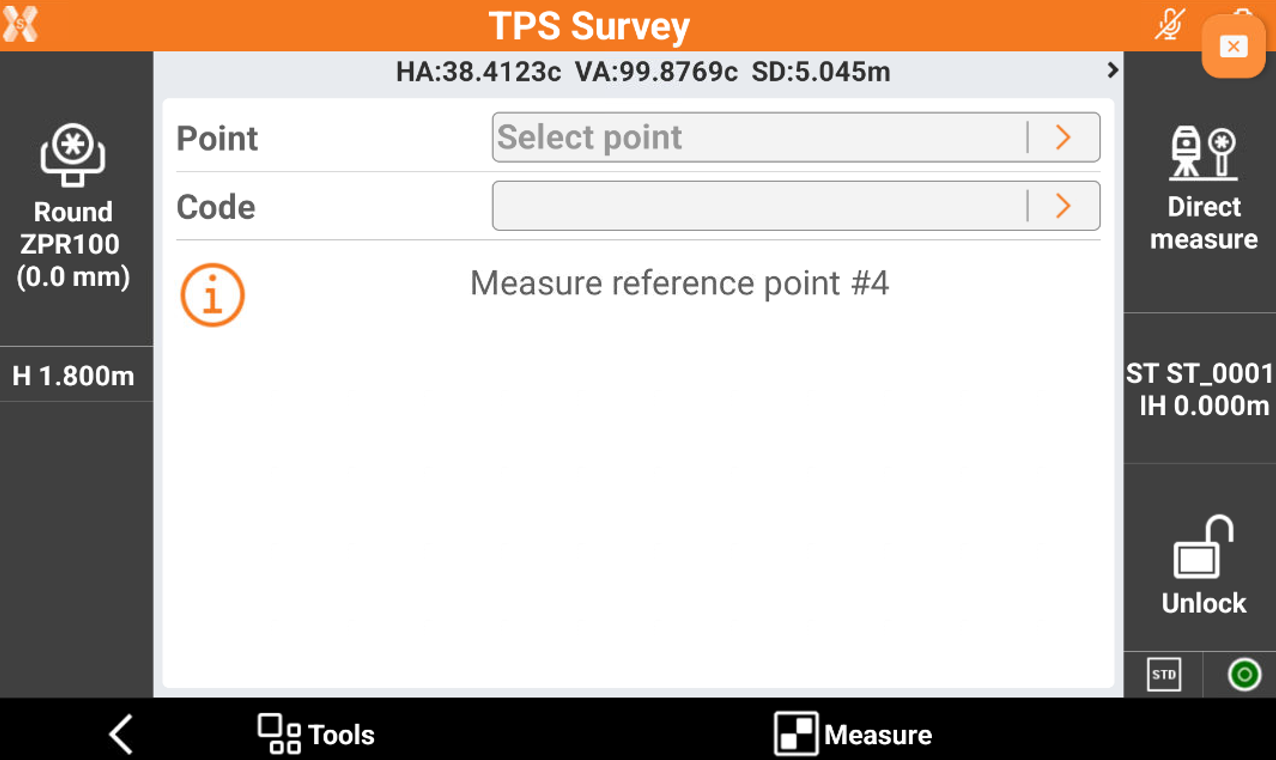
In the next page click Add to measure the first reference point. You can select the reference point from the list of points.
Proceed to measure additional reference points.
The result can be evaluates in a table. Click Accept to save the result.