
Before updating a new firmware be sure the instrument battery is fully loaded. Never disconnect the power supply during the system upload process.
Upload a new firmware
-
To upload a new firmware a USB pen drive is required.
It is recommended to use a formatted USB pen drive with maximum 8GB storage.
-
Create in the memory a new folder called SYSTEM.
-
Copy in the folder SYSTEM the latest instrument firmware.
-
Insert the memory device in the Zoom25/50.
-
Click Tools and select Load FW.
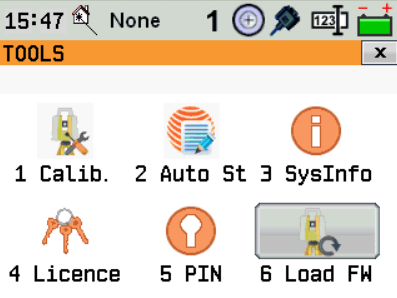
-
Select Firmware. The software shows the firmware files available in the SYSTEM folder in the USB. Select a file to proceed.
-
The firmware will be loaded and instrument automatically turn off and on. The process will take several minutes.
Upload a new language file
The language file version has to correspond to the instrument firmware version. Note that firmware may be available with ENZ or NEZ coordinate order.
-
To upload a new firmware a USB pen drive is required.
It is recommended to use a formatted USB pen drive with maximum 8GB storage.
-
Create in the memory a new folder called SYSTEM.
-
Copy in the folder SYSTEM the latest instrument language.
-
Insert the memory device in the Zoom25/50.
-
Click Tools and select Load FW.
-
Select Language. The software shows the language files available in the SYSTEM folder in the USB. Select a file to proceed.
-
The language will be loaded and instrument automatically turn off and on.