
The first step to start with X-PAD365 is to create a new account.
-
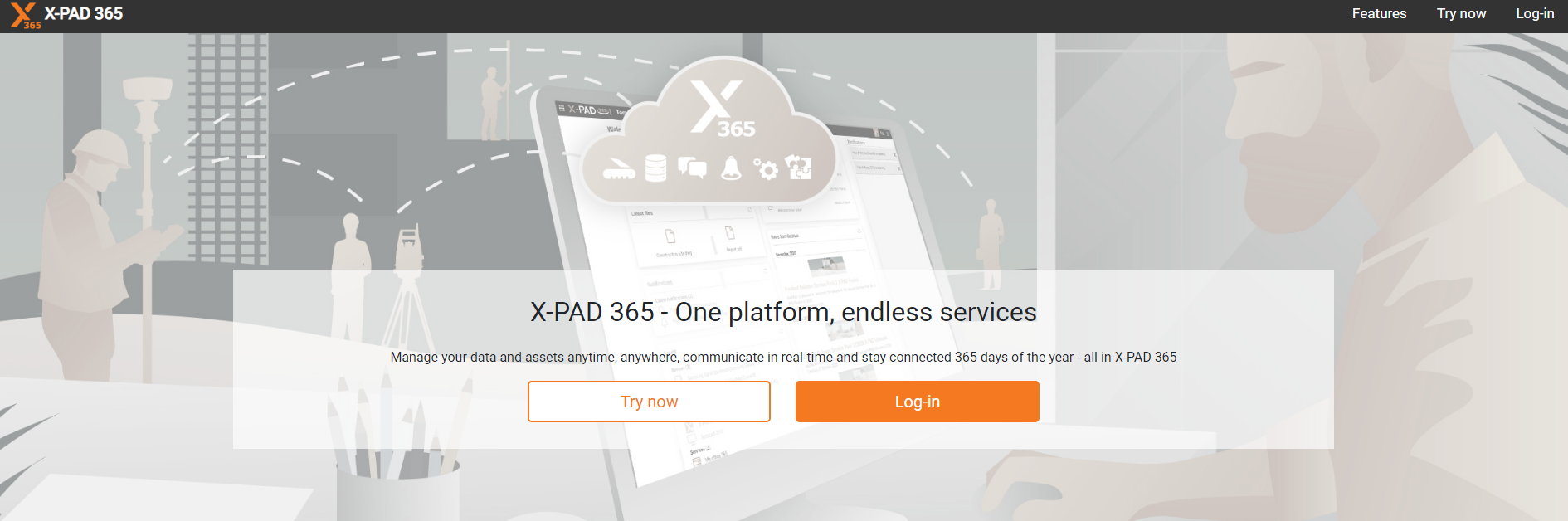
To create a new account open the X-PAD365 page at address https://x-pad365.geomax-positioning.com/
The account creation process can also be started from the office and field software.
-
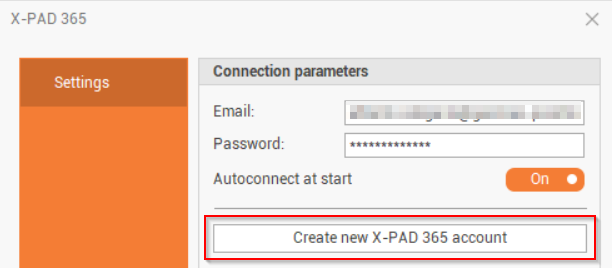
In Fusion click on X-PAD365 icon on top-right of the screen and select Create new X- PAD365 account.
-
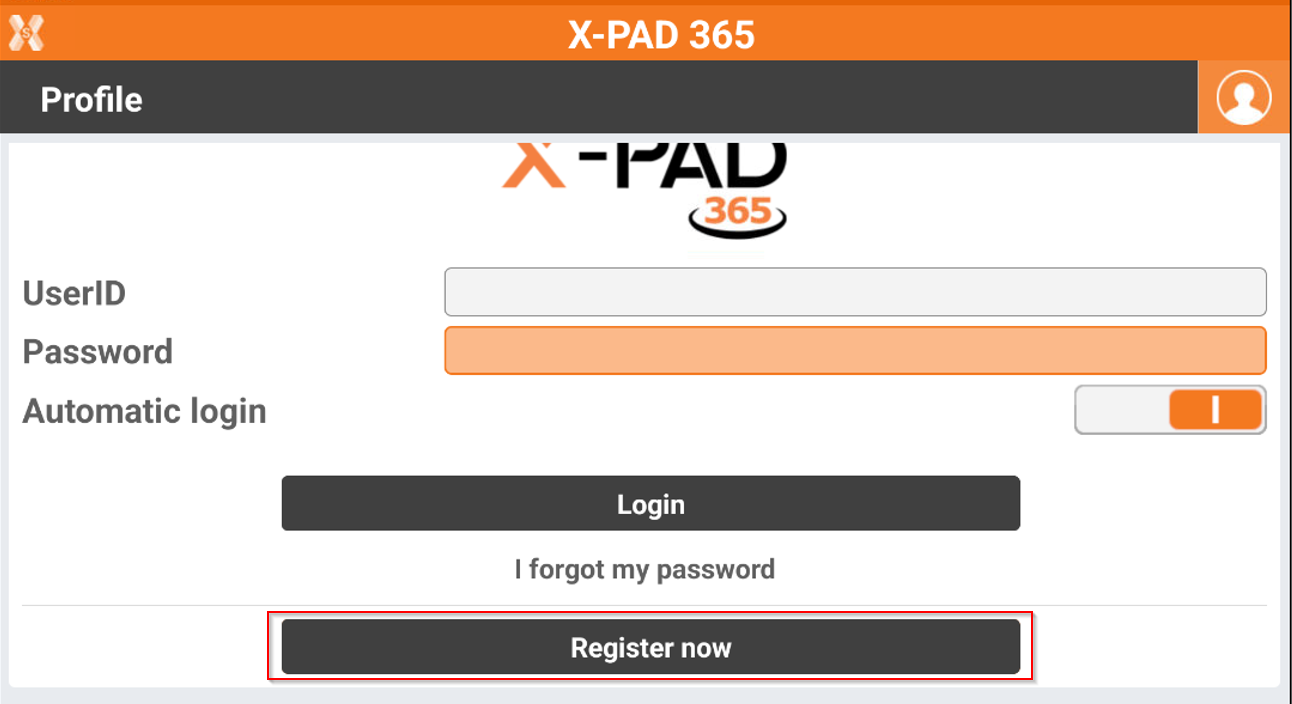
In Ultimate click on X-PAD365 icon on top-right of the app screen and select Register now.
Create a new account without an X-PAD365 license
-
If you have not an X-PAD365 license, click Try Now to create a new account.
-
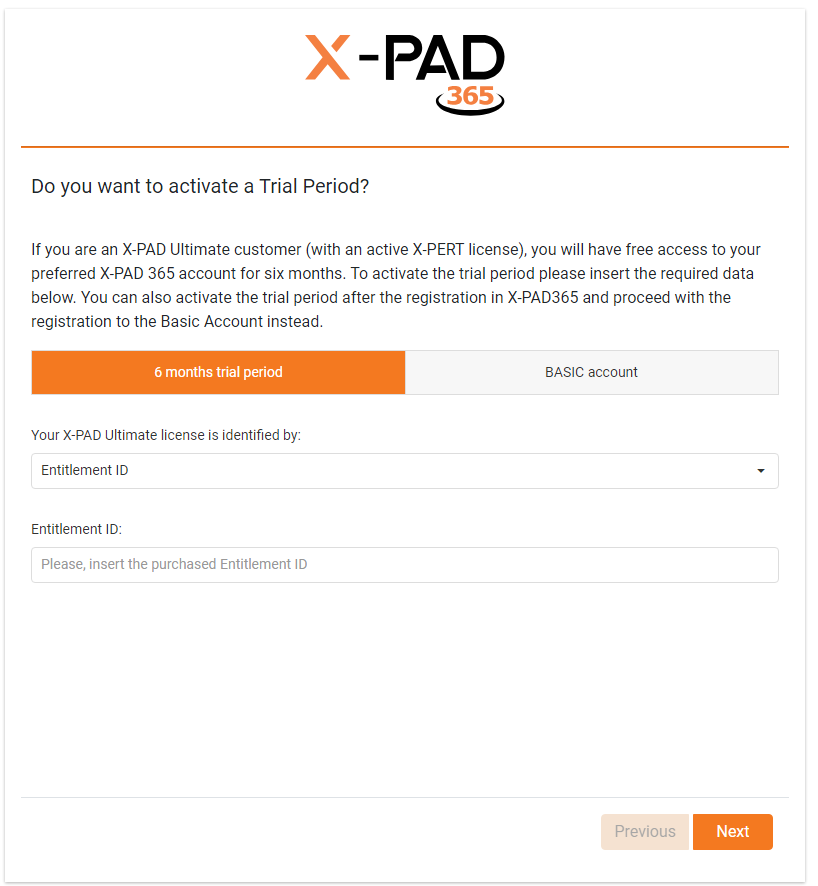
Now it is possible to select if create a Basic account or a Trial account.
-
Basic account: free of charge account available for all the users.
-
Trial account: 6 month trial account that can be activates for free entering the license ID (Entitlement ID) from an X-PAD Ultimate license with an active X-PERT license.
-
-
Click Next to proceed.
-
Enter your personal and company information.
-
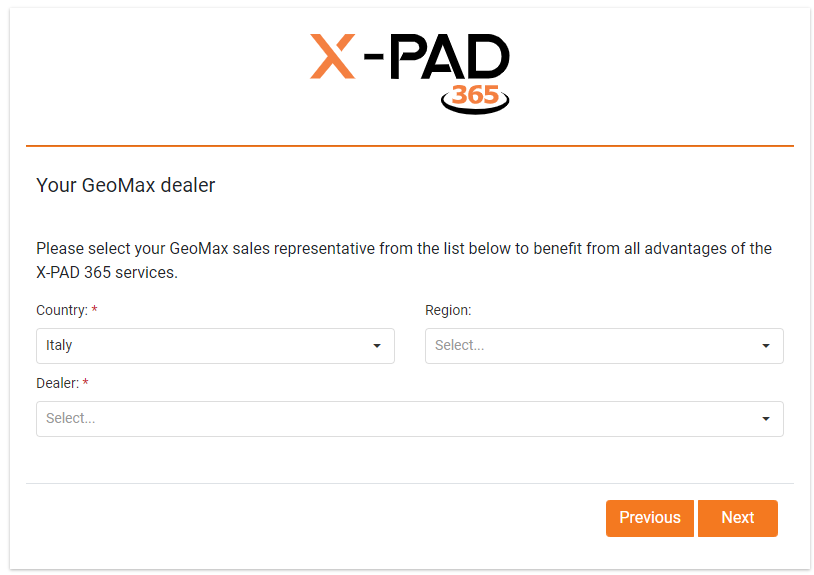
Select your GeoMax distributor.
-
-
Create your password and proceed with account creation.
-
Confirm your email replying to the email received on your entered email address.
Create a new account with an X-PAD365 license
-
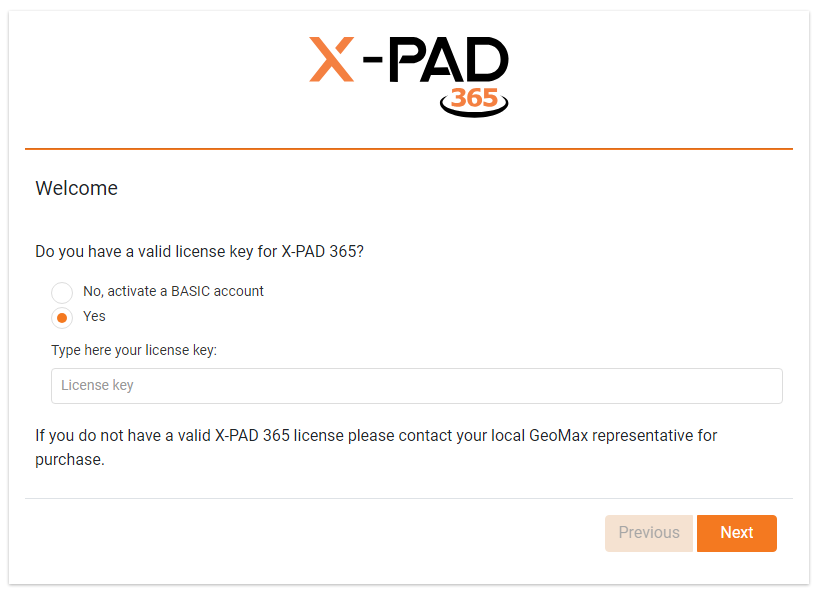
If you have a XPAD365 license click Log-in and select to create a new account.
-
Type in your X-PAD365 license key (Entitlement ID).
-
Confirm the entered license.
-
Enter your personal and company information.
-
Select your GeoMax distributor.
-
-
Create your password and proceed with account creation.
-
Confirm your email replying to the email received on your entered email address.