
-
To configure TRU35 the software Zenith Manager for Android is required.
-
Zenith Manager can be download from Google Play and installed on Android devices.
-
Zenith Manager communicates with TRU35 using the Bluetooth.
TRU35 connection
-
Start Zenith Manager application.
-
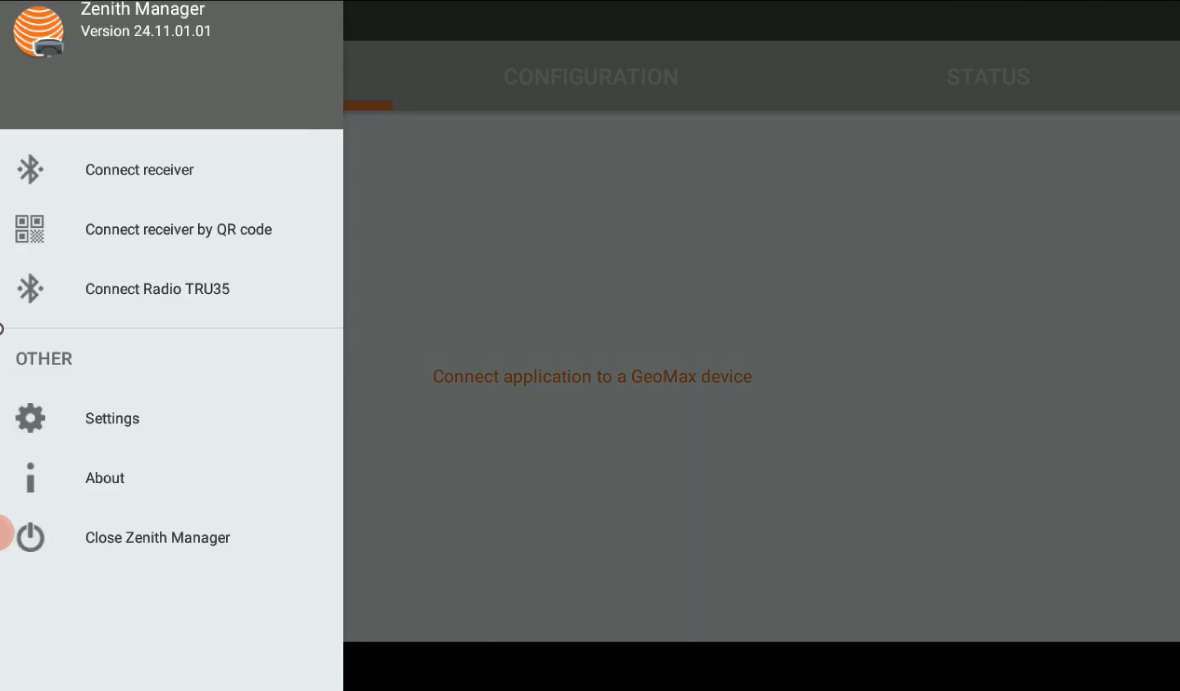
Open the left bar and click Connect Radio TRU35.
-
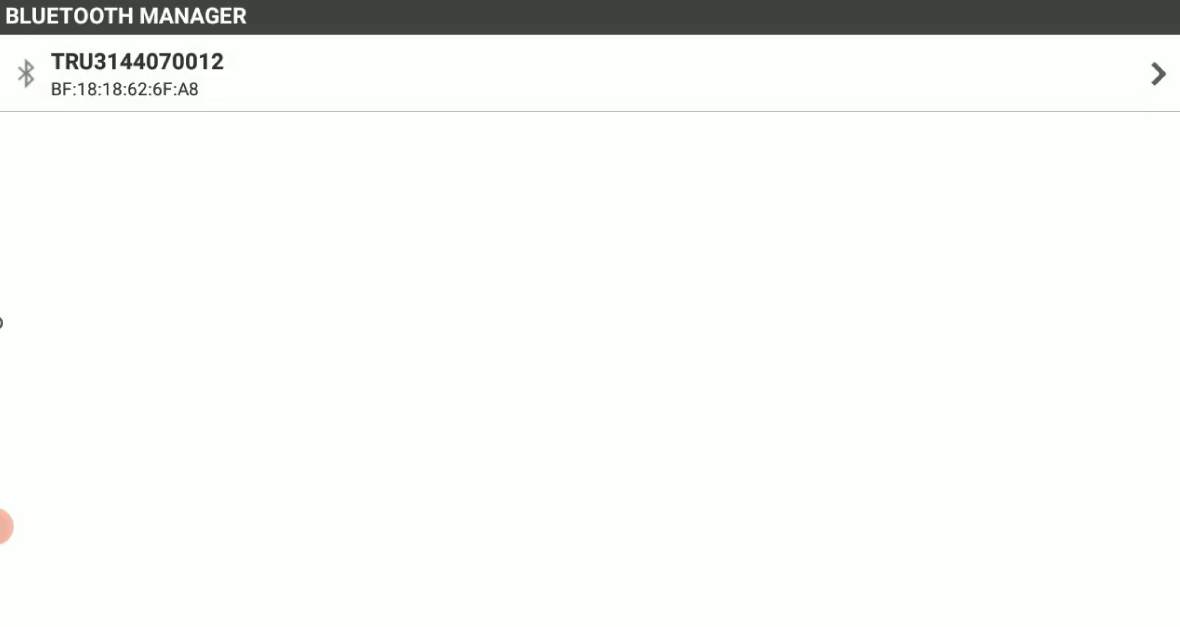
Click Search and select the TRU35 from the list. The app will connect to TRU35.
-
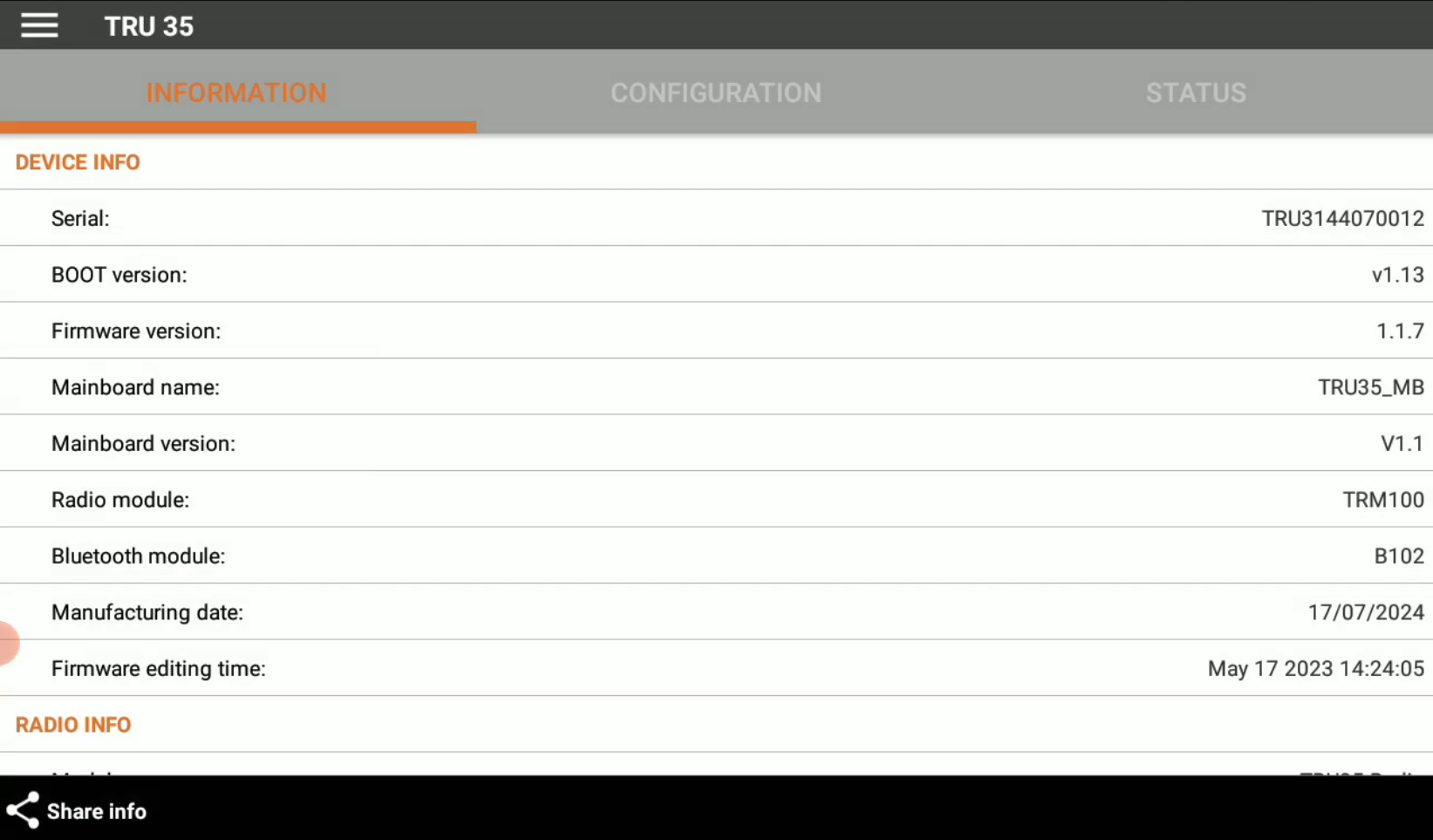
When connected the software shows the radio current information.
Information page
-
The Information page shows the information on the TRU35, like the serial number and the firmware.
-
Click Share info to create an ASCII file containing details about the radio and its current configuration. The file will be saved as \Download\ZenithManager\TRU35 Info.txt.
Status page
-
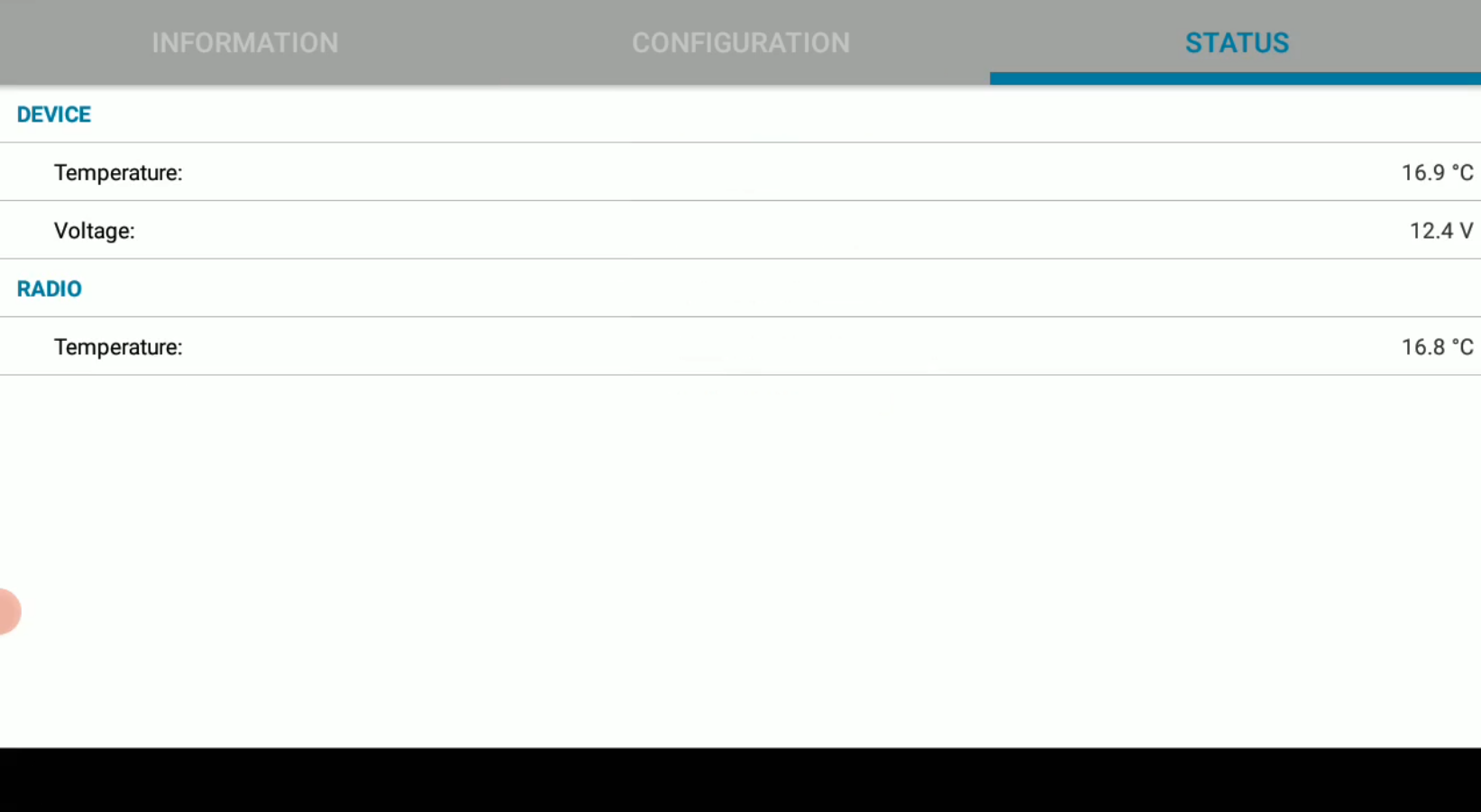
The Status panel provides additional radio status information.
Configuration page
-
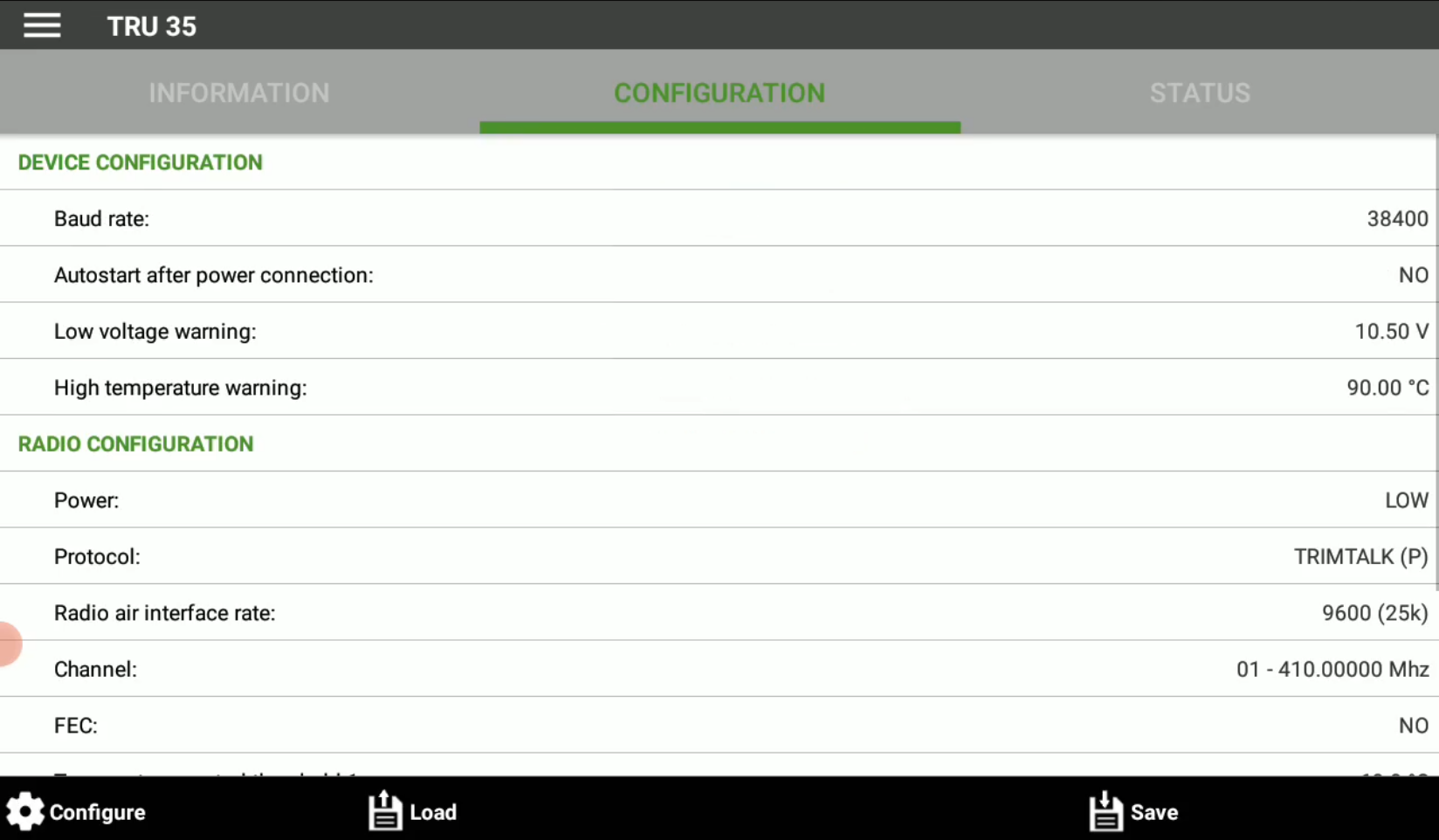
The Configuration page shows the current radio configuration.
-
Click Load to load a saved configuration.
-
Click Save to save the current configuration profile.
-
Click Configure to configure the TRU35.
Radio configuration
-
From the Configuration page click Configure.
-
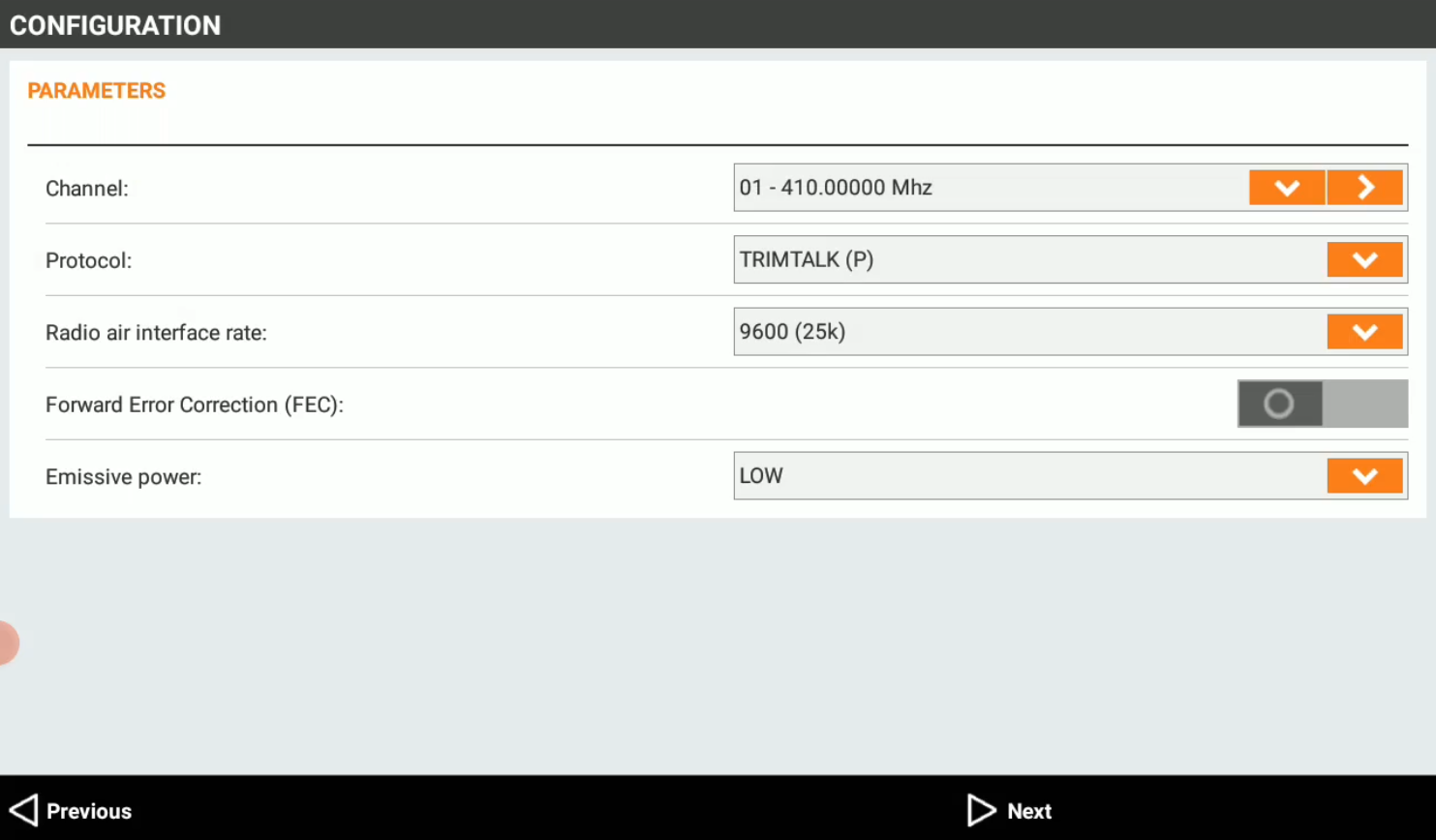
The Parameters page allows to enter the radio parameters.
-
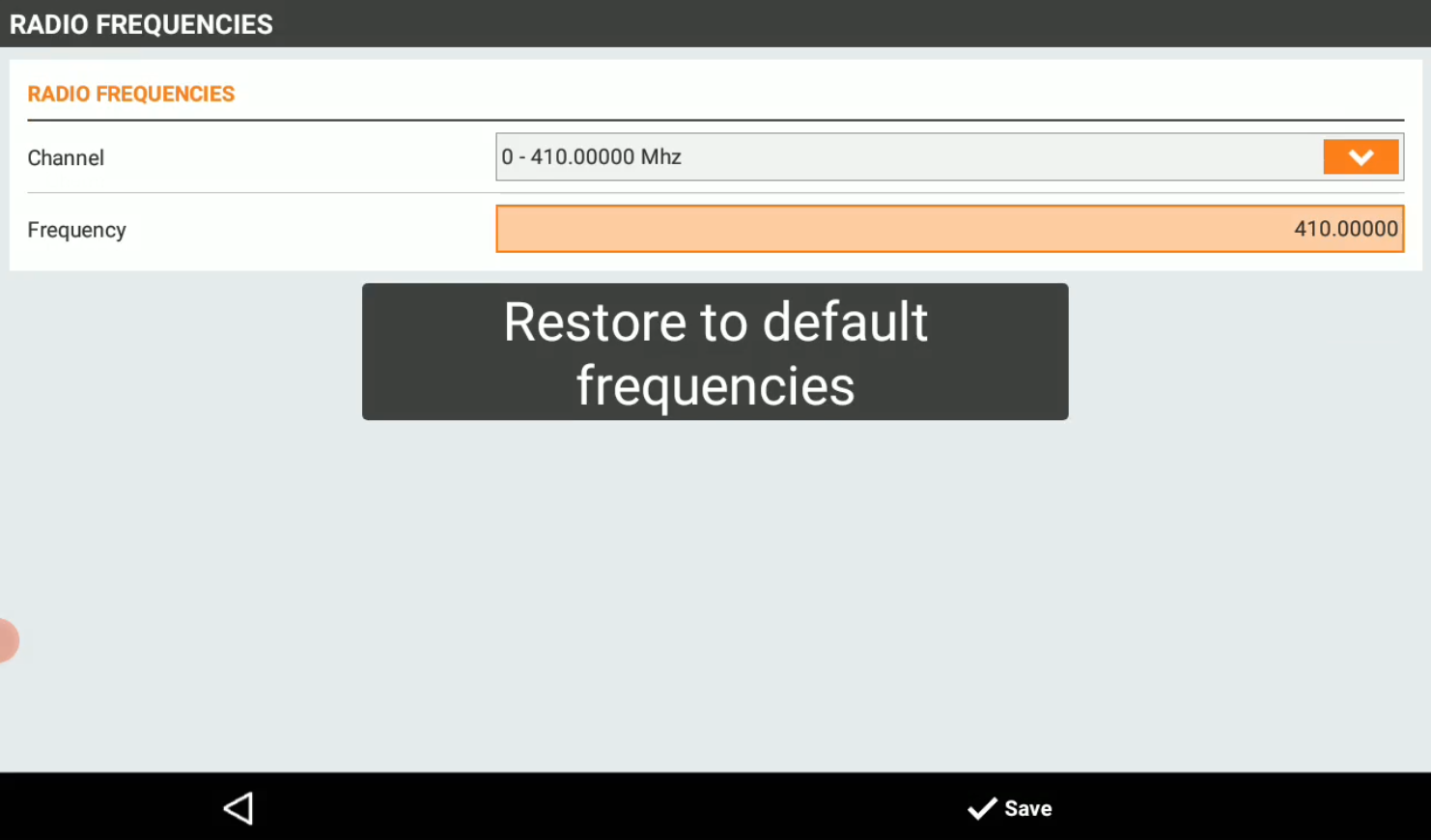
Channel: select a configured channel with a defined frequency, or click to assign to a channel a different frequency.
-
Protocol: allows to define the transmission protocol.
-
Radio air interface rate: allows to define the bandwidth.
-
Forward Error Correction (FEC): allows to turn on/off the forward error correction method.
-
Emissive power: defines the transmitting power.
-
To correctly receive the RTK data on the rover receiver, the protocol, frequency, spacing and FEC has to be configured the same.
-
Click Next to move to next page.
-
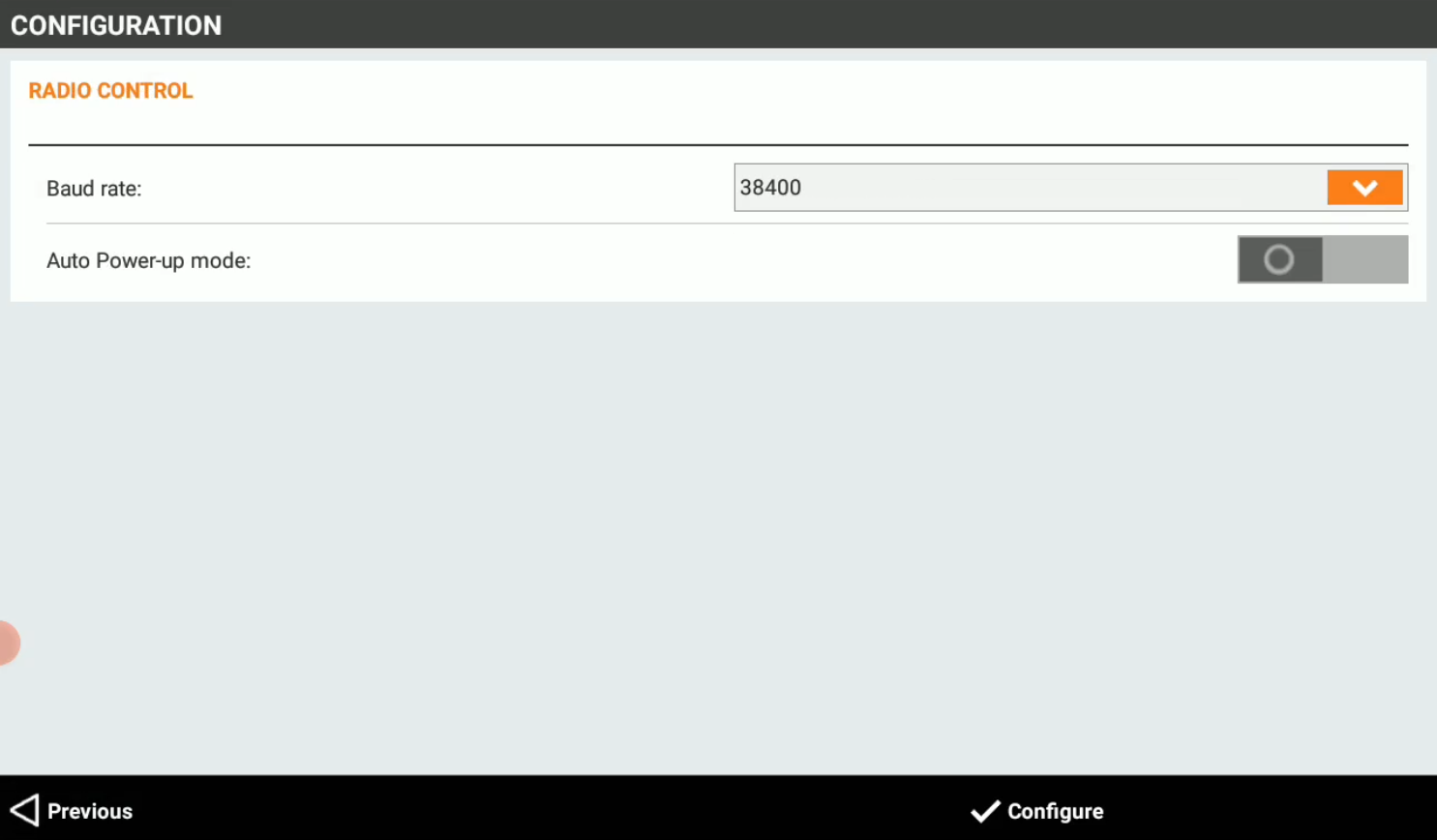
Baud rate: the baud rate for the serial port. This is the baud rate for the data transmission from the GNSS base receiver to the TRU35.
-
Auto power-up mode: enables the TRU35 to turn on when external power is connected.
-
To correctly receive the RTK data from the GNSS base receiver to TRU35, the baud rate configured must match the baud rate defined in X-PAD when the GNSS base has been configured with external radio datalink.
-
Click Configure to complete the configuration.