
Points cloud import
The first step when the registration tool is started, is to import the point clouds to register.
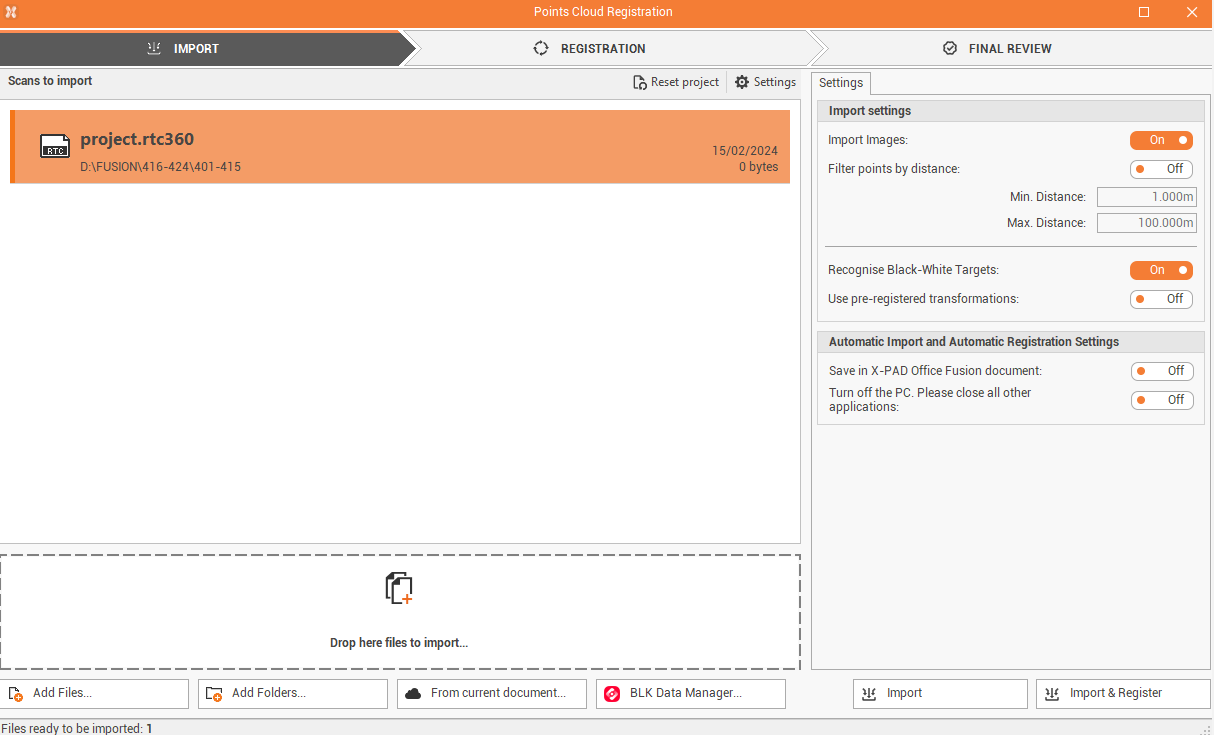
The central window lists the selected points clouds to import.
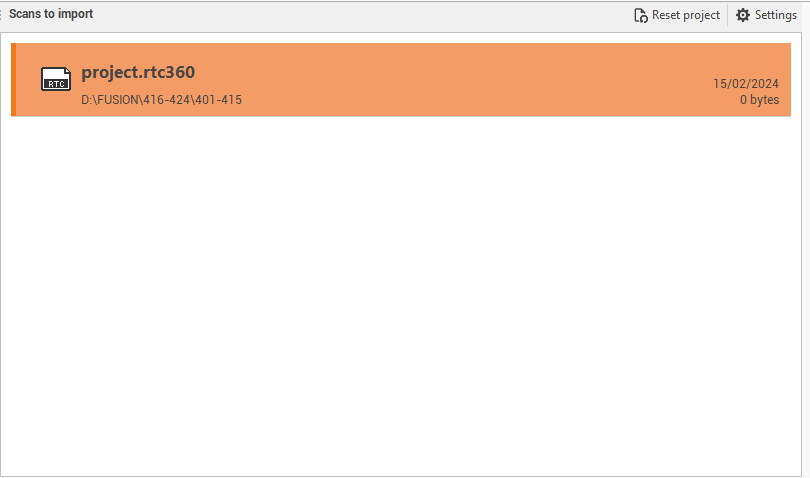
At the bottom it is possible to drop the files to import or select one of the commands:
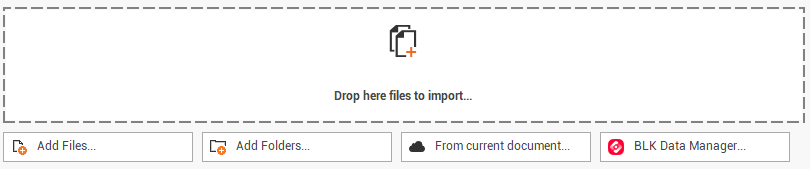
Add files: to add the scan files to import.
Add folders: to add a folder where the scan files are located.
From current document: to select the scans to import from the Point clouds subprojects within the current Fusion project. (see Import point cloud )
BLK Data Manager: opens the BLK data manager application to download scan data from BLK scanner family.

Fusion can import and register point cloud data as:
Leica Geosystems lgs files (lgs, lgsx)
Leica Geosystems BLK360 files (blk, blkjob)
leica Geosystems BLK2GO (b2g)
Leica Geosystems P-Serie (prj)
Leica Geosystems RTC360 (rtc360)
E57 file (e57)
Faro FLS file (fls). For Faro files, using the software SDK, the panoramic images are not used. To import and use the panoramic images, also to recognize automatically the targets, the scans have to be imported as e57. The conversion can be done using software Faro Scene LT.
The BLK Data Manager is available as optional plugin during Fusion installation.
In case of problems importing data from BLK Data Manager, it is due to either insufficient drive space or an issue with the graphics card (either the card is underpowered or the settings are not correct). First, be sure that there is enough drive space to save the scans that you are trying to import.
In the right panel it is possible to define the import settings:
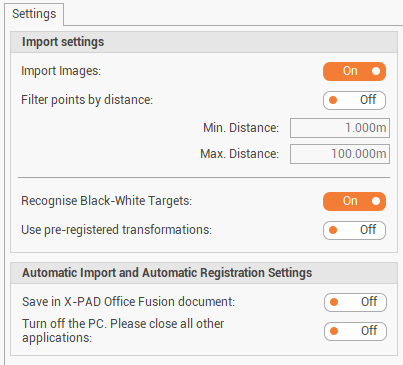
Import images: enables/disables the importation of images with the scan data; images are used to create the panorama images and colorize the points clouds.
Filter points by distance: enables/disables the filtering of points within a minimum and maximum distance from scan center. This option does not apply to SLAM data.
Recognize Black-White Targets: enables/disables the automatic recognition of targets when the scans are imported and aligned automatically with Import & Register option. This procedure may slow down the import process.
Use pre-registered transformations: enables/disables the use of pre-registration information if this was done using other software.
Save in X-PAD Office Fusion document: after the automatic import and registration, the final points cloud is automatically saved in Fusion as points cloud subproject.
Turn off the PC: after the automatic import and registration the PC is turned off.
In case scans performed with Leica scanners was registered in the field with Field360 or VIS, in order to import the scans and the created links, turn off Use pre-registered transformation and click Import.
Reality capture targets are located in folder C:\Program Files\GeoMax\X-PAD Office Fusion\Targets
Click Import to import the scans and proceed with manual registration. See Registration
Click Import & Register to import and register the point clouds automatically. If an automatic registration is started, you are directly redirected to the Review page. See Review and optimize .