
-
Use the command Multiline text to create multiple lines of text, specifying the insertion position on the graphic view.
-
Click Draw.
-
Click Multiline text.

-
In the graphic area click to select the first and second corners for the block of text.
-
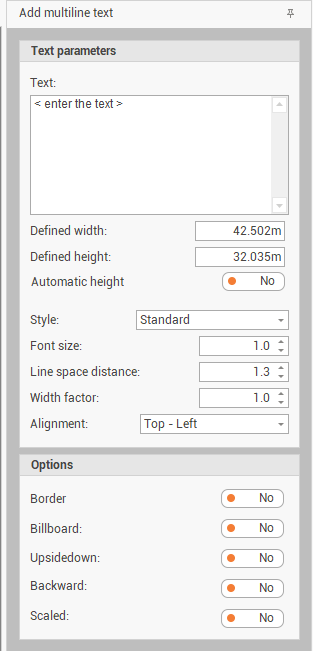
The function opens a panel on the right of the graphic view.
-
Select the multiline text creation options:
-
Text: the text to create.
-
Defined width: the default value corresponds to the block width selected in the previous step. It is possible to enter a different width.
-
Defined height: the default value corresponds to the block height selected in the previous step. It is possible to enter a different height.
-
Automatic height: automatically adjust the height of the blocks according to the entered text.
-
Style: select from the drop-down menu the text style.
-
Font size: the size of the text font.
-
Line space distance: the distance between lines of text.
-
Width factor: the width of the text is based on a factor of the letter width defined by the font. This definition that predefined width can be alter by the factor entered here.
-
Alignment: the text alignment referred to the text block.
-
Border: if enables, creates a border around the text block.
-
Scaled: if enabled, the created text is scaled based on CAD scale factor.
-
Billboard: if enabled, the created text is always seen frontally even in 3D views.
-
Upsidedown: the entered text is created upside-down.
-
Backward: the entered text is created backward.
-
-
Click Add to create the text.