
-
X-Chat is a function part of X-PAD365 platform.
X-Chat is available with Professional and Enterprise X-PAD365 licenses.
X-Chat panel
-
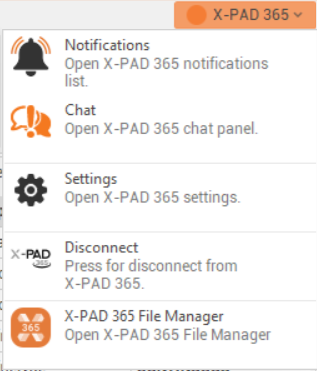
In Fusion to open the X-Chat panel click on X-PAD365 logo on top-right.
-
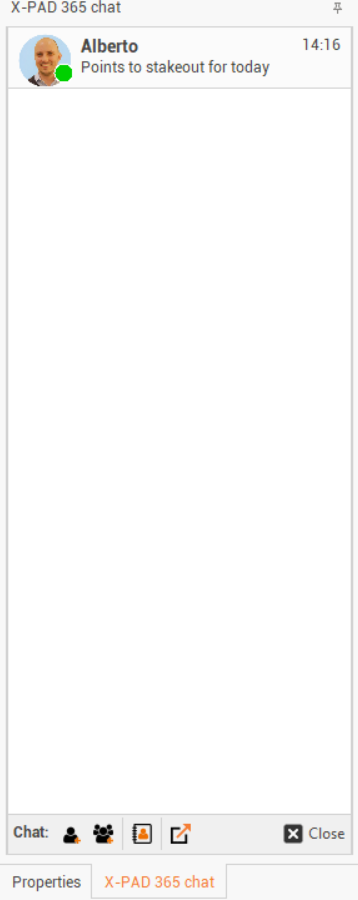
This opens the chat panel with list of active chat.
-
New chat

-
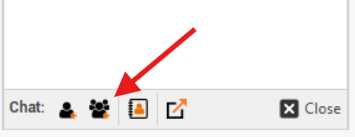
New group

-
Address book

-
New chat window

-
Close

Create a new contact
-
To create a new contact open the chat panel.
-
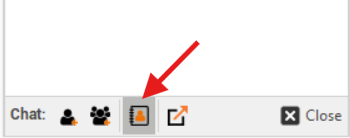
Click on this icon to open the address book.
-
This opens a new window.
-
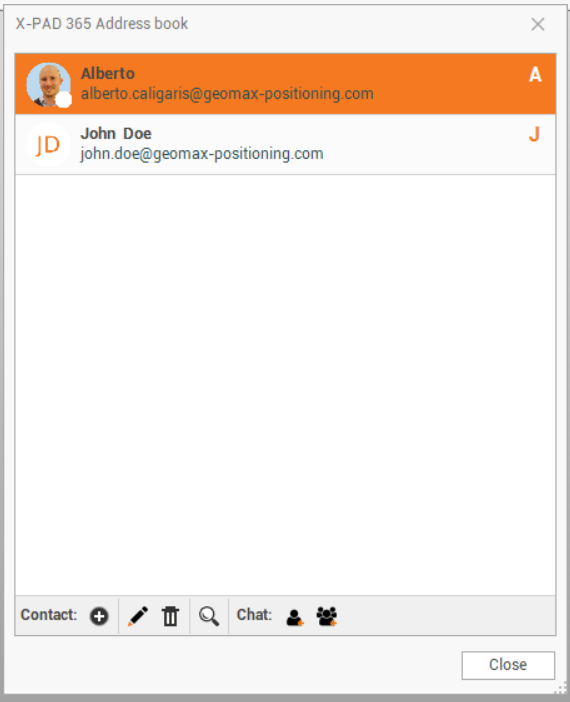
The address book includes the account of the available sub-users.
-
Add contact

-
Alias: the display name of the user.
-
Email: enter here the registration email for the X-PAD365 user you would like to include in the address book as contact.
-
-
Edit contact

-
Delete

-
Search

-
New chat
-
New group
-
Start a new chat
-
To start a new chat with a contact open the chat panel.
-
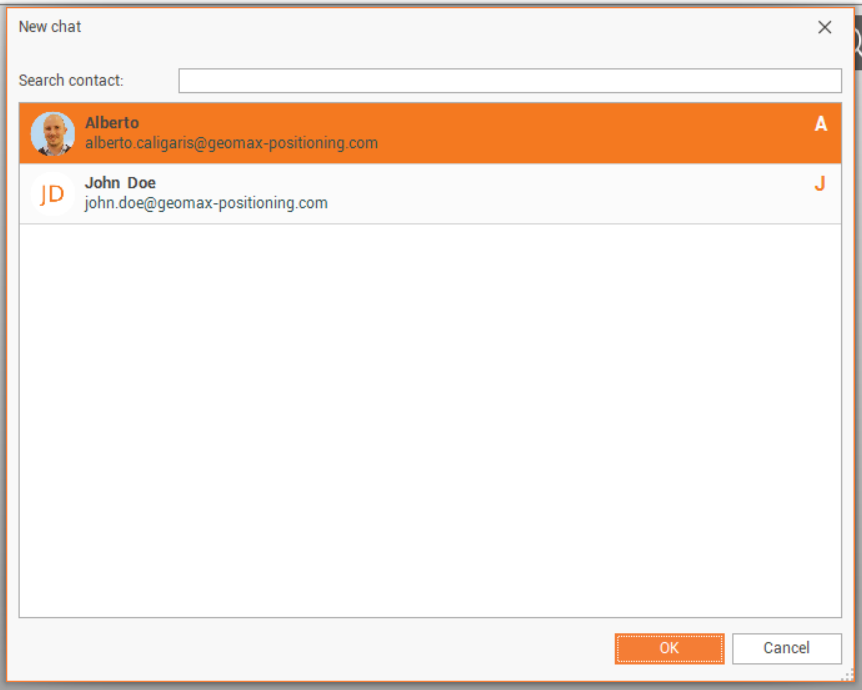
Select an existing chat to continue to message, or click New Chat .
-
Select the user from the list to start the chat.
-
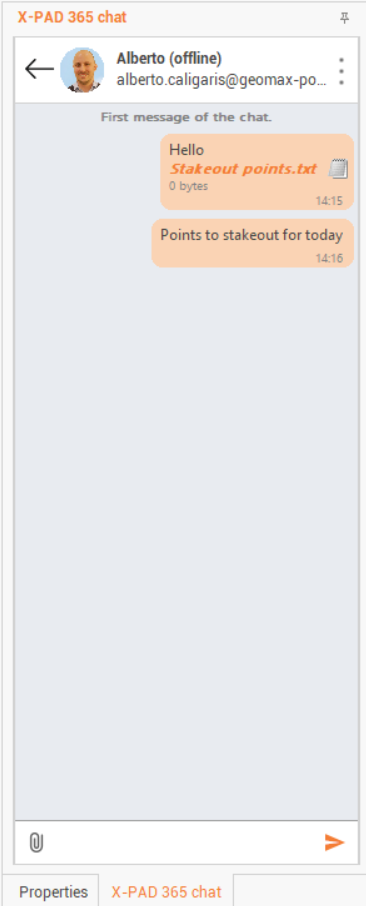
This opens the chat panel.
-
Attachment : allows to attach a file to be shared.
-
Send : sends the current message.
-
Create a new group
-
Groups are used to share messages and attachments with one or more users.
-
Groups are also used to start a field Collaborative Survey.
-
To create a new group open the chat panel.
-
Click New Group.
-
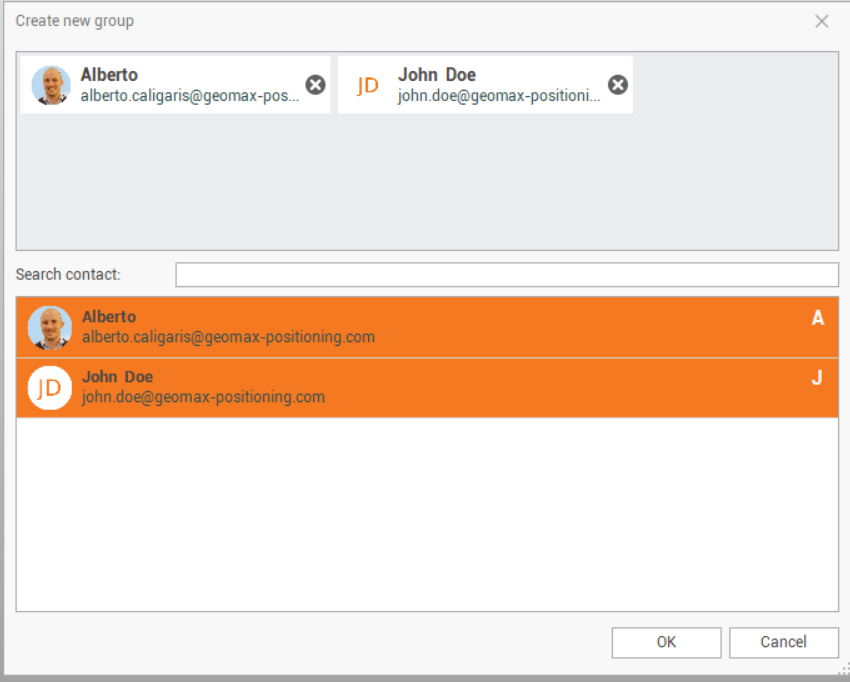
Enter the name of the group.
-
Select the contacts from you address book to be part of the group.
-
The group is created and can be selected as active chat.
Exporting data to the chat
-
When exporting a file, it is possible to directly share it in the chat.
-
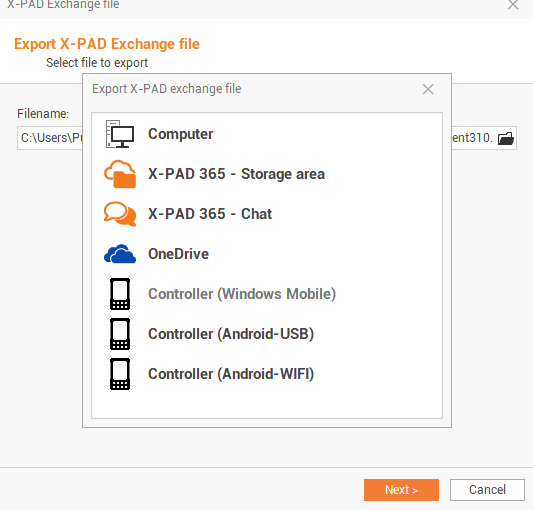
Select a file to export and open the selection window to choose the location where to export the file.
-
Select X- PAD 365 - Chat.
-
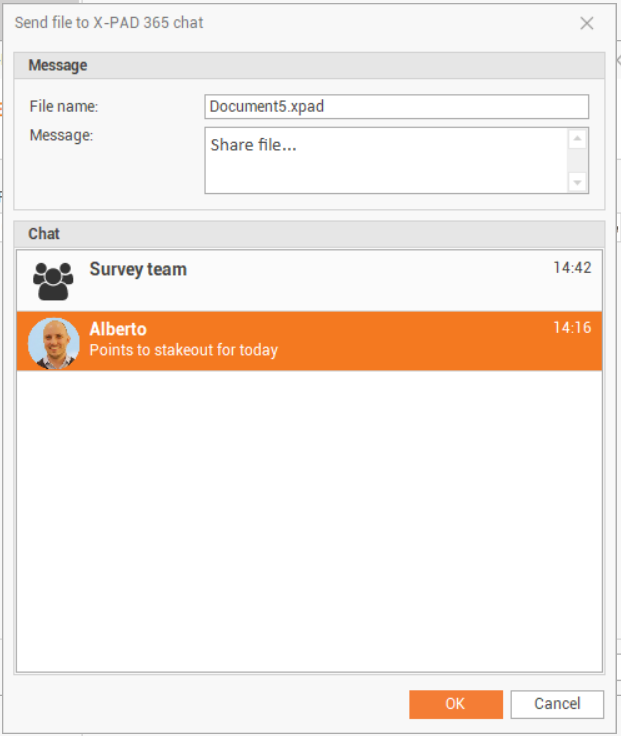
This opens a new window.
-
File name: the exported file to share.
-
Message: the message to send with the file.
-
Chat: select from the available active chat, the chat where to attach the file and the message.