
-
The instrument comes with a pre-installed application called GeoMax Toolkit.
-
The main purpose of this application is to perform instrument calibrations, set environmental settings and to perform basic measurements.
-
To start GeoMax Toolkit click GeoMax Toolkit icon from home.
-
This opens the application.
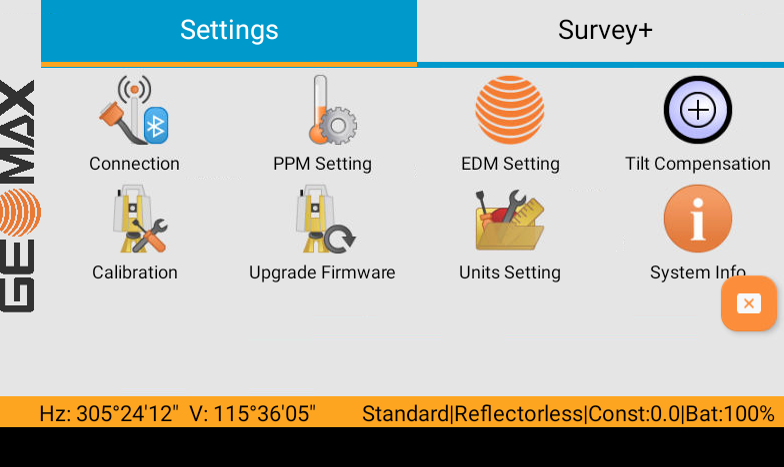
Connection
-
The Connection app is used to connect or disconnect GeoMax Toolkit software from Hardware components of the instrument.
-
Do not perform any operation in this page.
PPM Setting
-
To calculate proper PPM correction values, the atmospheric conditions can be entered or calculated based on elevation.
PPM settings entered here are used in GeoMax Toolkit. To enter PPM settings in X-PAD software use the dedicated functionalities in the X-PAD software.
-
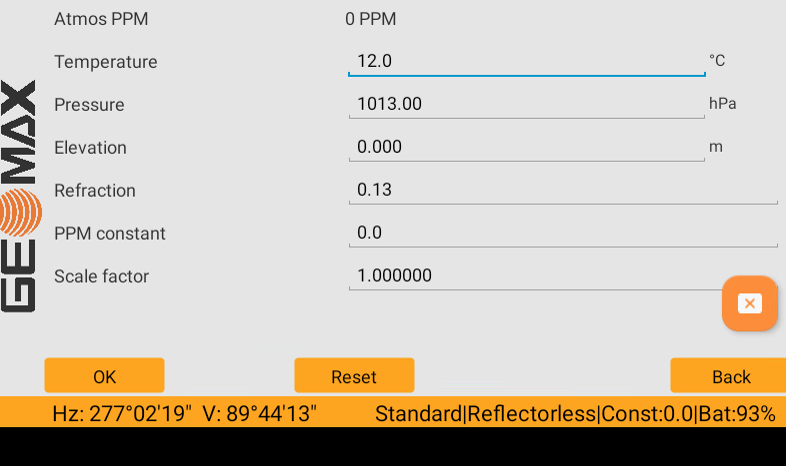
The settings are.
-
Atmos PPM: the atmospheric ppm is calculated from the values in the fields.
-
Temperature: sets the temperature.
-
Pressure: sets the pressure.
-
Elevation: sets the elevation above mean sea level.
-
Refraction: refraction coefficient to be used for calculation.
-
PPM constant: sets the atmospheric PPM.
-
Scale factor: sets the scale factor.
-
-
Click OK to save the settings, click Reset to reset the values to default. Click Back to return to home page without saving the values.
EDM Settings
-
The settings on this screen defines the active EDM values.
-
Different settings for measurements are available with Reflectorless (RL) and Prism (IR) EDM modes.
EDM settings entered here are used in GeoMax Toolkit. To change EDM settings in X-PAD software use the dedicated functionalities in the X-PAD software.
-
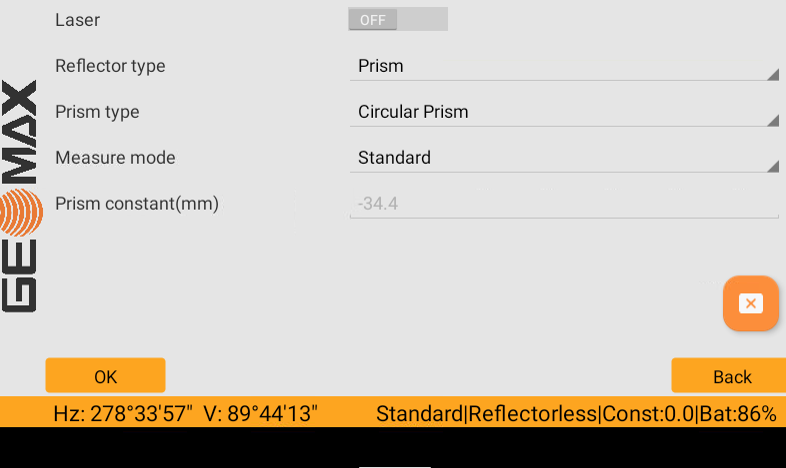
The settings are:
-
Laser: enables/disables the visible laser beam.
-
Reflector type: changes the reflector type.
-
Prism: for distance measurements using prism.
-
Reflective tape: for distance measurements using Retro reflective targets.
-
Reflectorless: for distance measurements without prisms.
-
-
Prism type: allows to change the prism type. Predefined prisms have a predefined offset. Select User Defined Prism to enter a custom prism.
-
Measure mode: defines the measurement mode.
-
Standard: fine measuring mode for high precision measurements.
-
Fast: quick measuring mode with prisms, with higher measuring speed and reduced accuracy.
-
Tracking: for continuous distance measurements.
-
Repeated: for continuous distance measurements with higher frequency of measurements.
-
Averaging: instrument will take 3 readings which will then be averaged.
-
-
Prism constant (mm): this field displays the absolute prism constant for the selected Type. When Type is User Defined Prism or User Defined Reflector this field becomes editable to set a user defined constant.
-
Tilt compensation
-
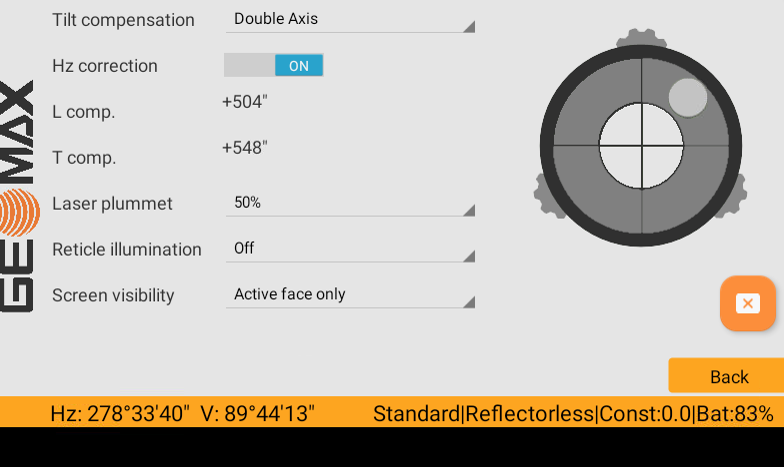
The Tilt Compensation contains tools for levelling up the instrument, determining if tilt corrections will be included in angular measurements and for laser plummet, reticle illumination and screen visibility settings.
-
The settings are:
-
Tilt compensation: defines if the tilt compensation is Off, Single Axis or Double Axis.
-
Hz correction: enables/disables the tilt corrections values in angular measurements.
-
Laser plummet: allows to activate and define the intensity of the laser plummet (off to 100%).
-
Reticle illumination: sets the illumination level of the crosshairs.
-
Screen visibility: this setting affects units with two displays.
-
Active face only: only the activate face is visible, the other face is turned off.
-
Both faces: enables always visibility on both screens.
-
-
-
For more information on how level the instrument refer to Instrument setup.
Calibration
-
The Calibration menu contains tools to be used for the electronic calibration of the instrument. Using these tools helps to maintain the measuring accuracy of the instrument.
-
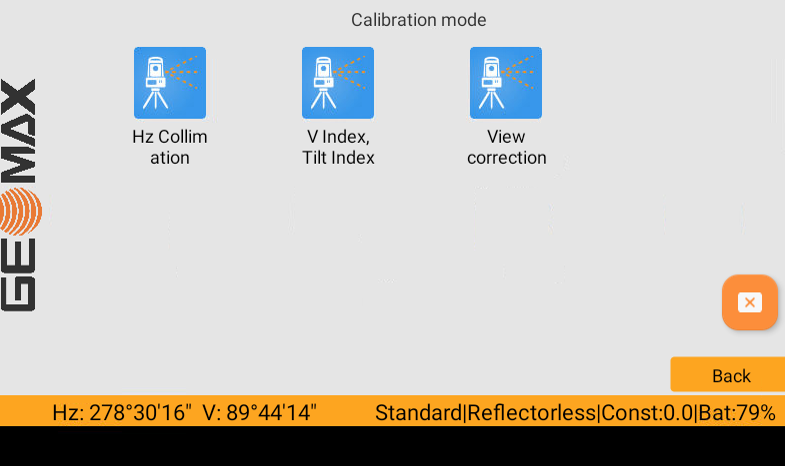
In the Calibration mode screen there are several calibration options.
-
Hz Collimation: the calibration procedure allows to calibrate the line-of-sight error.
-
V Index, Tilt Index: the calibration procedure allows to calibrate the vertical index error and the compensator index error.
-
View correction: displays the current calibration values that have been set for Hz-Collimation and V-index and allows to export the calibration data on a file.
-
For more information on how calibrate the instruments, please refer to the instrument User Manual.
Upgrade firmware
-
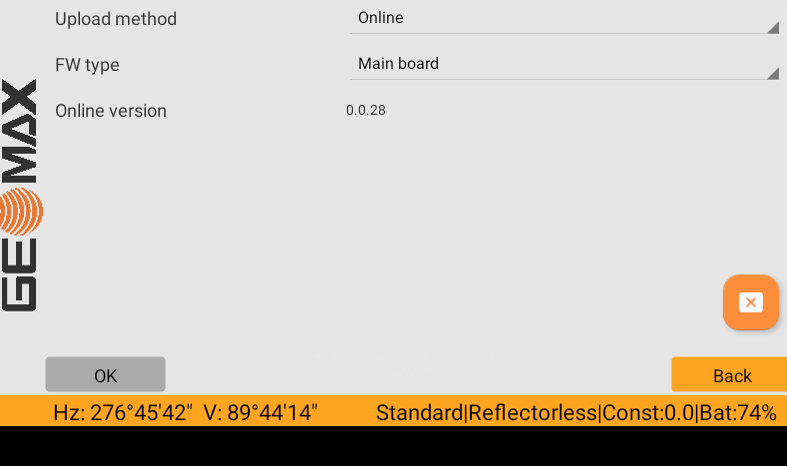
The Upgrade firmware page allows to upgrade the mainboard, the bootloader and the EDM firwmare.
-
Upload method:
-
Online: the software verifies online if a new firmware is available (suggested method).
-
Get from USB system folder: allows to load a firmware from the USB.
-
-
FW type: allows to select the firmware type to verify.
-
-
If a new firmware is available, click OK to proceed with the update.
Never disconnect power supply during data transfer. Battery capacity must be at least 75% capacity before commencing the upload .
Units setting
-
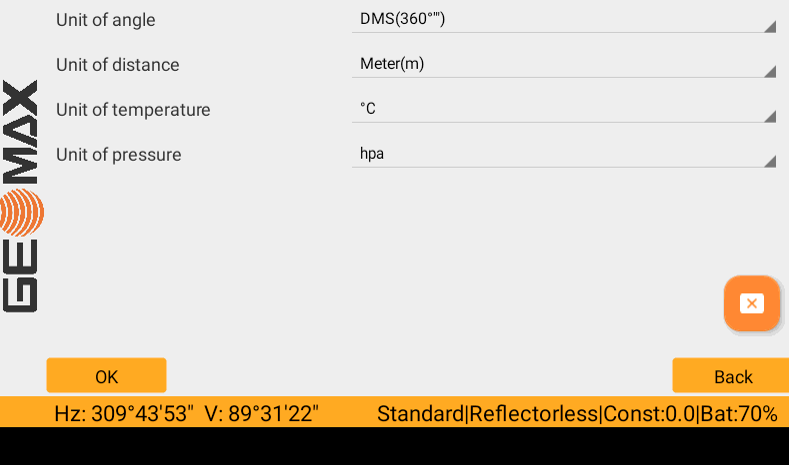
Sets the units in GeoMax Toolkit applications.
-
Unit of angle: sets the units shown for all angular fields.
-
Unit of distance: sets the units shown for all distance fields.
-
Unit of temperature: sets the units shown for the temperature.
-
Unit of pressure: sets the units shown for the pressure.
-
System info
-
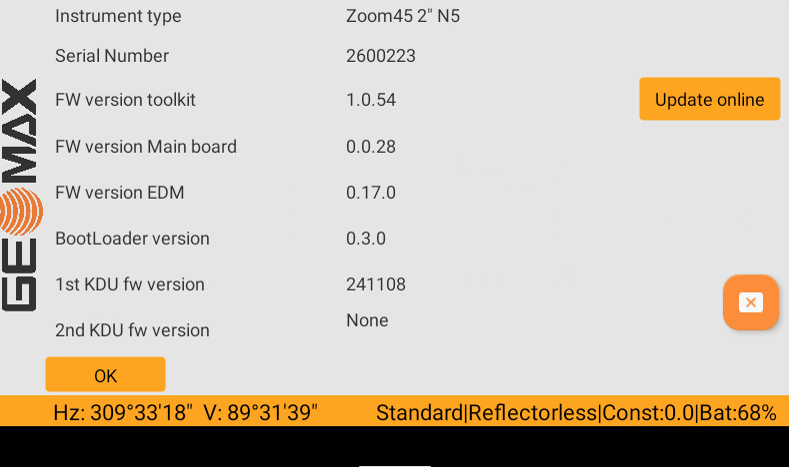
The System Info screen displays instrument, system and firmware information.
-
Instrument type: displays the type name of the instrument.
-
Serial Number: displays the serial number of the instrument.
-
FW version toolkit: displays the Toolkit firmware version.
-
FW version Main board: displays the mainboard firmware version.
-
FW version EDM: displays the EDM firmware version.
-
BootLoader version: displays the BootLoader version.
-
KDU fw version: displays the keyboard display module version
-
-
Press Update online to update the GeoMax Toolkit application online (requires an internet connection).
Survey
-
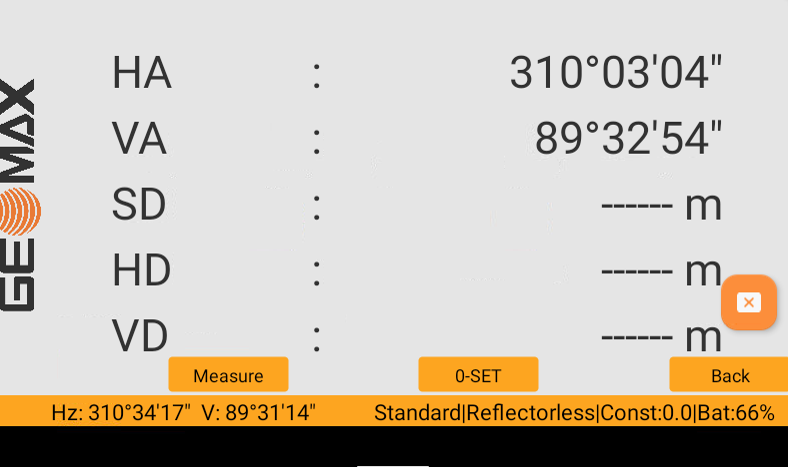
Survey is a basic application for taking measurements and is part of the GeoMax Toolkit.
-
For demo or simple measurement purposes, no storing of measurements possible.
-
Measure: take a measurement.
-
0-SET: sets the horizontal angle to 0.
-
Back: return to previous tab.
-