
3D Reconstruction [Aerial]
The workspace of the 3D recontruction page is organized as follow:
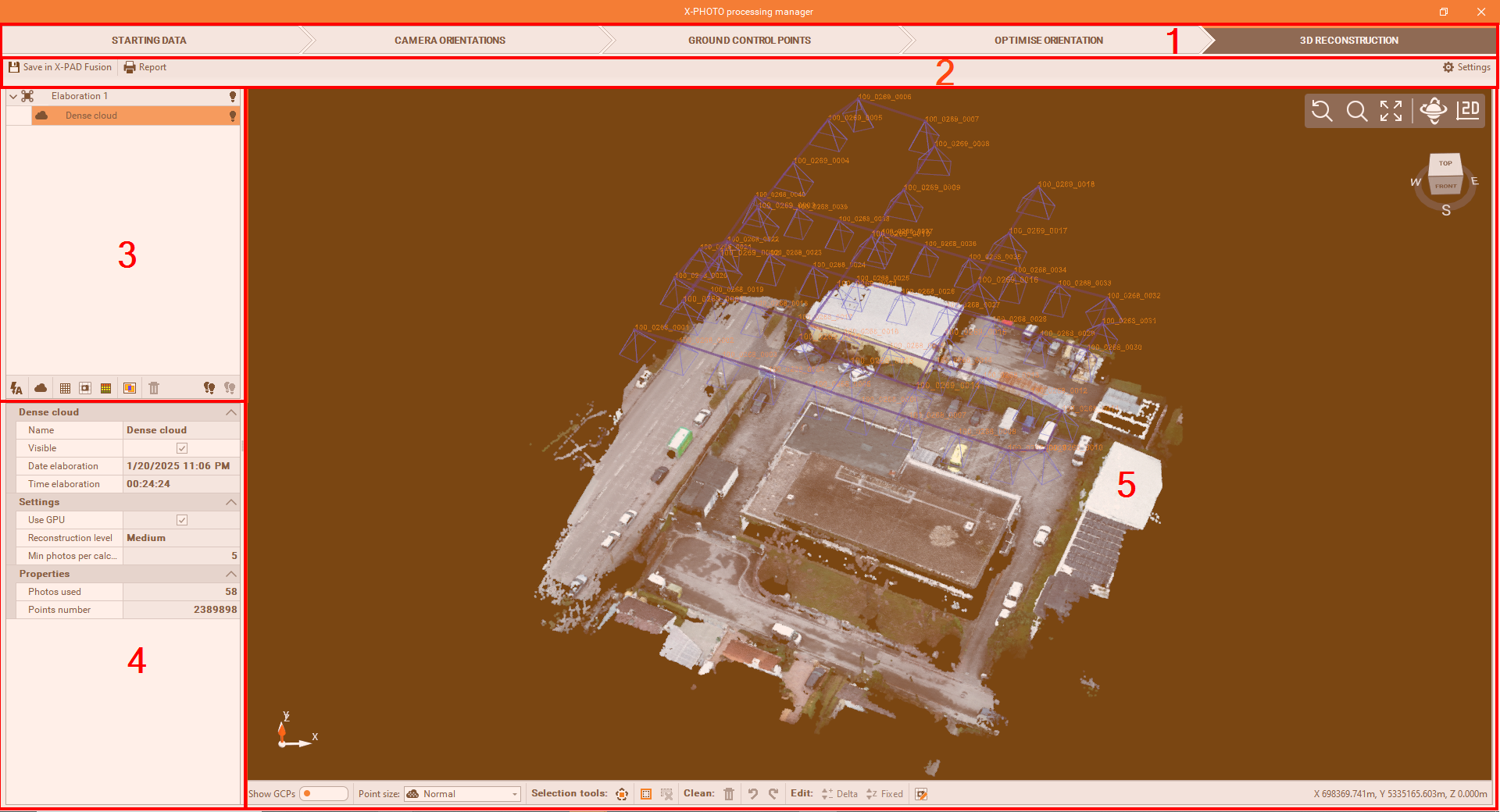
Top bar: the main menus of the X-Photo Processing manager.
Sub-Menu Bar: where you can access the related settings of the current main menu.
Outputs bar: where the elaborations' outputs are listed. Here below are the different functions we have from this panel:
3D reconstruction
 : allows to execute multiple 3D reconstruction calculations in a single operation.
Dense cloud
 : generates the dense point cloud.
DSM
 : generates the Digital Surface Model.
Orthophoto
 : generates the Orthophoto.
3D Mesh
 : generates the 3D mesh with textures.
Photos overlay map
 : allows to check the overlap of the photos used for the camera orientation.
Delete 3D data
 : deletes selected result.
All visible
 : makes visible all the elaborations' results.
All invisible
 : hides all the elaborations' results.
Properties: to view and modify some properties of the selected elaboration result.
CAD view: is a graphic view where to check the generated dense point cloud, with some editing commands:
Show GCPs
 : shows on the graphic view, all the GCPs used.
Points size
 : changes the point size of the point cloud, from one of these sizes: Small, Normal, Large and Extra large.
Select polygon
: to select points by defining a closed polygon in the screen.
Invert selection
: to invert the current selection.
Cancel selection
: to cancel all the points selected.
Delete selection
 : to delete selected points from the Point Cloud.
Undo
 : to restore previous visibility status of Point Cloud.
Redo
 : to cancel the effect of the previous Undo command.
Delta elevation
 : to modify the elevation of selected points with a delta elevation.
Fixed elevation
 : to modify the elevation of selected points with a fixed elevation.
Correct orthophoto
 : to correct the selected zone of the orthophoto by applying one single photo.
Coordinates bar
 : displays the cartographic coordinates of the cursor.
3D reconstruction
After the calibration, we can run the Dense Cloud process and create the corresponding Points Cloud.
To start the 3D Reconstruction process, click on

From the 3D elaboration settings, you can modify the settings of each single elaboration (dense point cloud, DSM, orthophoto, etc)
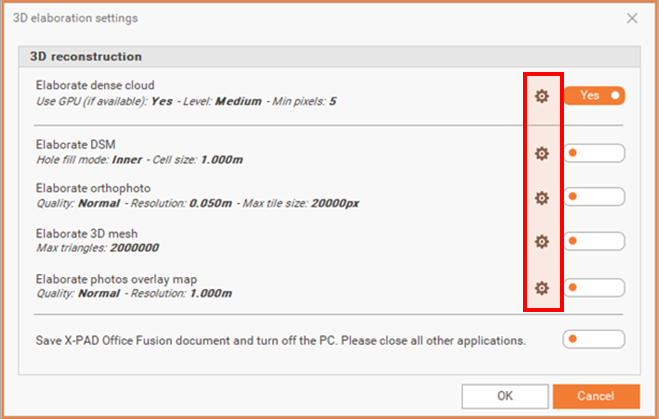

At the end of the elaborations, X-PAD Office Fusion can automatically save the project and turn off the PC