
-
Click Setting icon

Snap & Grid
-
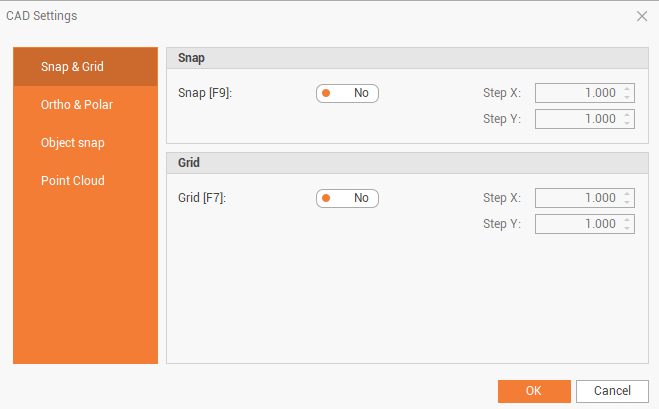
The window contains the options for the step of the Snap and the step of the grid.
-
Snap (F9): turns the SNAP option on and off.
-
Step X: sets the step in X direction of the grid for the SNAP option.
-
Step Y: sets the step in Y direction of the grid for the SNAP option.
-
Grid (F7): turns the display of the grid on and off.
-
Step X: sets the step in X directions for the grid option.
-
Step Y: sets the step in Y directions for the grid option.
-
Object snap
-
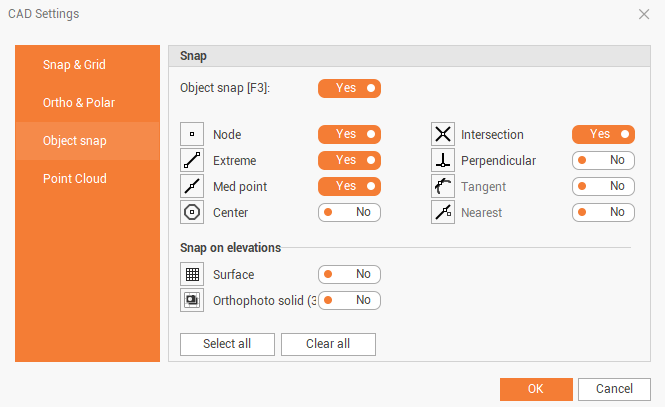
Select the options of the OSNAP that are activated by default.
-
Object snap (F3): enables/disables the object snap.
-
Node: locates the points.
-
Extreme: locates the endpoints of the entities.
-
Med point: locates the middle point of entities.
-
Center: locates the center of an arc or circle.
-
Intersection: locates the point of intersection between 2 elements.
-
Perpendicular: locates the perpendicular point on a specific entity.
-
Tangent: locates the point tangent on a specific entity.
-
Nearest: locates the nearest point on a specific entity.
-
Surface: finds a reference surface to use to calculate the element elevation.
-
Orthophoto solid (3D): calculates the element elevation over the solid orthophoto.
-
Select all: turns on all the object snaps.
-
Clear all: turns off all the object snaps.
-
Point Cloud
-
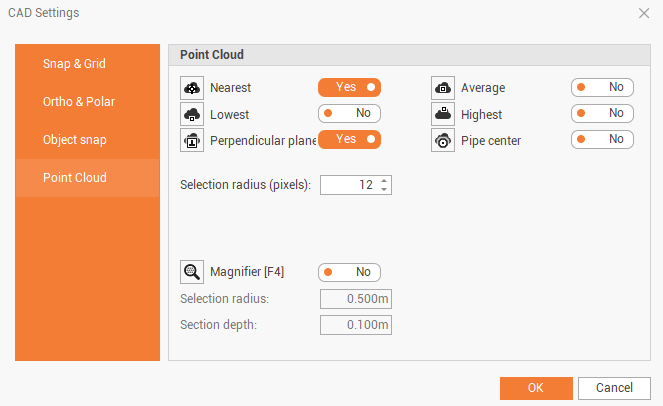
Select the options of the OSNAP that are activated by default when working on a point cloud.
-
Nearest: snaps the cursor to the nearest point in the click position on a point cloud.
-
Lowest: snaps the cursor to the lowest point in the click position on a point cloud.
-
Perendicular plane: snaps the cursor on a plane identified on the point cloud and perpendicular to previous point.
-
Average: calculates a buffer around the cursor position and snaps the cursor to the midpoint on a point cloud.
-
Highest: calculates a buffer around the cursor position and snaps the cursor to the highest point located on a point cloud.
-
Pipe center: snaps the cursor in the center of a cylinder identified on the point cloud.
-
Selection radius (pixels): the selection radius of the snap on point cloud.
-
Magnifier (F4): activates a magnifying window that acts within a set radius to select precisely points on a point cloud.
-
Selection radius: the selection radius of the Magnifier.
-
Section depth: the section depth of the Magnifier.
-
Ortho and polar
-
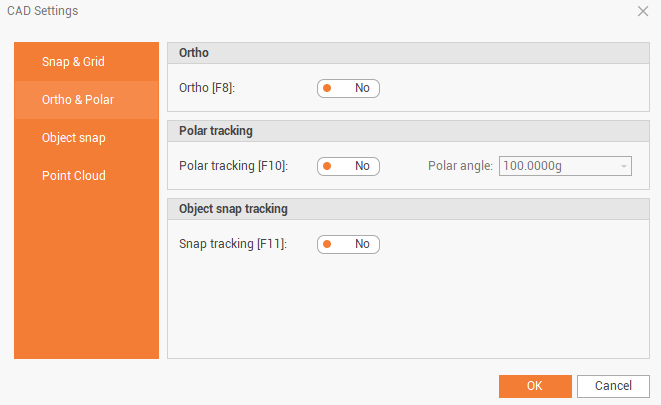
Select the options for Ortho, Polar tracking and Object snap tracking.
-
Ortho (F8): changes the drawing of orthogonal lines.
-
Polar tracking (F10): activates/deactivates the creation of line and polylines using polar coordinates.
-
Polar angle: the interval for the polar tracking.
-
Snap tracking (F11): activates/deactivates the possibility to define locations by using existing points or objects as reference. (OSNAP).
-