-
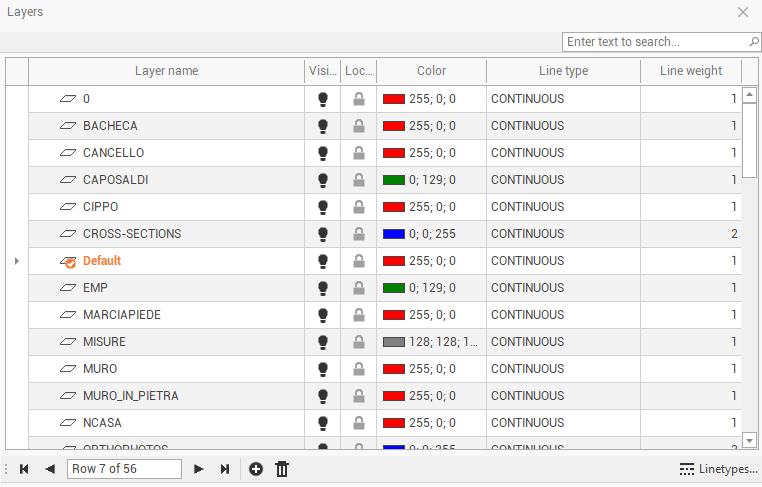
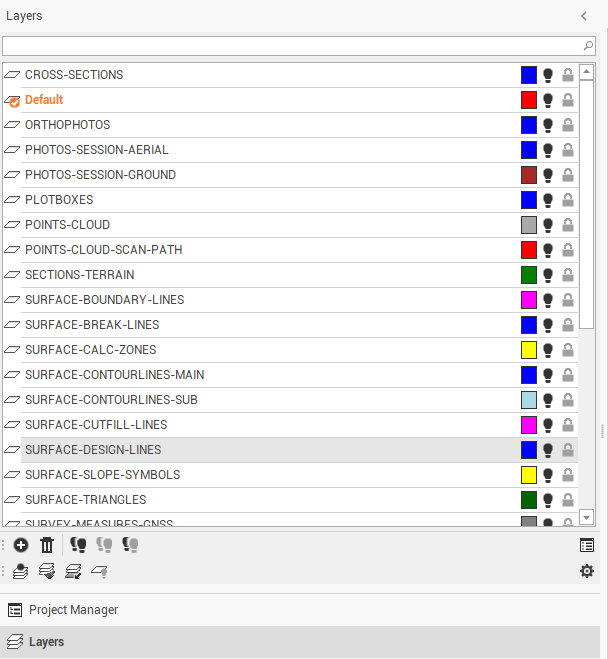
The management of the layers available in the project can be accessed from the left panel, clicking on Layers.
-
Double click on a layer to make it the active layer.

-
On the upper part of the panel is a search toolbar. It allows searching for a specific layer.
-
The features of every layer can be modified on the property panel that is activated by a right click.
-
Available commands:
-
New layer
: creates a layer.
-
Delete layer
: deletes selected layers even if they contain drawing entities. The drawing entities are delete together with the layer.
-
All layers ON
: displays all layers.
-
All layers OFF
: hides all layers. The current layer remains visible.
-
Invert layer visibility
: all visible layers become not visible and and vice versa.
-
Make the layer of an object the current layer
: sets a layer as the current layer for objects.
-
Change the layer of selected objects
: change the layer for objects based on the property of the element. The command requires selected objects to change layer and the object from which it copies the layer setting.
-
Isolate layer
: hides all layers except those for the selected objects.
-
Layer off
: turns layers related to the selected object off.
-
Layer properties
: manages the data of a layer. This commands opens the following window.
-
Entity’s layer
: manages the default association between entities and layers.
-
Lock/unlock
: activates and deactivates a layer block.
-
Visible/Invisible
: shows and hides layers.
-