
-
Fix points or code data can be imported and exported from the instrument by cable or by U disk.
-
Supported format: CASS, GTS-7, CSV, GSI, HTF (only export).
Data transfer is recommended to be done using USB drive.
-
The data transmission between instrument and removable device must have U Disk plugged in.
The machine supports up to 8G U disk read and write, when running the program, don’t insert or pull out the U disk. If you pull out the U disk when the instrument checking it, the subsequent operations may cause error!
Select the job
-
The data is imported or exported from the selected job.
-
To select a job click Manage.
-
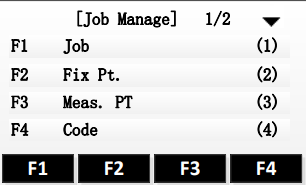
Select F1-Job.
-
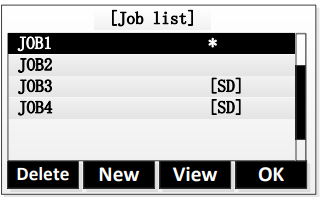
The interface displays the job list in the current storage.
-
Using the direction keys to select a job, when the needed job is selected, press the key of [F4], the program gives a prompt of “Job Set” and open the job as the current job.
Data import
-
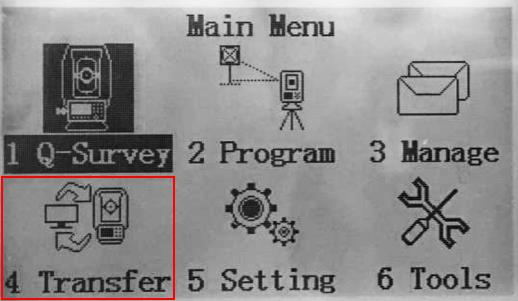
From the main page, select 4.Transfer And insert your UDISK in the Zoom10.
-
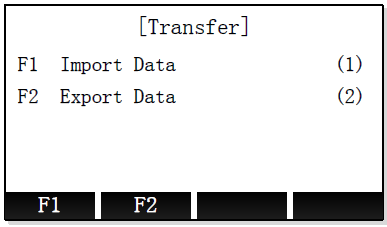
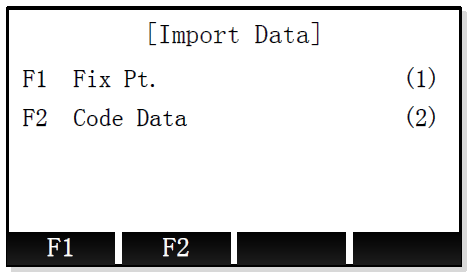
Select F1-Import Data (1).
-
Select the data to import.
-
Fix Pt: imports topographic points.
-
Code data: imports codes.
-
-
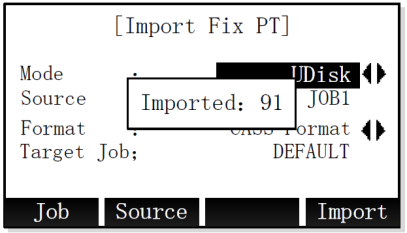
Select the import mode and format.
-
Mode: import mode.
-
UDisk: data is imported from plugged in U disk.
-
RS232: data is imported from RS232 connection.
-
-
Source: the file to import. Press Source to select the file in the UDisk.
-
Format: the data format.
-
Target job: the target job. Press Job to select the job.
-
-
To start the import process, press F4- Import.
Data export
-
From the main page, select 4.Transfer And insert your UDISK in the Zoom10.
-
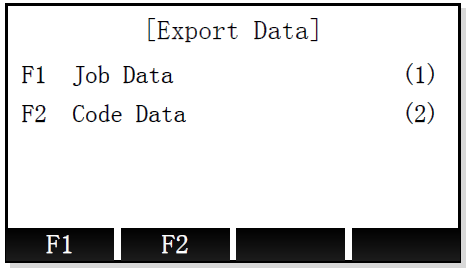
Select F2-Export Data (1).
-
Select the data to export.
-
Job data: exports topographic points and measure data.
-
Code data: exports codes.
-
-
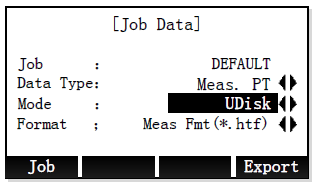
Select the export parameters.
-
Job: the job from where to export the data. Click Job to select the job.
-
Data type: the data to export.
-
Meas PT: the measured points.
-
Fix PT: the fix points.
-
Code: the codes.
-
-
Mode: export mode.
-
UDisk: data is exported to U disk.
-
RS232: data is exported with RS232 connection.
-
-
Format: the data export format.
-
-
Press F4-Export to start the export process.
-
Meas. Pt. can be exported in: GSI, CSV, GTS-7, CASS or HTF
-
Fix. Pt. can be exported in: CSV, GTS-7 & CASS
-
The HTF format can be imported, in X-PAD Fusion, as a Zoom10 instrument format file.