
-
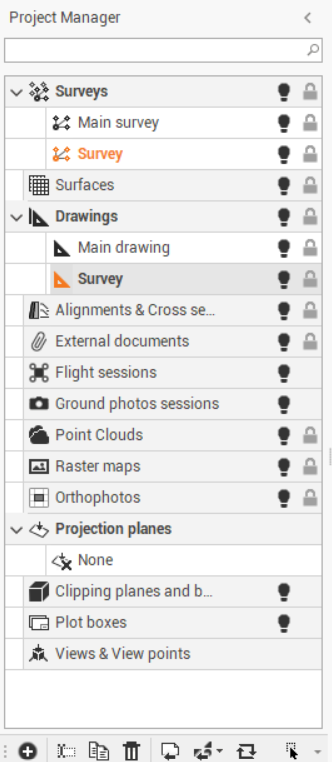
The project manager is the main managing panel of the project. It is accessible from the managing panel of the project, left of CAD window.
-
The project manager allows to:
-
Access to the subprojects.
-
Manage features of subprojects.
-
Display features of subprojects.
-
Use features of subprojects.
-
Project manager commands
-
These icons and commands are in the bottom bar of the panel and change based upon the type of data.
-
New subproject

-
Import entities

-
Change subproject

-
Activate subproject by selected object

-
Expand all

-
Collapse all

-
Rename

-
Duplicate

-
Delete

-
Visible/Invisible

-
Assign a unique color to the subproject
For Survey, Drawing or Surface subprojects, it is possible to distinguish elements when different subprojects of the same category exist, assigning a unique color to it.
-
Tap on the local menu.
-
Tap Settings.
-
Tap Properties tab.
-
Apply the color. An icon indicates the color of the subproject.