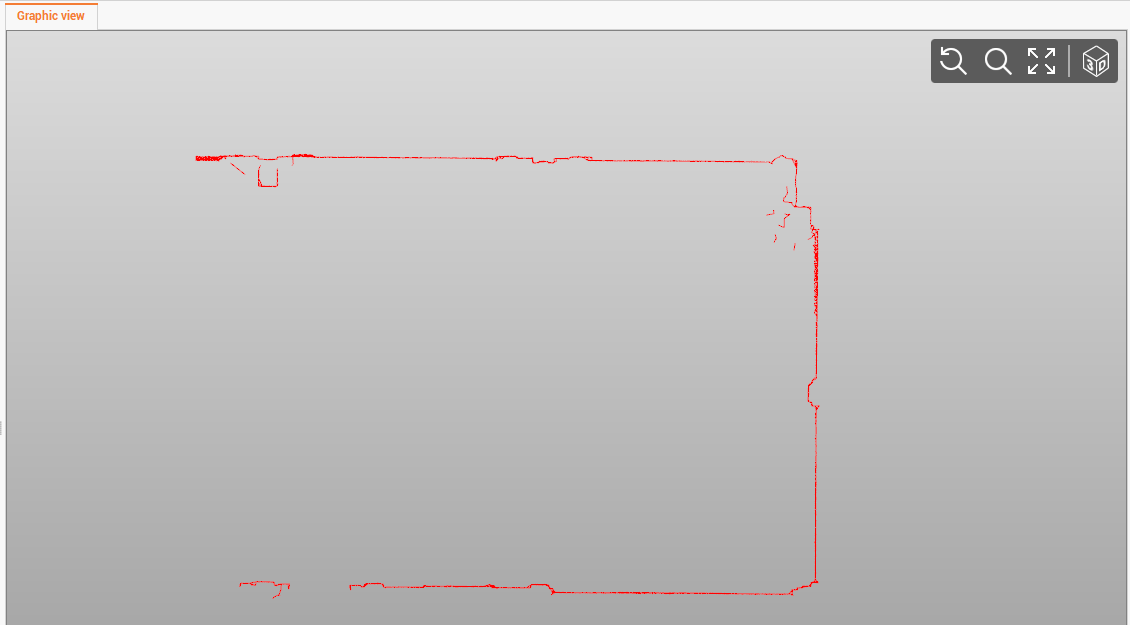
-
Use this command to create a polyline by cutting with an horizontal or vertical plane a surface, point cloud or mesh. The cross section is stored in the current drawing subproject.
This command is very useful when working with point clouds, to create quickly cross sections
-
Click Draw.
-
Click below Polyline to open drop down menu.
-
Click Quick section Horizontal to create an horizontal cross section.

-
Click Quick section Vertical to create a vertical cross section.
-
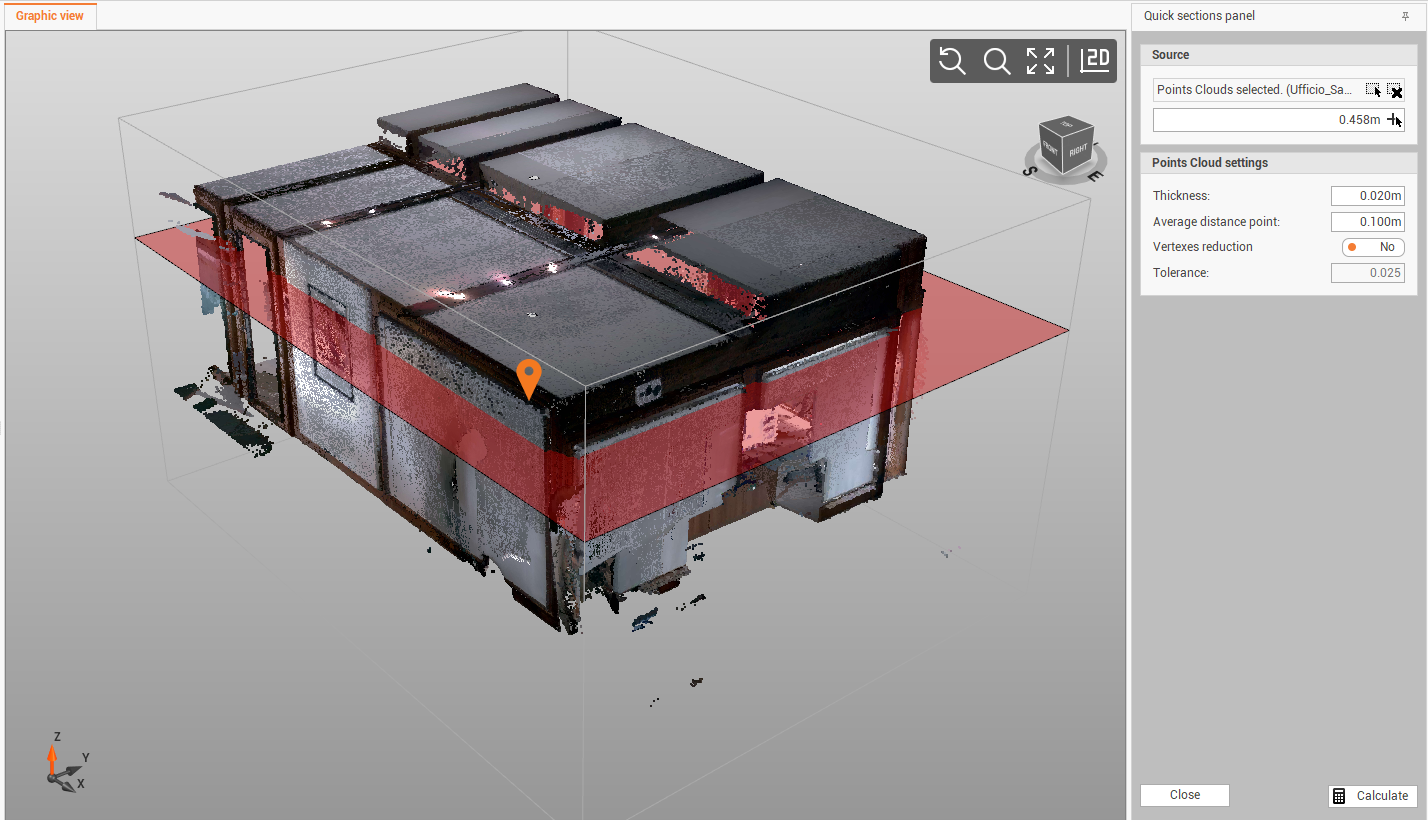
This opens a new panel on the right.
-
Select the source (mesh, point cloud or surface).
-
Depending on the cross section, define the cross section position:
-
Horizontal cross section: enter or click on the model to define the reference elevation for the cross section.
-
Vertical cross section: click on the model to define the reference axis for the vertical cross section.
-
-
Enter the settings:
-
Thickness: the thickness of the plane (width of the band of interest).
-
Average distance point: if the distance between the points exceeds the indicated value the section line is broken into a new segment.
-
Vertexes reduction: option for reducing vertices of the polyline.
-
Tolerance: the tolerance for the vertexes reduction option.
-
-
Click Calculate.
-
The polylines are created under the current drawing subproject.