-
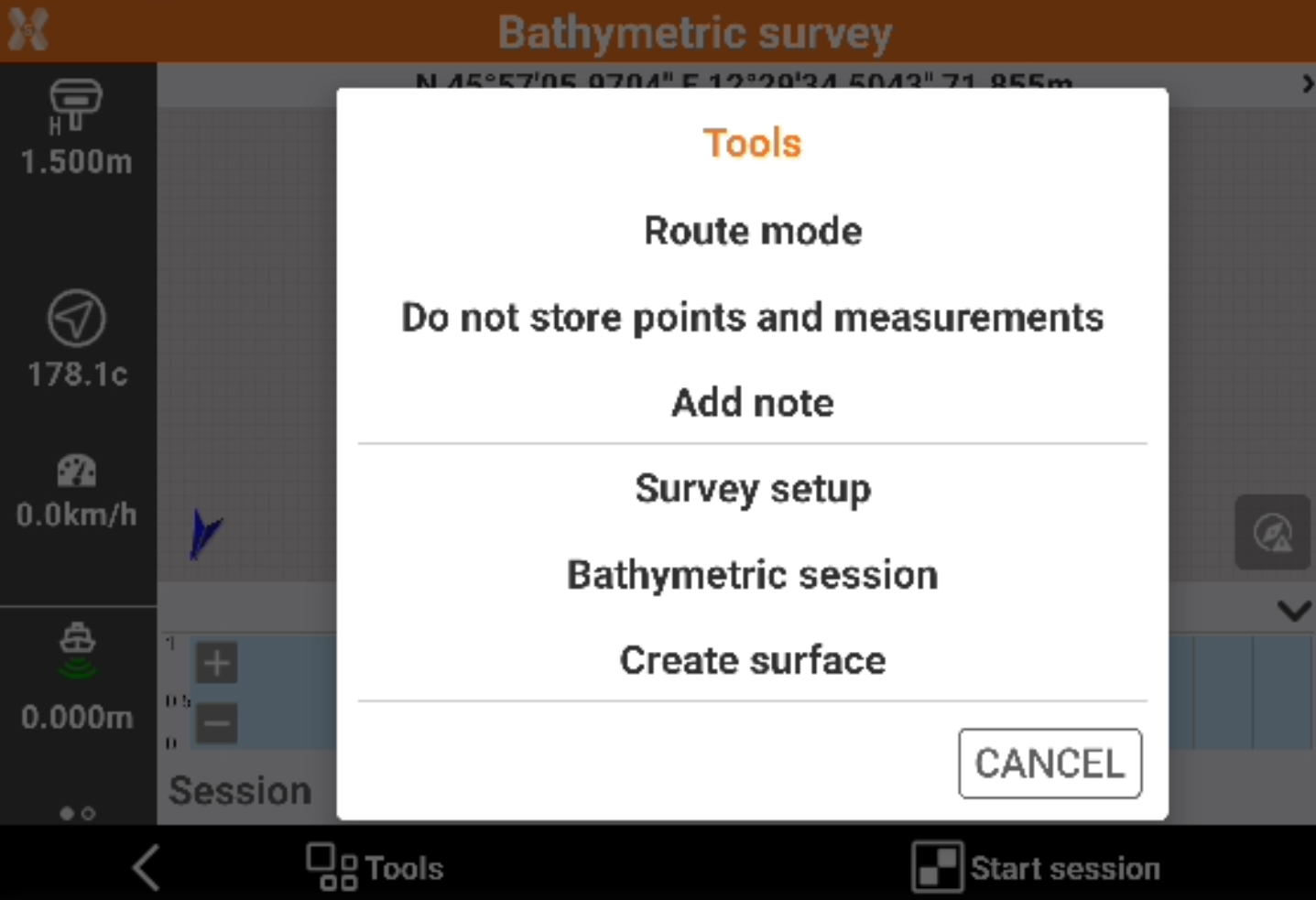
In the Bathymetric survey page click Tools to open the tools.
Setting the fixed route
-
Set a route direction (azimuth) to follow. During the survey, a panel appears that allows to maintain the predetermined route.
-
Click Tools.
-
Click Route mode.
-
Click Fixed direction.
Setting a route from a drawing element
-
Select a line or a polyline from the graphic window. The selected item becomes the reference element to follow.
-
The panel with the indications of the route shows exactly the direction to be maintained in order to remain in the selected route.
-
Click Tools.
-
Click Route mode.
-
Click Select route from CAD.
-
Select a line or a polyline from the graphic window.
Cancelling a route
-
Cancels the current route.
-
Click Tools.
-
Click Route mode.
-
Click Cancel route.
Storing points and measurements
-
Allows to change the setting for storing points and measurements in addition to the bathymetric sessions.
-
Click Tools.
-
Click Store points and measurements or Do not store points and measurements.
On big bathymetric survey storing points and measurements can cause some delays on graphic visualization.
Creating a surface
-
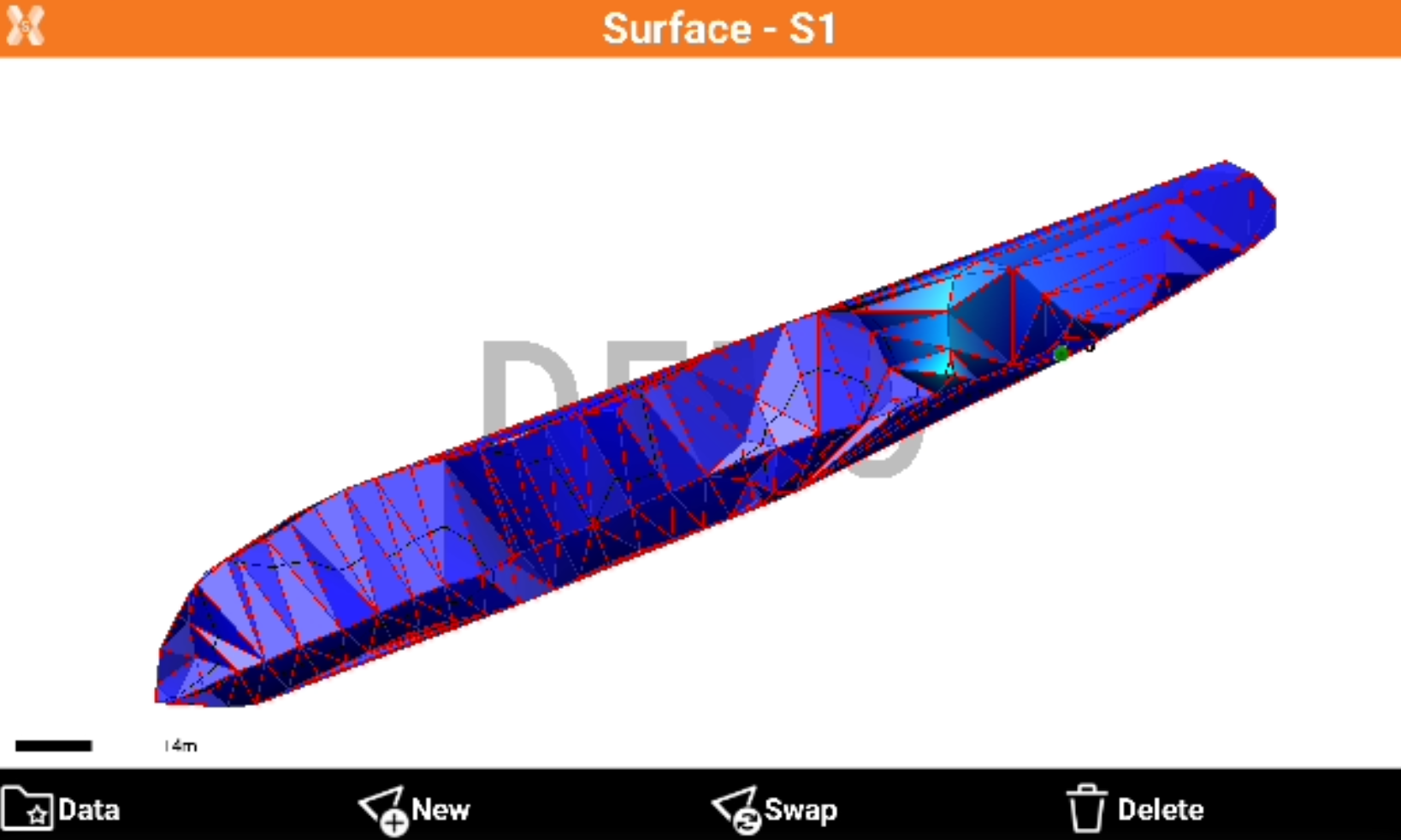
The function allows to create a surface based on measured bathymetric sessions.
-
Click Tools.
-
Click Create surface.
-
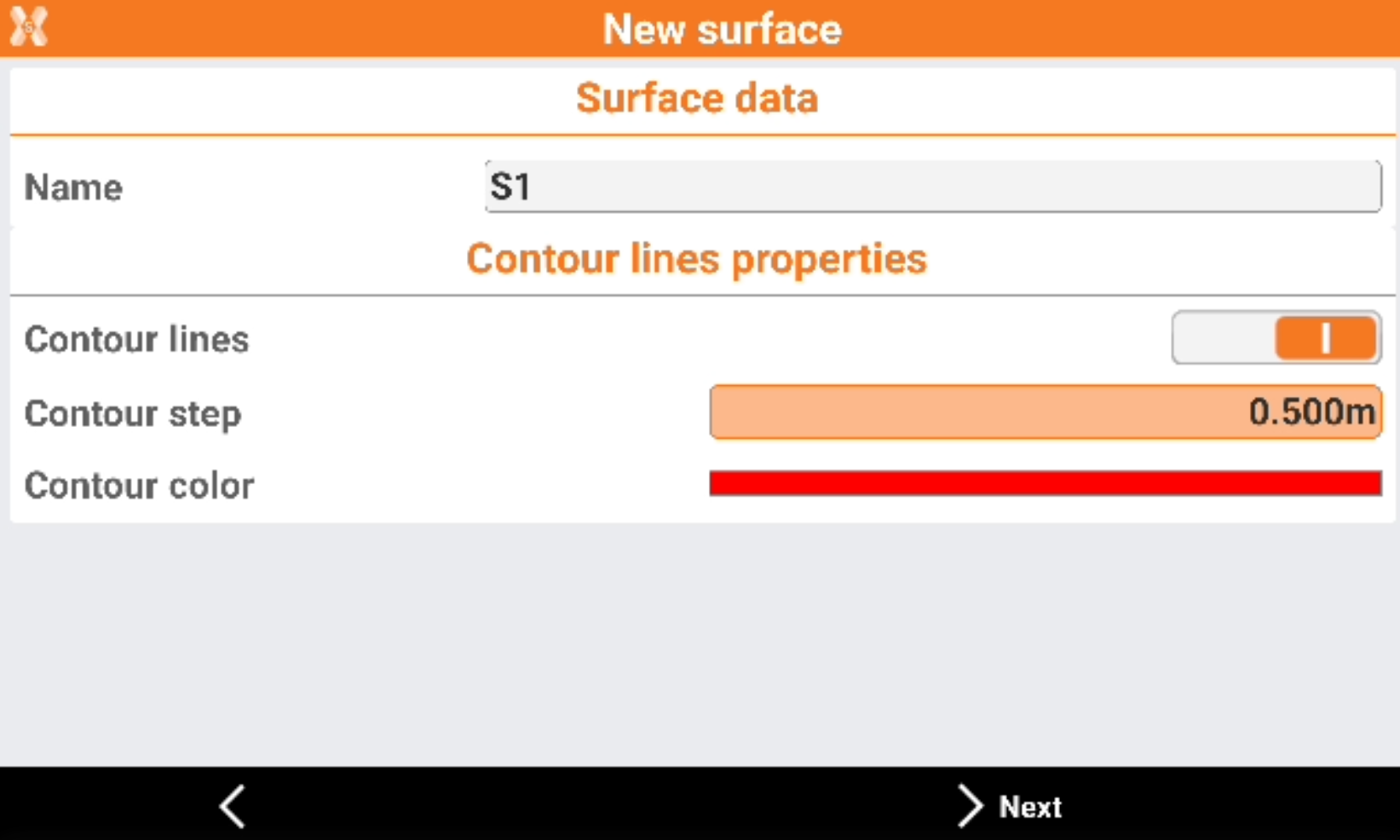
Define the surface name and if create contour lines.
-
Name: the surface name.
-
Contour lines: enables the creation of contour lines.
-
Contour step: the step of the contour lines.
-
Contour color: the color of the contour lines.
-
-
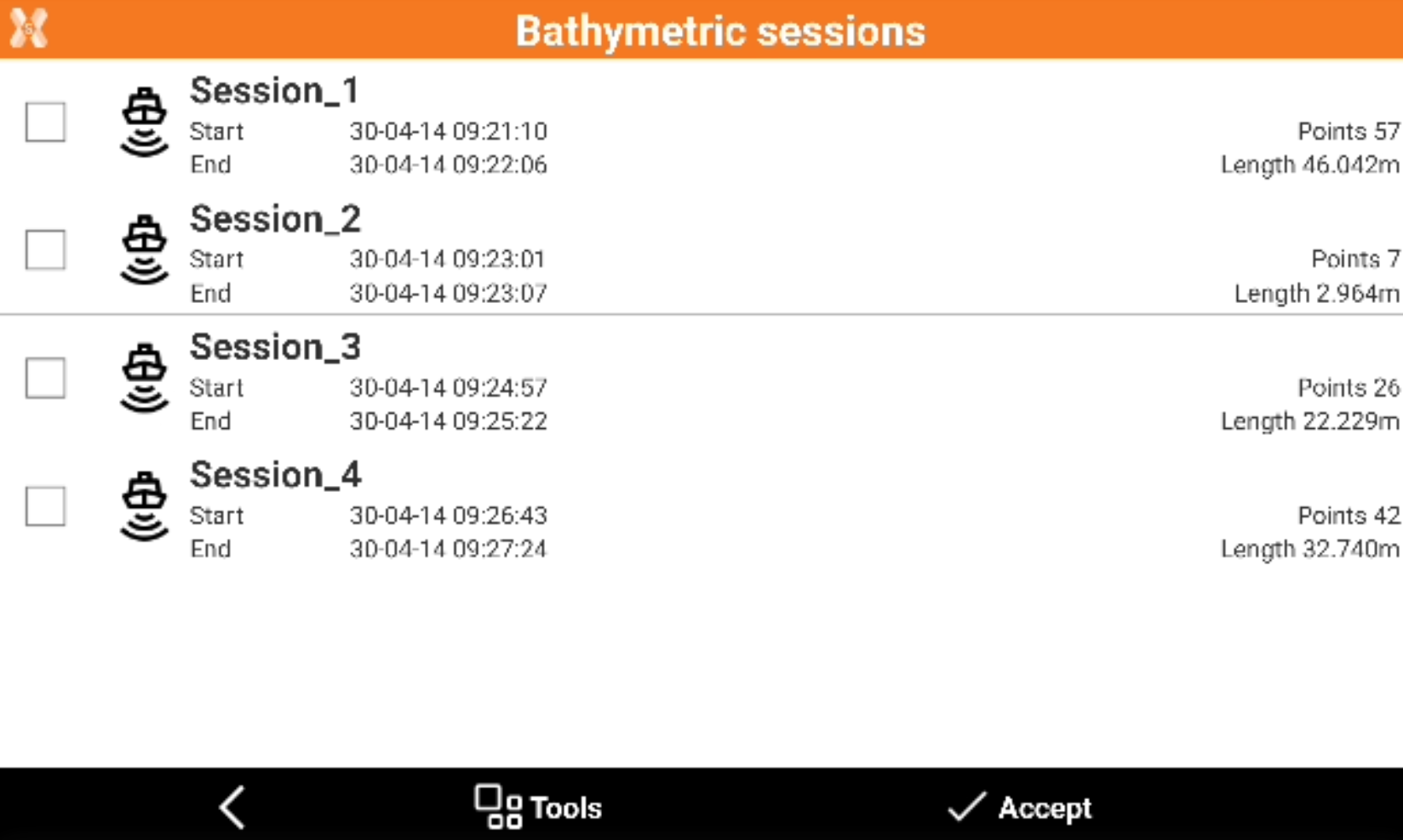
Select the sessions to use.
-
Click Accept to create the surface.
Adding a note
-
Descriptive notes and sketches that can be a valid reference when processing the stored data in the office can be added during the bathymetric survey operations.
-
Click Tools.
-
Click Add note.
Visualizing survey sessions
-
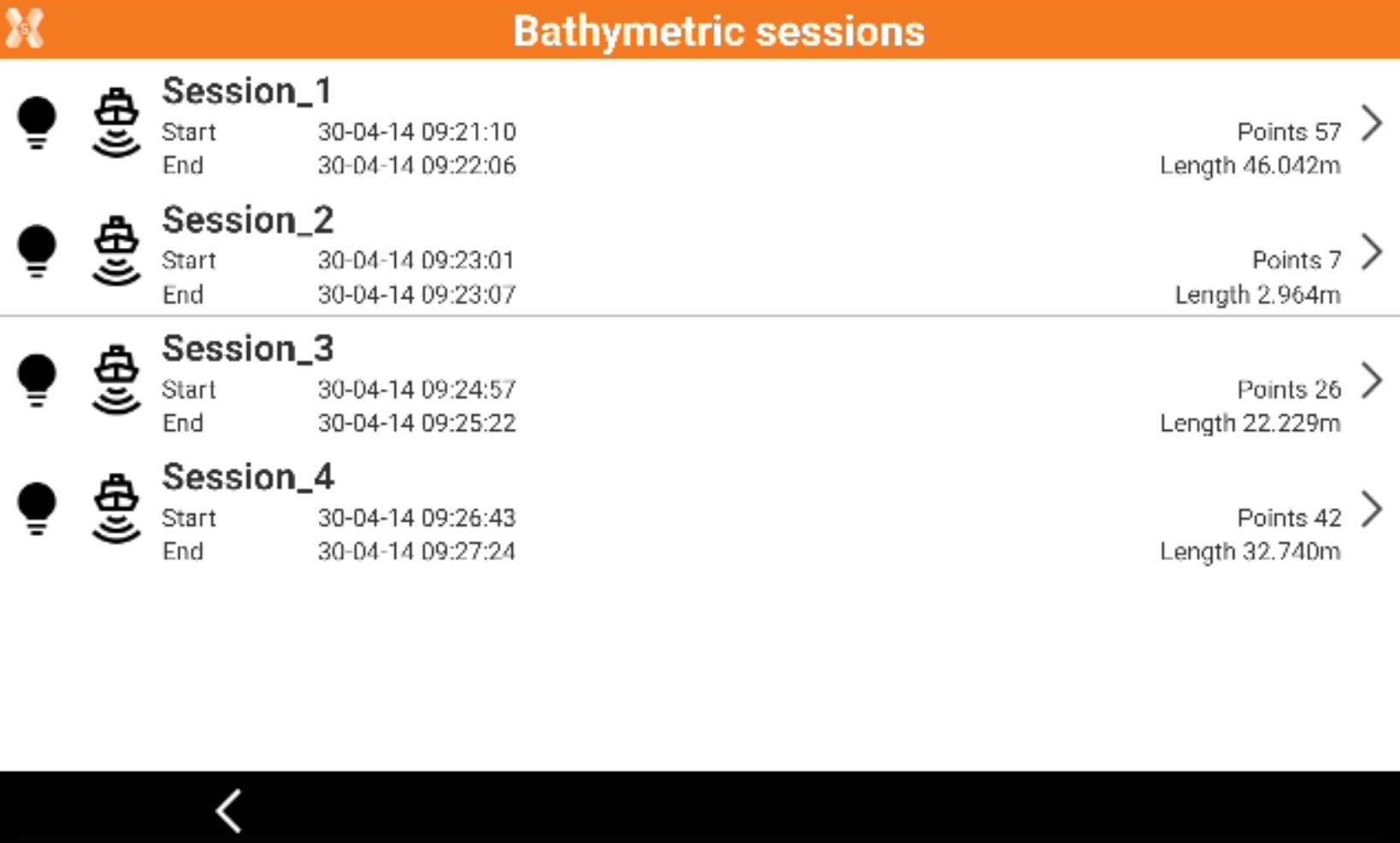
The command is used to list the bathymetry sessions executed.
-
Selecting a session to access additional information or to delete a session.
-
Click Tools.
-
Click Bathymetric session.
-
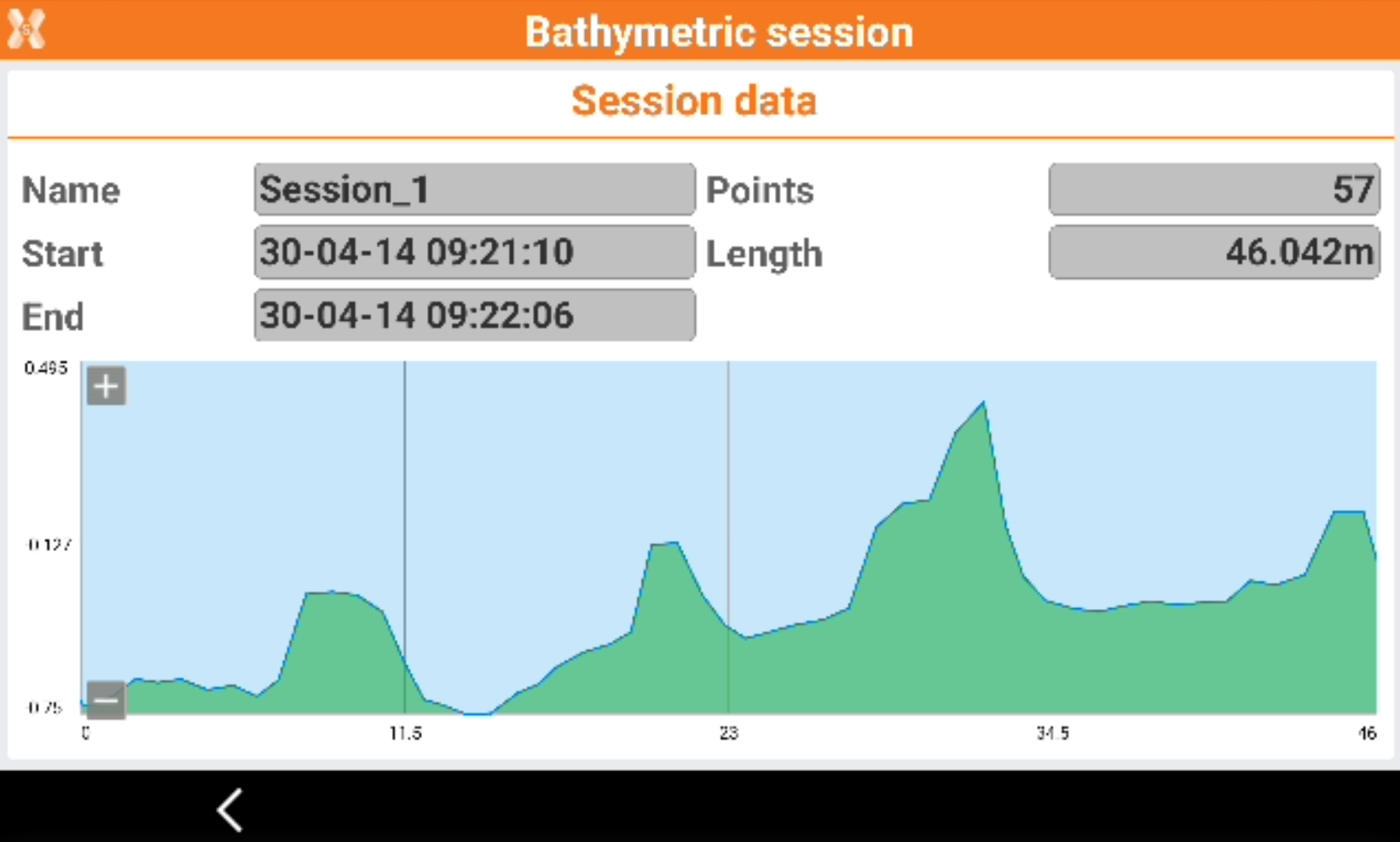
Select a session and click Delete to delete it or View to view the data.