



-
Export procedures allow exporting points, drawings and other information to files in various formats.
-
Exported files can be used in other applications.
-
Exported files can be shared and opened directly.
Some export formats are only visible if the corresponding language is selected.
-
Export a file and all the supported formats: how to export a file from current job and all supported export formats.
-
Export a file: how to export a file in internal memory, USB pen drive or on a cloud storage.
-
Export a X-PAD Exchange format file: exports the data in xpad format. The format ensures better data transfer and collaboration between office and field software.
-
Export a DXF drawing: exports points and draing in the standard DXF format.
-
Export an ASCII file: exports different data in a customized formatted text file.
-
Export a LandXML file: exports the data in the standard LandXML format.
-
Export a HeXML file: exports the data in the HeXML format.
-
Export an ESRI shape file: exports the data in ESRI Shape format.
-
Export a Google Earth KML/KMZ file: exports the data in Google Earth KML or KMZ formats.
-
Export in GSI Format: exports points and measurements in the GSI format.
|
Video tutorials |
|
|---|---|
Basic steps on how to export and share a file. |
Export a file to XPAD365 cloud How to export a file to the X-PAD365 cloud storage area. |
How to export job data to X-PAD Office Fusion office software. |
How to export a drawing file in AutoCAD DXF or DWG format. |
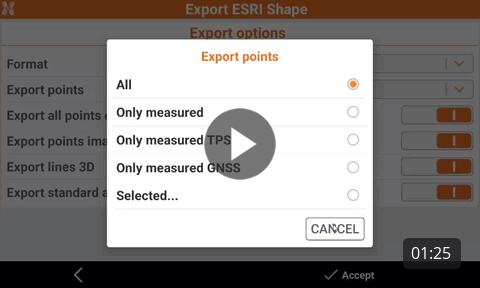
Export data in shape file format. |
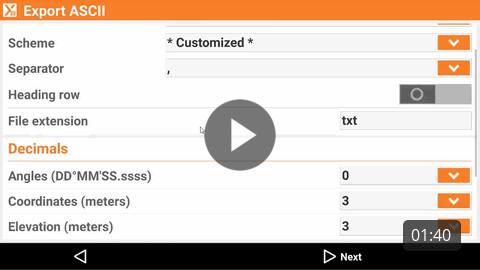
how to export a customized ASCII text file. |
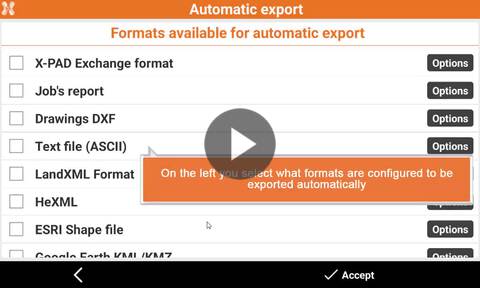
How to export automatically data in specified format when a job is closed. |
|
|
Webinars |
|

Understanding Import and Export in X-PAD Ultimate (2023-9-21) Webinar to understand the different options to import and export the data in X-PAD field software. |
|