

-
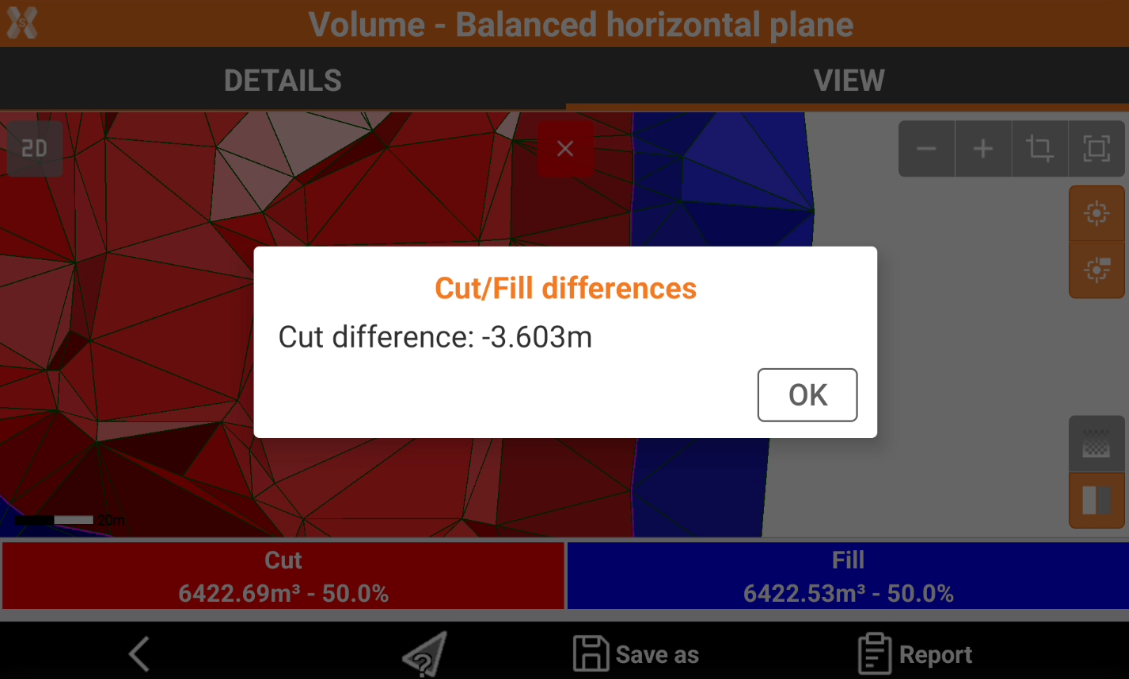
To view the details of a volume calculation, from the Surfaces and Volumes page click Volumes.
The information are also available at the end of volume calculation.
-
Click a volume calculation and click Details.
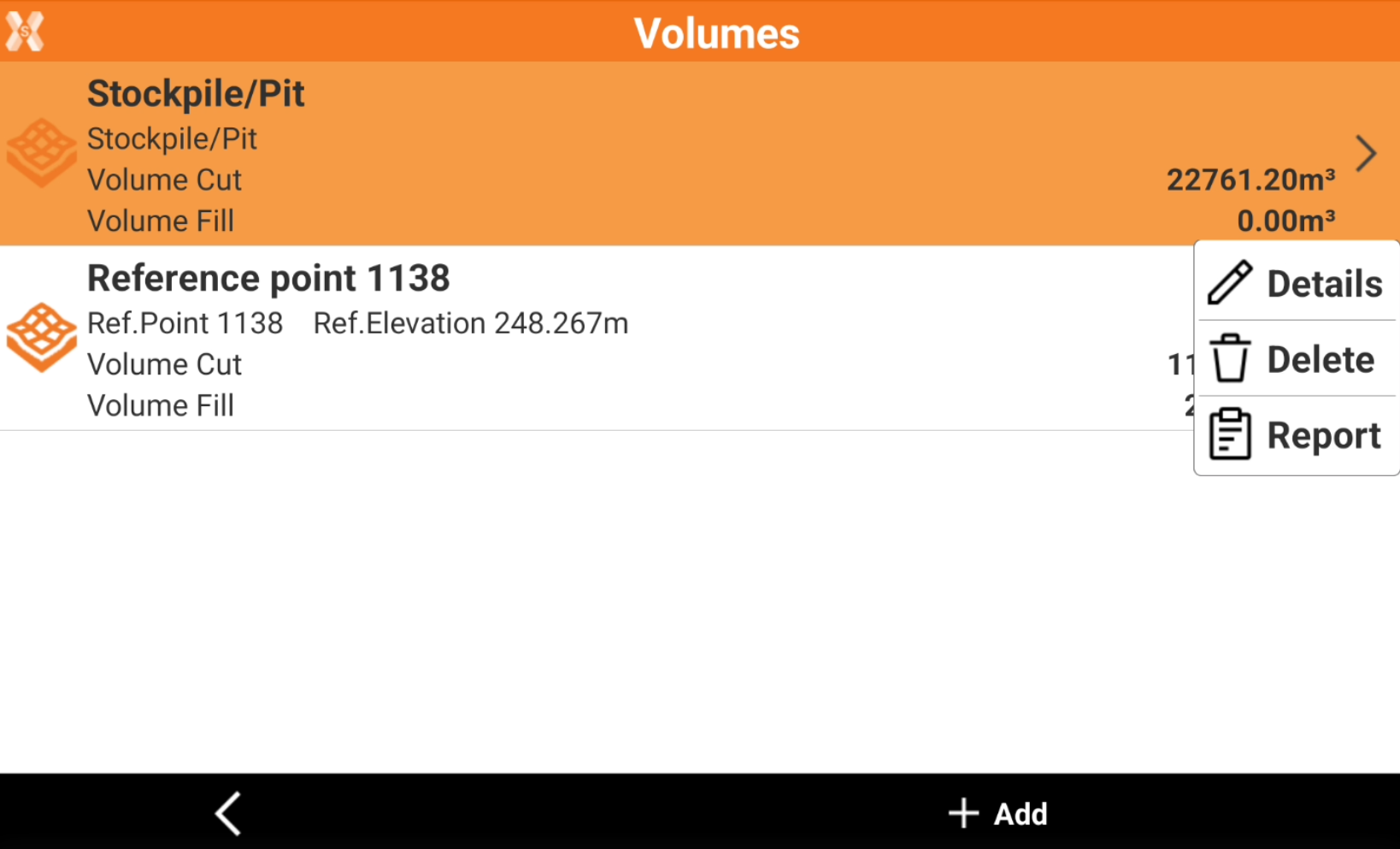
Details page
-
The Details page list the result of the elaboration.
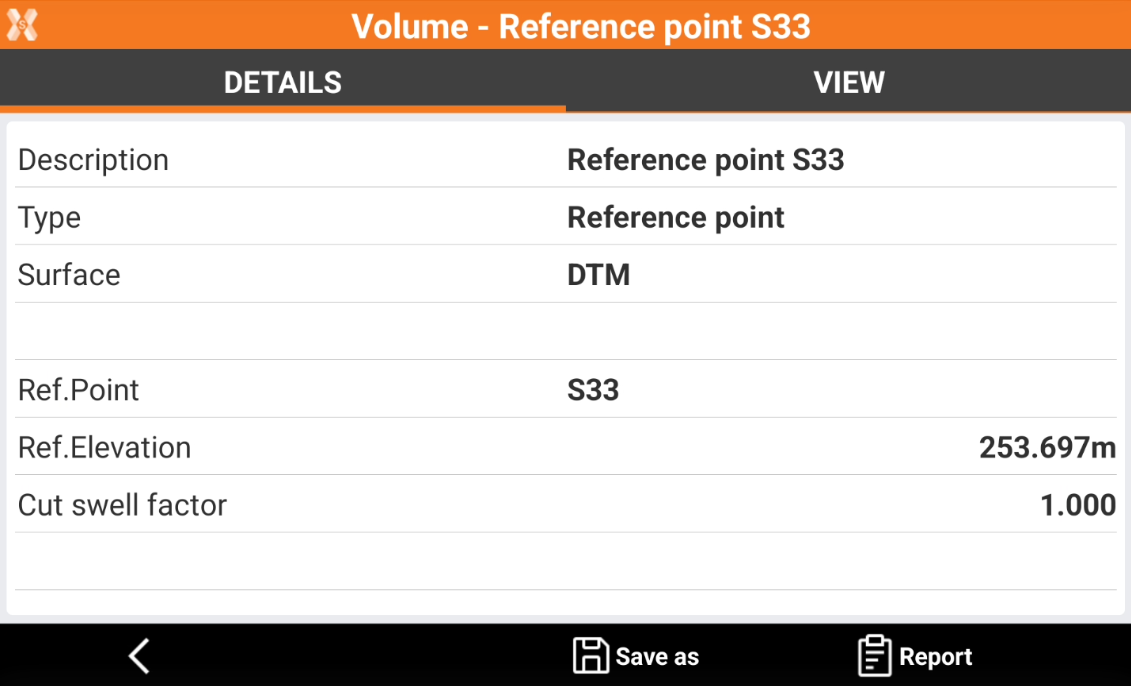
-
Click Save as to extract data from the volume calculation.
-
Click Report to generate a volume calculation report.
View page
-
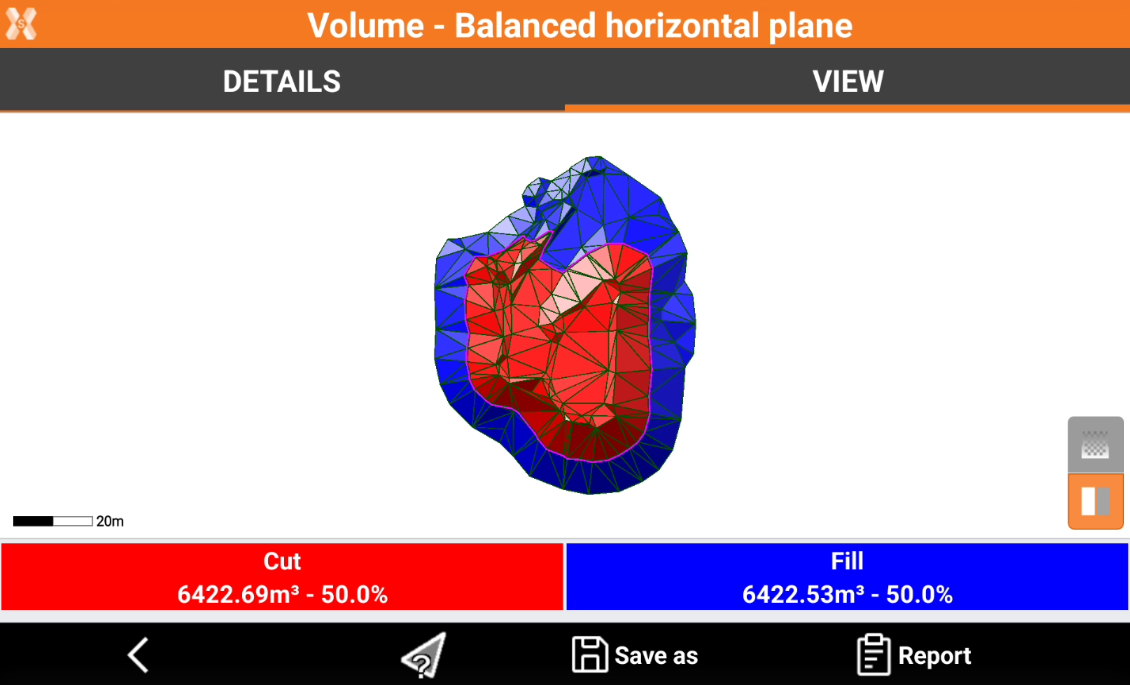
The View page has a graphic visualization of the elaboration.
-
Click the corresponding icons to change color visualization from fixed colors (red and blue) or gradient colors.
-

-
Red: maximum excavation zones.
-
Green: zones with no excavation or filling.
-
Blue: zones of maximum filling.
-
-

-
Red: excavation zones.
-
Blue: filling zones.
-
-
-
Click