


-
The scan lines application is used to automatically measure and store a cross section line using a robotic total station.
-
The procedure can automatically determine surface changes in direction and measure vertices (edges). The scanning interval can also be changed during operation.
-
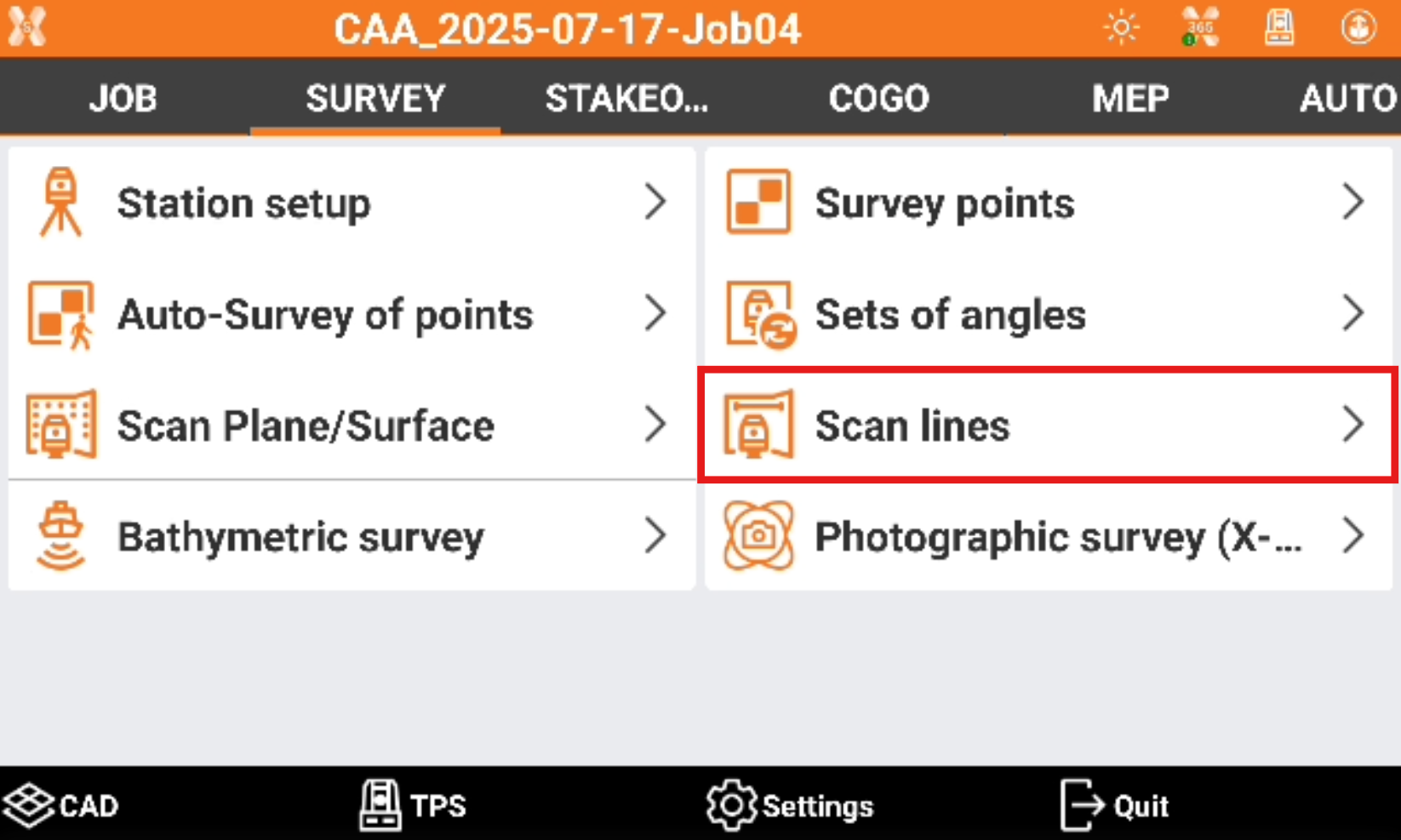
Click Survey.
-
Click Scan line.
-
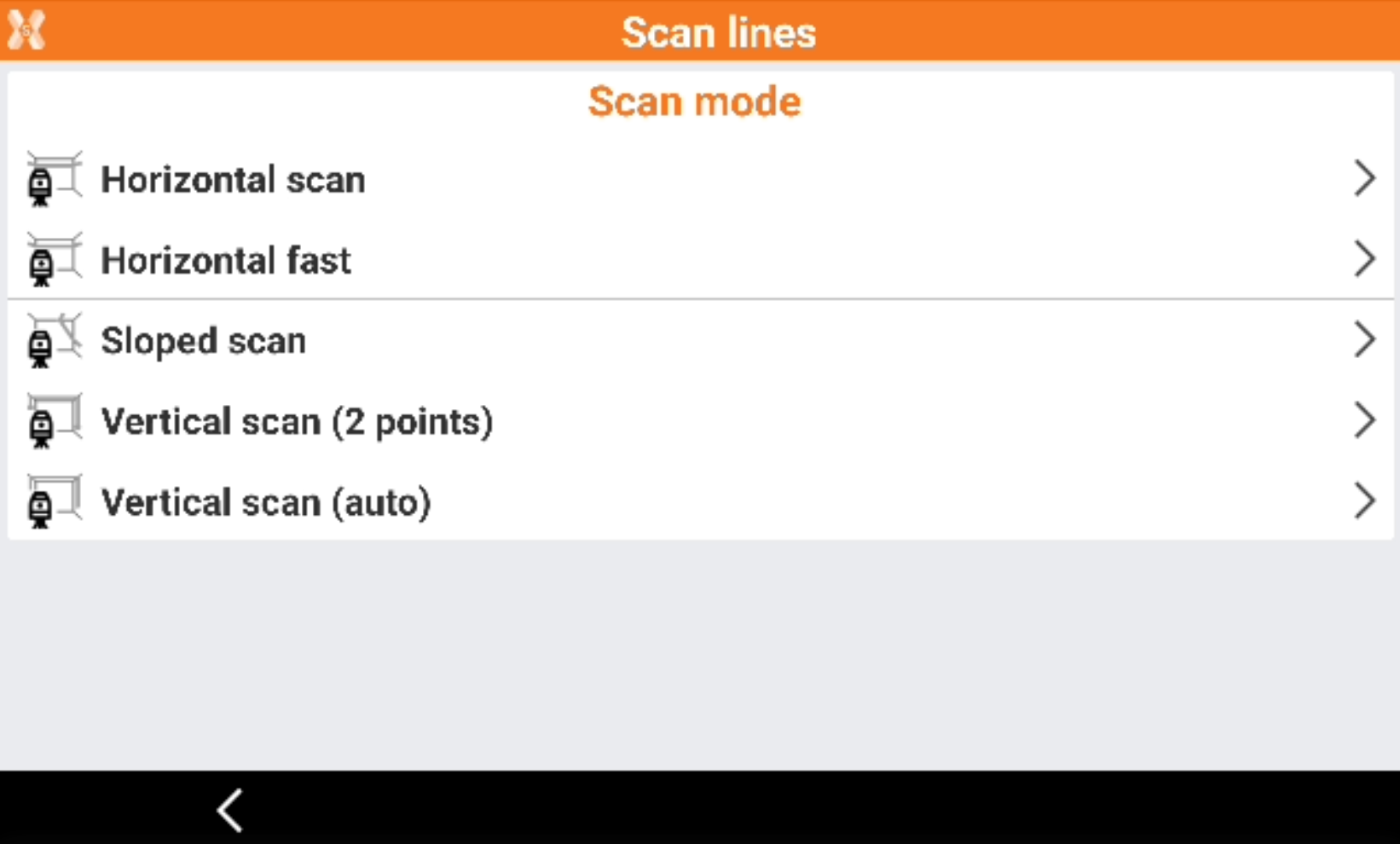
Select the scan mode.
-
Horizontal scan: the software performs an horizontal scan at a defined points distance.
-
Scan direction: allows to enter the direction of the scan.
-
Distance: enter the distance between the points.
-
-
Horizontal fast: the software performs a quick horizontal scan entering the number of points to measure. This method is suitable for regular rooms.
-
Scan direction: allows to enter the direction of the scan.
-
Count: number of points to scan.
-
-
Sloped scan: allows to perform a sloped line scan at a defined points distance.
-
Distance: enter the distance between the points.
-
-
Vertical scan (2 points): the software performs a vertical scan from an initial point to the ending point.
-
Scan direction: allows to enter the direction of the scan.
-
Count: number of points to scan.
-
-
Vertical scan (auto): the software performs a full vertical scan.
-
Scan direction: allows to enter the direction of the scan.
-
Count: number of points to scan.
-
-
-
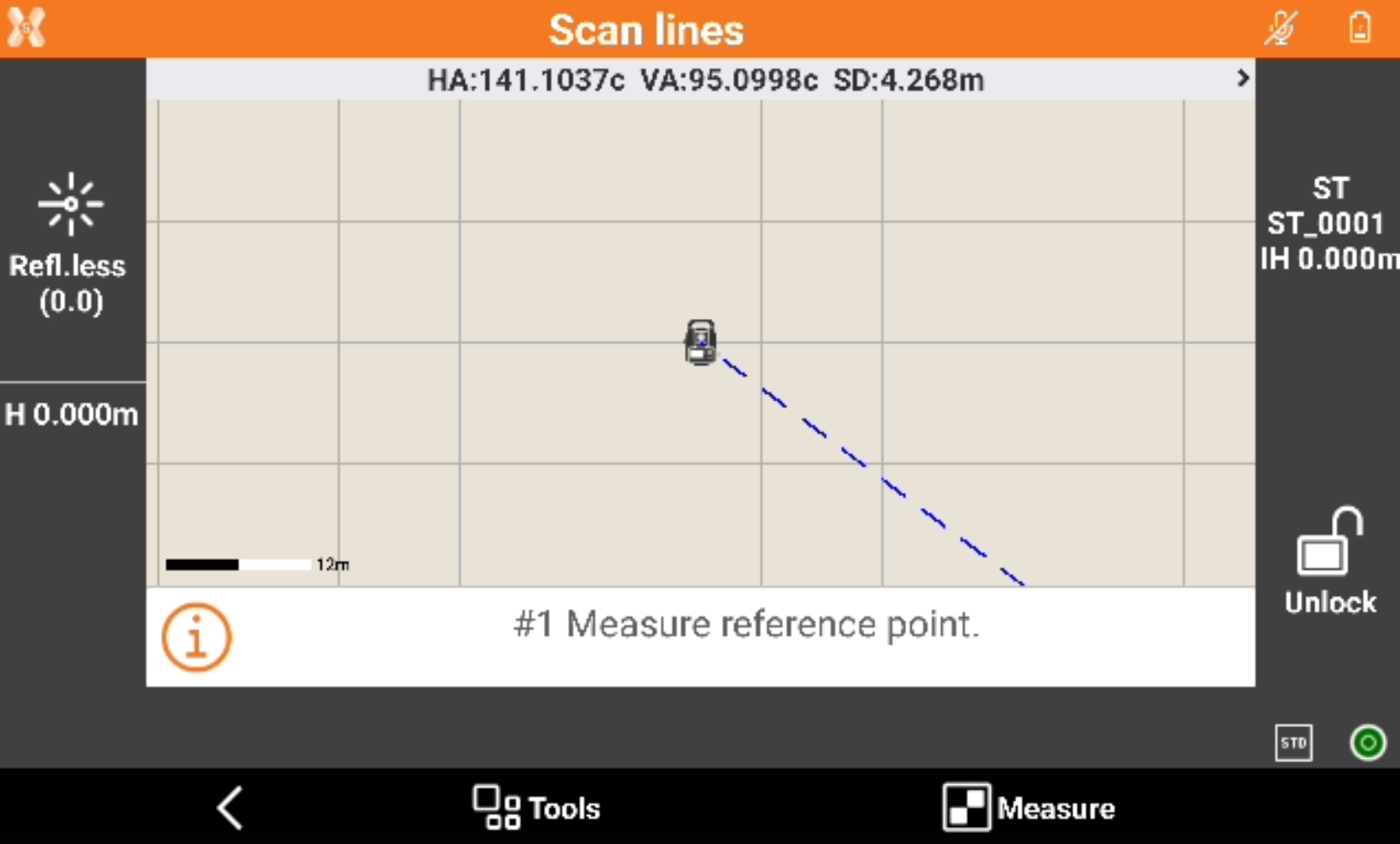
Click Next to enter in the Scan lines page.
-
Depending on the scan mode selected and the parameters measure the reference points (for example the point where a scan starts, or the first and last point of a scan).
-
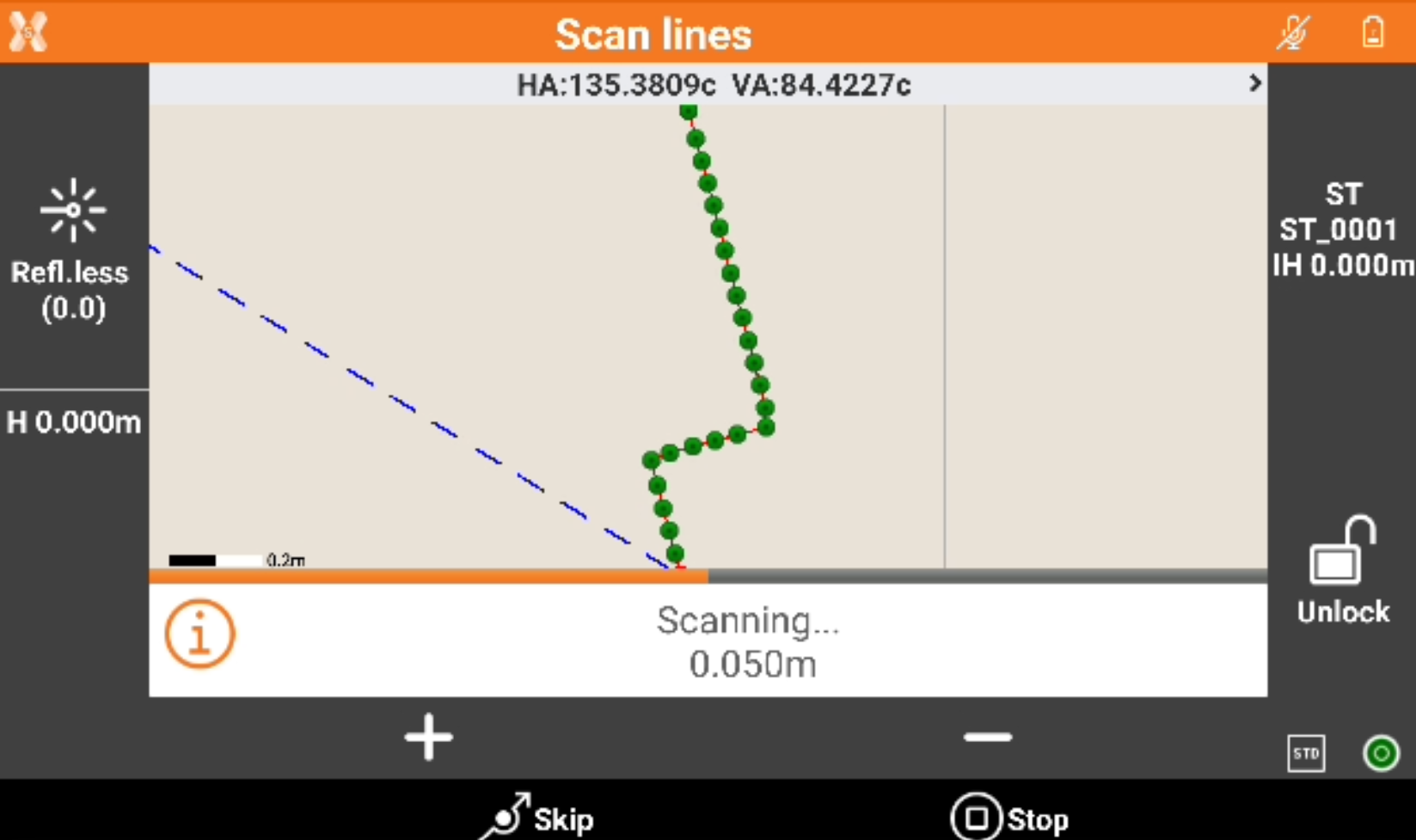
Press Measure to start the scanning.
-
Click + or - to increase or reduce the step.
-
Click Skip to skip a point and jump to the next point.
-
Click Stop to stop the scanning.
-
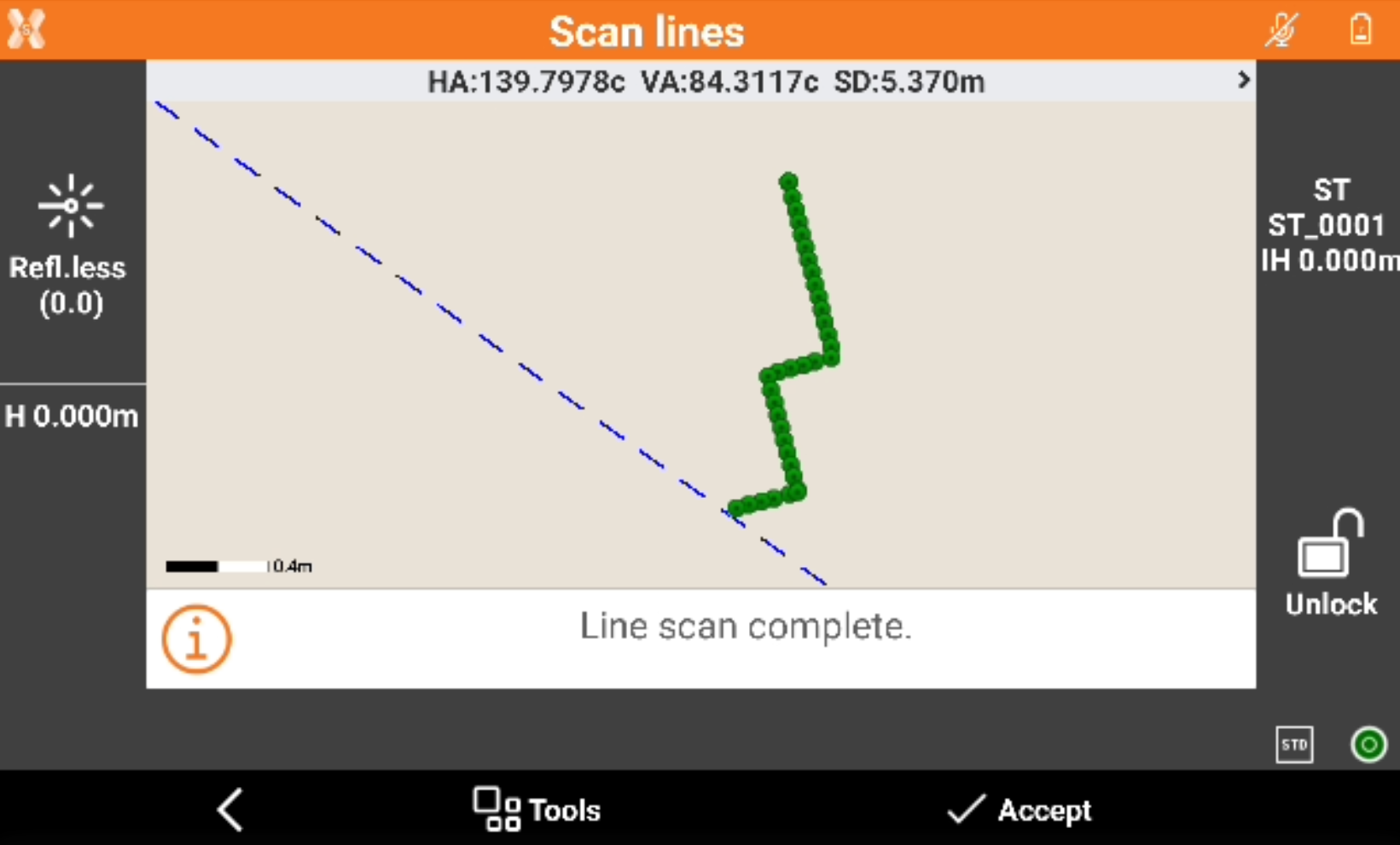
Stop or wait that the scan is complete.
-
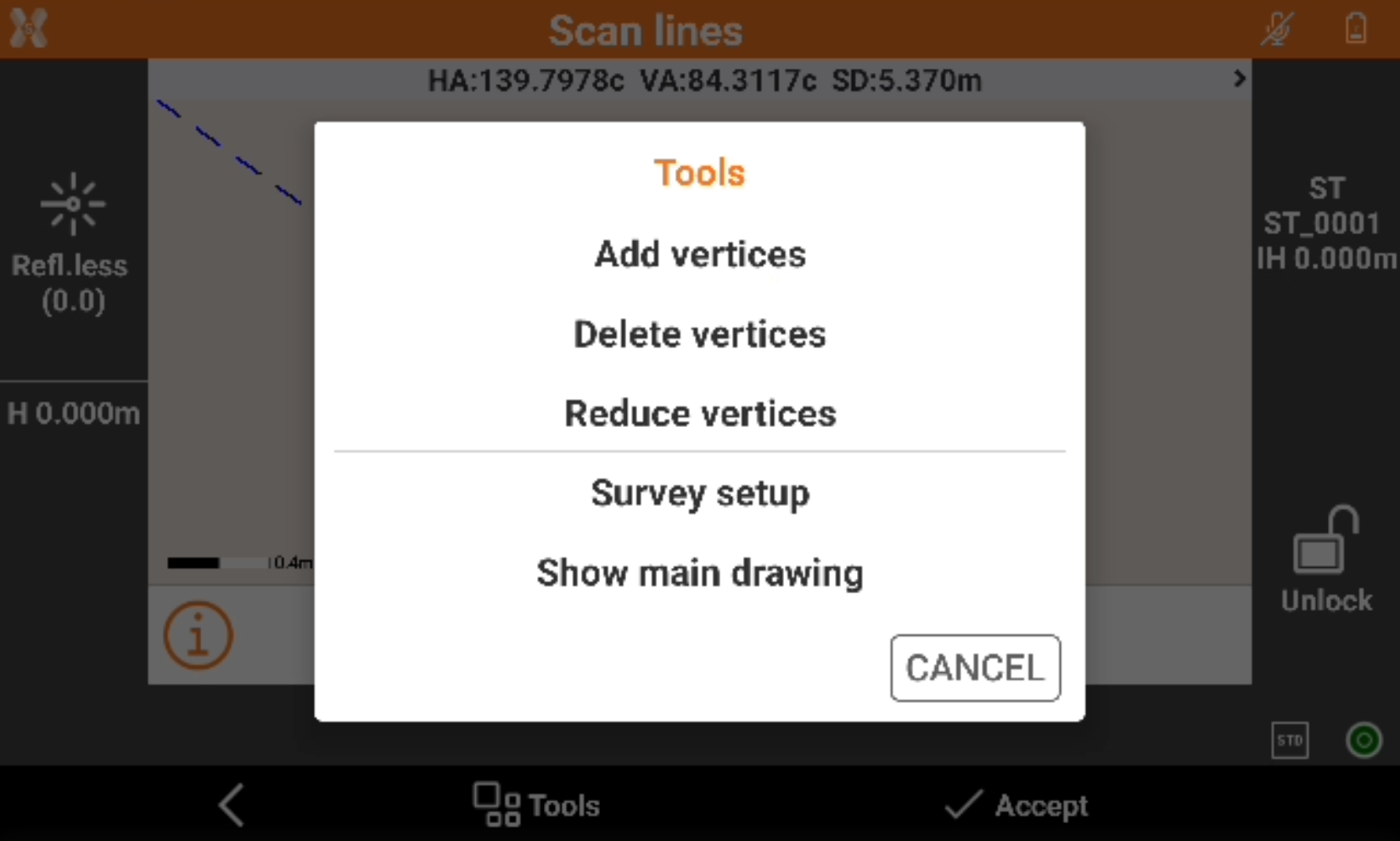
Click on Tools to open the line scan tools.
-
Add vertices: allows to manually add a point in a specific segment.
-
Delete vertices: allows to delete a vertices from the scan.
-
Reduce vertices: automatically removes the vertices to reduce the number of vertices on a straight line.
-
Survey setup: opens the TPS settings.
-
Show/hide main drawing: shows or hide the background drawing.
-
-
Click Accept to save the scan.