



-
Sets of angles is used to measure multiple sets of directions and distances to predefined target points in one or two faces with a total station.
-
The mean direction and mean distance to each target point, within a set is calculated. The residual for each direction and distance within a set is also calculated.
-
Coordinates to each target point are calculated using the reduced average direction and average distance.
-
Click Survey.
-
Click Sets of angle to open the application.
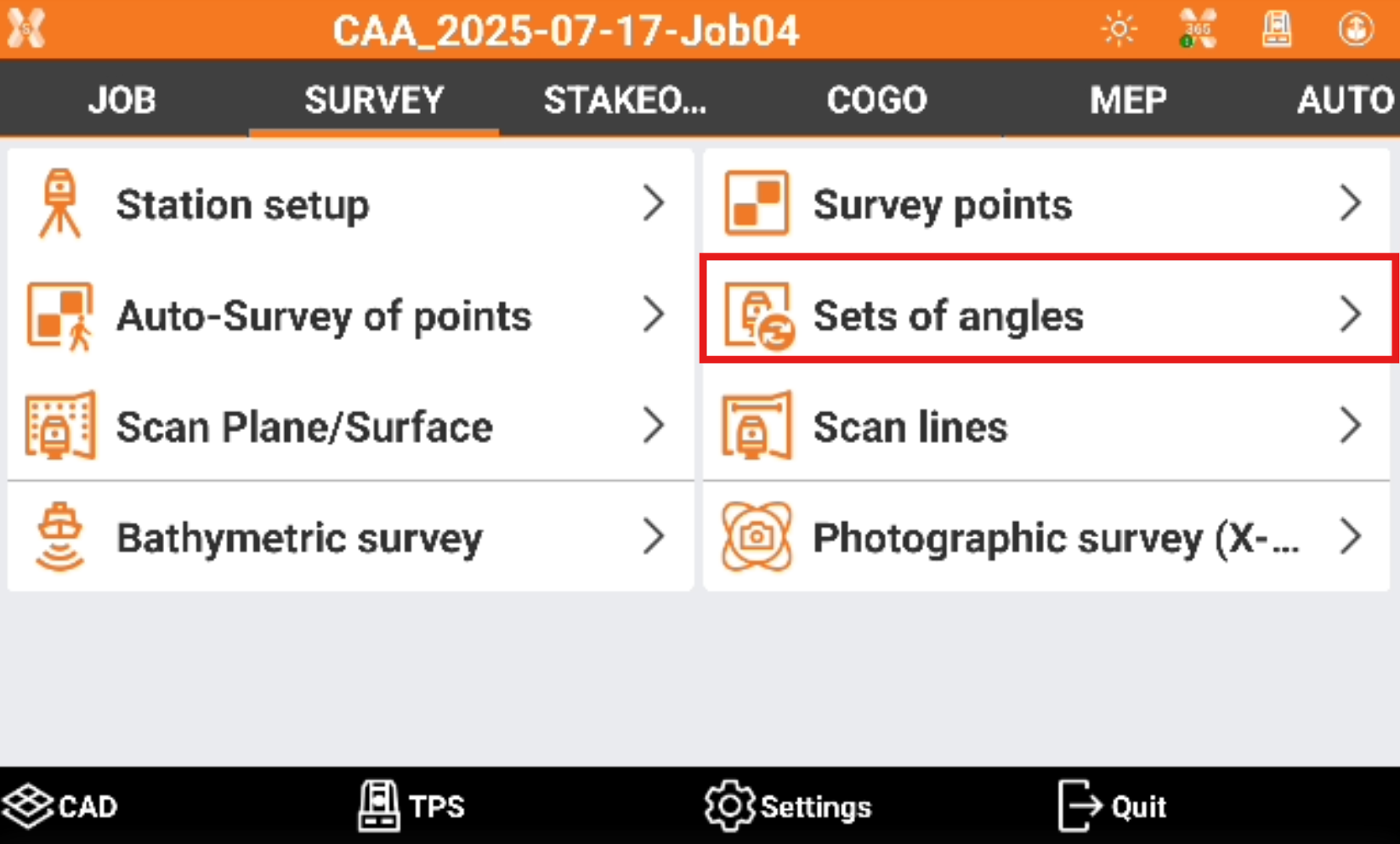
The sets of angle point list
-
The first step after the application is started, is to load the points to measure.
-
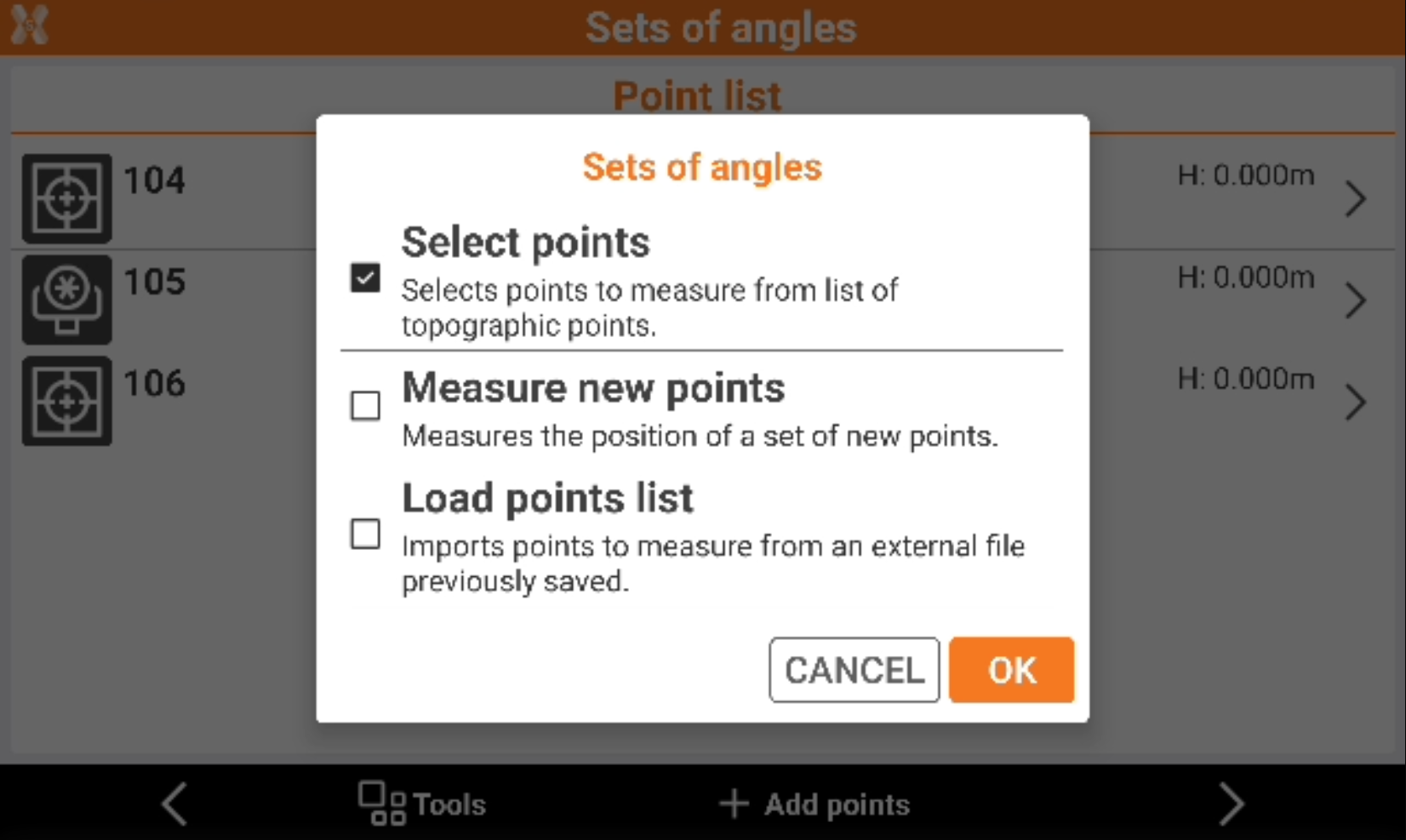
Select the target points:
-
Select points: select the points to measure from the list of topographic points loaded in the job.
-
Measure new points: measures the position of a set of new points.
-
Load points list: import points from a set of previously done sets of angle session.
-
-
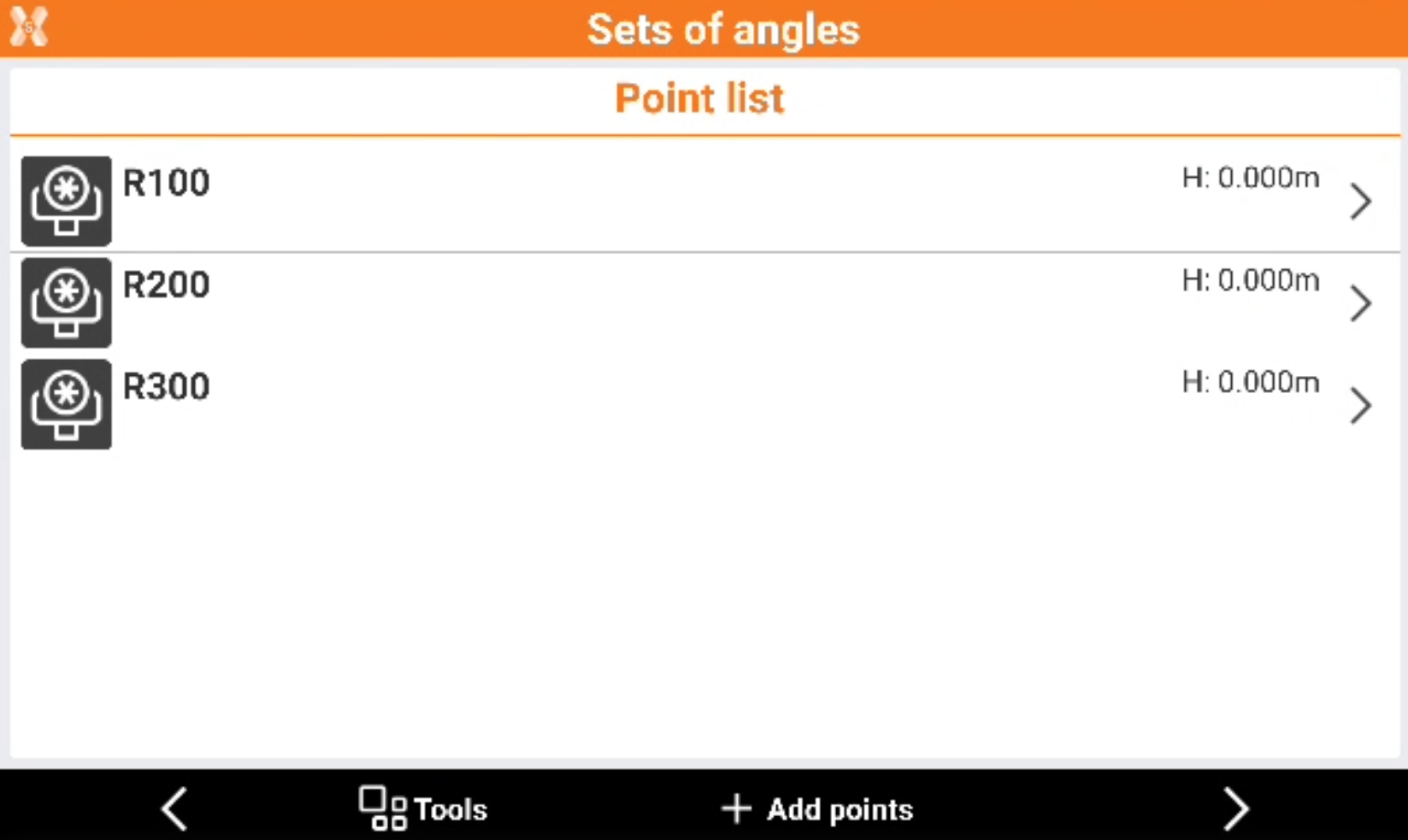
Depending on the method selected, the points to measures are loaded in the sets of angle point list.
-
This list includes the points to measure.
-
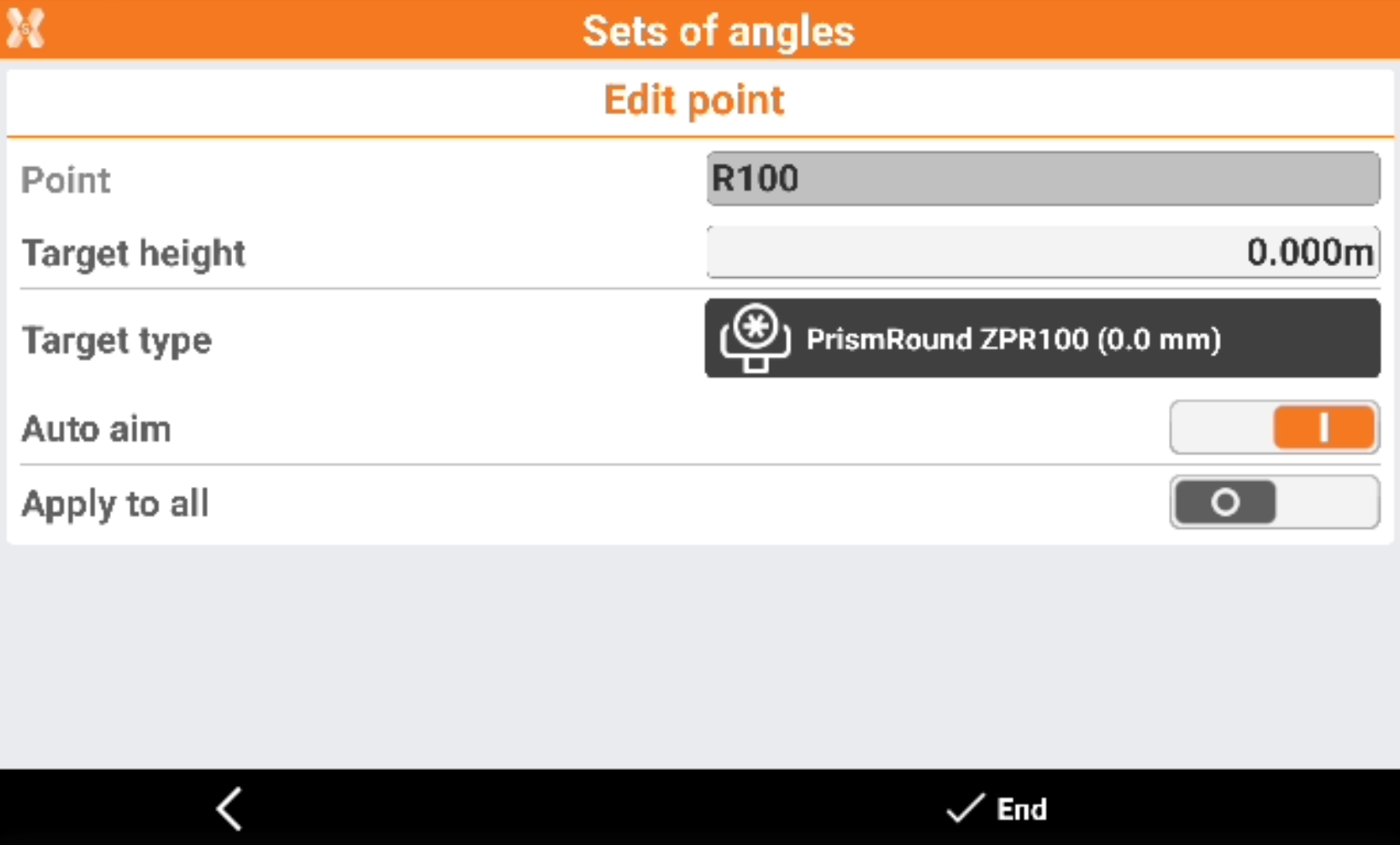
Click on a point to delete it or edit its properties.
-
Point: the name of the point.
-
Target height: the height of the target.
-
Target type: the type of target. Click to change the target type from list of available targets.
-
Auto aim: if enabled, allows the instrument to automatically aim the target when working with a motorized total station.
-
Apply to all: if enabled, applies the settings of the current target to all targets.
-
-
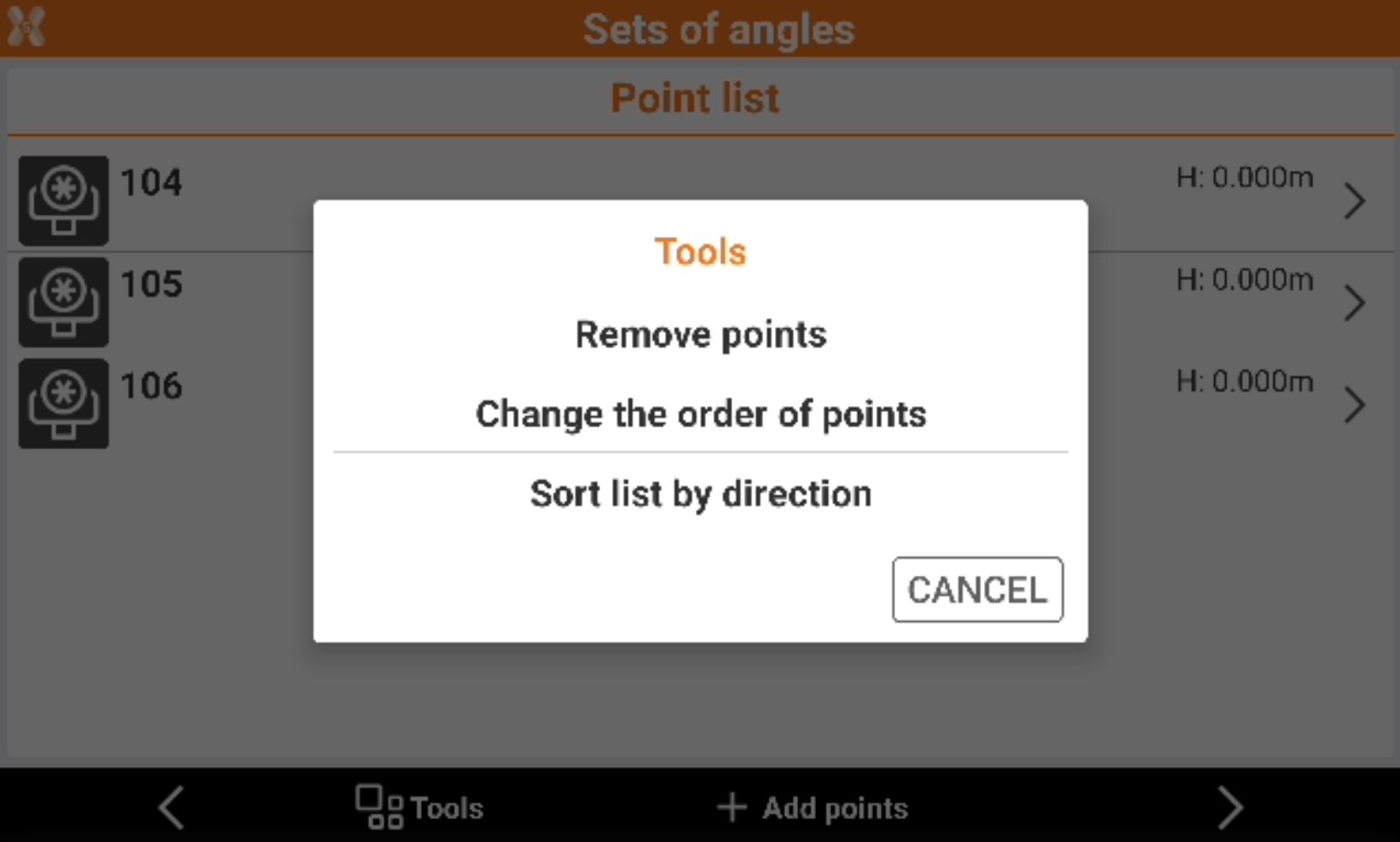
From the point list table click Tools to open the tools.
-
Remove points: allows to delete multiple points from the list.
-
Change order of points: allows to change the order of the points to measure. Select a point from the list and click Down or Up to change the order.
-
Sort list by direction: automatically sorts the list of points to measure based on their direction to optimize the instrument rotations.
-
-
When the list of points is completed click Next.
Settings
-
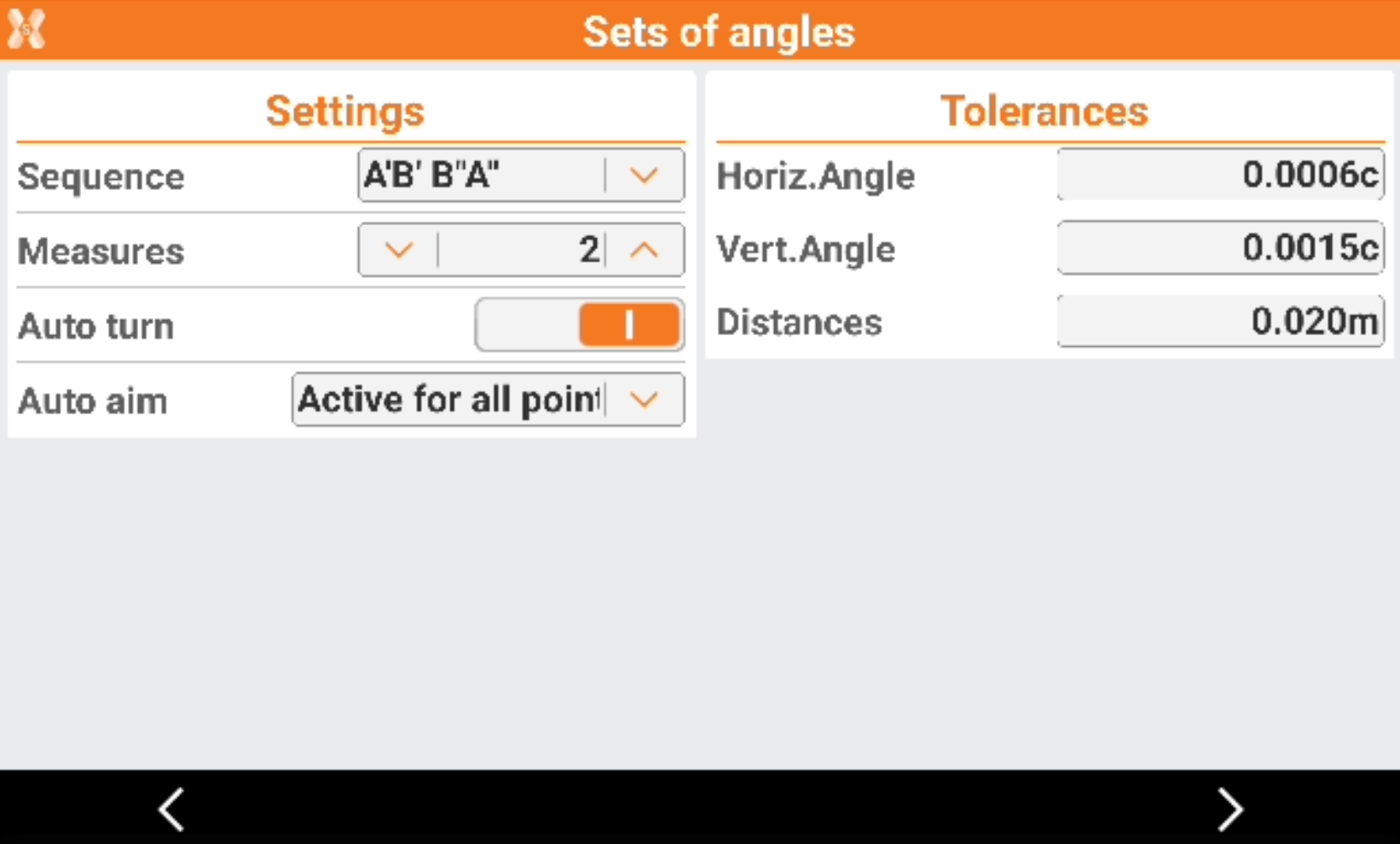
The Settings page allows to define the setting of measurements.
-
Sequence: the sequence on how points are measured in face I and face II.
-
Measures: the number of measurements for each point.
-
Auto turn: enables the automatic rotation to the target.
-
Auto aim: defines if target is automatically aimed and measured:
-
Active for all points: all points are automatically aimed.
-
Not active for all points: all points are not automatically aimed.
-
Specific for each point: the setting depends on the configuration previously done for each single target.
-
-
Tolerances: defines the tolerances on the horizontal angle, vertical angle and distances.
-
Sets of angles session
-
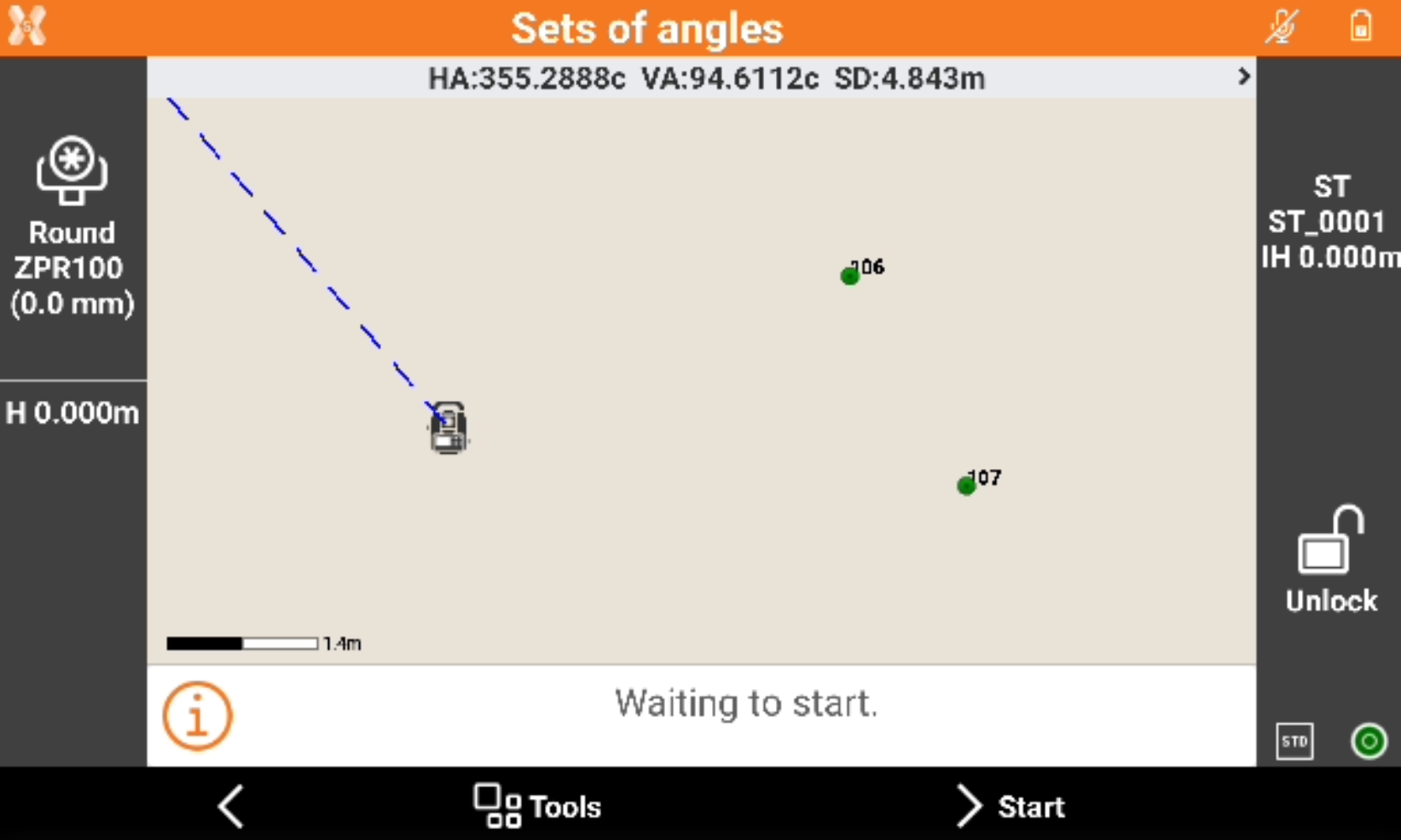
After settings have been defined click Start to start the measurements.
-
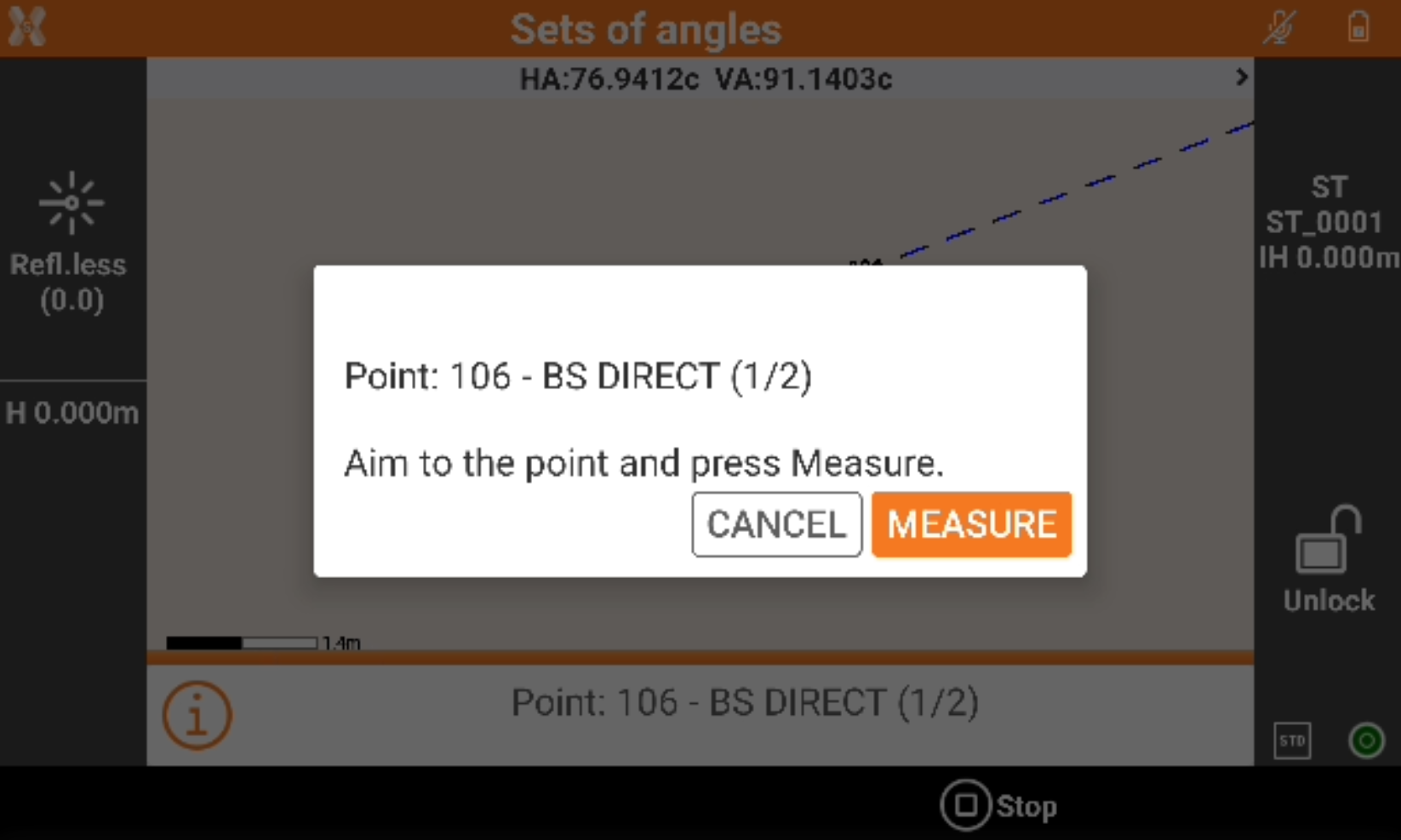
Depending on the aim settings, the points are automatically measured or the software asks for the confirmation after point is manually aimed.
Results
-
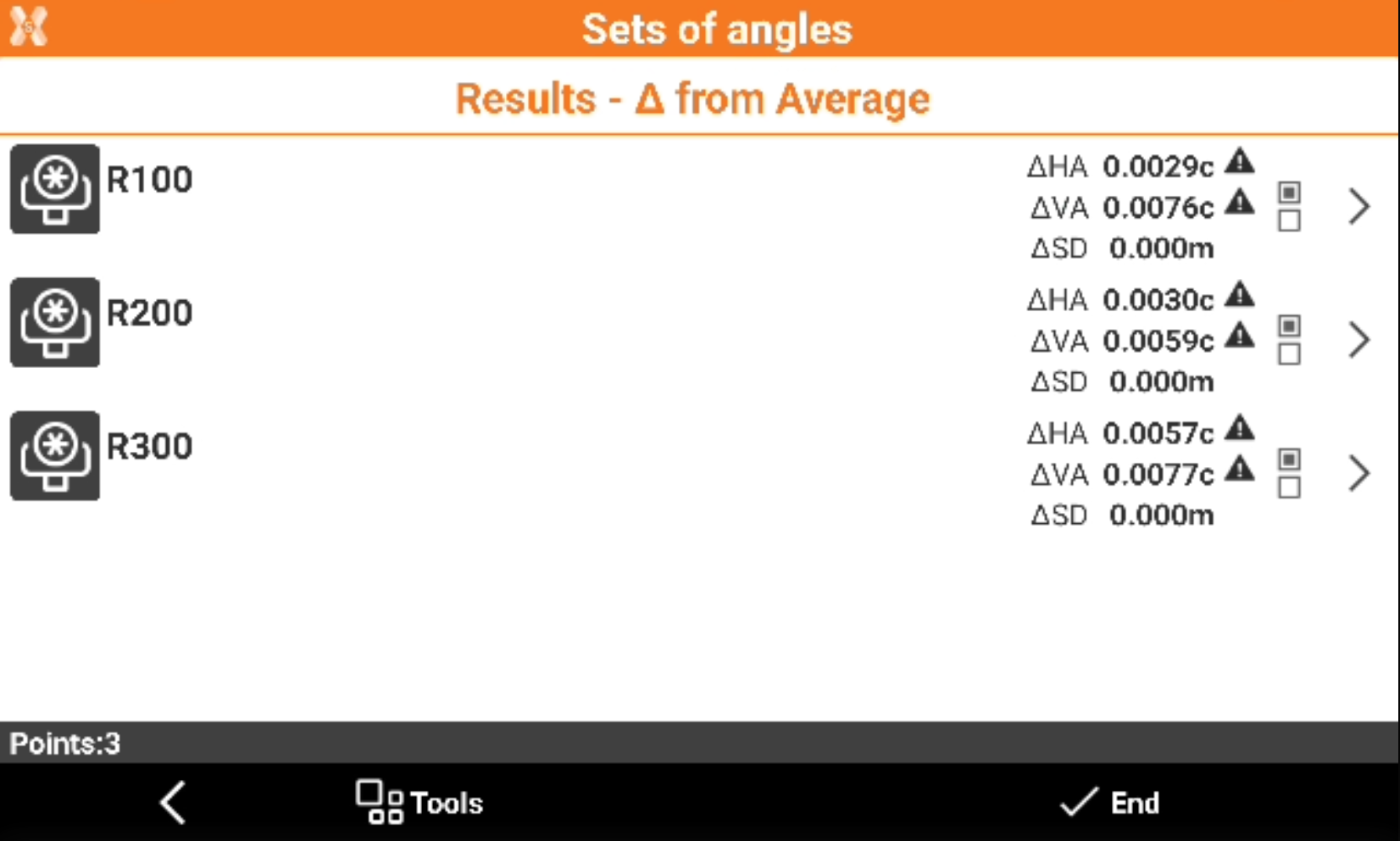
When all measurements are performed the result page is opened.
-
The page shows the residuals for each target. A warning icon indicates the error is over the defined tolerance.
-
Click on the residuals to display the Difference from average or the Difference between the maximum and minimum measured value.
-
Click on a target to open the Detail page to see all measurements for a specific target.
-
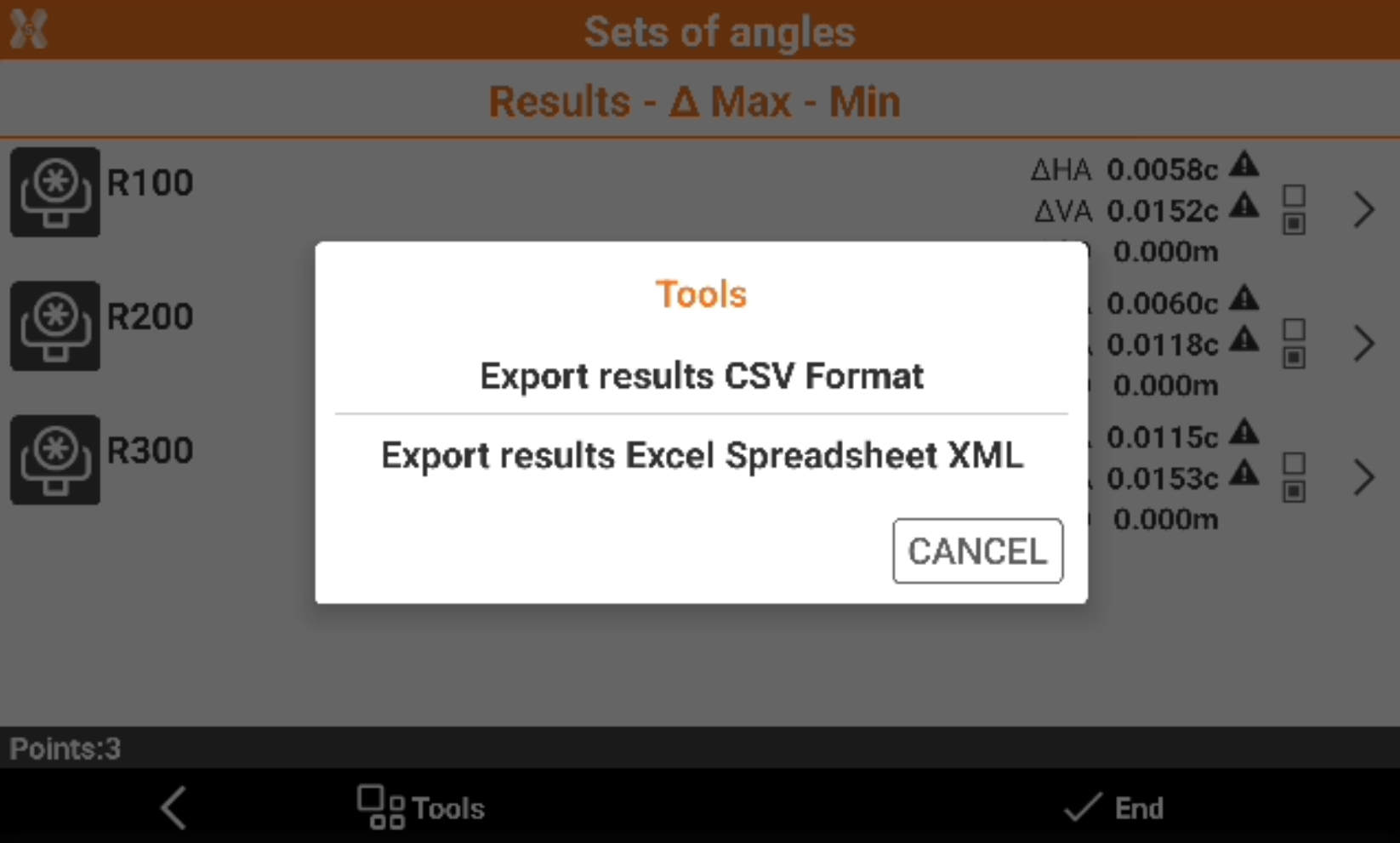
Click Tools to export the measurements in CSV or Excel format.
-
Click End to save the result. You can choose to recalculate the points coordinate and save the target list and settings for future sessions.