



-
A GIS features list can be saved with a name and loaded be created inside the GIS features manager.
-
Click Job.
-
Click Points/Measurements/Codes.
-
Open the Codes tab.
-
Click Tools and select GIS Manager.
-
This opens a new window with the list of available GIS features.
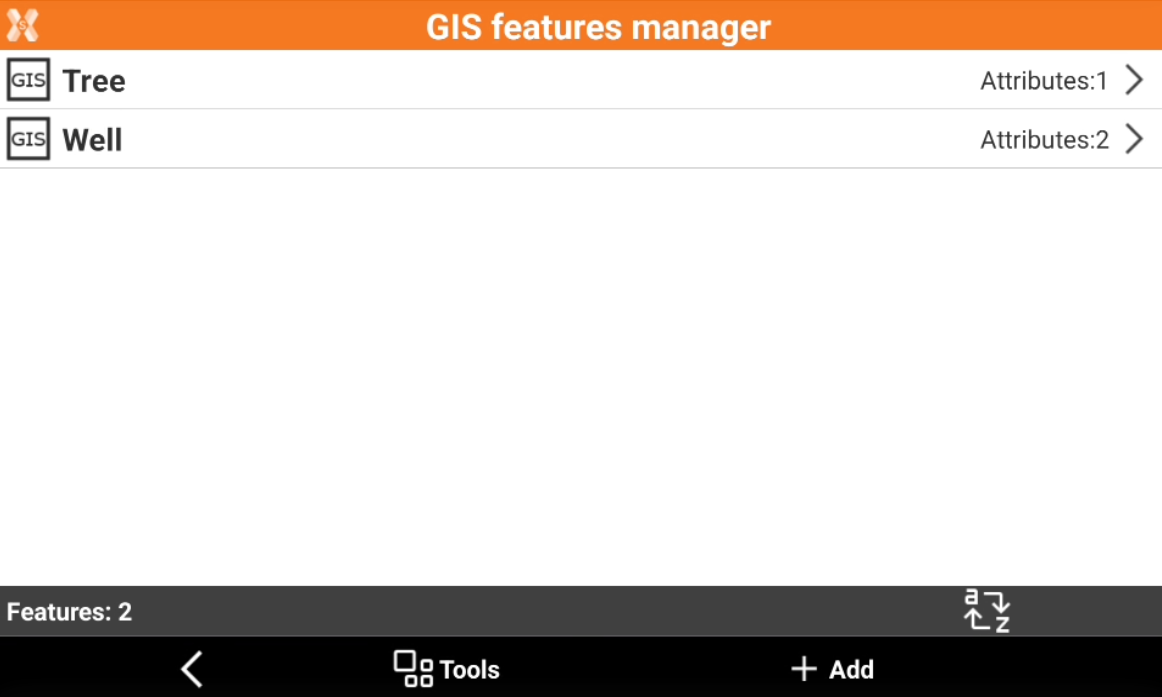
Load GIS features
-
Click Tools.
-
Select Load GIS features.
-
Select an already saved GIS features list from controller internal memory or load it from X-PAD 365 cloud.
Save GIS features
-
Click Tools.
-
Select Save GIS features.
-
Enter the library file name and click Accept.
-
On saving, select to save the GIS features as default for all jobs.
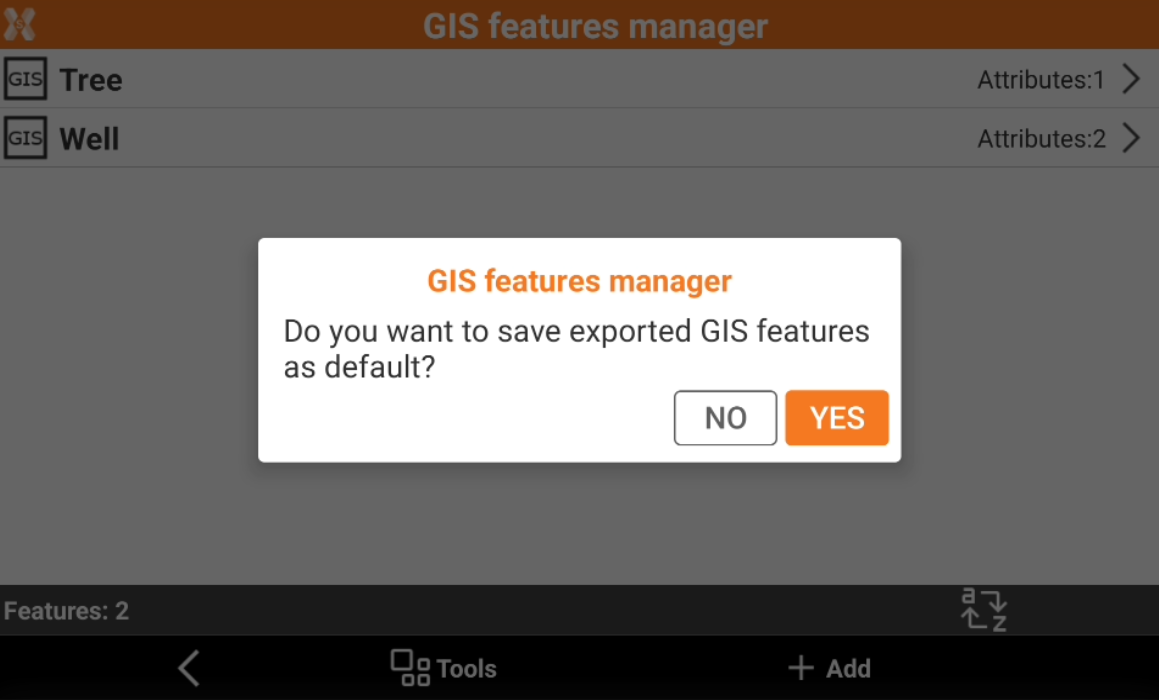
Save GIS features as default
-
It is possible to assign a GIS features list as default in two different ways:
Save as default when assigning a GIS feature list during job creation
-
Click Job.
-
Click New job.
-
Click the GIS features line to assign a GIS feature list and select Change GIS features list.
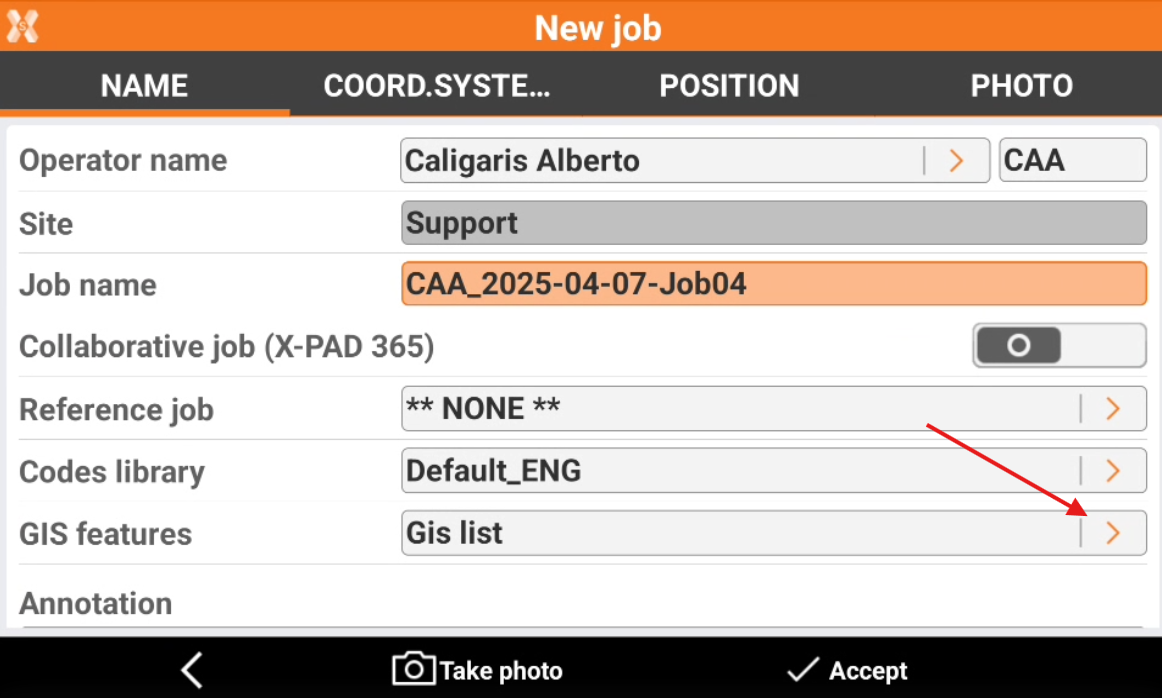
-
Click Accept to save the job and select YES to save the library as default.
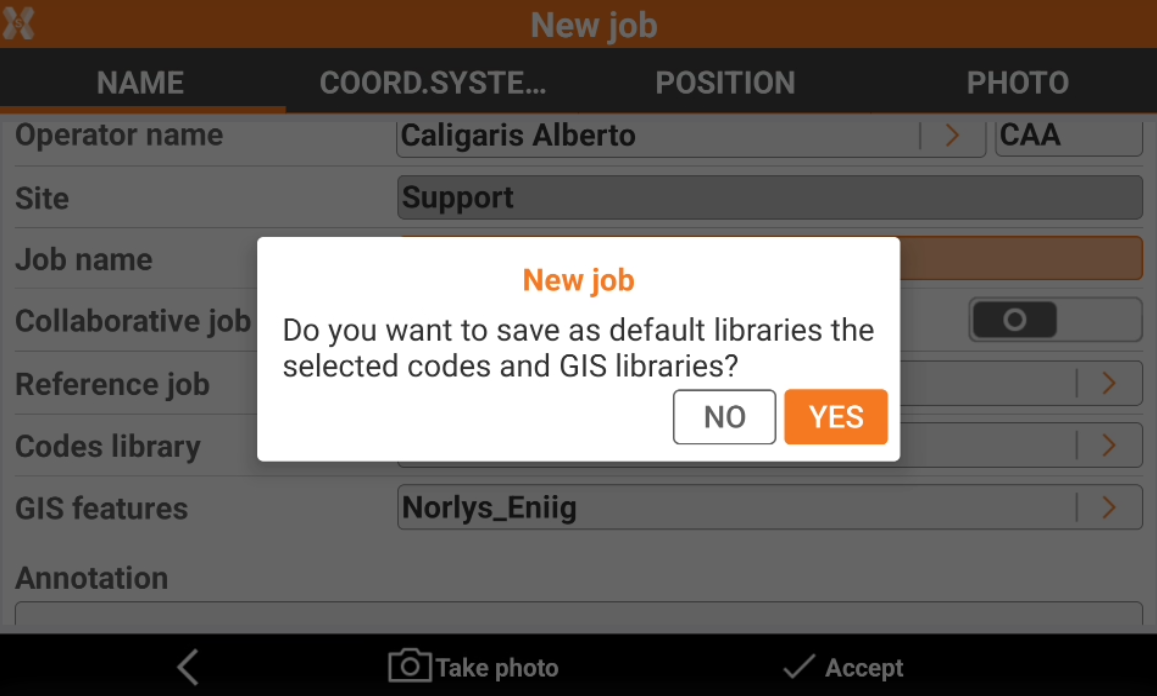
Save as default when saving a GIS feature list
-
Load or create the GIS features library to be saved as default.
-
Click Tools.
-
Select Save GIS features.
-
Enter the library file name or and click Accept.
-
On saving, select to save the GIS features as default for all jobs.