



-
When the current instrument is a robotic total station, it is possible to access to the instrument control panel.
-
The control panel allows to control the basic functions of mechanic total station.
-
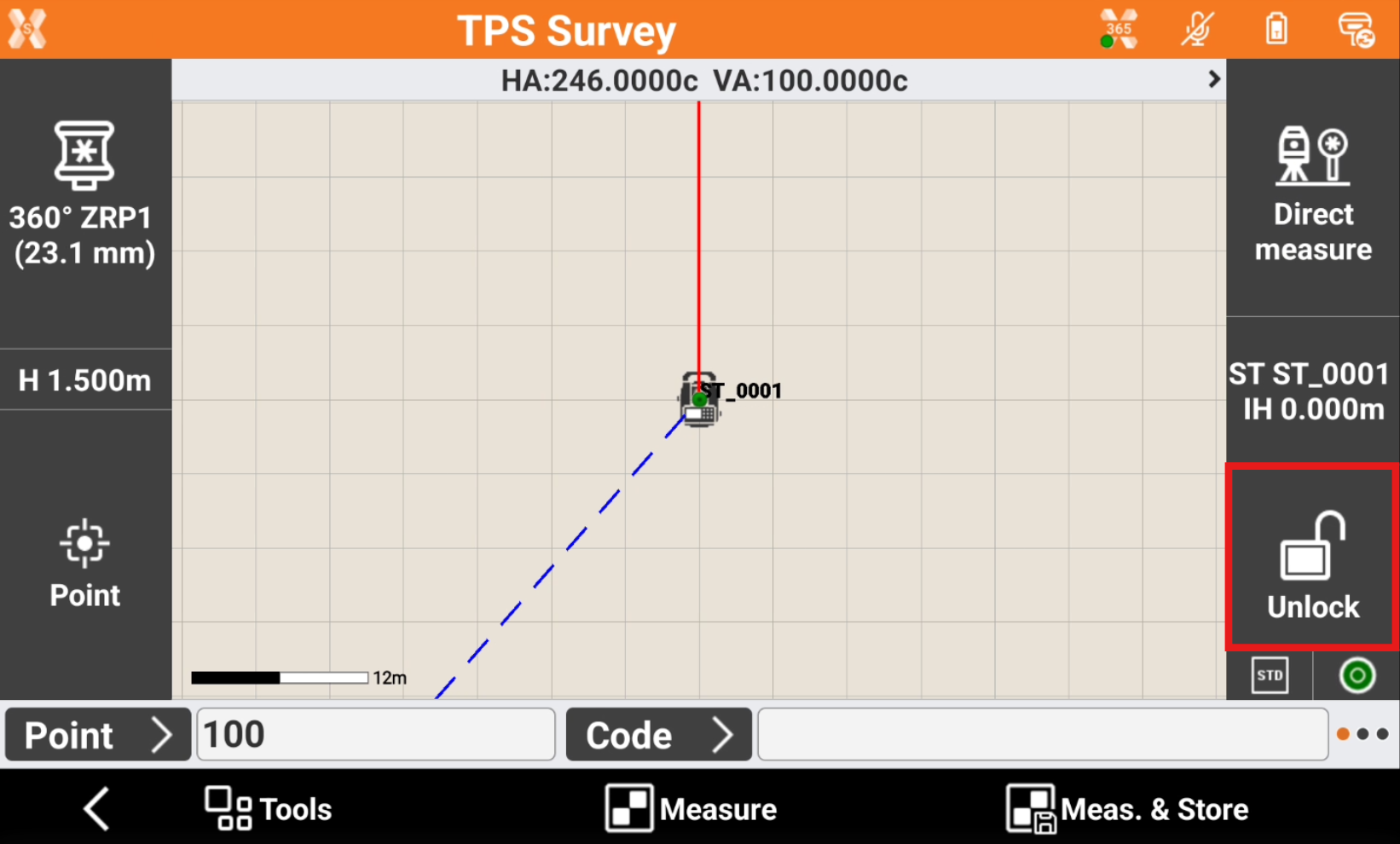
While in survey and stakeout applications click the lock icon to open the Robotic TPS page.
-
The Robotic TPS page has different pages allowing to control and rotate the total station.
Robotic page
-
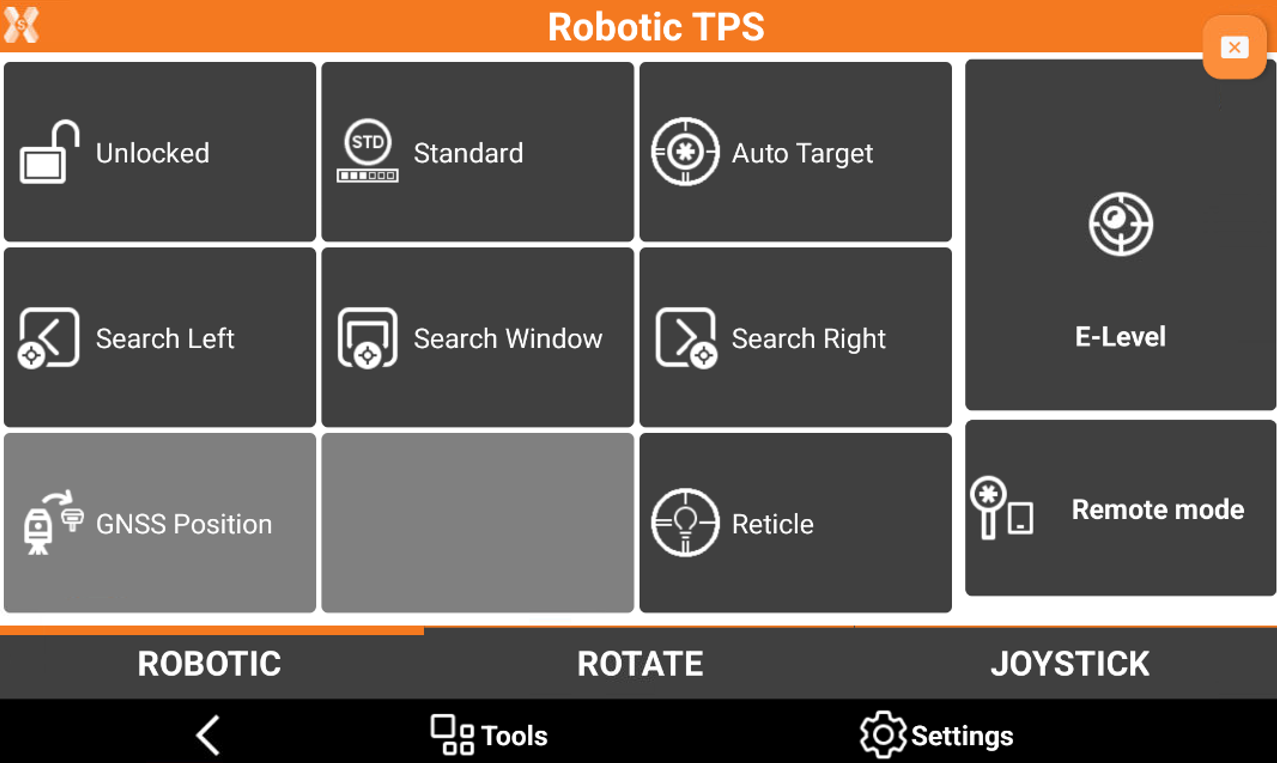
The Robotic page allows to use the robotic functions.
-
Unlock/Lock: allows to lock or unlock the prism. If the prism is locked, click to unlock the prism. If the prism is unlocked, click to search for the prism.
-
Standard/Fast/Tracking: the current EDM mode is standard/fast/tracking.
-
Auto target: enables/disables the automatic aiming of prism. This option if only relevant when the Remote mode is turned off, meaning we are working from total station side.
-
Search left: tap to start the automatic prism search to the left.
-
Search window: tap to start the automatic prism search within a defined window. If the window has not been defined yet, the limits can be defined.
-
Search right: tap to start the automatic prism search to the right.
-
GNSS Position: tap to start the automatic prism search using the GPS position of the receiver placed on the pole (X-Pole) or using the GNSS position from the controller (GeoTrail).
-
Reticle: enables the reticle illumination.
-
E-Level: activates visualization of the electronic bubble.
-
Remote mode: tap to activate/deactivate the remote control when using the controller on the pole or working from total station side. This influences the indications of left/right, forward/backside.
-
The strategy for prism search has to be defined in TPS settings.
Rotate page
-
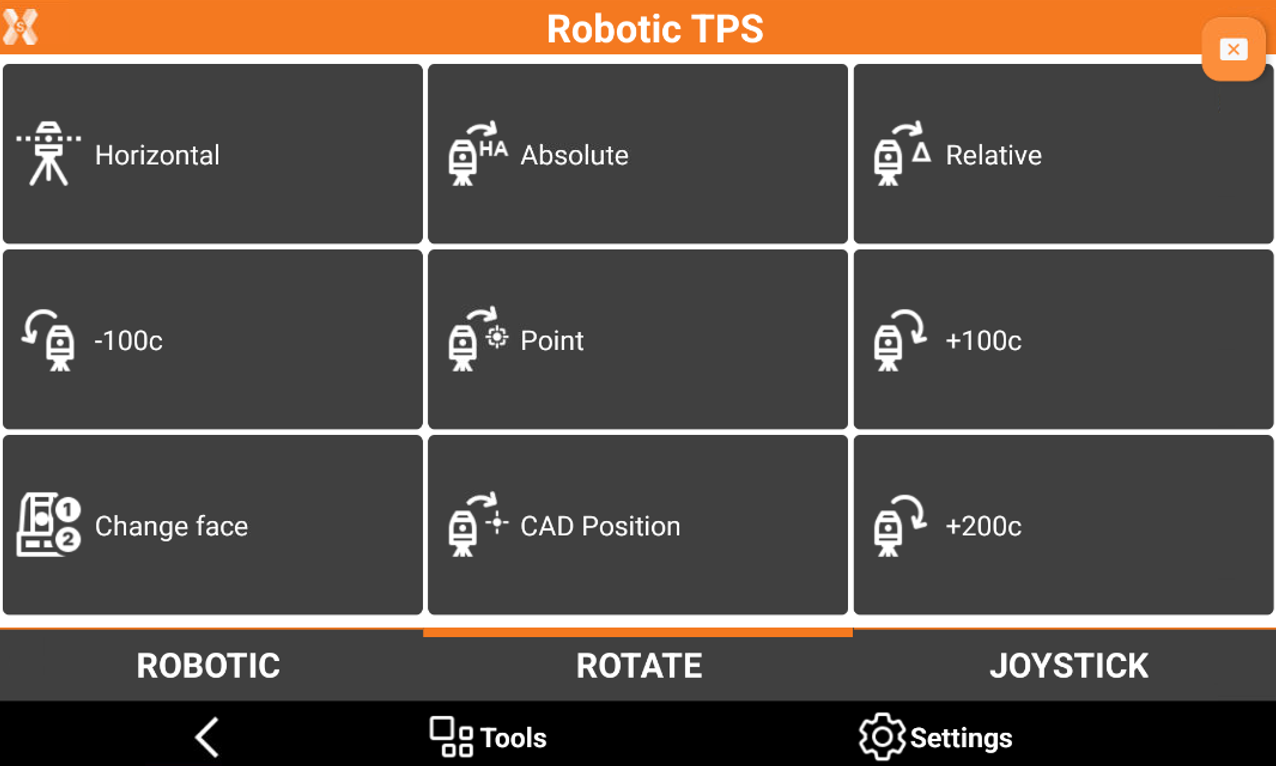
The Rotate page has commands to automatically rotate the motorized total station to the desired position.
-
Horizontal: tap to rotate the telescope horizontally.
-
Absolute: tap to rotate the total station to a specific horizontal angle.
-
Relative: tap to rotate the total station to a specified angular value.
-
-100c: tap to rotate the total station 100 gon (90 degrees) to the left.
-
Point: tap to rotate the total station to a topographic point. Select the topographic point directly in the graphic window.
-
+100c; tap to rotate the total station 100 gon (90 degrees) to the right.
-
Change face: tap to rotate the total station to the opposite face.
-
CAD Position: tap to rotate the station to a position. Select the topographic point directly in the graphic window.
-
+200c: tap to rotate the total station 200 gon (180 degrees) to the right.
-
Joystick page
-
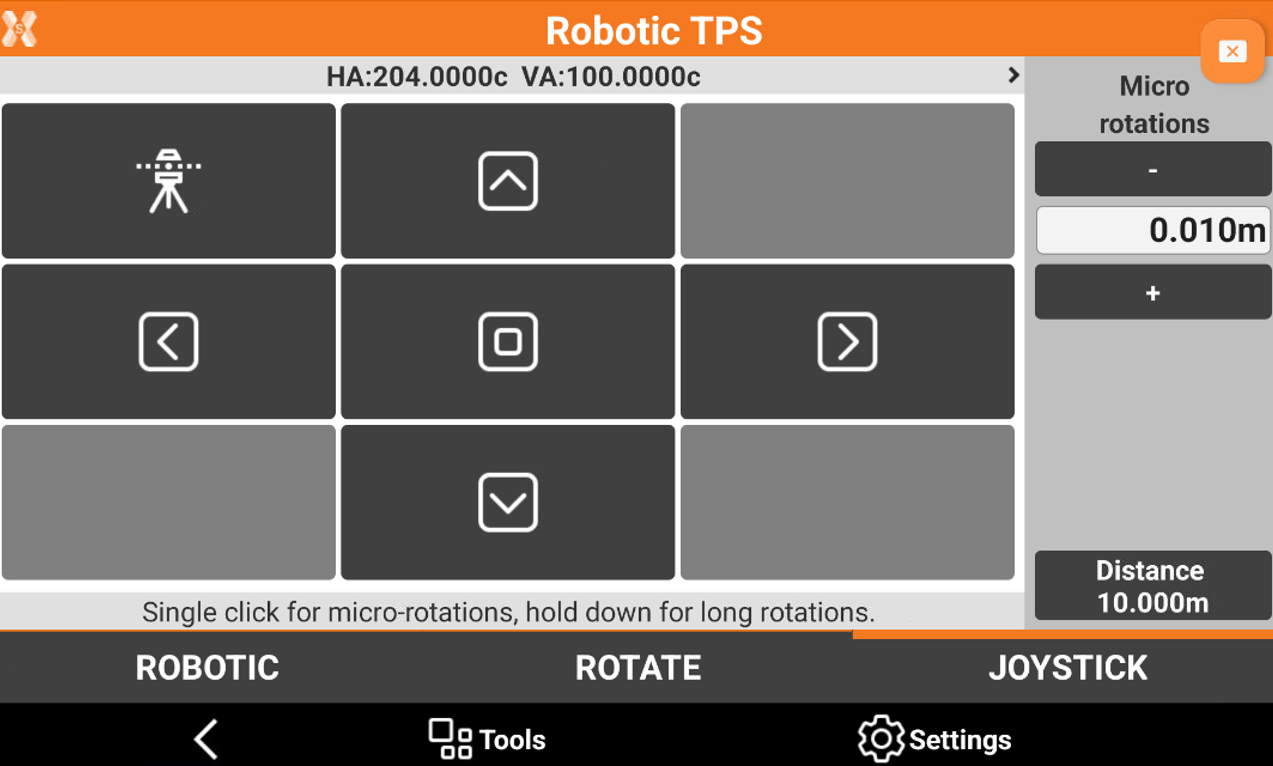
The Joystick page includes commands to rotate the total station in all directions.
-

-

-

-

-

-

-
-
Single click the buttons to perform micro-rotations. The micro-rotation angle is defined by the distance entered in Micro rotations field and the distance to the object that is possible to measure clicking Distance.
-
Hold down the buttons for long rotations.