
-
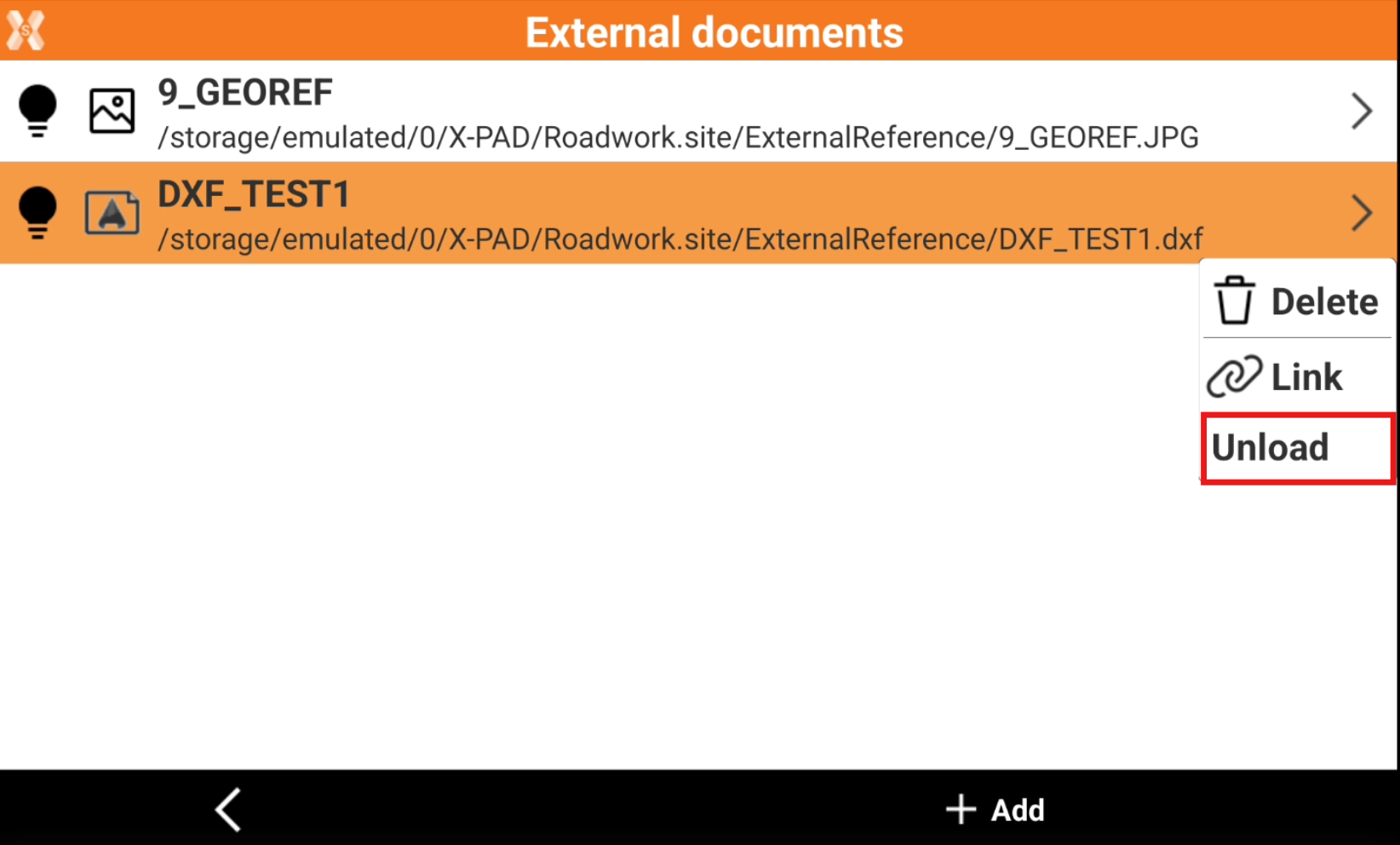
The External references page lists all the external references linked to the job and allows to create new links.
-
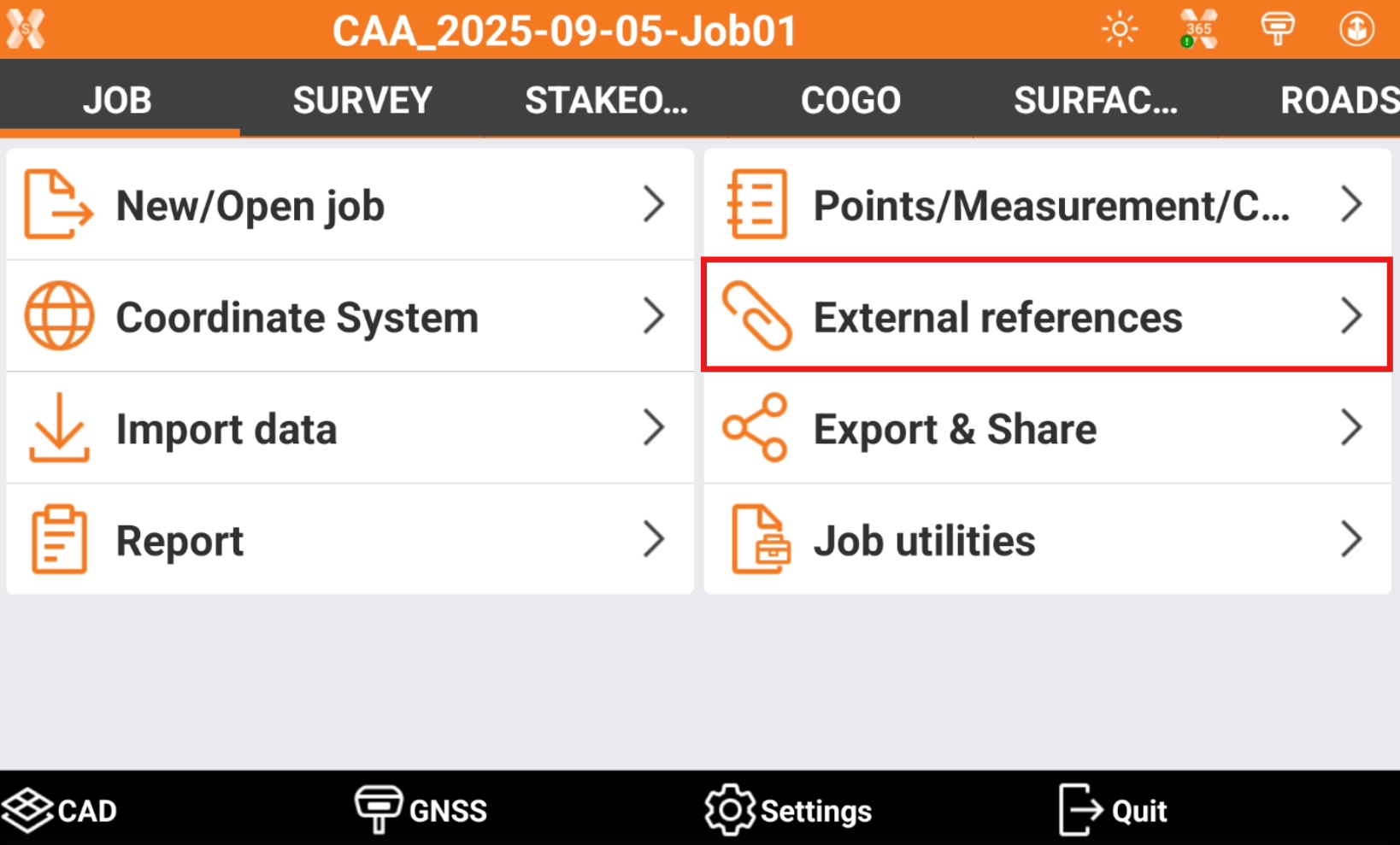
Click External references.
-
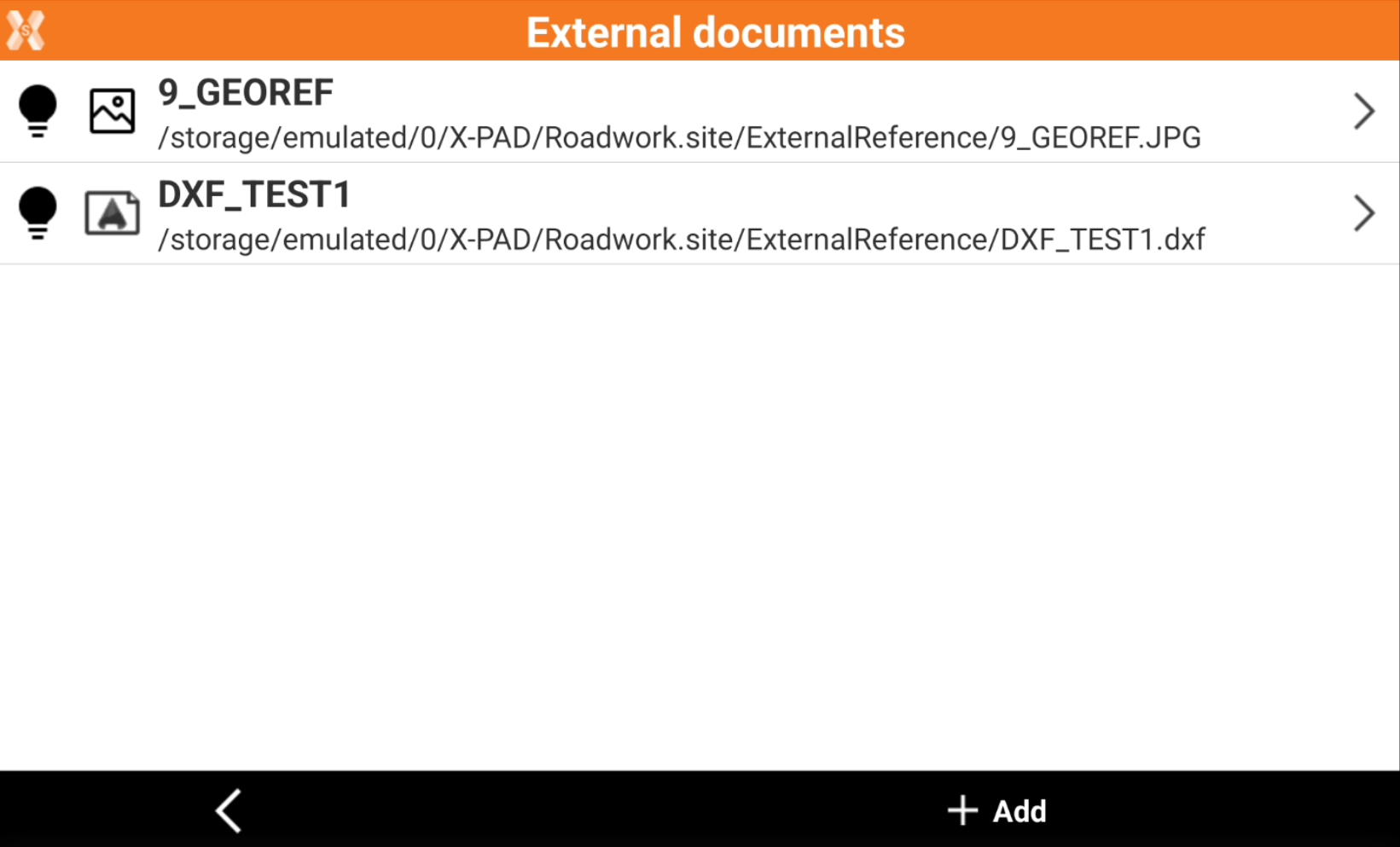
The page lists the loaded external references.
Add an external reference
-
To add an external reference click Add.
-
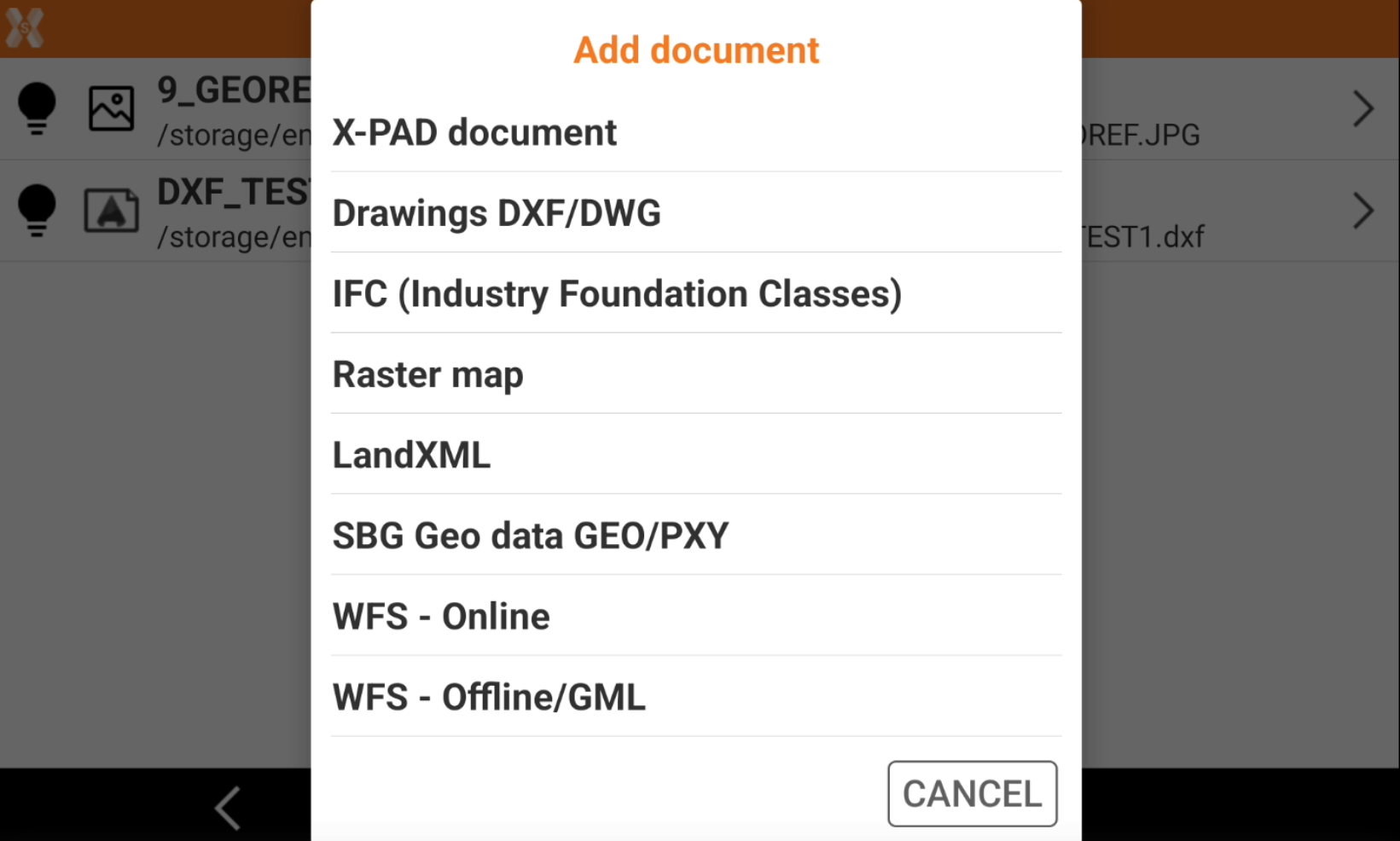
Select the file format to add.
-
X-PAD document: loads an X-PAD job file in GFD4 format as external reference.
-
Drawing DXF/DWG: loads a drawing file in DXF or DWG format as external reference.
-
IFC: loads a BIM model in IFC format.
-
Raster map: loads a raster map to be used as background.
-
LandXML: loads a LandXML file as external reference.
-
SBG Geo data GEO/PXY: loads a SBG Geo data file in GEO as PXY format as external reference.
-
WFS - Online: loads an online WFS (Web Feature Service) accessible through internet to loads specified entities as external reference.
-
WFS - Offline/GML: loads WFS (Web Feature Service) entities from a file in GML format.
-
-
Select the location of the file and click on the file.
The selected external reference file is copied into the folder “ExternalReference” of the current site.
-
Select the options depending on the selected format and click Accept.
-
The reference file is added to the list and loaded.
Change external file visibility
-
It is possible to change the visibility of each loaded external reference.
-
From the list of external reference click the corresponding icon to change the visibility:
-

-

-
It is possible to change the external file visibility also from CAD. Refer to External reference management.
Delete an external reference
-
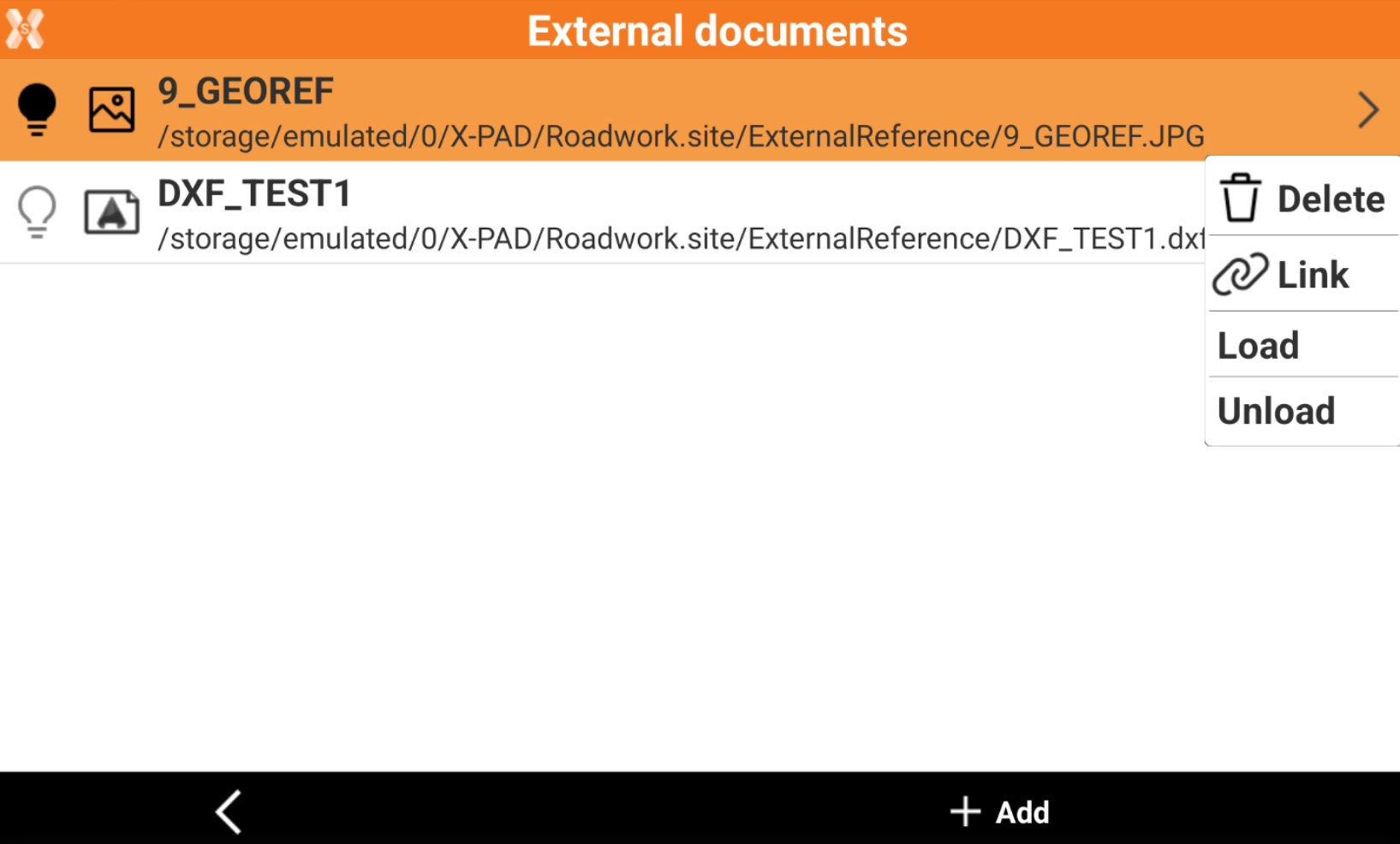
To delete an external reference, click the external reference from the External documents page.
-
Click Delete to delete the link to the external document.
Re-establish a link to an external document
-
An external document can change the storage path and be present in another folder.
-
If the link to a document is missing, the external document shows this icon and it is in grey.

-
Click the external document and select Link.
-
Specify the new file path and select again the document.
Load/unload an external document
-
An external document can be unloaded or loaded.
-
If a document is loaded, the data is loaded in the memory and to the current document. If a document is unloaded, it is removed from the memory.
-
To load or unload an external document, from the External documents page select the reference.
-
Click Load or Unload.