



-
From the list of measurements, notes can be displayed, hidden or added. Two types of notes are available:
-
Automatic notes: notes inserted automatically by the software in response to certain events. For example:
-
Connection of the instrument.
-
Interruption of the connection to the instrument.
-
Start of the base.
-
Start of raw data recording.
-
Interruption of raw data recording.
-
-
User notes: texts, sketches and photo saved by the user.
-
Display or hide the notes
-
Open the Job tab.
-
Select Points/Measurements/Codes.
-
Open the Measurements tab.
-
Select Tools to open the list of available tools.
-
Select View Notes or Hide notes to view or hide the notes in the fieldbook.
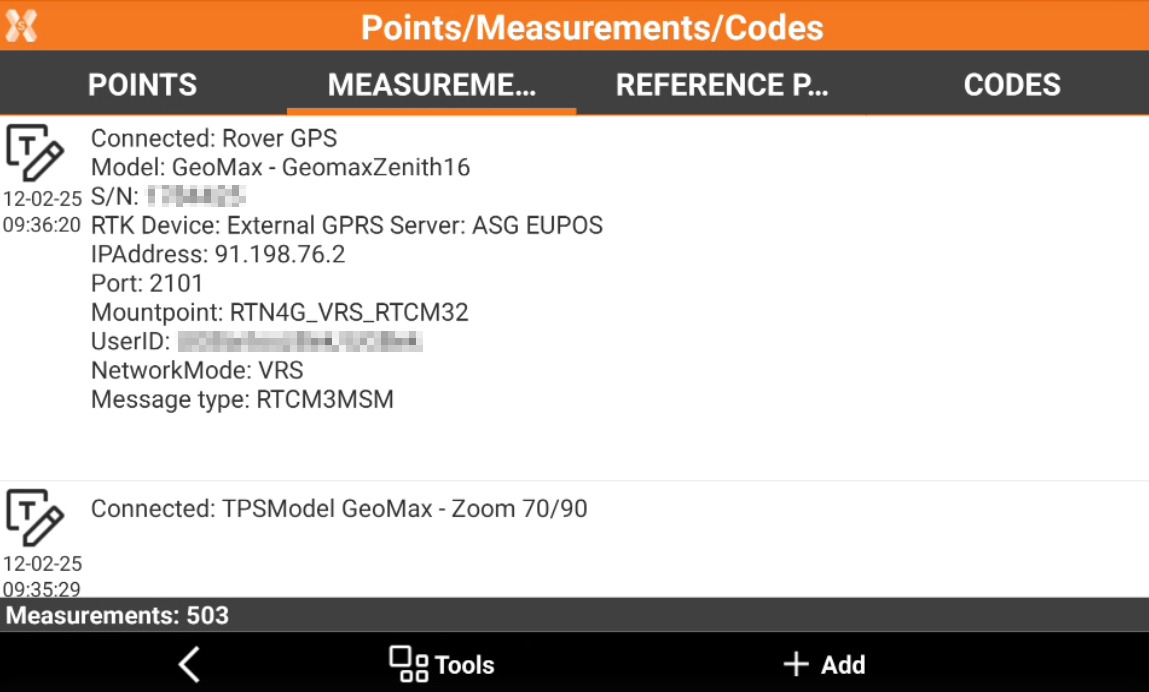
Add a user note
-
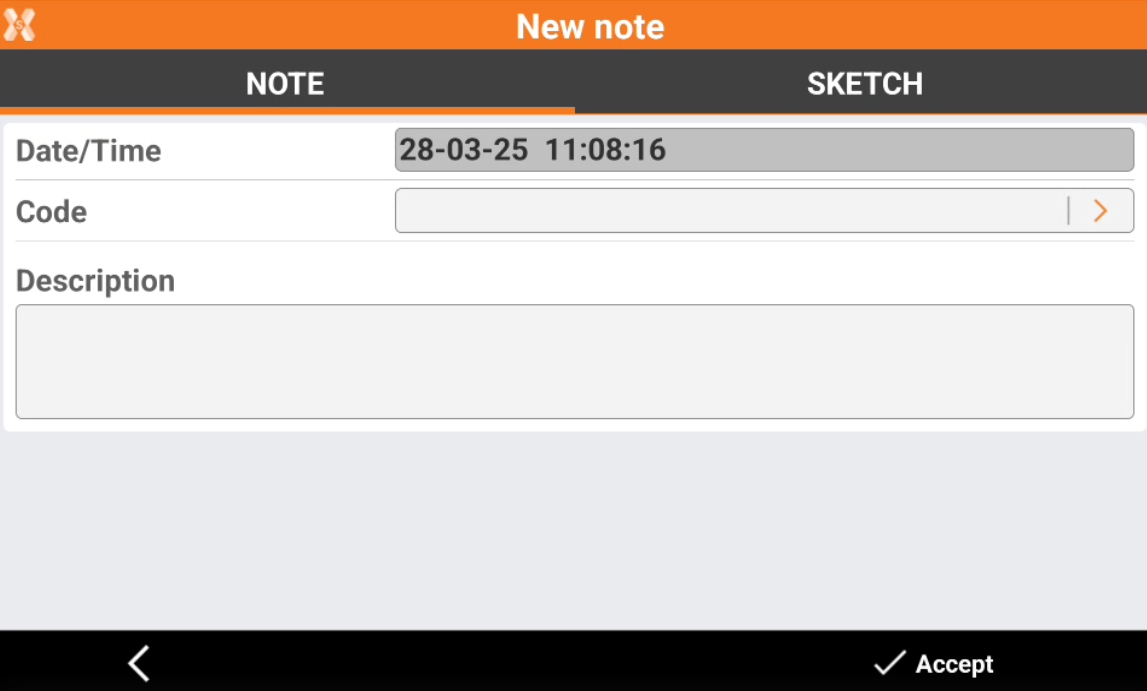
From the Measurements select Add to add a new note. This opens the New note page.
-
The Note page allows to add a descriptive text.
-
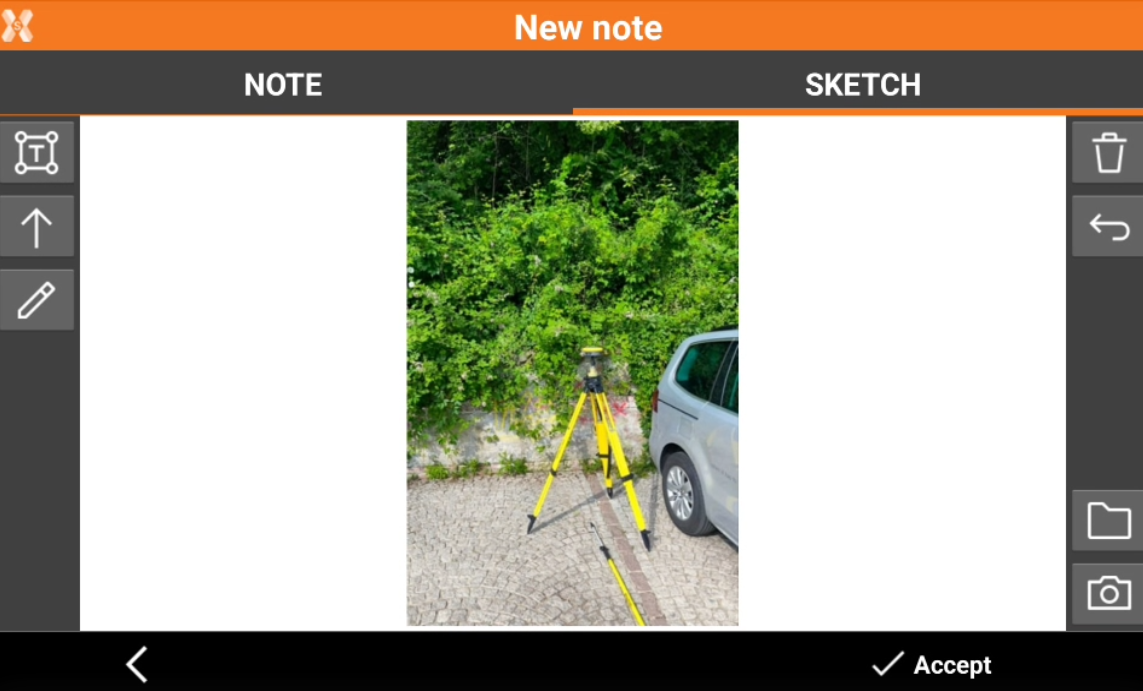
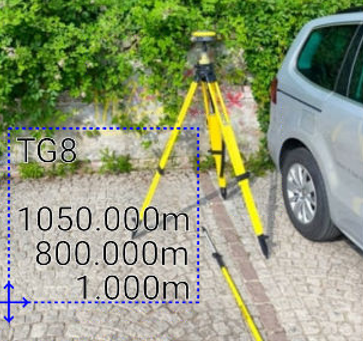
The Sketch page allows add a sketch or photo to the note.
-
-
-
-
-
-
-
-
-