

-
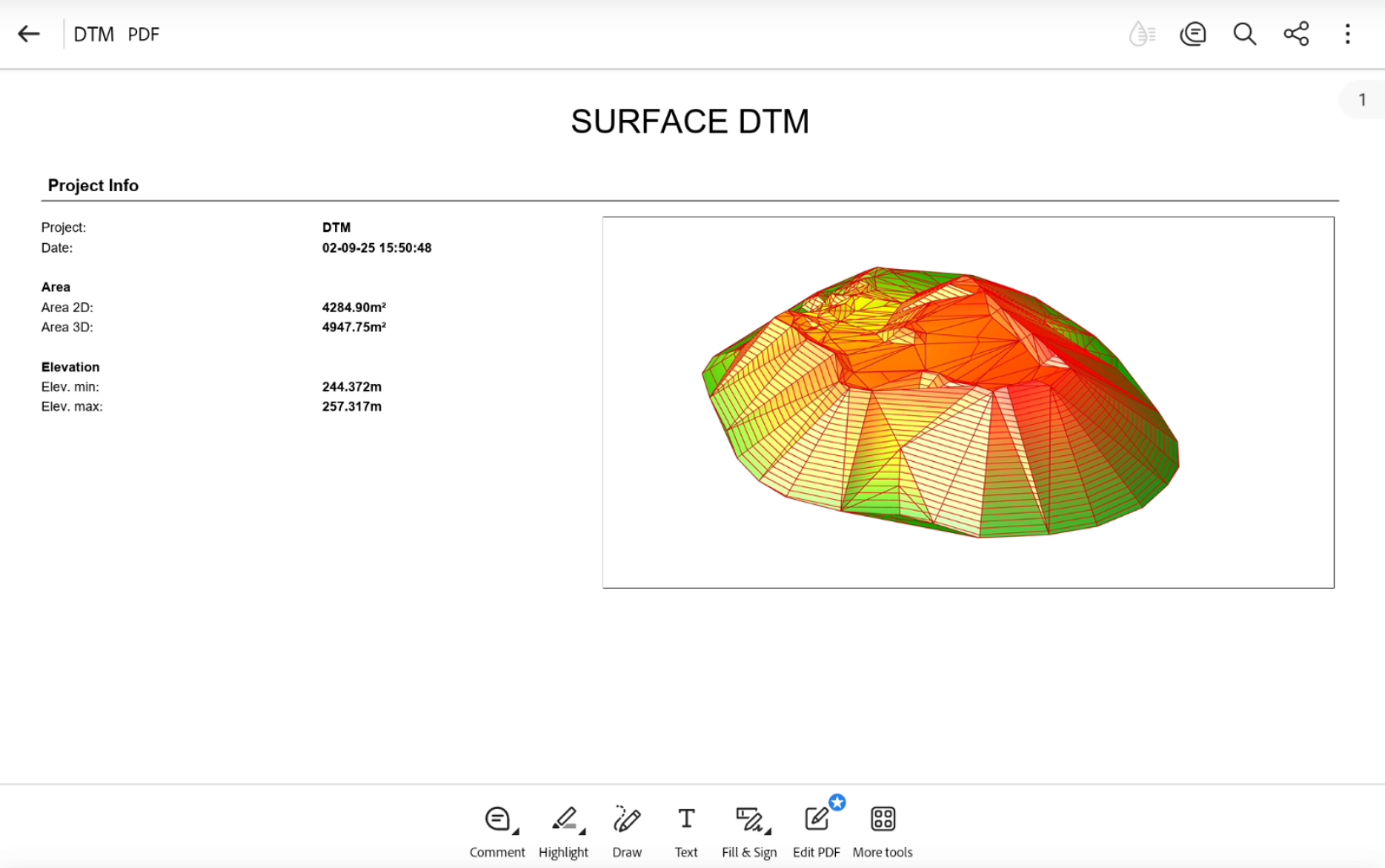
To generate a report of an existing surface from the Surface and Volumes click Surfaces.
It is possible to generate a report also from Surface → View → Data → Report
-
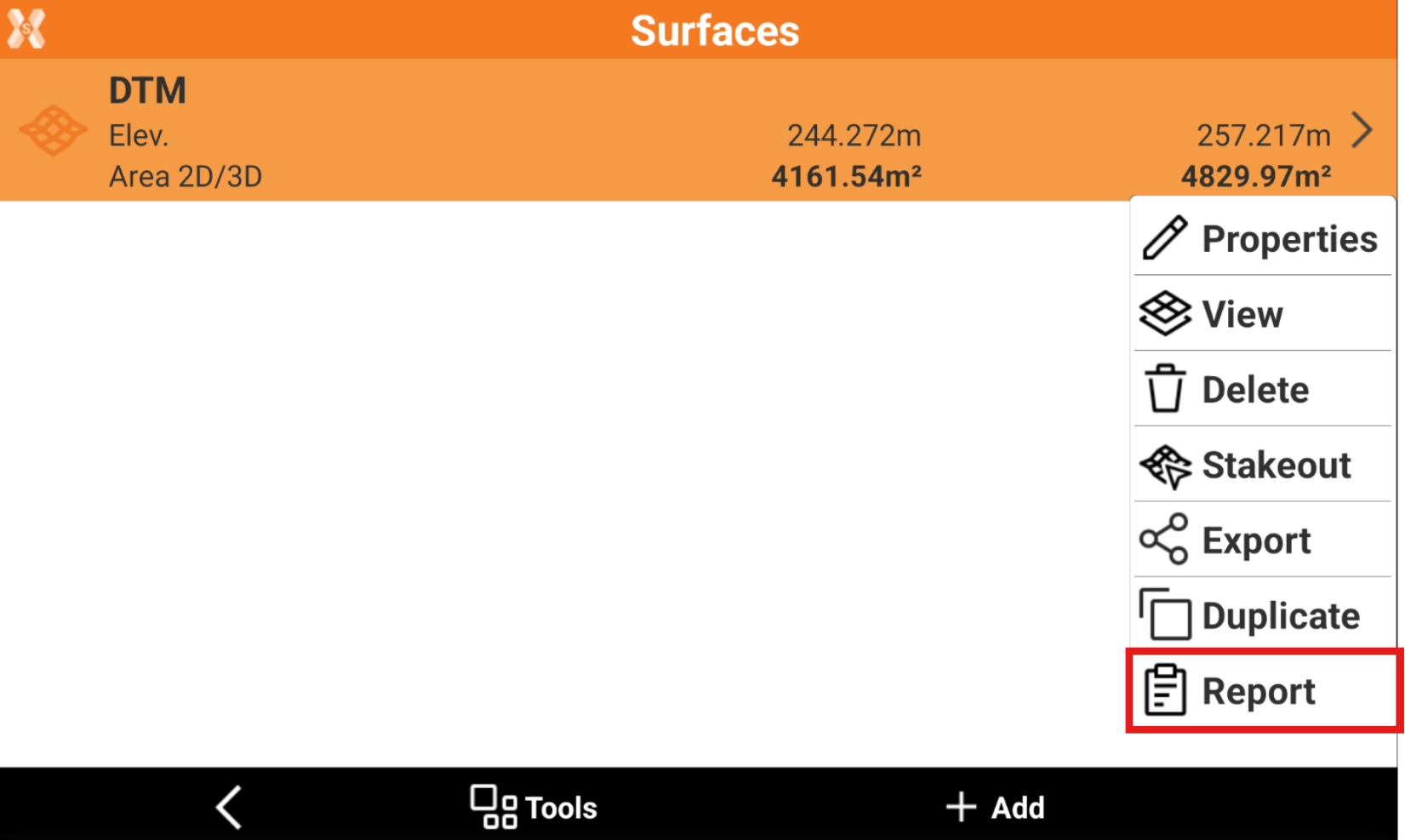
Select a surface from the list and click Report.
-
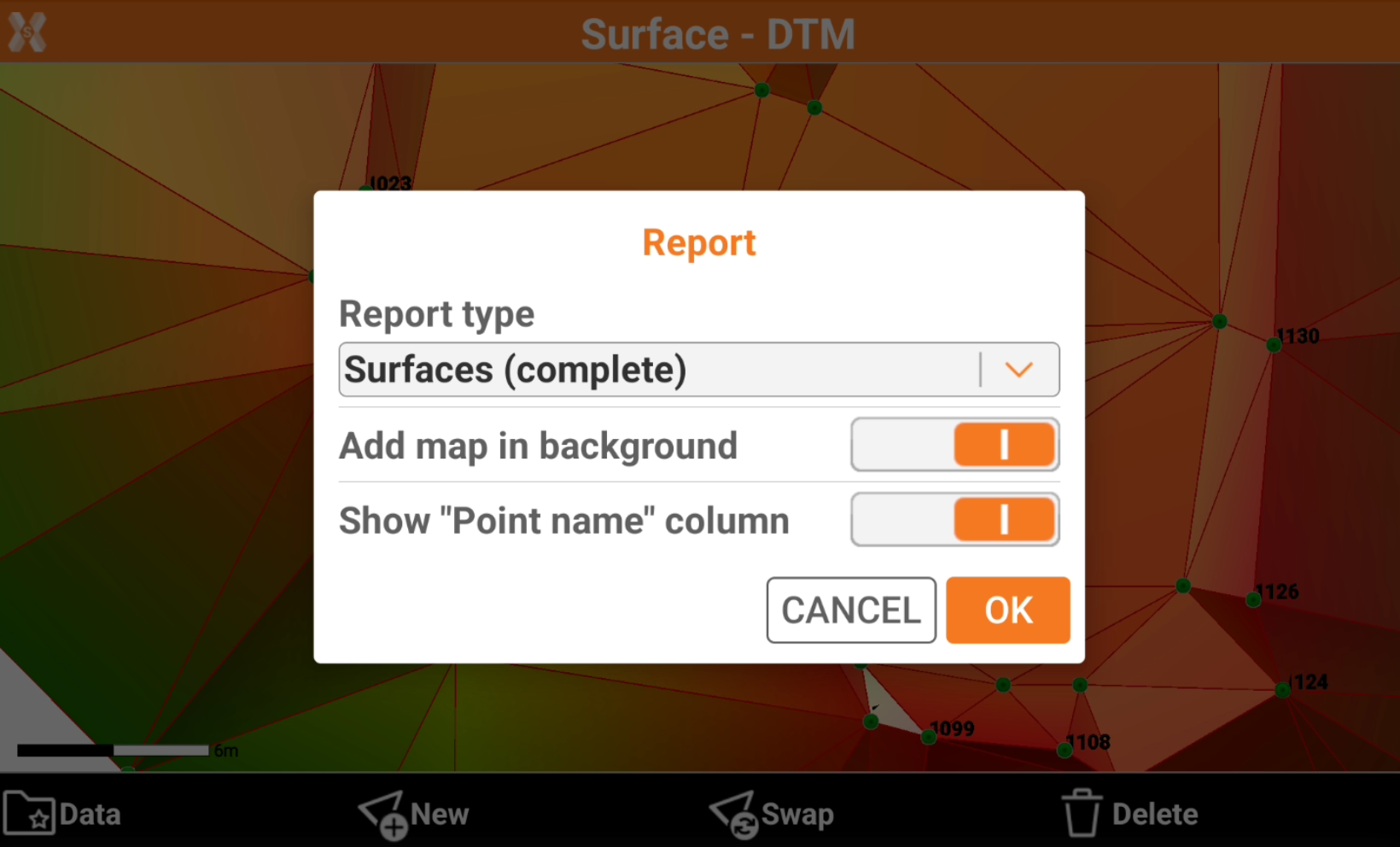
Select the report type and the report options.
-
Report type:
-
Summary: includes the main surface information.
-
Complete: includes the detailed information for each triangle.
-
-
Add map in background: enables the background map in the surface view in report.
-
Show “Point name” column: shows the point name when listing the triangles. Available if Report type is Complete.
-
-
Click Ok.
-
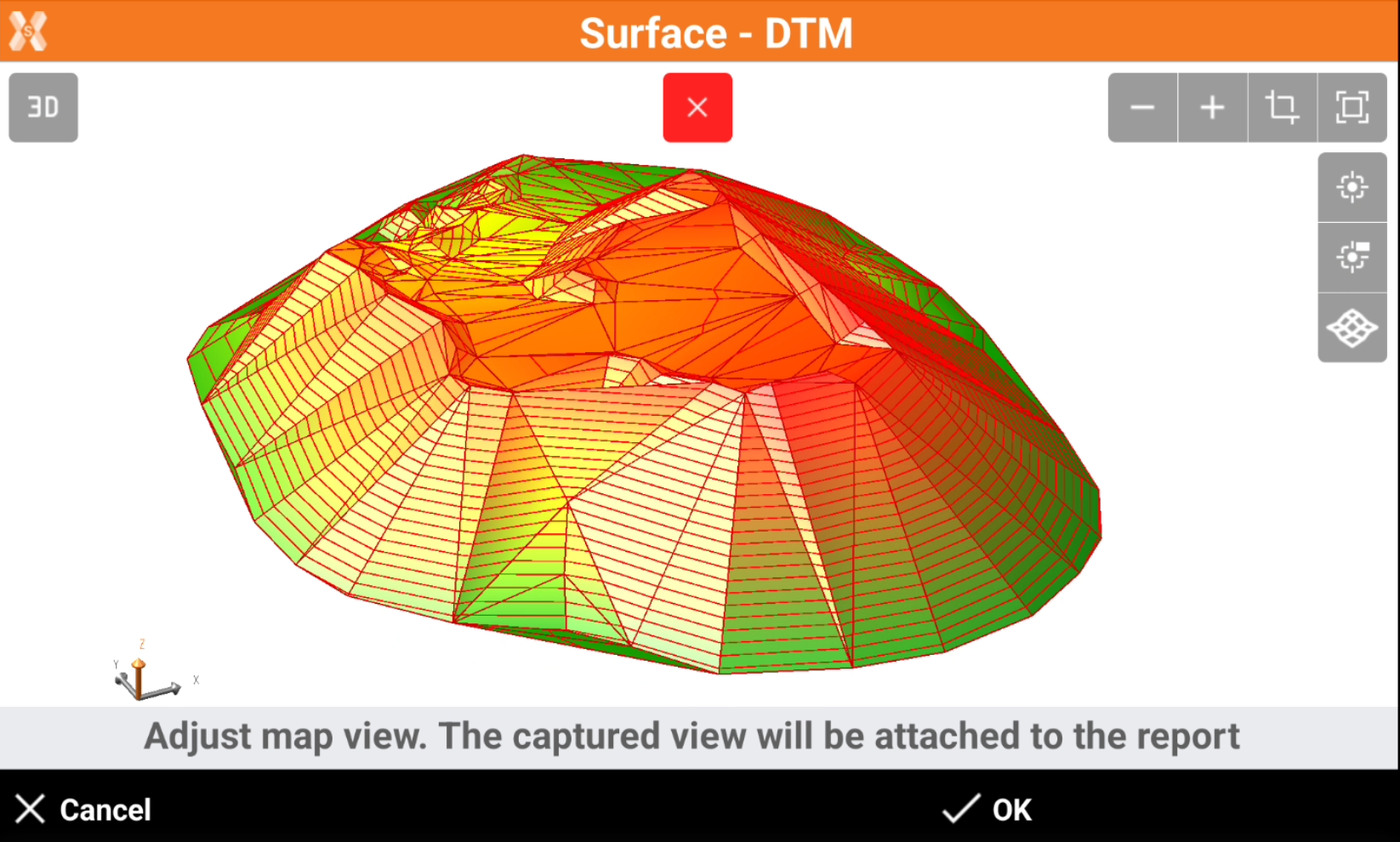
The following page allows to adjust the map view. The captured view will be attached to the report.
-
Use the CAD commands to adjust the view.
-
When done click OK to create the report.
-
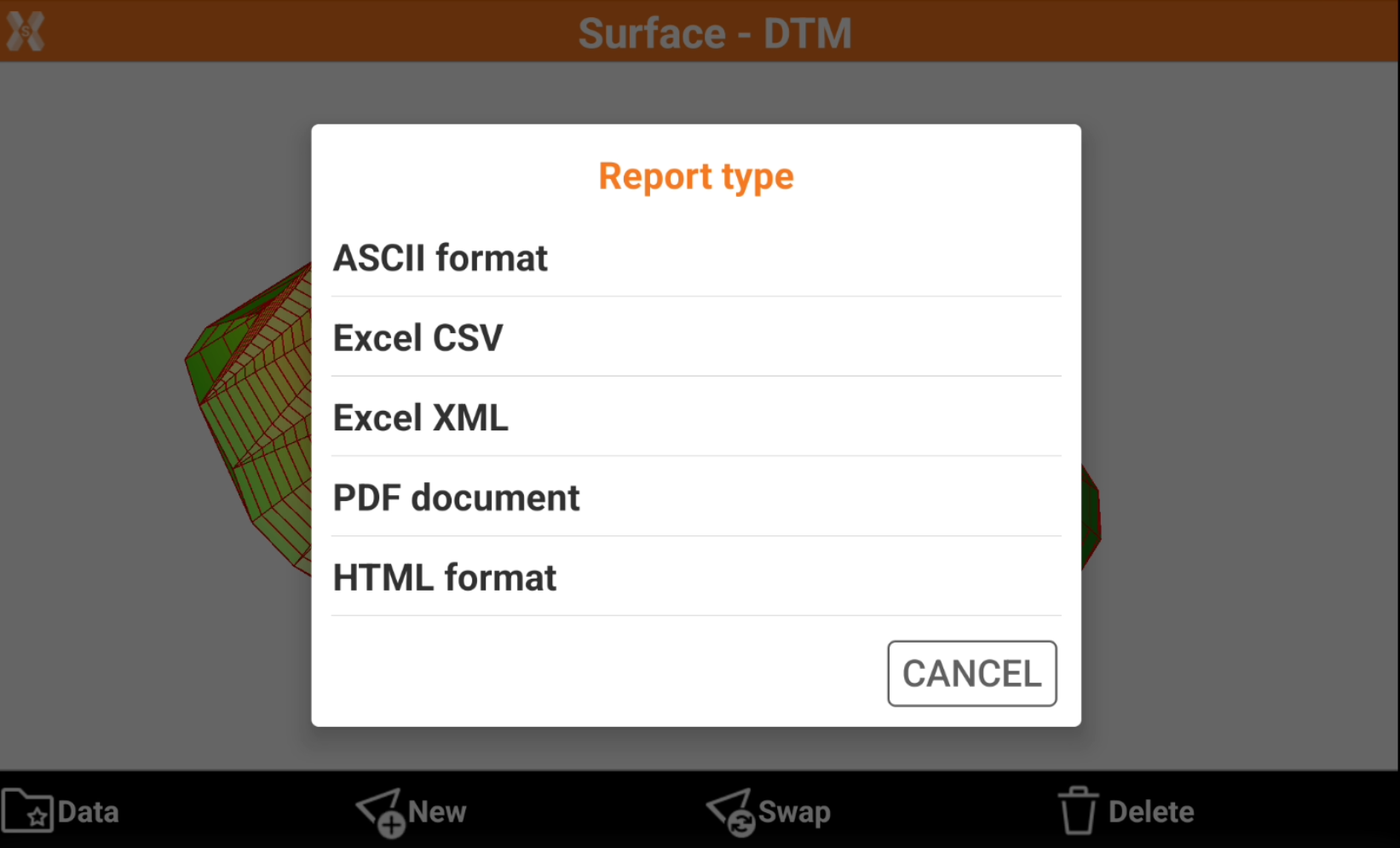
Select the format to export and save the file.
-
The report will be saved.