



-
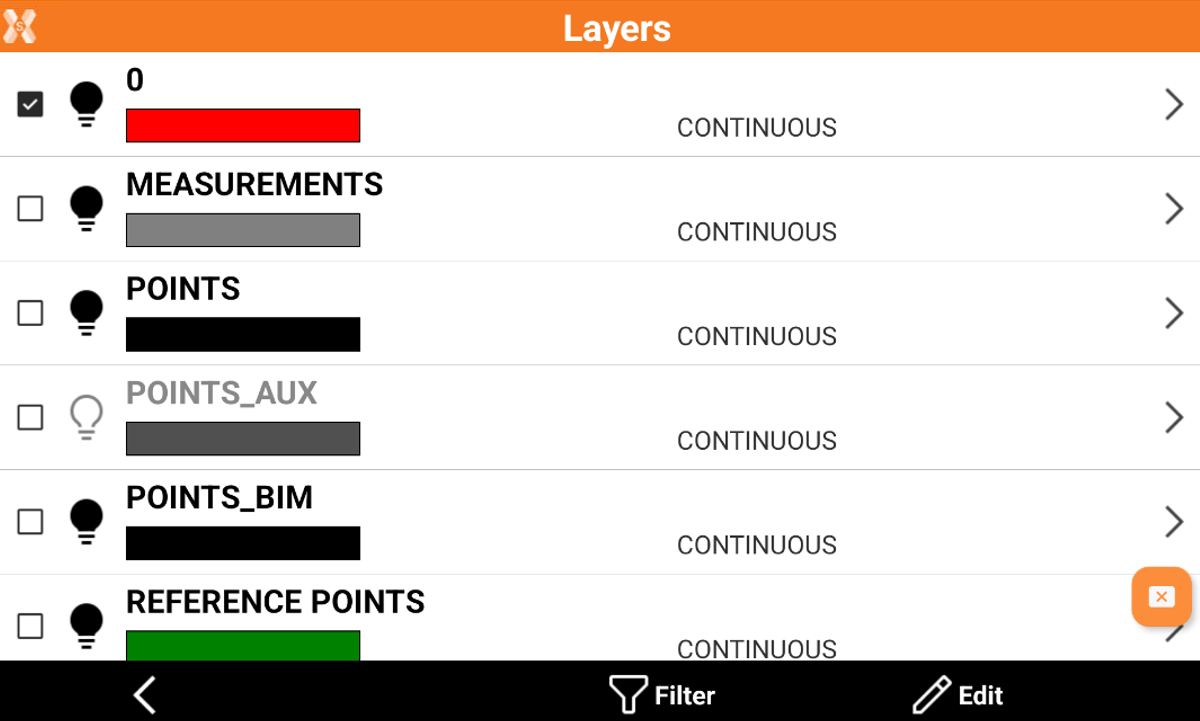
In the Layer manager it is possible to view, edit or create new layers.
-
Click Job.
-
Click Points/Measurements/Codes.
-
Open the Codes tab.
-
Click Add to open the page to add a new code, or select and Edit an existing code.
Layers can also be managed from CAD Project Manager.
-
Open the Layer & color page and click Layer to open the Layer manager.
-
This page lists the used layers in the project.
If a code is in a specific layer, the layer will not be visualized in this page until an entity on that layer is created.
Set the current layer
-
Click

-
The current layer is marked with

Filter the layers
-
Click Filter

Edit a layer
-
Click Edit to edit a layer.
-
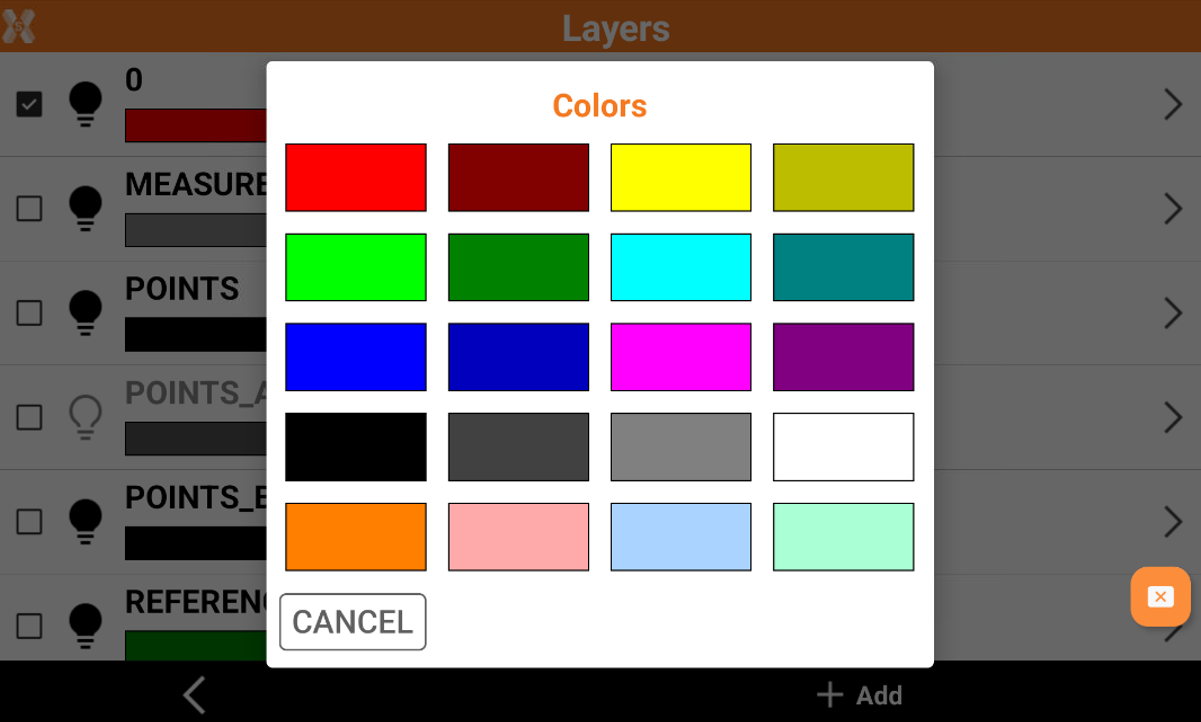
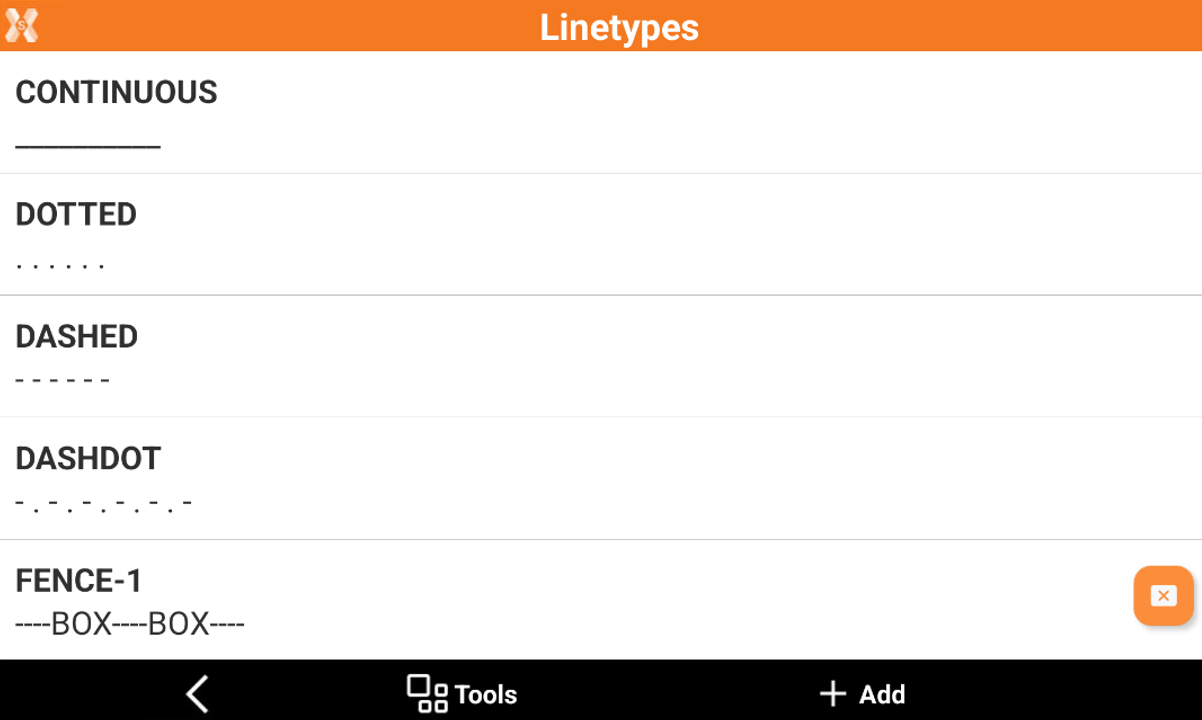
In the edit mode it is possible to change the layer color or the assigned linetype.
-
To change the color click on the color bar near the layer to select a different color.
-
To change the linetype click on a layer linetype to open the list of available linetypes.
Add a new layer
-
To create a new layer click Edit.
-
Click Add to create a new layer. After a new layer has been created it can be selected as current layer.