



-
The Project Manager surface panel allows to manage the surfaces available in the job.
-
The panel allows to make them enabled/disabled.
-
Open the CAD Project Manager.
-
Click Surface

-
The panel shows the list of available surfaces.
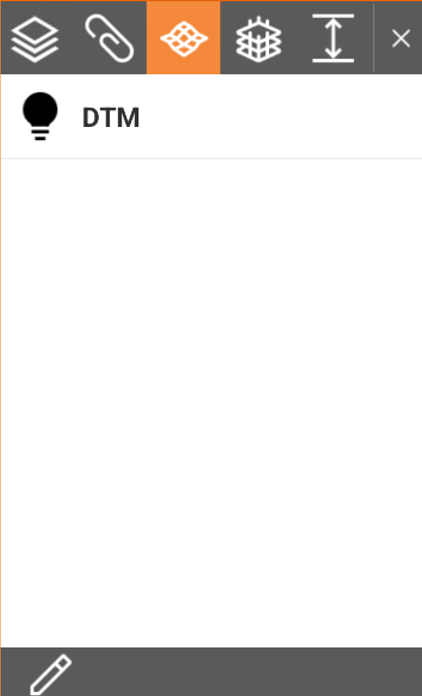
Making a surface visible or invisible
-
Visible surfaces are marked by

-
Invisible surfaces are marked by

-
Click the symbol to change the visibility of a surface.
Manage surfaces
-
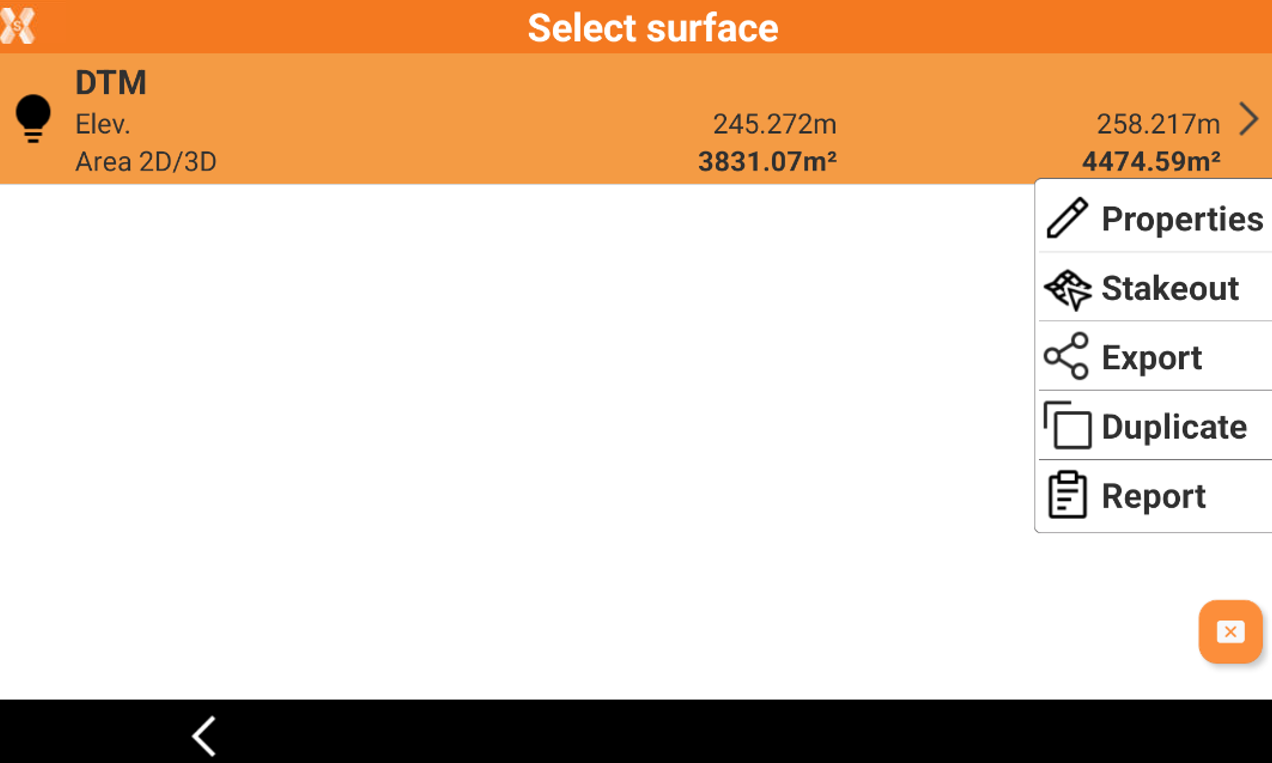
To open the Surface page click

-
This page lists the available surfaces. Click
-
Click on a surface to open a drop-down menu with different functions:
-
Properties: opens the surface properties page.
-
Stakeout: opens the function to stakeout the selected surface using the current instrument profile.
-
Export: exports the selected surface in an office format (DXF or SBG Geo TRM).
-
Duplicate: duplicates the selected surface.
-
Report: generates a report of the selected surface.
-