
-
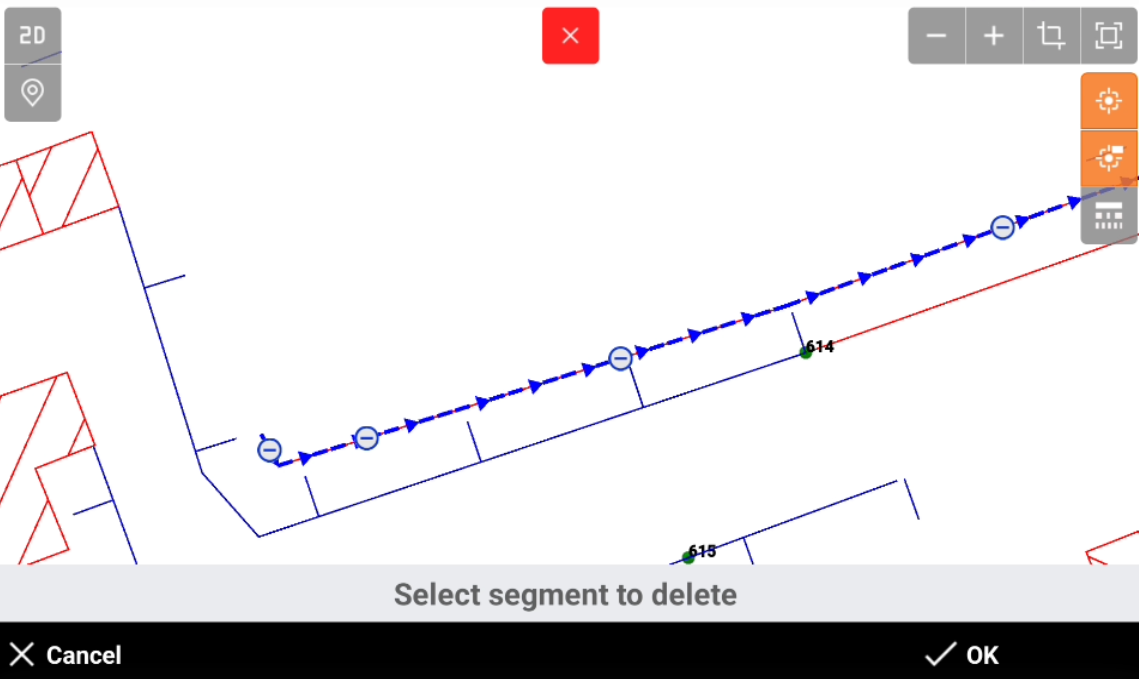
Edit polyline functions allow to edit a selected polyline in CAD.
-
Click Edit.
-
Select Edit polyline.
-
Select the polyline in CAD.
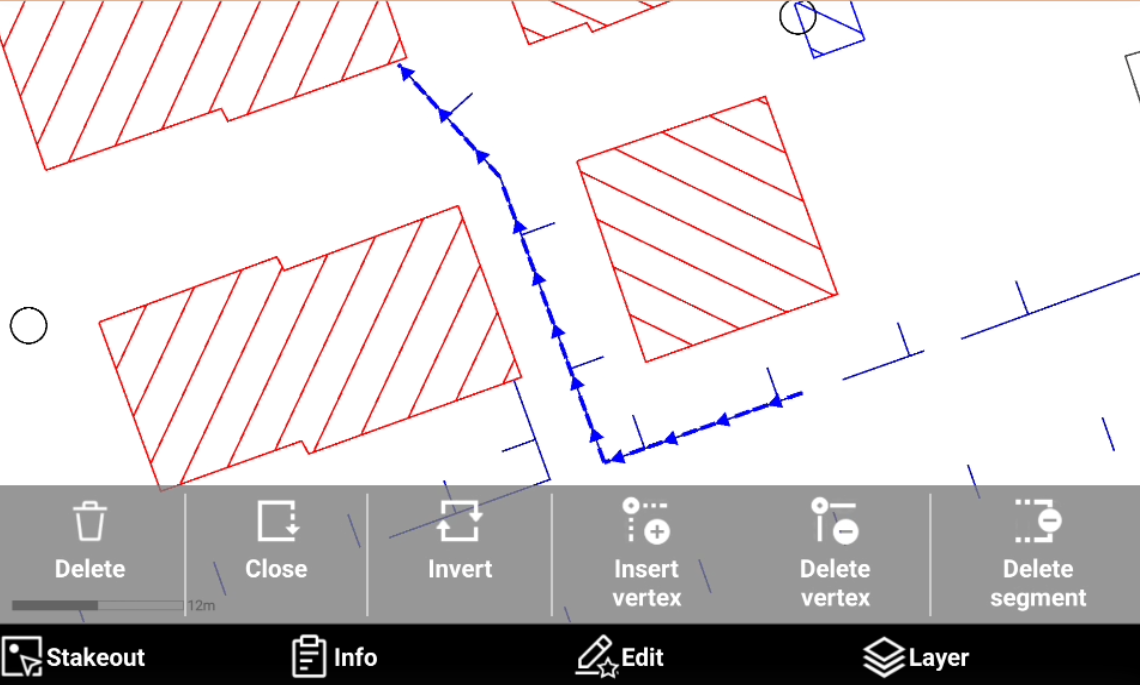
This toolbar can also be opened selecting a polyline and clicking Edit.
-
This opens a new toolbar with the polyline editing functions.
-
Delete: allows to delete selected polyline.
-
Close: closes the polyline.
-
Invert: inverts the vertexes order of the polyline.
-
Insert vertex: inserts a new vertex in the selected segment of the polyline.
-
Delete vertex: deletes a polyline vertex.
-
Delete segment: deletes a selected polyline segment.
-
Delete
-
Delete allows to delete the selected polyline.
-
Select Delete.
-
Click OK to confirm and delete the polyline.
Close
-
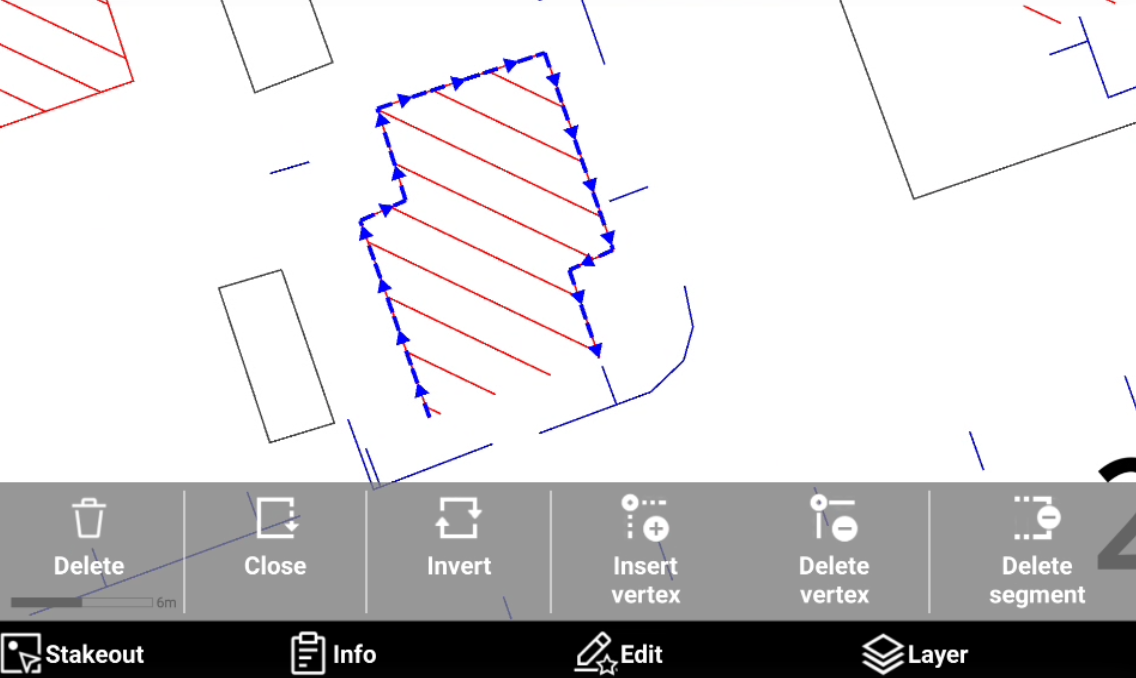
Close closes the polyline connecting the first and last vertex.
-
Select Close.
-
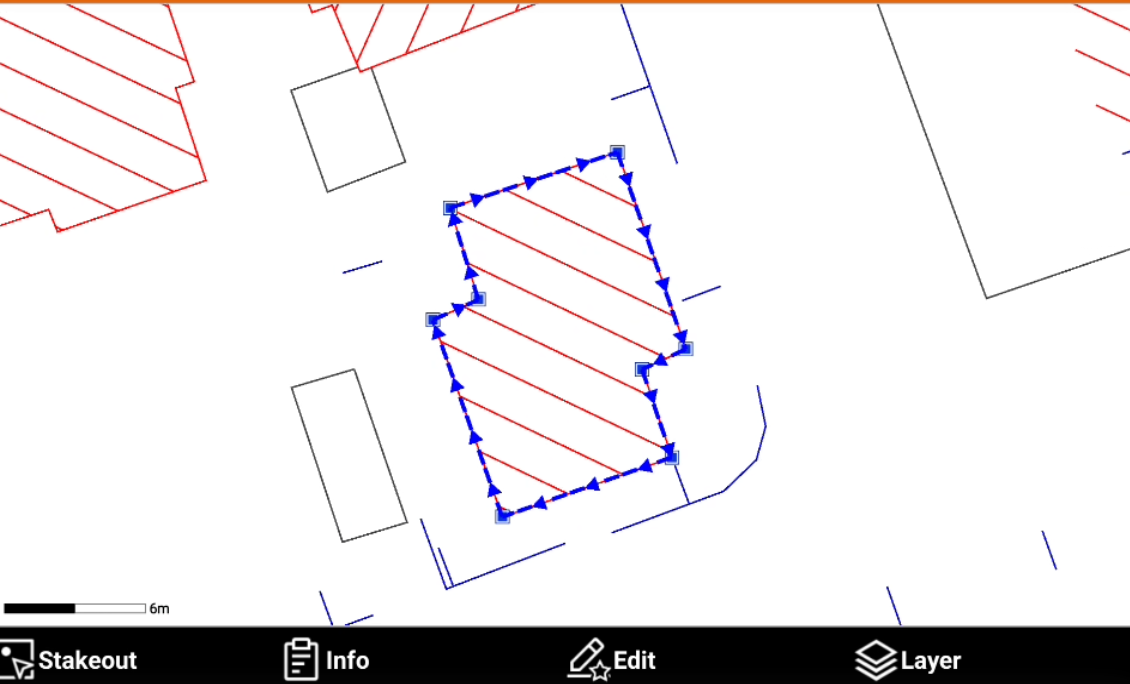
The software closes the polyline connecting the first and last vertex.
Invert
-
Invert reverses the vertex order of a drawing element.
-
Select Invert.
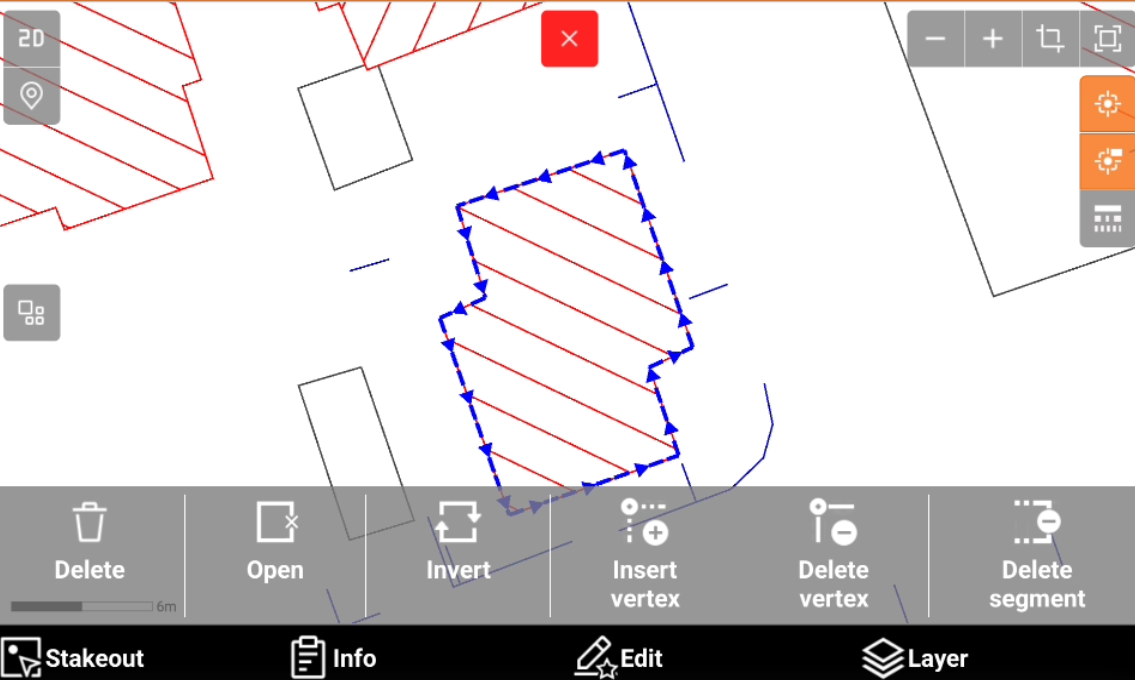
-
The vertex order of the selected polyline is inverted.
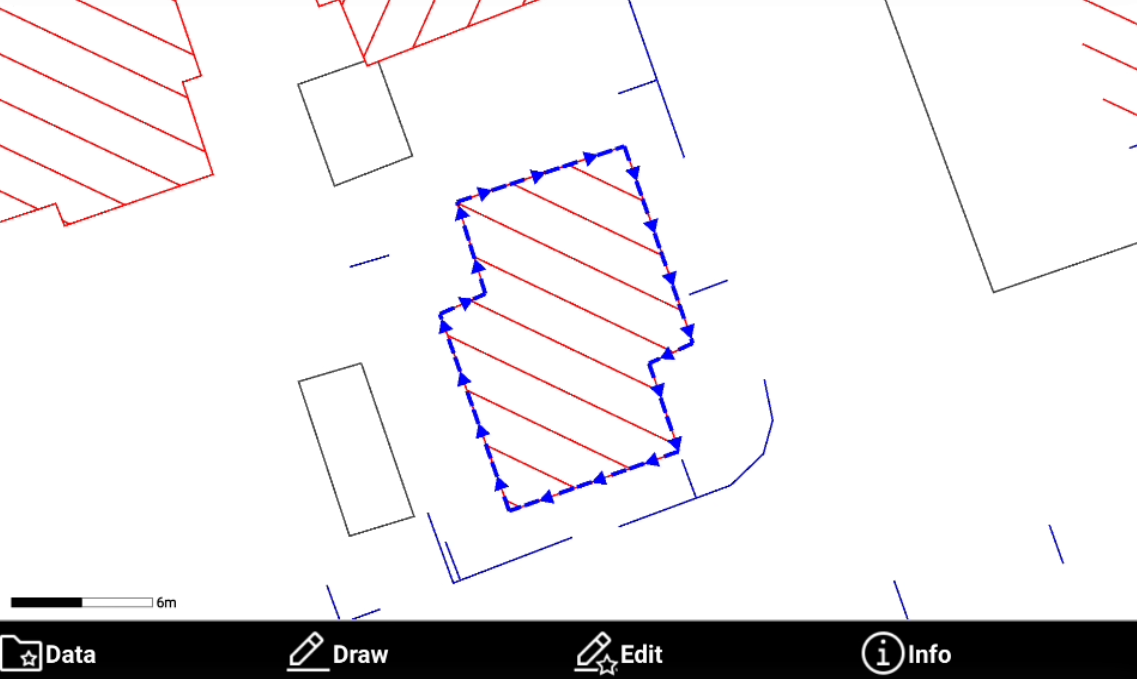
Insert vertex
-
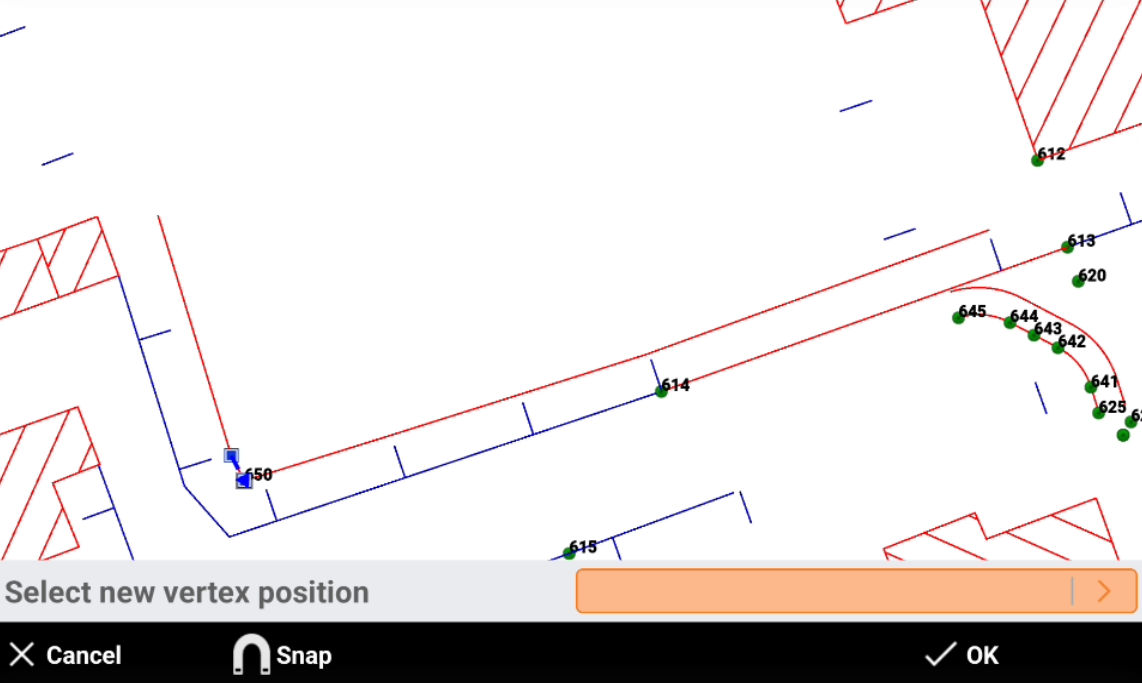
Insert vertex inserts a new vertex in the selected segment of the polyline.
-
Select Insert vertex.
-
Select the segment on which add a new vertex.
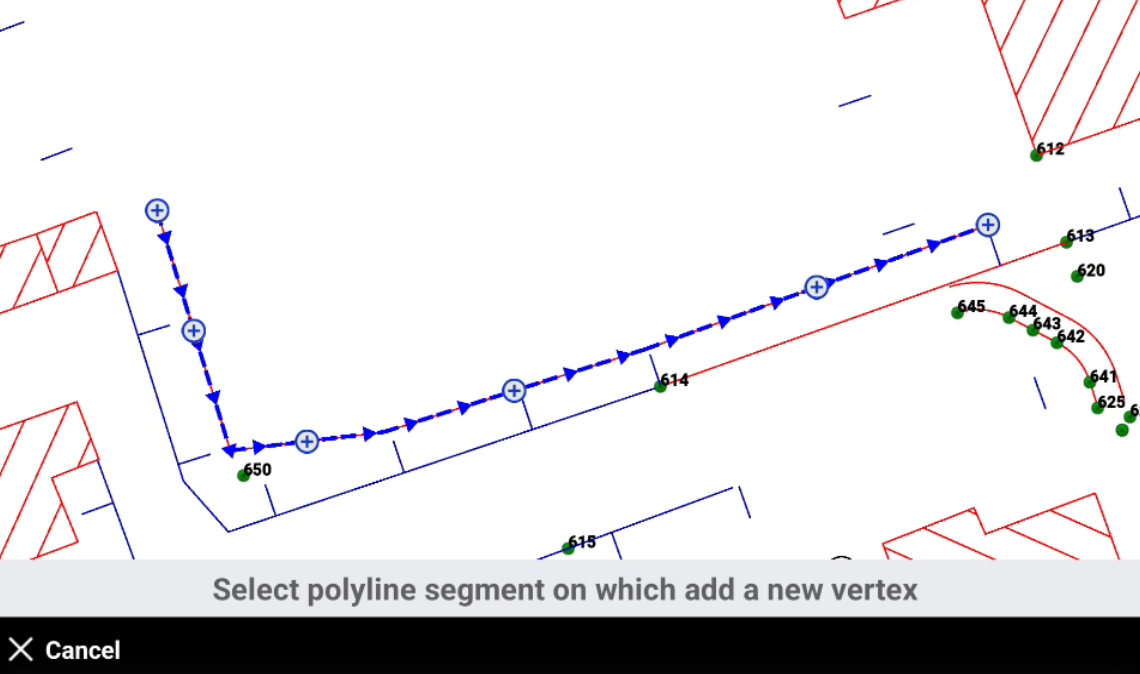
-
Select the new vertex position.
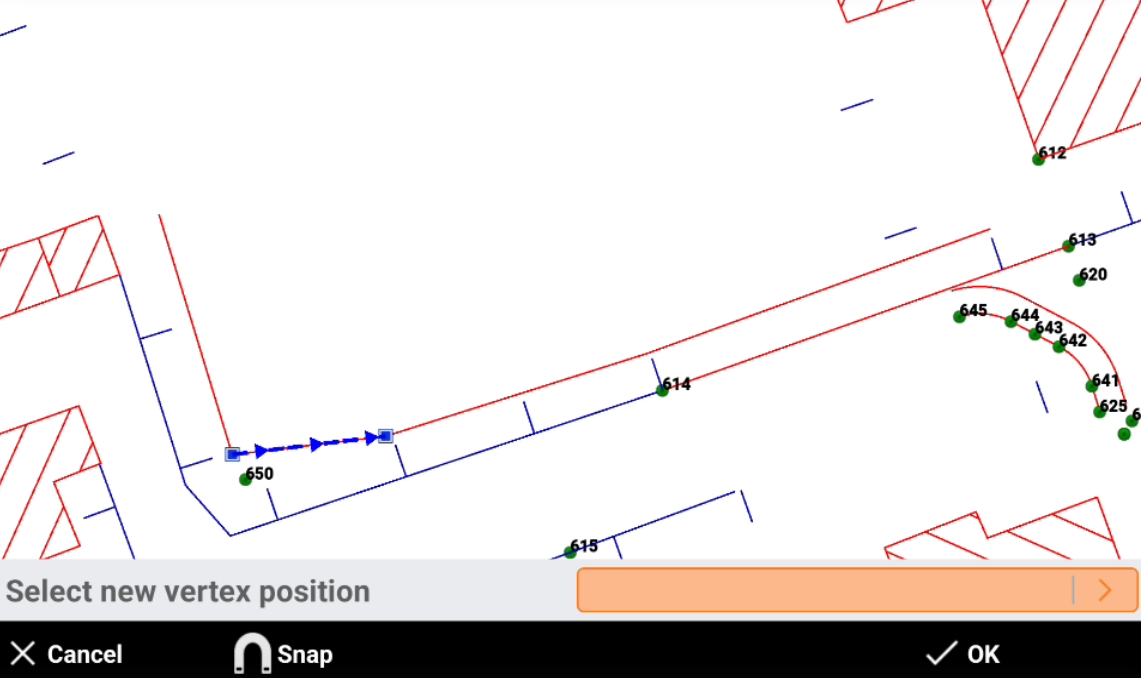
-
The new segments are created.
Delete vertex
-
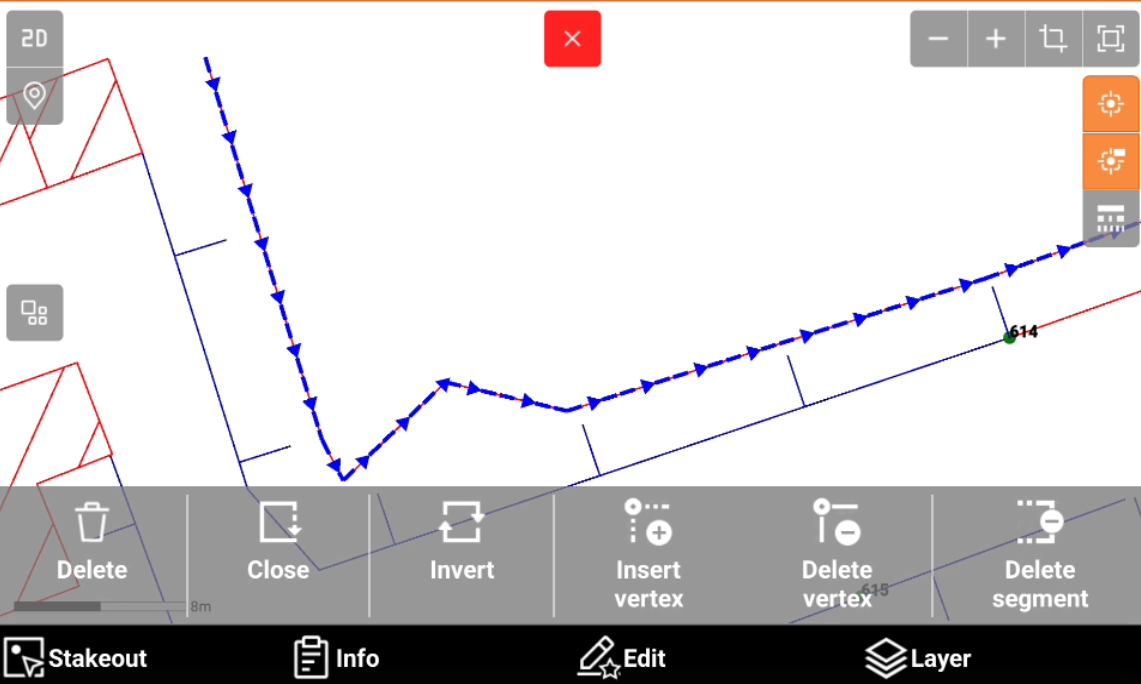
Delete vertex deletes a vertex from a selected polyline
-
Select Delete vertex.
-
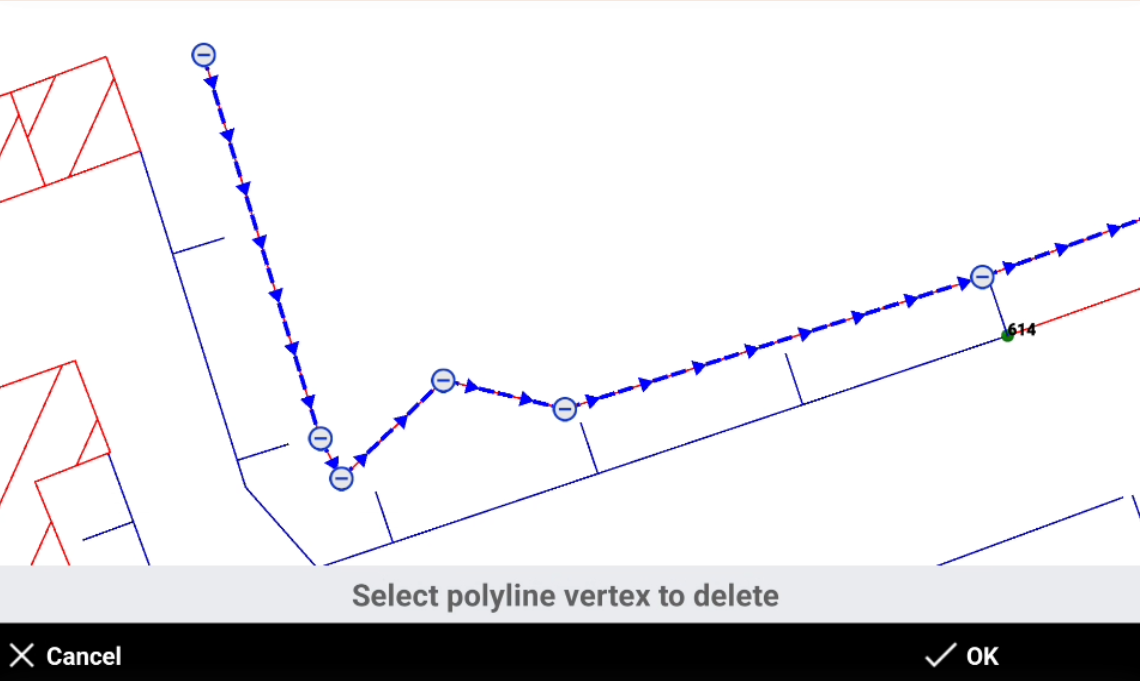
Select the vertex to delete.
-
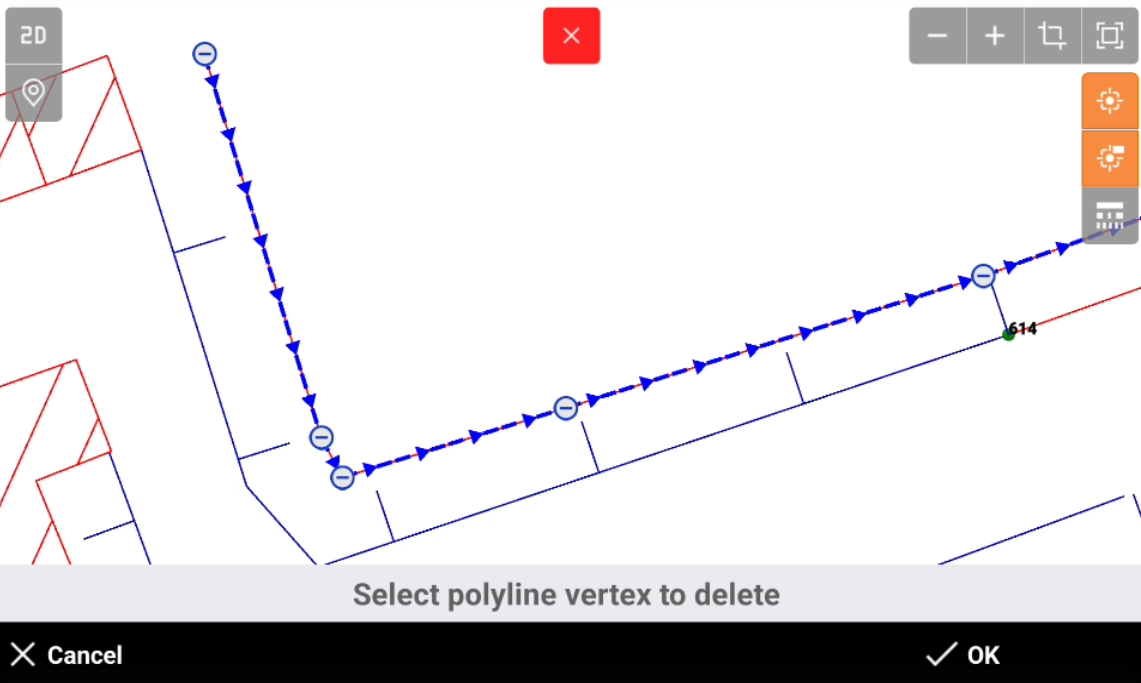
Click OK to save the result or delete other vertexes.
Delete segment
-
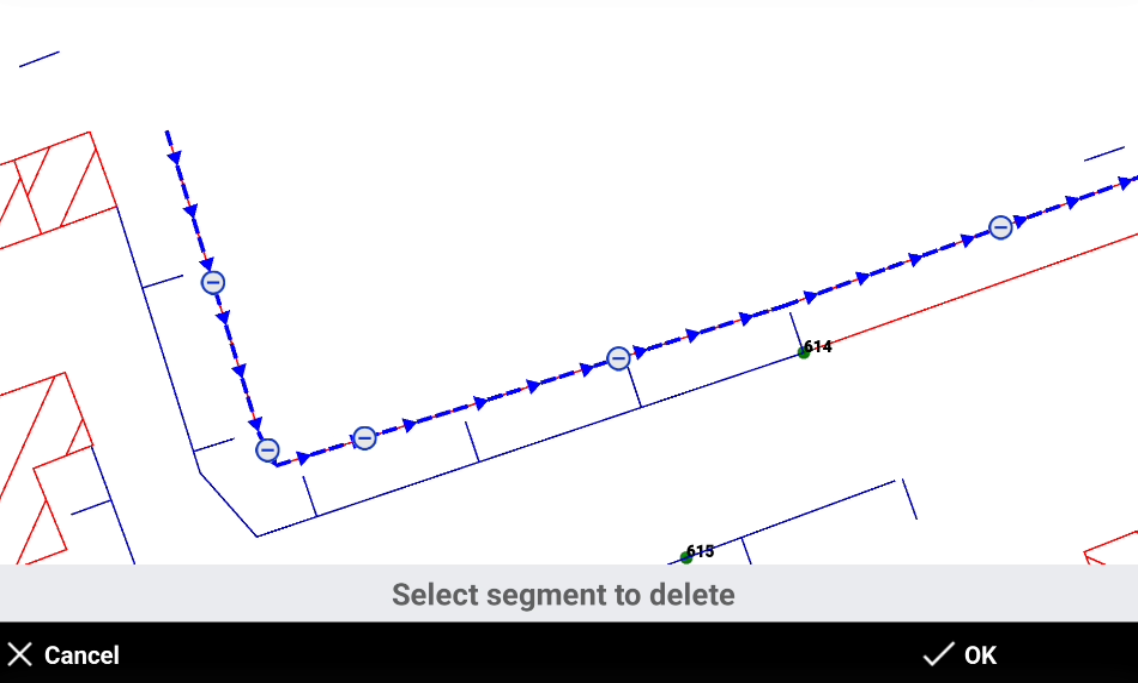
Delete segment deletes a segment from a selected polyline.
-
Select Delete segment.
-
Select the segment to delete.
-
Click OK to save the result or delete other segments.